My iPhone storage keeps filling up even though I barely use the phone, don’t download many apps, and regularly delete photos and messages. I’m trying to figure out what’s taking up space, why the storage usage keeps coming back, and how to free up iPhone storage for good.
People keep saying their iPhone 'ate' a bunch of storage overnight. I used to think the same thing. Then I checked the numbers a few times on my own phone and on my dad’s, and it was the same pattern. Space had been draining slowly for weeks. The alert only showed up once free storage got low enough.
Start here: Settings > General > iPhone Storage. Don’t guess. Look at the chart and the app list. In most cases, one or two categories are doing most of the damage.
Photos usually end up being the main problem
On a lot of phones, Photos takes the top spot by a mile.
And it’s rarely only the pictures you meant to keep. I kept finding junk like this:
- five near-identical shots from one second
- old screenshots I forgot about
- screen recordings I made once and never watched again
- Live Photos
- huge video clips
- burst shots
I had a couple trip videos and a mountain of screenshots. That alone ate gigabytes. Sneaks up on you fast.
Apps grow after install
This part gets missed a lot. The size you see in the App Store is not the full story.
Apps like Instagram, TikTok, Messages, Spotify, YouTube, Amazon, Netflix, they keep saving stuff locally. Cached images. Video chunks. temp files. Offline downloads. Podcasts. Playlist downloads. It stacks up.
I’ve seen apps listed around a few hundred MB end up taking multiple GB on the phone after months of use.
If one app looks bloated in the storage screen, deleting it and installing it again sometimes clears out a lot of built-up junk.
Messages and Downloads matter more than people think
I ignored Messages for way too long. Bad call.
Every photo, video, GIF, audio clip, and random attachment from conversations sits on the device unless you clear it. Same deal with files in the Files app, especially the Downloads folder.
These sections aren’t always the biggest, but I’ve seen them hold several GB with no obvious warning signs.
System Data is messy
If you cleaned the obvious stuff and the total still looks off, check System Data.
This bucket includes cache files, logs, update leftovers, and other background data iOS hangs onto. Some amount of it is normal. Sometimes it gets larger than you’d expect. Apple doesn’t give you a clean manual button for wiping it, which is annoyng.
If Photos is huge, start there first
When Photos is the largest category, I wouldn’t waste time removing random apps first. Media cleanup usually gets you the biggest return with the least damage.
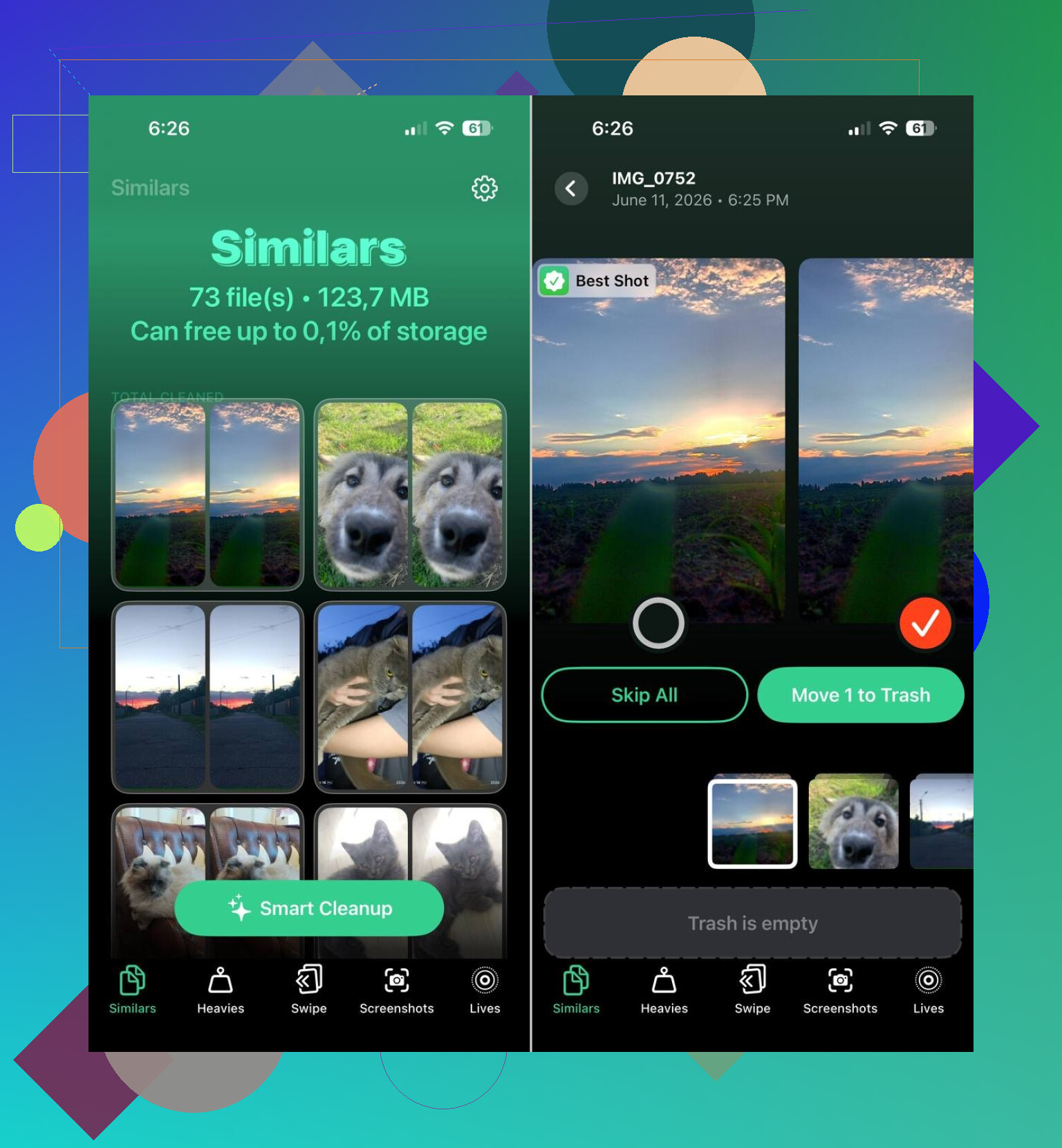
One option people mention a lot is Clever Cleaner. Apple’s built-in Duplicates album only catches exact duplicate files. This one also looks for similar images, which is where a lot of wasted space tends to hide.
What stood out to me:
- it finds similar photos automatically
- it surfaces the biggest photos and videos first
- it groups screenshots so you can clear them in batches
- it turns Live Photos into standard photos
I’ve seen reports from people clearing 10 GB, 20 GB, sometimes 30 GB after trimming similar shots, screenshots, and Live Photos. Sounds high until you look at your own library and see 14 versions of the same cat pic.
The order I’d follow
If your storage keeps shrinking, this is the checklist I’d use:
- Open iPhone Storage and find the biggest category.
- Clean similar photos, screenshots, and Live Photos.
- Check large videos.
- Remove offline downloads from apps.
- Review message attachments and your Files downloads.
- Look for oversized apps and reinstall the worst ones.
Most of the time, it isn’t the iPhone doing something mysterious. It’s old media, cached app data, downloads, and attachments piling up in the background. Once you spot the category eating your space, you can usually free a decent chunk without deleting stuff you care about.
8 Likes
A lot of the time, the phone is not “filling itself up” fast. The storage graph is slow to update, then iOS throws the warning when free space gets too low. So it feels sudden, but it usuallly was building for days or weeks.
I agree with part of what @mikeappsreviewer said, but I think people overfocus on photos. If you already delete pics and texts often, I’d look harder at stuff iPhone hides in plain sight:
- Safari website data. This gets stupidly large on some phones. Check Settings > Safari > Clear History and Website Data.
- Mail attachments. The Mail app stores downloaded attachments and old message data.
- Voice Memos. Tiny list, huge files.
- iOS update files. Failed or pending updates sit there.
- Podcasts and streaming app downloads. One offline season of a show can eat several GB.
- Recently Deleted in Photos and Files. Deleted is not always deleted yet.
Also check if iCloud Photos is set to “Download and Keep Originals.” That setting fills local storage even if you barely use the phone. “Optimize iPhone Storage” is better for small-capacity devices.
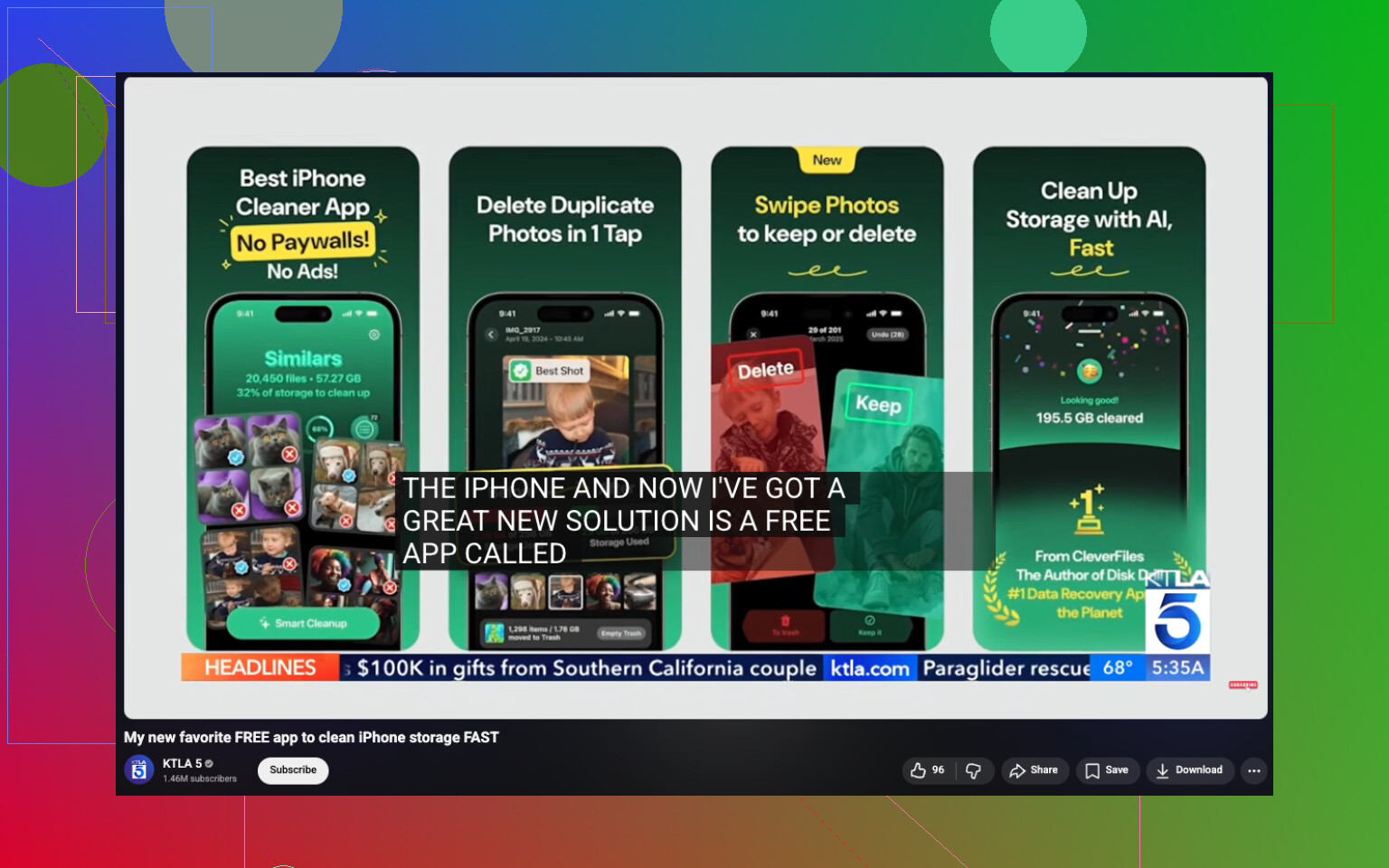
If your Photos library still turns out to be the main issue, Clever Cleaner is one of the better free iPhone cleaning apps for clearing similar shots, screenshots, Live Photos, and large videos without digging through everything by hand. This video on how to free up iPhone storage with a free cleaning app explains the cleanup process pretty well.
One more thing people miss. Restart the phone after a big cleanup. iOS sometimes reports storage wrong until after a reboot. Annoying, but true.
I’d actually push back a little on @mikeappsreviewer and @espritlibre here. Sometimes it’s not the “big obvious category” at all. iPhone storage can bloat from indexing and sync activity, especially if you recently updated iOS, restored from backup, signed into iCloud again, or turned on stuff like iCloud Drive, Messages in iCloud, or shared photo libraries.
What happens is the phone quietly re-downloads metadata, thumbnails, attachments, and temp files while “barely being used.” So yeah, usage feels low, but background processes are still busy.
A few less-mentioned things to check:
- Notes app with scanned docs
- WhatsApp/Telegram media if you use them
- GarageBand/iMovie leftover project files
- Books/PDFs saved locally
- Files app providers like Google Drive or Dropbox marked offline
- Music app syncing old downloads back
Also, if you use iCloud backup, an old backup restore can leave weird storage reporting for a while. Not forever, but long enough to be super annyoing.
One test that helps: compare your storage before bed, then after charging on Wi-Fi overnight. If it jumps, background syncing is probably the culprit.
If Photos does end up being the main hog, then sure, Clever Cleaner is worth a look since it’s faster than manually hunting similar pics, screenshots, Live Photos, and large videos. This honest Clever Cleaner review for freeing up iPhone storage breaks down what it does in plain english.
Also check Low Power Mode. Weirdly, when it’s off and the phone is idle on charger, iOS tends to do more background housekeeping. Not a bug exactly, just one of those Apple things.
I half-agree with @espritlibre, @codecrafter, and @mikeappsreviewer, but I think one thing gets missed a lot: storage warnings can be triggered by too little working space, not just by one giant category. iPhones get weird when free space gets very low. Indexing, photo analysis, log files, and app updates can all fail-cleanup and snowball.
A few places I’d check that weren’t stressed enough:
- Deleted voicemails in the Phone app
- Downloaded Siri voices and dictionaries
- Offline Maps in Apple Maps or Google Maps
- Browser downloads in Chrome/Firefox, not just Safari
- Attachments inside Notes and Reminders
- Old device-to-device transfer leftovers after setup
Also, “System Data” is sometimes inflated because the phone is trying to preserve temporary files until it has breathing room. That is why deleting 500 MB here and there often does nothing. You usually need one bigger cleanup chunk.
If Photos is still the largest block, Clever Cleaner is a reasonable shortcut.
Pros:
- good for similar photos and screenshots
- easier than manual review
- can surface large videos quickly
Cons:
- you still need to double-check what it wants to remove
- less useful if your problem is Mail, Files, or System Data
- any cleaner app is only as smart as your review before deleting
My practical take: stop deleting tiny things first. Free 5 to 10 GB in one shot, reboot, then re-check storage the next day. That usually tells you whether it was hidden media buildup or background sync churn.