Troubleshooting Android File Transfers to Mac: Been There, Fought That
Alright, so if you’ve ever tried getting files off your Android and onto a Mac, you already know it can feel like herding cats. Here’s what usually derails things and how I finally cracked the code (no magic wands required).
Start With The Simple Stuff
Before you throw your phone out the window or start cursing your Mac, go through this mental checklist:
- Unplug that USB cable and plug it back in—sometimes it’s just awkwardly seated.
- Try a new cable if you suspect the old one is being a drama queen.
- Test a different USB port. Macs can be annoyingly fickle about which port actually does its job.
- After plugging in to your Mac, swipe down on your phone and make sure you pick “File Transfer” (MTP) mode. If you spot “Charging Only” or something similarly useless, tap it and switch.
- Restart both gadgets. I know, it’s the first thing every help desk suggests—but sometimes it just works, okay?
USB Debugging: The Thing No One Tells You
If you’re still stuck, enable USB Debugging on your Android. Here’s the cheat code: Settings > About Phone > tap ‘Build Number’ seven times to unlock Developer Options, then go back and enable USB Debugging. It sounds like a weird game unlock, but it’s real.
When All Else Fails: Alternatives Galore
Can’t get Android File Transfer (AFT) to work? Uninstall it and try again—sometimes the app just needs a refresh. But honestly, there are sleeker tools out there…
You might’ve heard of options like AirDroid and Dr.Fone, both promising a smoother ride for cross-device file shenanigans. If you want to avoid cables altogether, AirDroid has your back (and possibly your WiFi password).
What I Actually Use
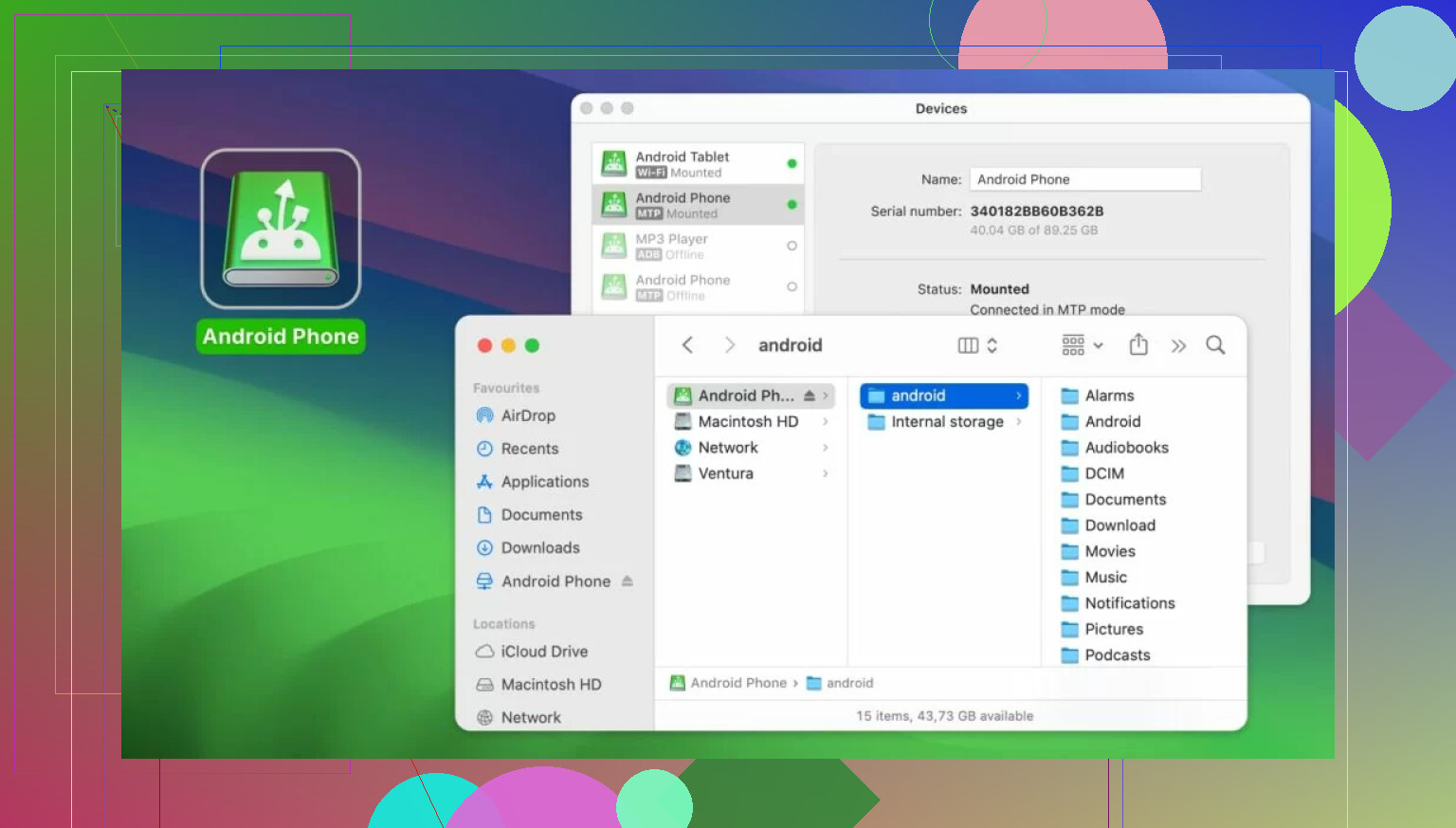
Now, after rage-quitting AFT for the fifth time, I found myself living on MacDroid. Transferring photos, full albums, music, and big folders just works. No weird setup voodoo—connect your Android, open the app, and drag away. It rolled smoothly with both my aging Pixel and my friend’s Huawei (and yeah, those are basically opposite ends of the Android universe).
You’re looking at one app that just… does the thing. Plug and play, whether you’re tossing over vacation pics or that 198-track road trip playlist.
- Double-check cables, ports, and the “File Transfer” mode.
- Enable USB Debugging if things are weird.
- Don’t be afraid to toss Android File Transfer and try AirDroid, Dr.Fone, or MacDroid.
- There’s no shame in finding a tool that doesn’t make you want to scream at your computer.
Honestly, file transfers shouldn’t be a battle in 2024—but hey, at least we’ve got options now.