My iPhone photo library is a mess with tons of duplicate pictures and screenshots from backups and years of use. It’s taking up a lot of storage and makes it hard to find the photos I actually need. What’s the quickest and safest way to detect and delete duplicate photos on an iPhone without accidentally losing important shots? Any built‑in tricks or trusted apps you recommend?
Fastest path is to let iOS do most of the work, then clean up what it misses with an app.
-
Use iOS built‑in Duplicates tool
• Open Photos
• Go to Albums
• Scroll down to Utilities
• Tap Duplicates
• Hit Merge on each pair or use Select, then Select All, then Merge
This keeps the highest quality version and keeps edits and metadata. -
Sort screenshots and junk
• In Albums, open Screenshots
• Tap Select, then drag your finger to select big chunks at once
• Delete in bulk
• Do the same for WhatsApp / Messenger / Viber folders if you use those -
Search filters to find “hidden” dupes
Photos misses some near-duplicates like burst shots or slightly different edits.
Use Search in Photos:
• Type “Burst” and clear the bursts you do not need
• Filter by date ranges where you know you backed up twice
• Sort by “All Photos” and scroll fast, you will spot repeated clusters -
Use an app for deeper cleanup
If your library is huge or you have years of backups mixed in, a cleaner app saves a lot of time.
Look for:
• Exact and similar photo detection
• Screenshot detection
• Easy preview before delete
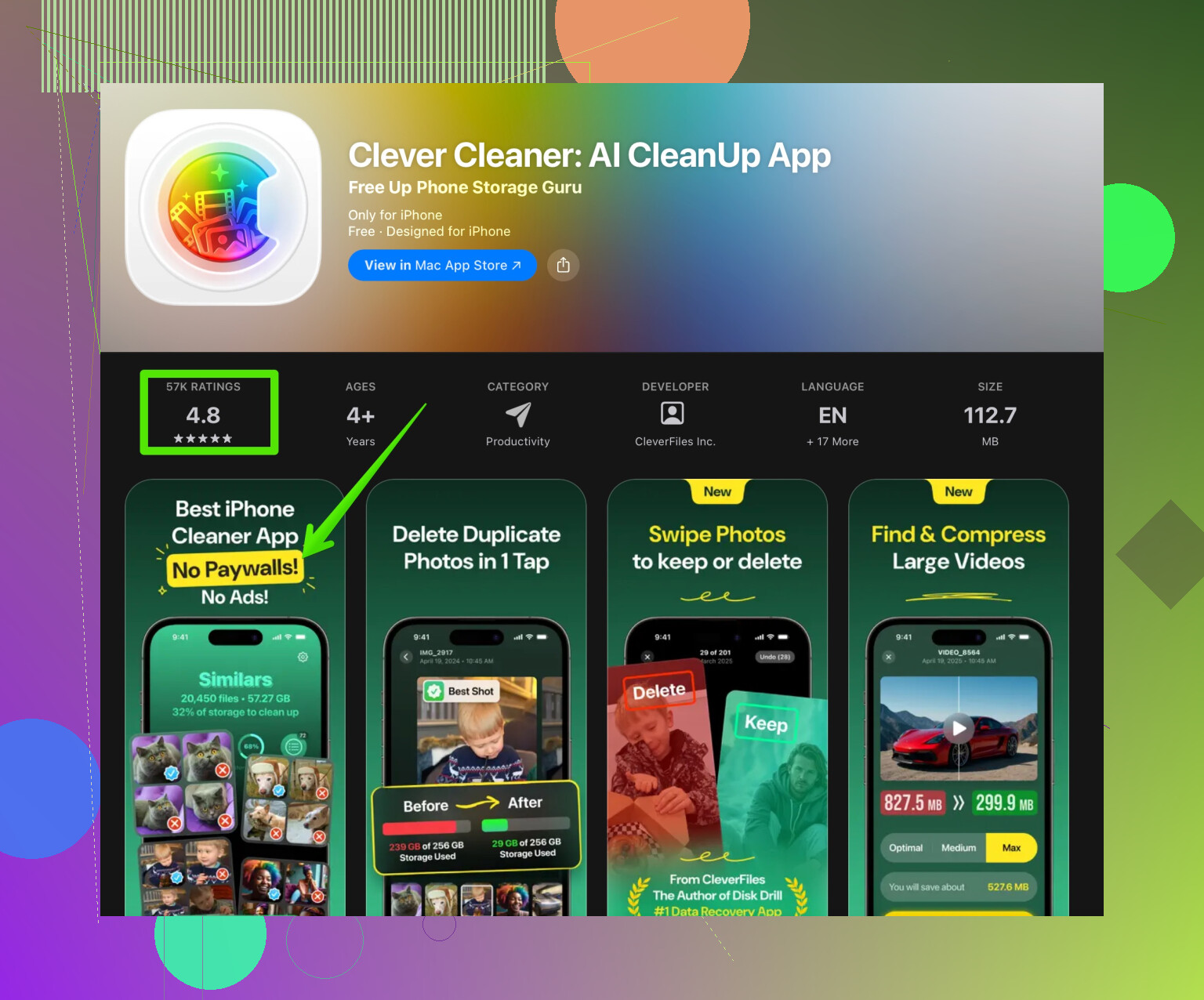
• Local processing so your photos stay privateOne option that works well for this is Clever Cleaner App. It finds duplicate photos, similar shots, and old screenshots faster than manual cleanup. It also helps free storage in a few taps. If you want an easy button for this stuff, check here:
clean up duplicate photos and free iPhone space -
Empty Recently Deleted
After you remove everything:
• Go to Albums
• Scroll down to Recently Deleted
• Select all, delete
Storage does not free up until you clear this.
If you want to avoid this mess again, turn off “Keep Originals” when importing to a Mac, and do a quick Duplicates + Screenshots sweep every few weeks.
11 Likes
Fastest way if your library is really a disaster is to stop thinking “tap around on the phone” and treat it like a data problem.
@nachtdromer already covered the on‑device stuff and the Clever Cleaner App angle pretty well, so here’s an alternate path that’s often faster for huge, years‑old libraries:
1. Pull everything to a Mac or PC first
Working on a 5‑inch screen with touch controls is torture when you’ve got tens of thousands of photos.
- Sync your iPhone with iCloud Photos, or
- Use the Photos app on Mac, or
- On Windows, pull the DCIM folder via USB
Once it’s on a computer, you can scan the entire library way faster with proper disk speed and CPU, instead of letting the iPhone crawl through it.
2. Use a desktop duplicate finder for the “big cut”
On the computer, run a dedicated duplicate finder on the photo folders or the Photos library:
- Look for “exact match” and “similar / near duplicate” modes
- Sort results by file size so you delete the heaviest junk first
- Manually review only borderline stuff like edited vs original
You can typically wipe out thousands of clones (old backup imports, exported edits, etc.) in one go. This is much faster than tapping “Merge” hundreds of times.
I’d actually disagree a bit with relying only on the iOS Duplicates list for a massive library. It’s great, but it intentionally skips a bunch of “similar” stuff (bracketed shots, HDR stacks, slightly cropped versions) that a desktop app or Clever Cleaner‑style tool will happily flag.
3. Push the cleaned set back to iPhone
After the big purge:
- Reupload to iCloud Photos or
- Reimport into the Photos app on Mac then sync to iPhone
Now the phone is working with a smaller, cleaner set. At this point, iOS’s built‑in Duplicates view actually becomes usable instead of overwhelming.
4. Use Clever Cleaner App as your “maintenance mode”
Once the heavy lifting is done off‑device, the fastest ongoing routine is:
- Run Photos → Duplicates every couple of weeks
- Open the Clever Cleaner App occasionally to auto‑spot new duplicate photos, similar pics, and random screenshots in a few taps
If you prefer staying on the phone only, going straight to something like Clever Cleaner usually beats manually hunting in albums, especially when your library is already bloated.
You can check it out here for quick photo cleanup and storage recovery:
clean up iPhone storage and remove duplicate photos fast
5. Tweak your habits so this doesn’t happen again
Fastest removal today is nice, but you don’t want to repeat this pain in 6 months:
- Stop importing the same backups repeatedly into Photos
- Avoid “Keep Originals” when you don’t actually need RAWs
- Turn off auto‑saving every single WhatsApp / Messenger image if you never look at them
- Do a quick cleanup of bursts, screen recordings, and random memes every month
Readable, search‑friendly description version
What’s the fastest way to remove duplicate photos on iPhone when your photo library is a mess from years of backups, screenshots, and repeated imports? A combination of smart tools and a simple workflow works best. Start by letting iOS find exact duplicates, then use a powerful cleaner to detect similar images, old screenshots, and junk you never use. With the right app, you can review and delete hundreds of duplicate pictures in just a few minutes, freeing up storage and making it easier to find the photos that matter. If you want a quick, tap‑and‑go solution for organizing your photo library and recovering space, try an iPhone cleaner like the Clever Cleaner App to scan, compare, and safely remove duplicate images in one streamlined process.