I accidentally deleted photos and video files from my SD card while trying to move them to my Mac, and now the card looks empty. I need help with the best way to recover SD card files on Mac without making things worse, since these are important personal files I really can’t replace.
If you still want a shot at getting the files back, stop using the SD card now. I mean it. I would not take another photo, move a single file onto it, or format it ‘to see if it helps.’ I’ve seen people do one extra write and turn a recoverable mess into a dead end.
On a Mac, deleted files from an SD card often stick around for a while. What usually disappears first is the index entry, not the file data itself. Recovery gets harder fast if you kept shooting on the card, did a full format, or the old data got overwritten.
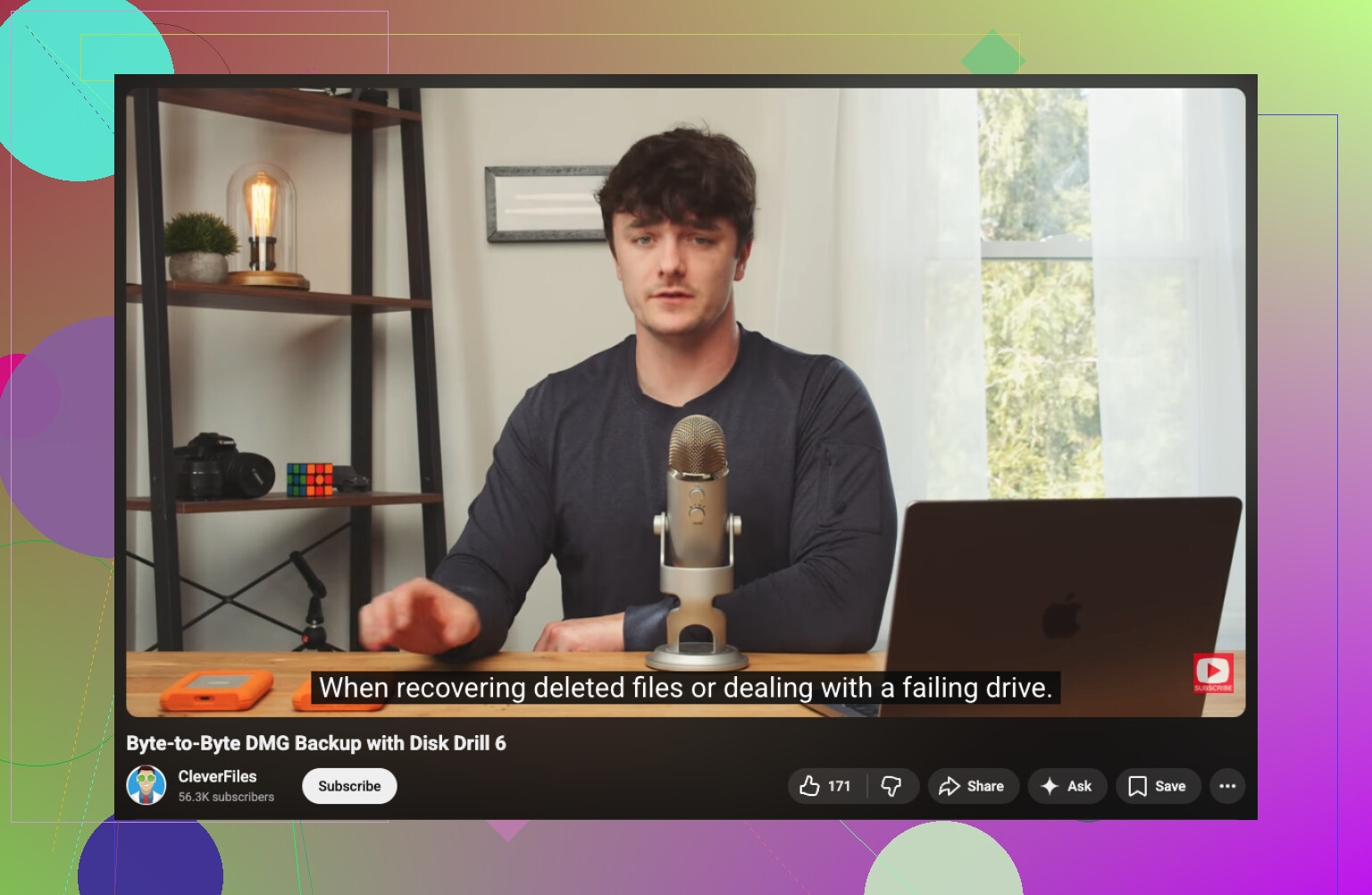
If you want the easy route, I’d start with Disk Drill. I used it because the layout made sense right away and I did not need to fuss with partition stuff. It sorts results well, previews are decent, and it reads RAW photo formats, which mattered for me. One thing I liked more than I expected, it lets you create a byte-to-byte image of the card before scanning. If the card is flaky or drops connection, do that first.
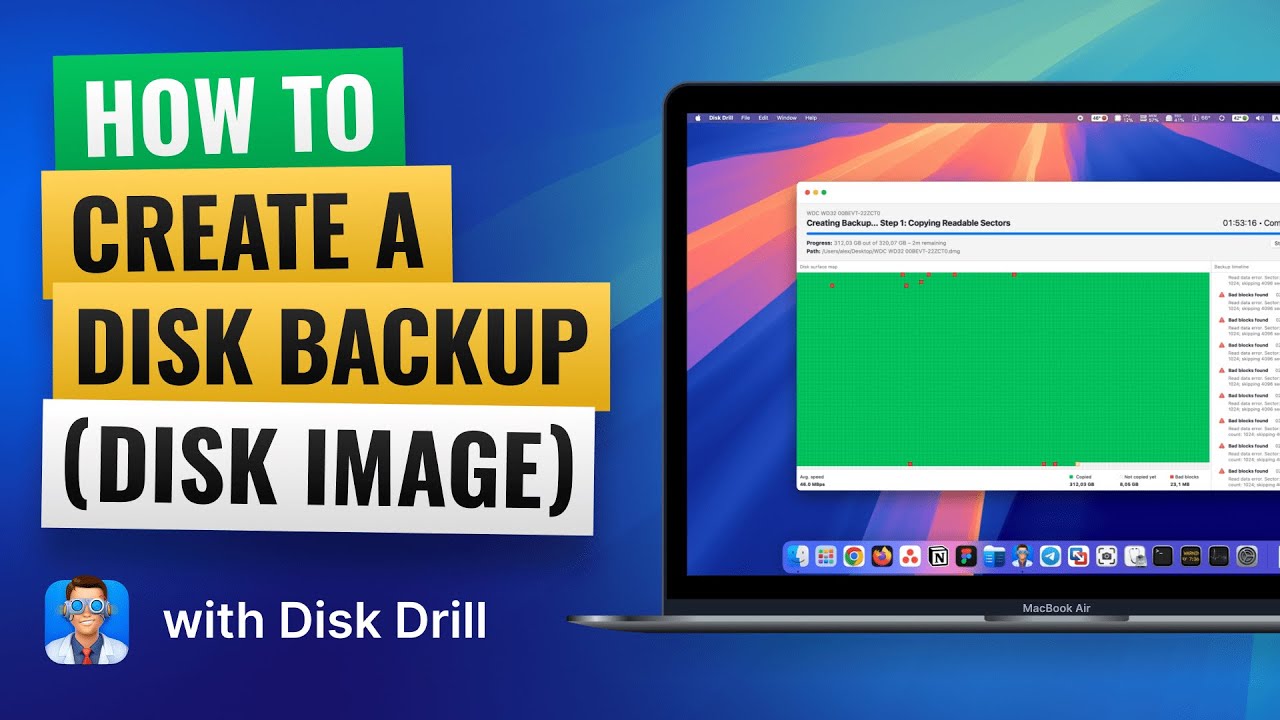
What I would do:
- Put the SD card into a reader and connect it to your Mac.
- Open Disk Drill and pick the SD card, not your internal drive by mistake.
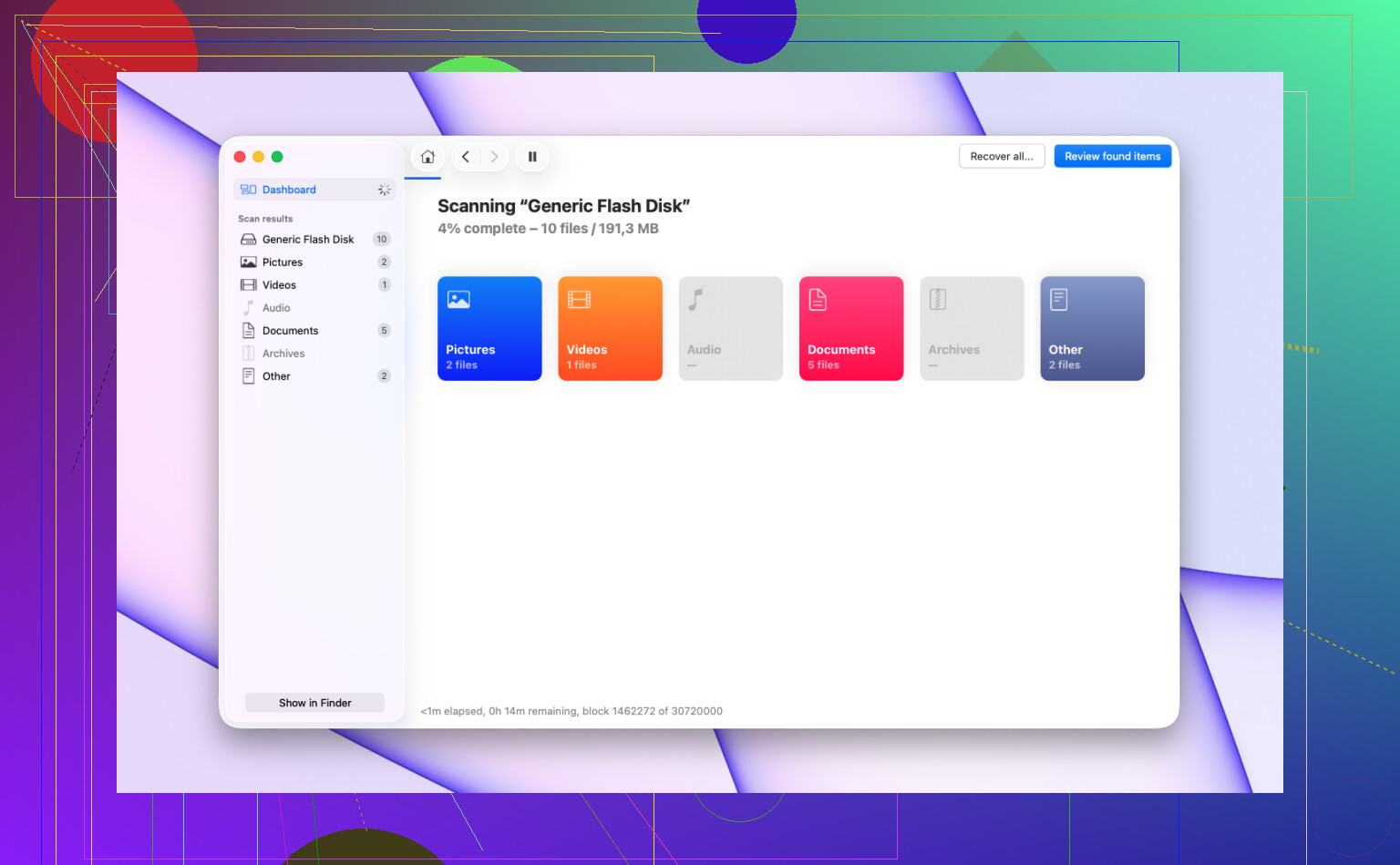
- Run the full scan. Let it finish. Don’t stop halfway because the first batch of files looks bad.
- Preview what you need.
- Recover the files to your Mac’s SSD or to another external drive.
Do not restore anything back onto the same SD card. If you write recovered files to it, you risk overwriting data you have not pulled off yet. I learned this one the dumb way years ago. It cuts your odds.
People also bring up PhotoRec a lot. Fair. It’s free, and on damaged or corrupted cards it sometimes pulls off results other tools miss. The tradeoff is the interface feels rough, and recovered files often come back with generic names and no folder layout. If you care more about getting the image data than clean organization, it’s worth a try.
One more thing. If the card keeps disconnecting, throws read errors, makes odd noises, or barely shows up in macOS, I would stop with home recovery attempts. At that point I’d lean toward a recovery service before the card gets worse from repeated access.
7 Likes
First thing, stop mounting and browsing the card over and over. Every extra read on a failing SD card is stress, and every write is worse. I agree with @mikeappsreviewer on that part.
Where I differ a bit, I’d check Mac stuff before jumping straight into a deep scan. If you “moved” files with Finder, look in Trash, Photos recently deleted, and Spotlight search by file type like .JPG, .CR3, .MP4. Finder copy jobs fail in dumb ways, and sometimes the files made it to your Mac but not where you expected. Seen it more than once.
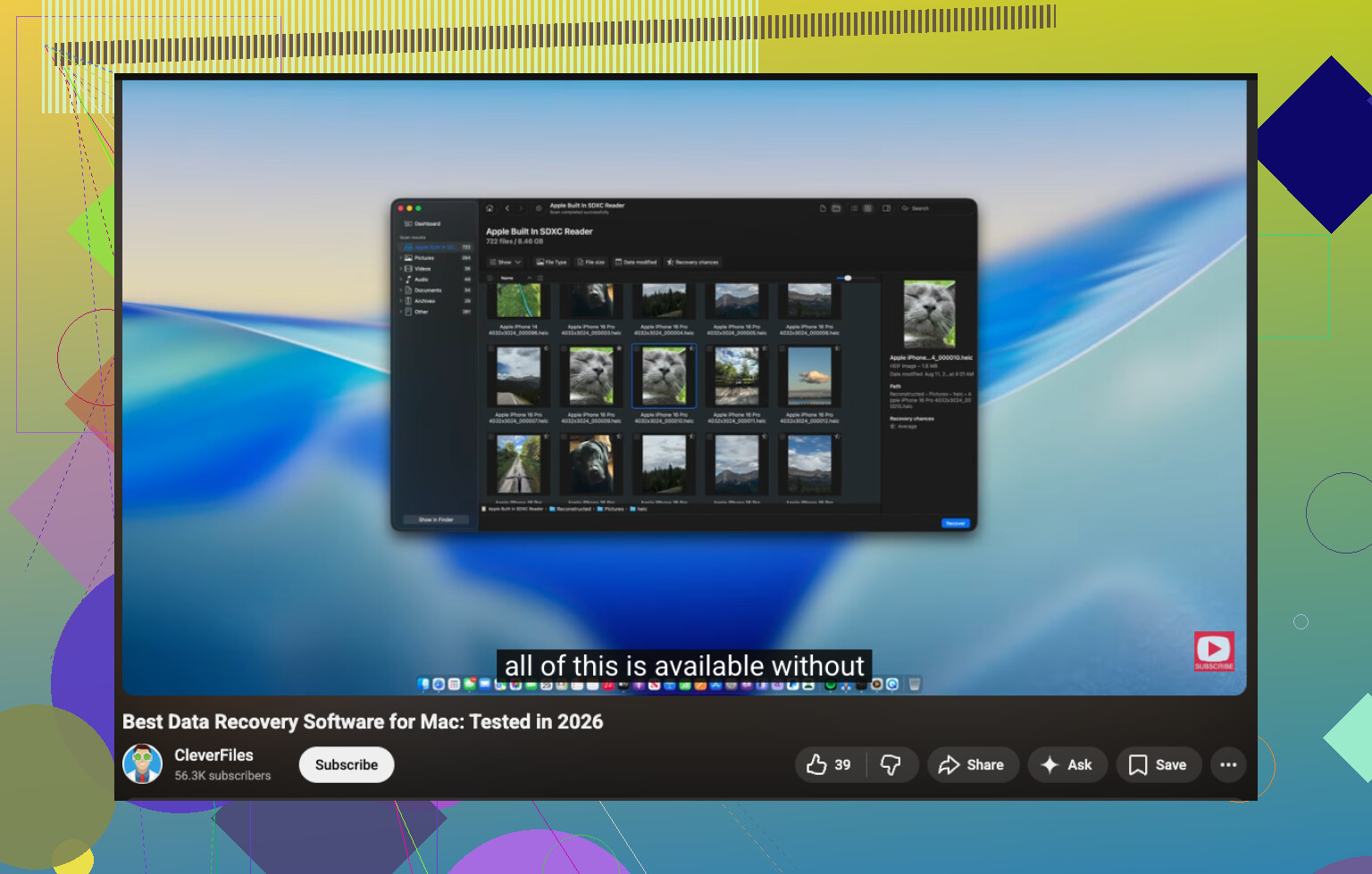
After that, use a Mac data recovery app with preview support. Disk Drill is a solid pick for SD cards because it handles photo and video formats well, and the preview helps you avoid restoring junk. If you want a simple walkthrough, this video on SD card file recovery on Mac covers the process cleanly.
A few practical tips:
- Use a USB card reader, not the built-in slot if your Mac acts flaky.
- Run First Aid only if the card shows filesystem errors and only after you image it, becuase repair writes to the card.
- Recover to your Mac or another drive, never back to the SD card.
- Sort results by file signatures if folder names are gone.
- For videos, recover all fragments you find. Large files sometiems come back in pieces.
If the card shows 0 bytes, asks to initialize, or disconnects, clone it first. Then scan the clone, not the original. That gives you the best shot with the best recovery software for Mac and SD card file recovery on Mac.
I’d add one thing that neither @mikeappsreviewer nor @boswandelaar really stressed enough: check whether the card is actually empty or just has a messed-up file allocation table. On Mac, sometimes the files are still there but Finder shows basically nothing because the directory got borked. You can test that without writing to the card by opening Disk Utility and looking at the capacity used vs free space. If the card still shows used space, that’s a very good sign.
I’m slightly less eager than they are about running repairs early. First Aid is fine in some cases, but it can absolutely change metadata, so I’d save that for later. Recovery first, cleanup second. That order matters.
My approach would be:
- Lock the SD card if it has a physical write switch.
- Use Terminal and run
diskutil listto confirm the correct disk. - If the card is readable, make an image copy of it before doing anything fancy.
- Scan the image, not the card, if possible.
Disk Drill is probly the easiest option on Mac for this because it can scan SD cards, recover deleted photos/videos, and handle image-based recovery too. That’s why people keep recommending it for SD card recovery on Mac. If it finds your files with previews intact, recover only the stuff you care about first, especially the videos since those are bigger and more annoying to get back.
One more thing people forget: if these were imported into Photos at any point, check the Photos library package size on your Mac. Sometimes the “move” failed visually, but the originals are hiding in there. Kinda dumb, but it happens.
Also, if you want more community takes, this thread has some decent Mac and SD card recovery discussion: real-world Facebook advice on recovering deleted files from an SD card.
If the card starts disconnecting, gets hot, or reads insanely slow, stop DIY stuff. That’s where people make it worse real fast.
Small disagreement with @boswandelaar and @chasseurdetoiles here: I would not spend too long poking around Finder if the card now appears empty. A couple quick checks on the Mac are fine, but once you confirm the files are not in Trash, Photos Recently Deleted, or already copied locally, stop there. Every extra mount/unmount cycle on a questionable SD card is just noise.
What I’d do differently is verify the card’s health first, not the filesystem. In Disk Utility, check S.M.A.R.T. if available through the reader, and note whether the card size and used space look normal. If capacity is wrong, or the card reports absurdly small size, that can point to controller trouble rather than simple deletion.
My order would be:
- Flip the SD card’s lock switch if it has one.
- Use a known-good external card reader.
- Make an image of the card first if reads are stable.
- Scan that image with Disk Drill.
- If results are poor, then try a second-pass tool like PhotoRec for raw carving.
Disk Drill pros:
- very Mac-friendly
- good preview support for photos and many video types
- can work from a disk image
- easier filtering than most recovery apps
Disk Drill cons:
- deep scans can take a while
- file names/folders are not always preserved on badly damaged cards
- paid recovery if you need to save lots of files
One more angle nobody really stressed: check whether the videos were still open when removed. Interrupted transfers can leave video containers broken even after recovery, so recover first, repair second. That matters for MP4/MOV more than JPEGs.
So yes, Disk Drill is a solid first choice on Mac, but treat it as recovery software, not a repair tool. Recovery before repair is the part that saves people.