My iPhone storage shows Photos using a lot of space under Documents and Data, but I’m not sure what that includes. I already deleted some pictures and videos, and the storage number still seems high. I need help understanding what counts toward Documents and Data in Photos and how to safely clear it without losing anything important.
iPhone ‘Documents and Data’ taking over storage
I ran into this on an iPhone that kept insisting storage was full, even after I removed apps and dumped photos. The weird part was seeing ‘Documents and Data’ eating a huge chunk of space with no clear explantion in Settings. Here’s what it is, why it sticks around, and what helped trim it down.
What ‘Documents and Data’ means on iPhone
This label covers all the extra stuff an app keeps besides the app file itself. So, not the app binary. The leftovers and working files.
Stuff in there usually includes:
- cached images and videos
- cookies
- sign-in data
- browser history
- downloaded episodes, songs, or files
- app-specific extras like sticker packs, themes, or saved drafts
An app grows this pile over time because iOS apps save local copies of content to avoid loading it again. I noticed this most with social apps. Scroll for ten minutes a day, do that for months, and the cache starts bloating with old media you forgot you ever looked at.
Why old apps still show huge storage use
This threw me off at first. I had apps I barely opened anymore, but they still showed gigabytes under storage.
What I saw was simple. The app kept old cached data from when I used it a lot. iOS did not clean it up for me. If you watched tons of videos in an app six months ago, some of those files or related cache bits might still be sitting there now.
So yeah, an app you forgot about can still act like it owns part of your phone.
Why your iPhone starts feeling slow
Once your storage gets tight, iOS has less room for temp files and background work. When mine got close to full, the phone felt rough in small ways first:
- app switching dragged
- keyboard hiccups showed up
- random app crashes happened
- saving photos took longer
Freeing up space helped more than any restart did. It wasn’t magic. The phone simply had room to work again.
How I cleared documents and data without removing the app
This part depends on the app. A lot of apps do not give you a clean ‘clear cache’ option, which is kind of annoying.
Safari
Go to:
Settings > Apps > Safari > Clear History and Website Data
This wipes cached site data, cookies, and browsing history. Your saved passwords and bookmarks stay.
Messages
Go to:
Settings > General > iPhone Storage > Messages
Then look for:
Review Large Attachments
This is worth checking. Old videos, voice notes, and random files from text threads build up fast. I found old clips sitting there from ages ago. Deleting them freed space without wiping whole conversations.
Streaming apps
Open the app itself and check its download settings.
Big offenders are usually Netflix, YouTube, and similar apps. Offline downloads are often one of the largest chunks in storage, and they hide inside the app instead of showing up in a way that’s obvious.
Facebook, Instagram, Messenger, and similar apps
This is the annoying part.
Apps like Facebook, Instagram, and Messenger usually do not include a working cache-clear button on iPhone. The only method I found reliable was:
- Delete the app
- Reinstall it from the App Store
- Sign back in
Important detail. Offloading is not the same thing.
Offloading removes the app itself but keeps its documents and data. If your goal is to kill the cache, offloading does the opposite of what you want.
Why Photos still looks huge after you delete pictures
I got burned by this one too. Deleting photos does not always free space right away.
The Photos app keeps deleted items in Recently Deleted for around 30 to 40 days. During that time, they still count against storage.
To clear them for real:
Photos > Albums > Recently Deleted > Delete All
If your Photos storage still looks oversized after that, check Shared Albums and Photo Stream too. Those add to the total separately.
When manual cleanup stopped being enough
On the phone I was cleaning up, the biggest issue wasn’t app cache anymore. It was the photo library itself. Once I cleared the usual junk, photos and videos were still the main storage hog.
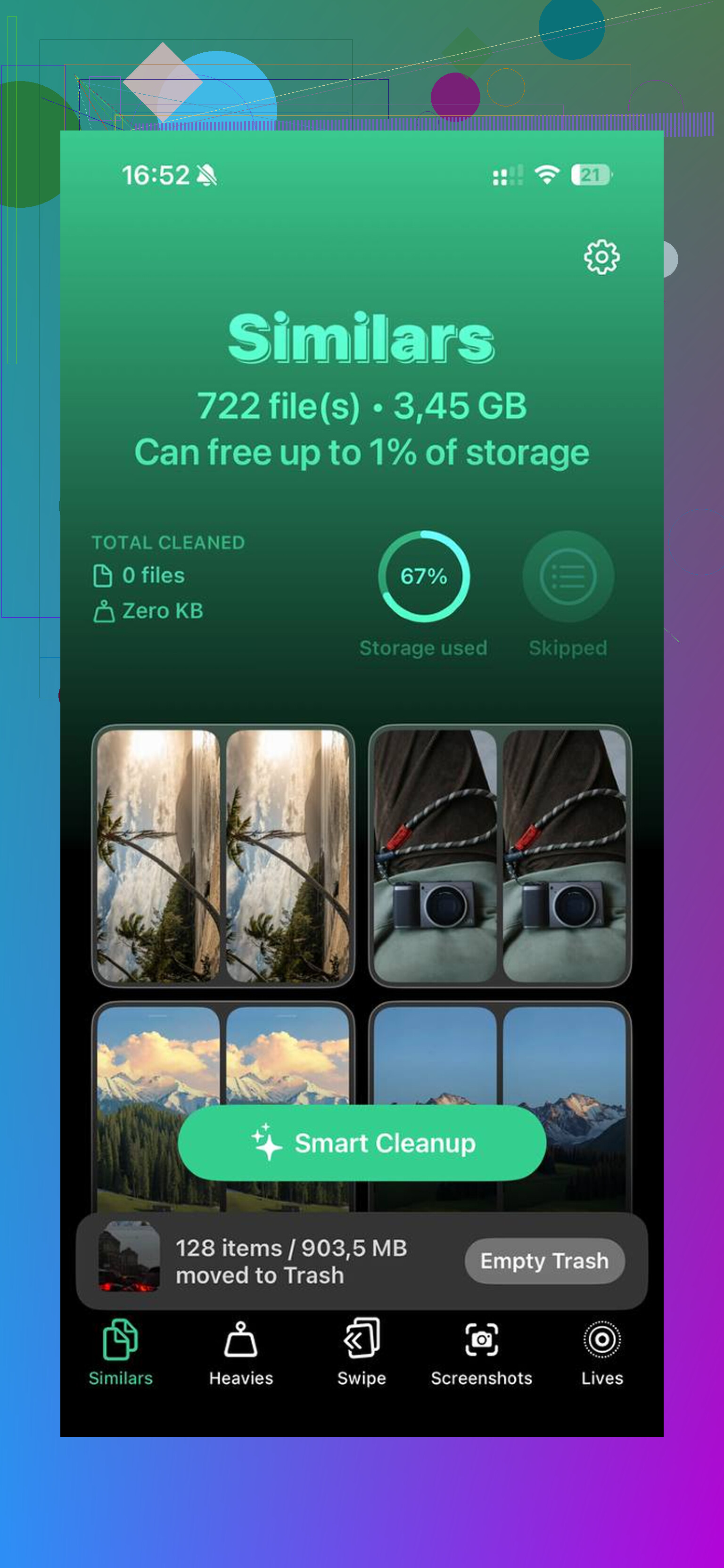
I ended up looking at Clever Cleaner for the media side of it.
What stood out to me:
- the Heavies tab lists files from largest to smallest
- exact file sizes are shown
- huge 4K videos jump to the top fast
- the Similars tab groups near-duplicate photos
- it picks a Best Shot from each group
- burst-photo cleanup gets easier
- processing stays on the device
That last part mattered to me because I did not want my library uploaded somewhere else while sorting clutter.
After I cleaned the photo library and did the manual app cleanup above, the phone went from full storage to about 15GB free. The lag I had been dealing with stopped after that.
13 Likes
What Photos calls Documents and Data is usually stuff around your library, not only the pics you see in Camera Roll.
For Photos, it often includes:
- thumbnails and preview files
- indexing data for search, faces, places
- edited versions of photos
- temporary import/export files
- iCloud Photos sync data
- Recently Deleted items
- shared album data
- cached video scrubbing data
So if you delete 5 GB of videos, your storage graph might not drop right away. iOS often recalculates later, and some data stays if sync is still running. I don’t fully agree with @mikeappsreviewer on Shared Albums being a huge factor for most people. Usually the bigger issue is local video files, edited duplicates, or iCloud sync residue.
A few checks:
- Restart iPhone after large deletions
- Make sure Recently Deleted is empty
- Check if Photos is still syncing in iCloud
- Look in Settings, General, iPhone Storage, Photos, and wait a minute for sizes to load
- Compare “Photos” vs “System Data”
If the library is messy, Clever Cleaner helps spot large videos and duplicate shots fast. This video on cleaning up iPhone photo storage and duplicates covers it well. It’s more of an iPhone storage cleanup app for photos and videos than a generic cleaner, which is what most ppl need.

What Photos calls ‘Documents and Data’ is basically the invisible support stuff around your library, not just the photos you can see.
So yeah, it can include:
- photo/video thumbnails
- search index data for faces, text, places
- edit history and nondestructive edits
- cached previews
- iCloud Photos sync temp files
- local copies of optimized originals
- metadata databases
- files waiting to upload/download
- leftovers from imports, exports, or edits
That’s why deleting 200 pics doesn’t always make the number drop instantly. iOS storage reporting is slooow sometimes, and Photos has to re-index stuff.
I kinda disagree a little with @mikeappsreviewer on lumping this in with normal app cache behavior. Photos is weirder because it’s tied into system services, not just app junk. And @viajeroceleste is right that sync residue and edited media are often bigger than people expect.
One thing people miss: if you edited a video, the edited version can still mean extra storage until the library finishes cleanup. Same with Cinematic, ProRAW, slo-mo, and 4K clips. Those formats get huge fast.
Also check whether “Optimize iPhone Storage” is on. If it’s off, Photos may be keeping full originals locally even if everything is in iCloud.
If the Photos library is messy, Clever Cleaner is actually useful for finding giant videos, duplicate shots, and near-identical bursts faster than poking around manually. And if you want more real-world feedback from people cleaning up iPhone storage, this thread on real iPhone cleaner app experiences and storage cleanup tips is worth a look.
Short version: Photos ‘Documents and Data’ = indexes, caches, edits, sync files, and library support data. Not just your camera roll. Annoying, but normal-ish.
What Photos calls Documents and Data is partly real storage and partly bookkeeping. @viajeroceleste and @viajantedoceu are right about indexes, edits, and sync leftovers, but I’d push back a bit on one thing from @mikeappsreviewer: this category is not just generic app cache. Photos is tied into the system photo library, so some of that space is database stuff iOS keeps even when the visible library shrinks.
What can be in there besides your actual photos:
- Face recognition and search databases
- Object and text detection data
- Edit sidecars for nondestructive edits
- Rendered versions for Portrait, Live Photos, HDR, ProRAW
- Library repair or migration leftovers after iOS updates
- Pending iCloud upload/download states
- Shared Library references, if you use Apple’s Shared Library feature
One thing people miss: if you recently deleted a lot, storage may stay inflated until the phone is charging, locked, and on Wi-Fi for a while. Photos does cleanup in the background, not always immediately.
Also, if you toggled iCloud Photos on or off at some point, storage can look weird for days. That usually means reconciliation, not permanent junk.
My rule of thumb:
- If the number stays high for under 48 hours, ignore it
- If it stays high for a week, something is stuck
- If Photos size keeps growing without new media, suspect sync or corrupted library data
Clever Cleaner can help find the obvious heavy files and duplicates fast.
Pros:
- good for giant videos and duplicate bursts
- quicker than manual hunting
Cons:
- won’t fix Apple’s storage reporting
- won’t remove system-level indexing data inside Photos
So yes, Documents and Data in Photos is broader than pictures. Think support files, analysis data, and temporary library state, not just hidden copies of every image.