I accidentally deleted several important videos from my SD card while trying to free up space, and I need help recovering them fast. The card was used in my camera, and I’m worried the files may be gone for good. If anyone knows the best way to recover deleted videos from an SD card or what software actually works, I’d really appreciate the advice.
Losing a video you needed feels bad every single time. I did this once with footage from a family event, and the worst mistake would have been to keep using the card like nothing happened.
If your clip disappeared because you deleted it, formatted the card, or your camera started throwing card errors, stop writing anything to it. Right now, your best move is to avoid making the damage worse.
First thing, pull the card out
Take the memory card out of the camera.
Do not shoot more video. Do not snap photos. Do not format the card again. Every new write cuts into the old data you want back.
And yeah, if your camera lets you plug in over USB, I still would not use it for this. I had better luck with a plain card reader. Fewer weird handoff issues.
Check if your computer still sees it
Put the card into a card reader and connect it to your computer.
If Windows shows the card, even if it looks broken, unreadable, RAW, or unallocated, recovery software still has something to work with.
If it does not show up in File Explorer, open Disk Management and look there. I have seen cards show up there even when Explorer acts like they do not exist. If Disk Management sees it, your odds are still decent.
The usual recovery tools miss a lot of camera video
This is where people burn time.
A lot of recovery apps do fine with photos, PDFs, office files, stuff like that. Video from cameras is a different mess. On many cards, the footage is split into fragments across the storage, sometimes in a huge number of separate chunks. GoPros, drones, dashcams, mirrorless cameras, action cams, they all make this harder.
I usually point people to Disk Drill when the lost files are camera videos.
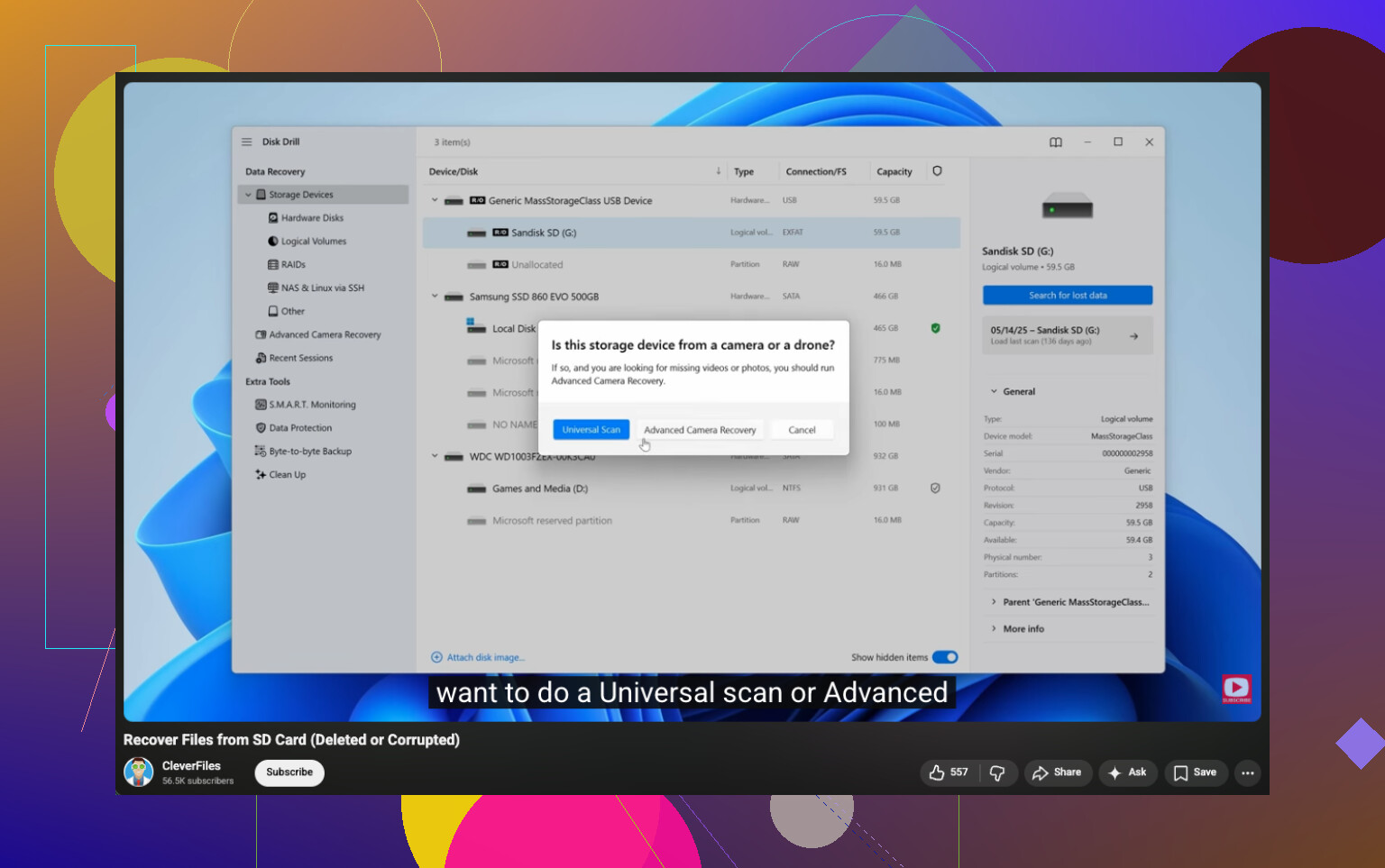
The main reason is its Advanced Camera Recovery mode. It is built for piecing fragmented footage back together instead of doing a lazy header search and hoping for the best. On cards from GoPro, DJI, Sony, Canon, Nikon, Insta360, dashcams, and similar gear, this matters.
What I would do
- Install Disk Drill.
- Plug the original SD card into your computer with a card reader.
- Open Disk Drill.
- Pick the memory card from the list. Click Search for lost data, then choose Advanced Camera Recovery.
- Let the scan finish. Don’t cut it short.
- Preview what it finds.
- Save recovered videos somewhere else.
That last part matters. Do not restore files back to the same card. Put them on your internal drive, an external SSD, anywhere else.
When software still makes sense
I would try software first if the problem looks logical, not physical. Stuff like:
- You deleted the files by mistake.
- The card got formatted.
- The file system got corrupted.
- The card shows up, but the files are missing or broken.
In those cases, recovery software often gets results if you stopped using the card fast enough.
When I would stop and hand it off
Some signs tell you to quit the home recovery loop.
- The card has visible physical damage.
- It gets hot fast when you connect it.
- Your computer does not detect it at all.
- It keeps disconnecting during scans.
- The camera shows hardware-related errors.
- The footage is worth money, client trust, or work you cannot redo.
I would not keep poking at a card in those cases. Repeated attempts can make things worse. A recovery lab might be able to read the memory chips directly, which is way beyond normal home tools.
If the card still shows up, stop using it and scan it once, carefully. If it does not, or it starts acting erratic, I’d stop there. That saved me from turning one bad card into a dead one.
4 Likes
Stop using the SD card. That part from @mikeappsreviewer is dead on.
One thing I’d add first, make an image of the card before you scan it. I’d do this before trying recovery if the videos matter. A byte-for-byte copy gives you one clean shot and keeps the original untouched if the card starts acting weird. On Windows, USB Image Tool or HDD Raw Copy Tool work fine. On Mac or Linux, dd works if you know what you’re doing. Small step, big payoff.
Then run recovery on the image, not the card, if your software supports it. Disk Drill is a solid pick for deleted camera videos, esp if the card was formatted or the clips got fragmented.
Also, check the DCIM and PRIVATE folders for hidden leftovers. Some cameras leave sidecar files or split clips behind. If you see THM, XML, IDX, or BDMV stuff, don’t delete any of it.
If the videos were deleted today and you wrote nothing new, recovery odds are decent. If you kept recording after deletion, odds drop fast.
If you want a visual walkthrough, this SD card video recovery tutorial for deleted camera files covers the process pretty well.
Main thing, don’t keep testing random apps. That’s how people make a bad sitaution worse.
Pull the card and leave it alone. That part @mikeappsreviewer and @jeff got right.
Where I kinda disagree is with jumping straight into trying a bunch of scans. If the videos are truly important, I’d first copy off anything that is still visible normally, then check whether your camera made proxy files or split clips. A lot of people miss folders outside DCIM, esp on Sony/Canon/Panasonic cards. Look in PRIVATE, AVCHD, MP_ROOT, MISC, and even hidden folders. Sometimes the “deleted” video is really just the index gone and the stream is still there.
Also, try the card in a different reader before assuming corruption. Cheap readers are flaky as hell.
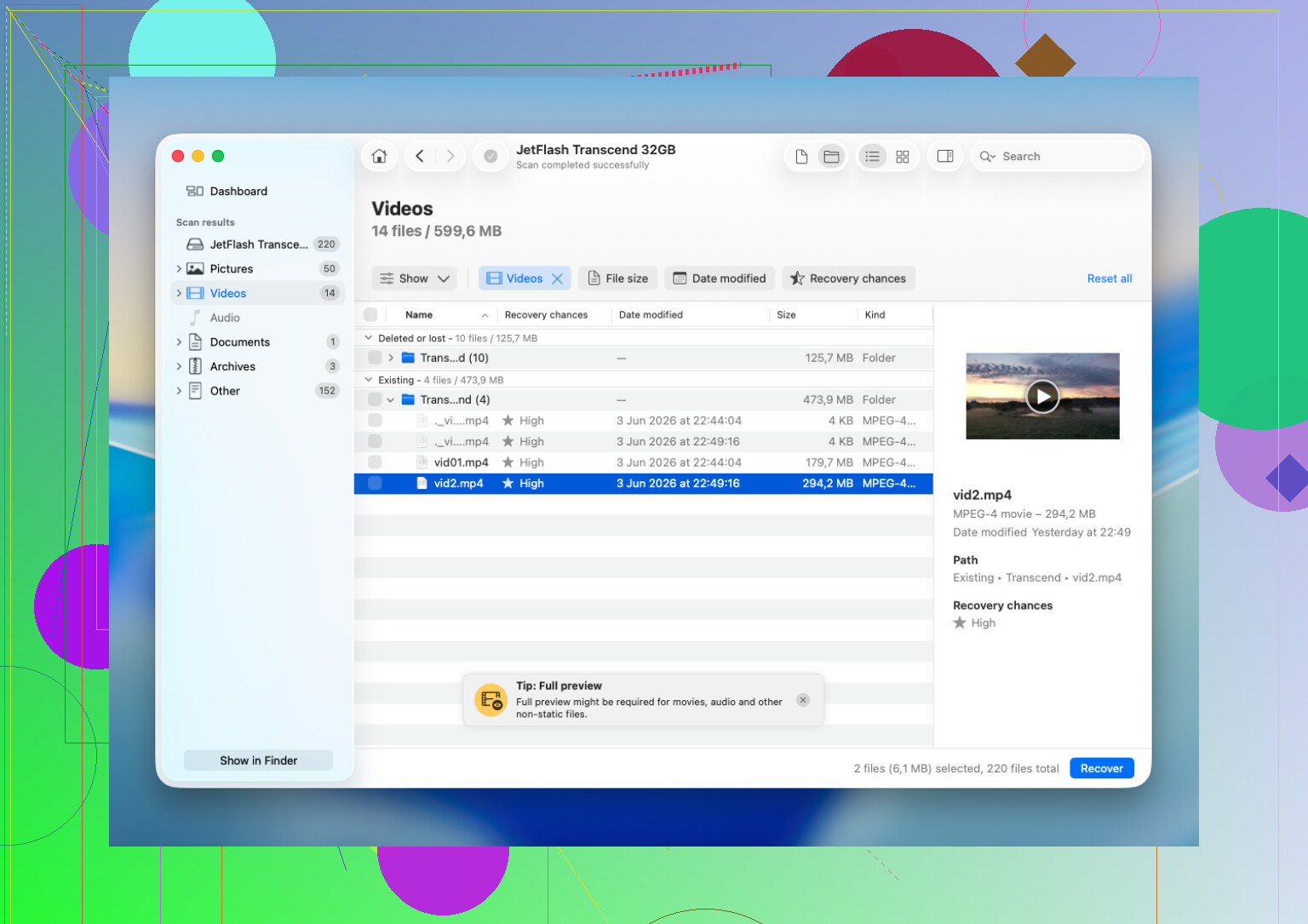
If the card is readable, then yeah, use Disk Drill and scan for deleted video files. I’d sort results by file type/size and look for clips with realistic lengths instead of restoring every random fragment. Saves time.
One more thing people forget: if your camera has an internal “recover image database” or “repair card” option, do NOT run it yet. Sometimes it helps, sometimes it overwrites metadata you need.
If the card clicks, disconnects, or vanishes mid-read, stop messing with it. That’s lab territory, no joke.
Related reading here too: SD card video recovery discussion and deleted file recovery tips
I’d add one thing the others only touched lightly: check whether the videos were actually “deleted” by the camera database, not erased from storage. On some Sony, Panasonic, and Canon cards, the clip list breaks while the .MTS, .MP4, or .MOV chunks are still sitting there. So before full recovery, enable hidden files on your computer and manually inspect folder depth, not just the top level.
I slightly disagree with doing too many test previews first. Previews can fail on fragmented footage and make good files look unrecoverable when they are not.
Disk Drill is a reasonable choice here, especially for camera media.
Pros:
- good at finding deleted video files
- can recover from formatted cards
- cleaner interface than a lot of recovery tools
Cons:
- deep scans can take a while
- preview is not always reliable for large broken clips
- best results depend heavily on whether data was overwritten
@jeff, @sognonotturno, and @mikeappsreviewer are right about stopping use immediately. I’d just add: if the card has important paid work on it, skip the DIY marathon and go straight to a lab after making no further reads if the card acts unstable.