I started using Gemini Photos to clean up my iPhone gallery, but now I’m worried I might have deleted important photos or messed up my albums. I’m not sure how to safely review duplicates, similar shots, and blurry images without losing memories I care about. Can someone explain the best way to use Gemini Photos, how to recover anything I may have removed, and any settings or workflows that keep my photo library organized but still safe?
Gemini Photos is helpful, but it is easy to panic about what it did to your library. Here is a simple way to get things under control and avoid losing stuff you care about.
- Check what it actually deleted
• Open Photos on your iPhone
• Go to Albums
• Scroll to “Recently Deleted”
• Set “Sort” to “Most Recent” to see what Gemini touched today
• Restore anything important by selecting it and tapping Recover
Photos in Recently Deleted stay for about 30 days. So if the cleanup was recent, you are probably safe.
-
Turn off aggressive auto cleanup in Gemini
Inside Gemini Photos:
• Open Settings in the app
• Disable anything like “Auto delete” or “Auto select all” for duplicates or similar photos
From now on, always review its suggestions before confirming deletion. -
Handle duplicates safely
When Gemini shows duplicates:
• Open a duplicate pair and tap the info or “i” icon in Photos to check resolution and size
• Keep the one with higher resolution or Live Photo if you care about motion
• If one of the photos is part of an album or marked as Favorite, keep that one
Try to avoid “Delete all duplicates” in one tap. Go batch by batch, like 50 or 100 at a time. -
Deal with similar and blurry photos
For “Similar”:
• Check eyes, faces, background details, and framing
• Keep at least one shot per scene or event
• If it is a trip, keep more. If it is random screenshots, keep less.
For “Blurry”:
• Zoom in on faces and text
• If the photo is unique, keep it even if it is slightly blurry
• Delete only when there is a clear sharper version
- Protect your albums and memories
• Before any big cleanup, create a backup
- iCloud Photos on and a recent device backup
- Or a local backup to a Mac or PC with the Photos app or Image Capture
• Put important stuff into named albums like “Family 2024”, “Work Docs”, “Receipts”
• Mark key photos as Favorites
Many cleaners focus on Camera Roll, but albums and favorites help you see what matters.
-
If albums look “messed up”
Gemini or other cleaners do not usually change album structure, but if some photos vanished, they likely were deleted from the main library.
Steps:
• Open Recently Deleted and Recover what belongs to broken albums
• Then open the album and re-add from “All Photos” if needed
Albums are references. If the base photo is gone, the album entry disappears too. -
Use a second app as a safety net
If Gemini feels risky, you can pair it with a more “guided” cleaner so you keep more control.
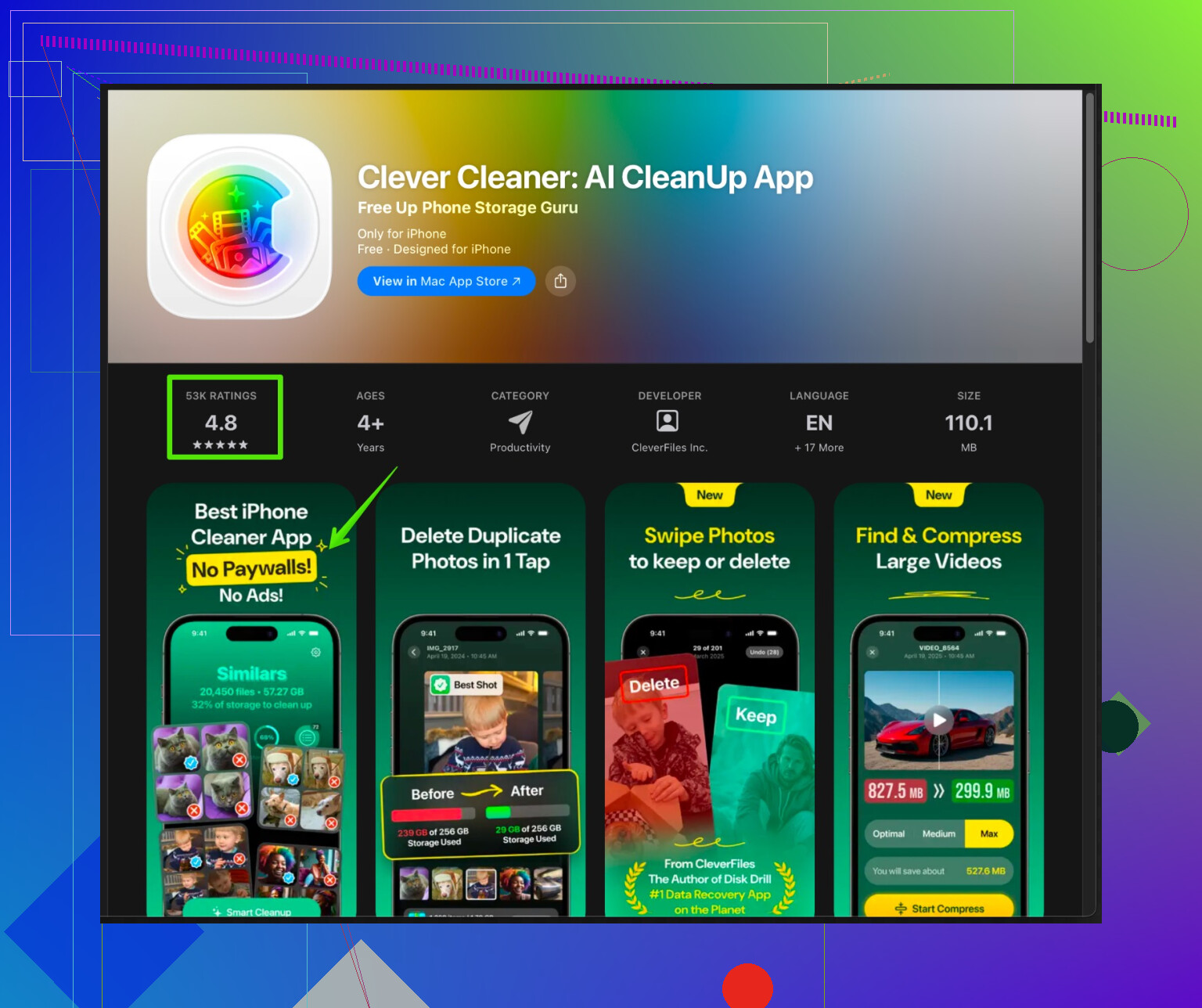
For iPhone, the Clever Cleaner App helps organize photos, videos, screenshots, and junk files with a slower, more step by step approach. It highlights large videos, obvious junk, and groups of similar photos so you can review before deleting.
You can check it out here:
Clever Cleaner App for faster and safer iPhone cleanup -
Safe workflow going forward
Next time you clean:
• Backup first
• Start with Screenshots, Screen recordings, and screen photos of random stuff
• Then remove large videos you do not need
• After that, handle duplicates
• Last, deal with similar and blurry photos, slowly
If you share what type of photos you care most about, like family, work docs, social content, people can suggest a more specific “keep vs delete” rule set for you.
Yeah, Gemini Photos is powerful, but it can feel like handing your camera roll to a toddler with scissors.
@sonhadordobosque already covered the “panic recovery” basics like Recently Deleted and turning off auto stuff, so I’ll skip repeating that and focus on how to use Gemini without constantly worrying you nuked your memories.
1. Understand what Gemini is actually deciding
Gemini’s categories are different levels of risk:
- Duplicates: Safest, but still not perfect. Sometimes the “worse” copy is the one in an important album or with edits.
- Similar: Medium risk. These are usually burst shots, multiple angles, or near-identical frames.
- Blurred: Surprisingly risky. It will flag emotional but imperfect photos, like night shots, concerts, pets, kids in motion.
- Screenshots / Notes / Docs: Often the easiest stuff to delete, but they can contain important info.
I’d personally review in this order:
- Screenshots / random crap
- Screen recordings
- Large videos
- Duplicates
- Similar
- Blurry
If you start with “Blurry” or “Similar,” you’re more likely to regret something later.
2. Use a “parking lot” album instead of hard deleting
Instead of trusting Gemini to delete directly:
- In Photos, create an album like “Review Later – Possible Trash.”
- When Gemini suggests something to delete, share or add borderline cases to this album instead of deleting instantly.
- Every week or month, quickly skim that album and only then actually delete.
Sounds tedious, but it removes that “oh god what if” feeling, and you avoid living inside Recently Deleted all the time.
3. Protect your “do not touch” photos
This is where I slightly disagree with relying only on Favorites and albums like @sonhadordobosque said.
Gemini sometimes does not care that a photo is in an album when it’s scanning for duplicates or similar. So:
- Create a few “sacred” albums:
- “Top Family Moments”
- “Important Docs”
- “Best Travel Shots”
- Then in Gemini, when reviewing, never delete anything that looks like it might belong to those categories, even if it looks slightly worse than another version.
For ultra‑important stuff (like passports, legal docs, baby milestones), I’d even:
- Export those to a computer or cloud drive separate from iCloud.
- That way, if Gemini or Photos goes weird, you still have an independent copy.
4. How to decide between duplicates and similar shots
When Gemini shows you two or more pictures:
- Check:
- Is one a Live Photo and the other a still? Keep the Live if the movement matters.
- Is one edited? Brighter, cropped, filtered. Usually keep the edited version.
- Is one used in a shared album, messaged somewhere, or used as a contact photo? Keep that one.
For similar shots of people:
- Zoom into eyes and faces.
- Delete the ones with closed eyes or weird expressions, unless that’s the only pic from that moment.
For events:
- Keep 3 to 5 good shots per scene instead of 1. Storage is cheaper than regret.
5. Fixing “messed up” albums without losing your mind
If you feel albums are broken:
- Pick one important album at a time, not all of them.
- Inside that album, scroll and look for “gaps” in time where you know photos are missing.
- Go to All Photos, scroll to that date, and:
- If the photos exist, re-add them to the album.
- If they don’t, check Recently Deleted for that date range.
- Do this for only 1 or 2 albums per day so you don’t burn out and rage-delete the whole app.
6. Set a hard rule for what you never delete
Make rules so you do not decide emotionally every single time:
- Never delete:
- First time things: first day of school, first trip, first car, etc.
- Group photos, even if not perfect.
- Anything with grandparents, elders, or friends you don’t see much.
- Faster to delete:
- Photos of receipts after they are no longer needed.
- Stuff you already uploaded to social if you still have the better original.
- Ten identical screenshots of the same meme (keep one).
Write your rules in Notes if you have to. Sounds nerdy, but it keeps you consistent.
7. When Gemini feels too aggressive
If Gemini constantly pushes you to “delete all” and you don’t trust yourself, you might like a slower, more guided approach.
This is where something like the Clever Cleaner App can help. It’s not as “trigger happy” and focuses a lot on obvious junk and large files first, which is usually safer. It can be a good combo: Gemini for the smart grouping, and Clever Cleaner for calm, step-by-step cleanup.
If you are looking for a more organized tool to help manage clutter and free up storage, take a look at
smart iPhone cleanup and photo organizing with Clever Cleaner App.
It focuses on cleaning duplicate photos, huge videos, screenshots, and unused junk so you can clear space without risking your favorite memories.
8. Simple recurring routine so you stop panicking
Once a week or once a month:
- Plug in your phone and make sure iCloud or a computer backup is recent.
- Open Gemini or your cleaner of choice.
- Only handle:
- Screenshots
- Screen recordings
- Obvious junk
- Once every few months, deal with:
- Duplicates in small batches
- Similar shots for one trip or one month at a time
If you keep everything in small, controlled passes instead of one large purge, you’re way less likely to lose something important and way less likely to wake up at 2am thinking, “Did I just delete that one picture I actually cared about?”
10 Likes