My hard drive suddenly stopped opening, and I’m trying to recover important files before they’re lost for good. It has work documents, photos, and personal data I really need, and I’m not sure if this is a hardware failure or something I can fix at home. I’m looking for the best way to recover files from a hard drive safely without making things worse.
Losing files off an HDD feels bad fast. I’ve had drives go weird with no warning, then half my folders looked gone. First thing I learned, stop touching the drive.
If your files vanished or the hard drive started acting off, do this first:
- Stop using the HDD right away.
- Do not copy files onto it.
- Do not install apps to it.
- Do not move stuff around on it.
More activity raises the odds of overwriting data you still might recover.
Before you run recovery tools, check how sick the drive looks.
Bad signs I’ve seen:
- clicking
- grinding
- random disconnects
- long freezes when opening folders
- the drive showing up, then disappearing
- read errors or bad sectors in S.M.A.R.T. status
If the drive still opens and you’re able to browse it, start with the easy stuff before doing deep scans.
Check the obvious places first:
- Recycle Bin on Windows
- Trash on macOS
I know, sounds dumb. I’ve found ‘deleted’ files there more than once.
Then check backups. A lot of people forget these were even turned on.
Places worth checking:
- File History on Windows
- Previous Versions on Windows
- Time Machine on Mac
- Cloud backups like OneDrive, Google Drive, Dropbox, or iCloud
Cloud storage often keeps deleted files in its own trash folder for 30 days or longer, so look there too.
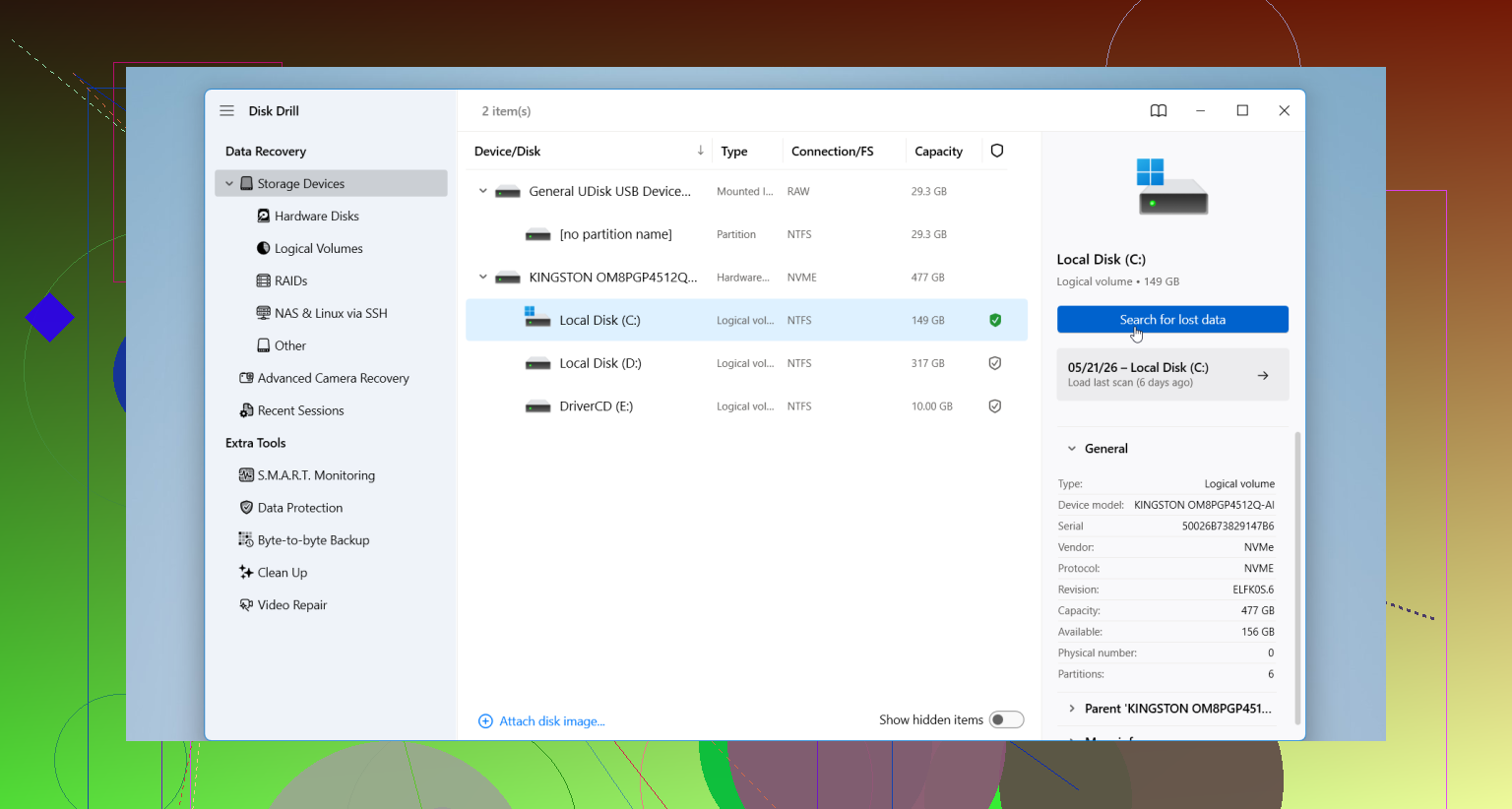
If backups come up empty, move to recovery software. One tool people usually start with is Disk Drill. It handles common messes like deleted files, formatted HDDs, damaged partitions, and RAW drives. The file preview helps, since you can see whether the data still looks usable before saving anything out.
The usual process looks like this:
- Connect the HDD to your computer.
- Install Disk Drill on a different drive.
- Open it and pick the problem HDD.
- Run the scan.
- Preview what it finds.
- Recover files to another drive, never back onto the same HDD.
One part people ignore, then regret. If the HDD starts clicking harder during the scan, drops connection over and over, or locks up the whole system, stop. Unplug it. At that point it starts looking less like a file issue and more like hardware failure. I’ve seen DIY attempts make a weak drive worse pretty fast.
5 Likes
If the drive is still detected in BIOS or Disk Management, I’d image it first, not scan it first. This is where I slightly disagree with @mikeappsreviewer. Recovery scans hit a weak drive hard. A full clone to a healthy disk gives you one stable source to work from.
Do this:
- Check if the drive shows correct size in BIOS or Disk Management.
- If it does, clone it sector by sector with ddrescue on Linux, or use a hardware dock with cloning support.
- Work from the clone, not the original.
- Then run Disk Drill on the clone and pull files to a third drive.
Why this matters. Failing HDDs often die during long reads. ddrescue is built for bad sectors and retries smartly. It logs progress too, wich helps if the drive drops out.
If the drive shows 0 bytes, smells burnt, or never spins up, skip DIY. That points to board or head failure. Lab recovery is the safer route.
Also check the SATA cable, USB bridge, and power adapter first. I’ve seen cheap enclosures fake a “dead” drive more than once.
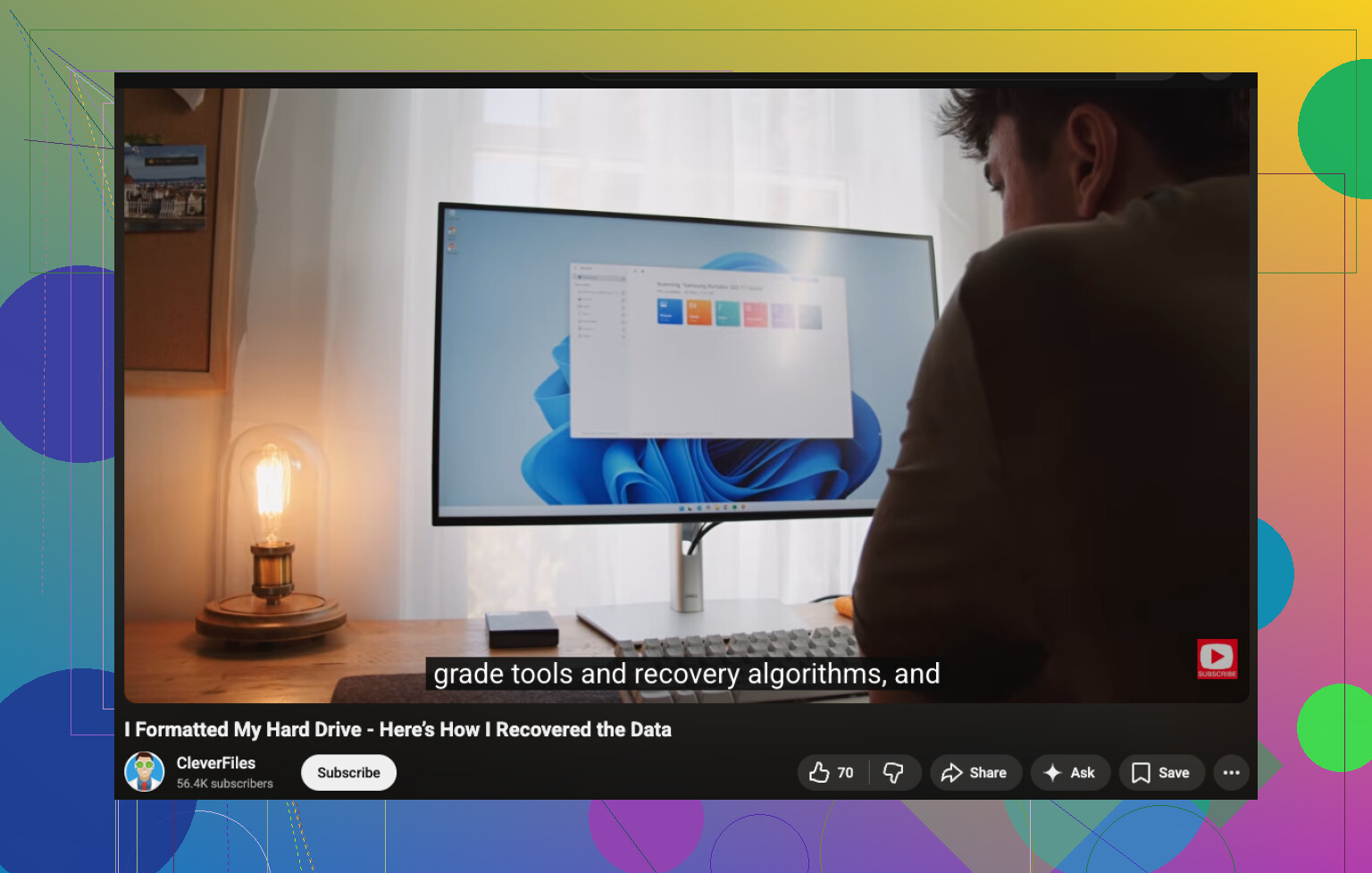
For a visual walkthrough, watch hard drive file recovery video guide.
If the drive “won’t open,” I’d spend 2 minutes figuring out how it’s failing before doing anything big. Slightly different take from @mikeappsreviewer and @nachtschatten: people jump to recovery mode too fast, when sometimes it’s just a mount/file system issue.
Quick checks:
- Try it on another USB port/cable/enclosure
- See if it appears in Disk Management on Windows or Disk Utility on Mac
- If it shows the correct capacity but no letter/mount point, don’t format it
- If Windows asks to “scan and fix,” I would not do that yet. Chkdsk can make a bad situation uglier
If the drive is detected and quiet, pull the easiest irreplaceable stuff first if you can access anything at all. Docs, photos, tax files, whatever matters most. Then use recovery software. Disk Drill is a solid option for hard drive data recovery because it’s easy to preview files before restoring them. Just recover to a different disk, obviosuly.
If the drive is clicking, painfully slow, or disconnecting every few mins, I actually wouldn’t keep “testing” it much. That’s where DIY heroics turn into “why is it totally dead now” territory.
Also, this thread on best hard drive data recovery software recommendations is worth a read if you’re comparing tools.
Big rule: don’t format, don’t repair, don’t save recovered files back onto the same HDD. That mistake gets made allll the time.
I mostly agree with @nachtschatten and @sternenwanderer on one thing: if the drive is acting physically sick, every extra minute powered on is a gamble. Where I differ a bit from @mikeappsreviewer is that a software scan is not always the first move. Sometimes the smartest move is a triage check before clone or scan.
My order would be:
-
Put your hand on the drive.
- spinning normally
- clicking
- beeping
- no vibration at all
- getting unusually hot
-
Check S.M.A.R.T. only if the drive stays connected long enough.
If reallocated sectors, pending sectors, or read errors are climbing fast, stop messing with it. -
If it is an external HDD, remove it from the enclosure if possible and test via direct SATA. A lot of “dead drive” cases are just bad USB bridge boards.
-
If the filesystem is the issue, mount it read-only if you can. That reduces the chance of the OS “helping” in ways you do not want.
One thing nobody mentions enough: if this is a modern encrypted drive, BitLocker/FileVault matters. Recovering raw files from a damaged partition is one problem. Recovering encrypted data without the key is another. Make sure you have recovery keys before doing anything major.
About Disk Drill:
Pros:
- easy preview
- beginner-friendly
- good for deleted files, lost partitions, RAW cases
- works well after cloning
Cons:
- long scans on large failing drives
- not magic for mechanical failure
- best results often depend on drive stability
- recovering huge datasets can get messy if filenames/structure are damaged
So yes, Disk Drill is a solid recovery tool, but ideally on a clone, not a dying original. If the disk is invisible in BIOS, won’t spin, or clicks hard, skip DIY and go to a lab. That is the line.