I’m overwhelmed by all the universal TV remote options and need help choosing one that can reliably control my TV, soundbar, streaming box, and maybe even a game console. I’d like something easy to set up for the whole family, with good range and durability. What are you using that actually works well long term, and what should I avoid?
Hi all,
I got sick of hunting for TV remotes around the house. We have two TVs, Samsung and LG, and their remotes vanish into some dark dimension every week. At some point I gave up and started testing phone and Mac remote apps instead.
My goal was simple: one thing in my hand that talks to both TVs, works fast enough, and does not nag me every tap with some subscription popup.
I went through a bunch of apps on iPhone, Android, and Mac. Below is how it went, with specific prices, links, and what annoyed me in practice, not on paper.
Part 1: iPhone TV remote apps I tried
I went through these from the App Store:
TVRem Universal TV Remote
TV Remote – Universal Control
Universal Remote TV Smart
TV Remote – Universal
TVRem Universal TV Remote – my main pick on iOS
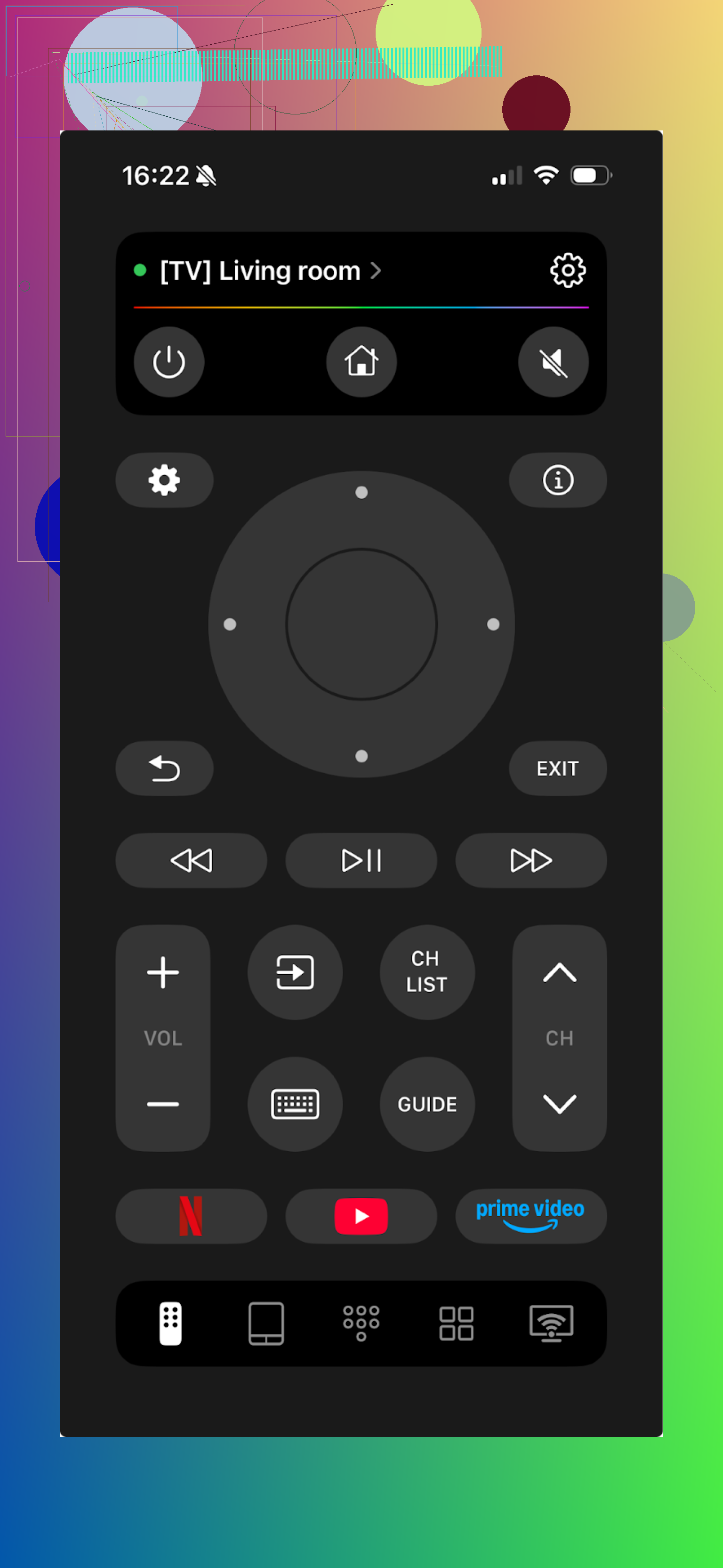
This one surprised me. It works with a lot of brands: LG, Samsung, Sony, Android TV, Roku, and a few others I do not own.
I checked it twice for tricks. No paywall, no “premium” button spam, no timer nag. The app is free.
What I used on it:
• Touchpad for moving around apps
• Voice input (uses Google Assistant or Alexa where supported)
• On-screen keyboard for search fields and passwords
• Channel and app switching
It felt close to a normal remote, only faster when typing.
Pros
- Interface is simple enough that I did not have to think
- TV detection and pairing were quick
- No subscription, no one-time fee
- Works across several major TV brands
- All the usual remote stuff is there
Cons
- Vizio is missing from supported brands
Price: free
Link: TVRem Universal TV Remote App App - App Store
There is also a Reddit thread that lines up a bunch of universal remote apps and compares them to physical remotes here:
Product page:
My take:
For iPhone, this is what I kept. No ads, no upsell spam, and every core feature worked on my Samsung and LG. If you own Vizio, skip it. Everyone else, start here.
TV Remote – Universal Control
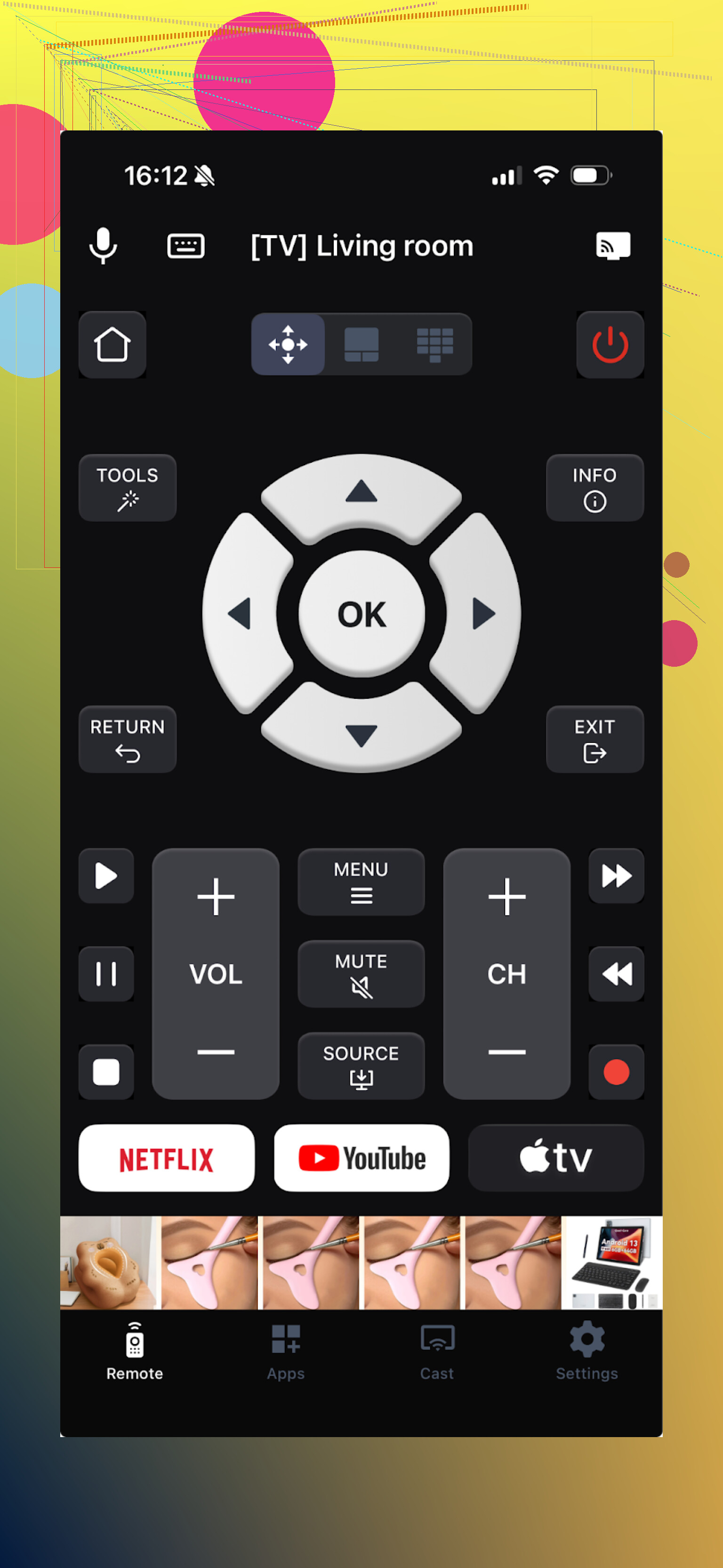
This one leans hard into subscriptions. It connects over Wi‑Fi, so the TV and phone have to be on the same network.
Useful parts I tried:
• Touchpad
• Voice control
• Channel launcher
• Built-in keyboard
• Media casting
Issue is, most of that sits behind a paywall. I had to start a free trial before I could see how it behaves.
Pros
- Has the features you expect from a “pro” remote
- Recognizes most major TV brands
Cons
- Ads in the free experience
- Many basic controls want money
- I hit occasional crashes when opening the menu
Price: from $4.99 and up
Link: TV Remote - Universal Control App - App Store
My take:
Works, but every second tap tries to sell something. I did not pay because I wanted something simpler and cheaper long term. If you do not mind subscriptions and like casting built in, it might still be ok for you.
Universal Remote TV Smart
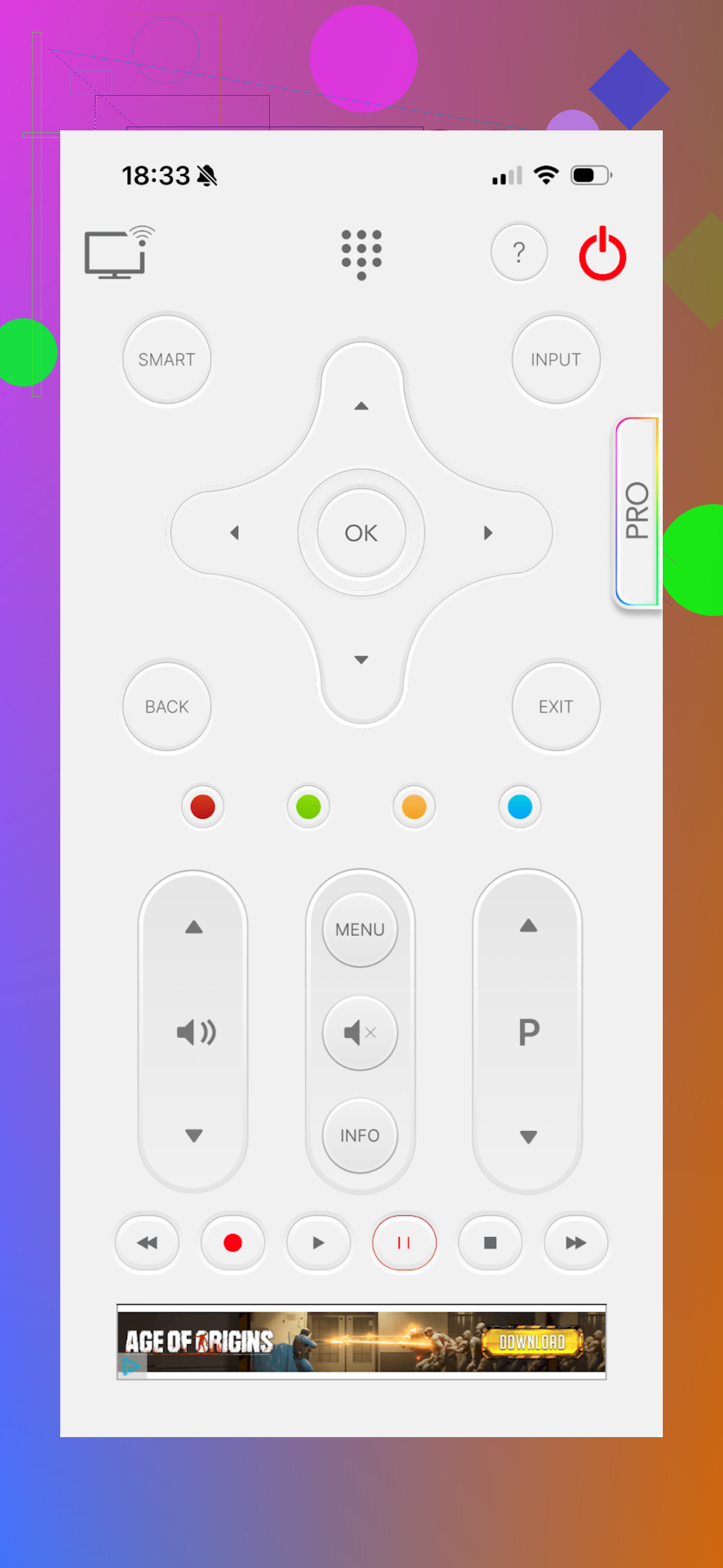
This one technically supports a long list of TVs, but the layout lost me. The screen feels busy and does not resemble any sane remote I have used.
What it offers:
• Keyboard
• App navigation
• Volume controls
• Channel switching
The problem for me was more about how those things are placed than what exists.
Pros
- Works with many brands
Cons
- Controls feel awkward and cluttered
- No voice control
- Forced video ads, which slow everything down
- Most actions trigger a paywall popup, even simple stuff
Price: from $7.99 and up
Link: Universal remote tv smart App - App Store
My take:
Out of all iOS remotes I tried, this was the weakest. Between the layout and how often it tried to sell me upgrades, I removed it pretty fast.
TV Remote – Universal
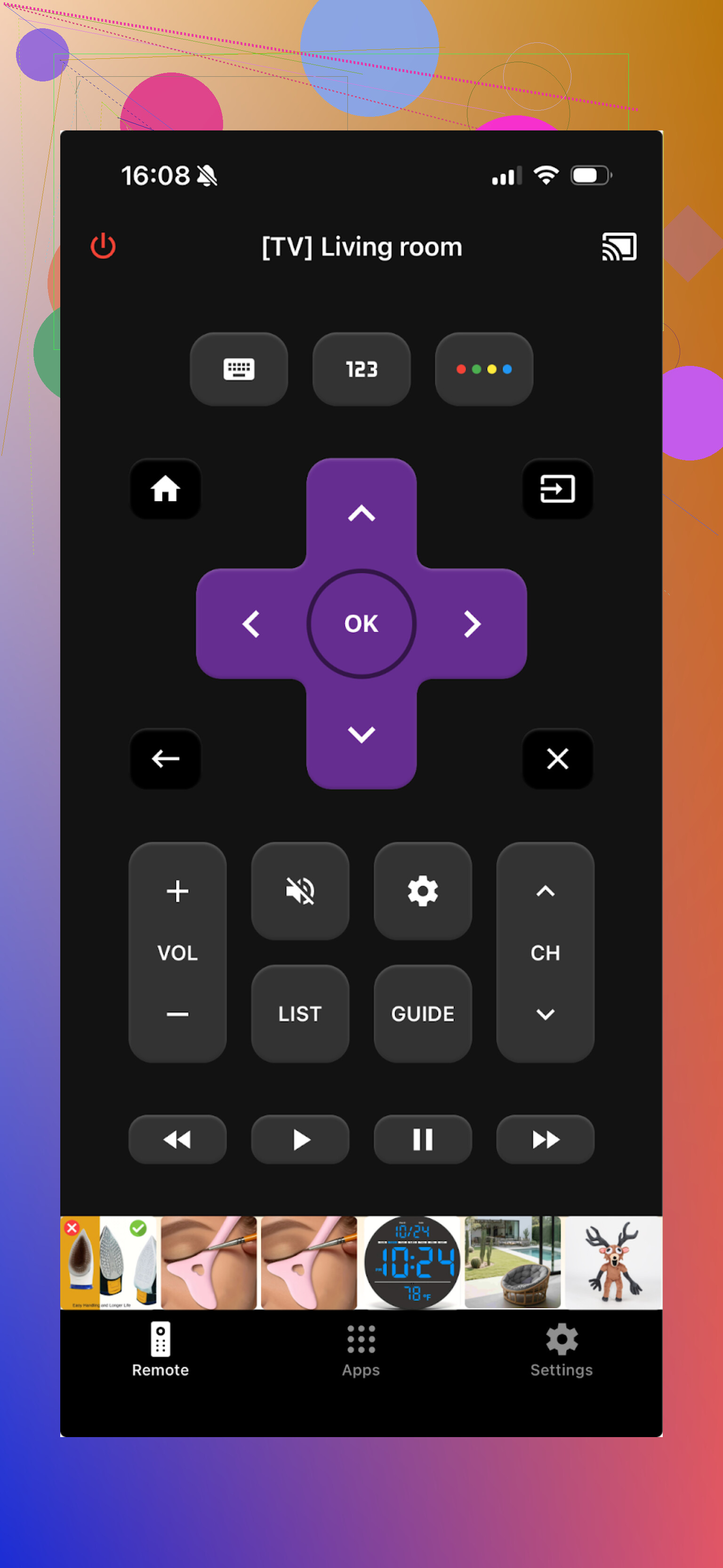
This one works with LG, Samsung, Sony, Vizio, Android TV, and others. So if you have Vizio and want an iPhone app, this is more relevant than TVRem.
It connects over Wi‑Fi, so same rule, phone and TV must share a network.
Features I used:
• Channel and app switching
• Keyboard input
• Play, pause, rewind
Pros
- TV discovery and pairing were quick
- Interface feels familiar
- Basic functions are included
- Free trial available
Cons
- Ads in the free mode unless you pay
- Any advanced-looking button takes you to an upsell window
Price: from $4.99 and up
Link: TV Remote - Universal App - App Store
My take:
I trialed the full version for a bit. Interface lagged once on the main screen, but controls worked. If you are fine paying and need Vizio support on iOS, it is usable. For free users, the constant upsells and ads get old fast.
Part 2: Android TV remote apps I tested
My wife uses Android, so we went through several options on her phone to see what holds up in real use, not in screenshots.
Universal TV Remote Control
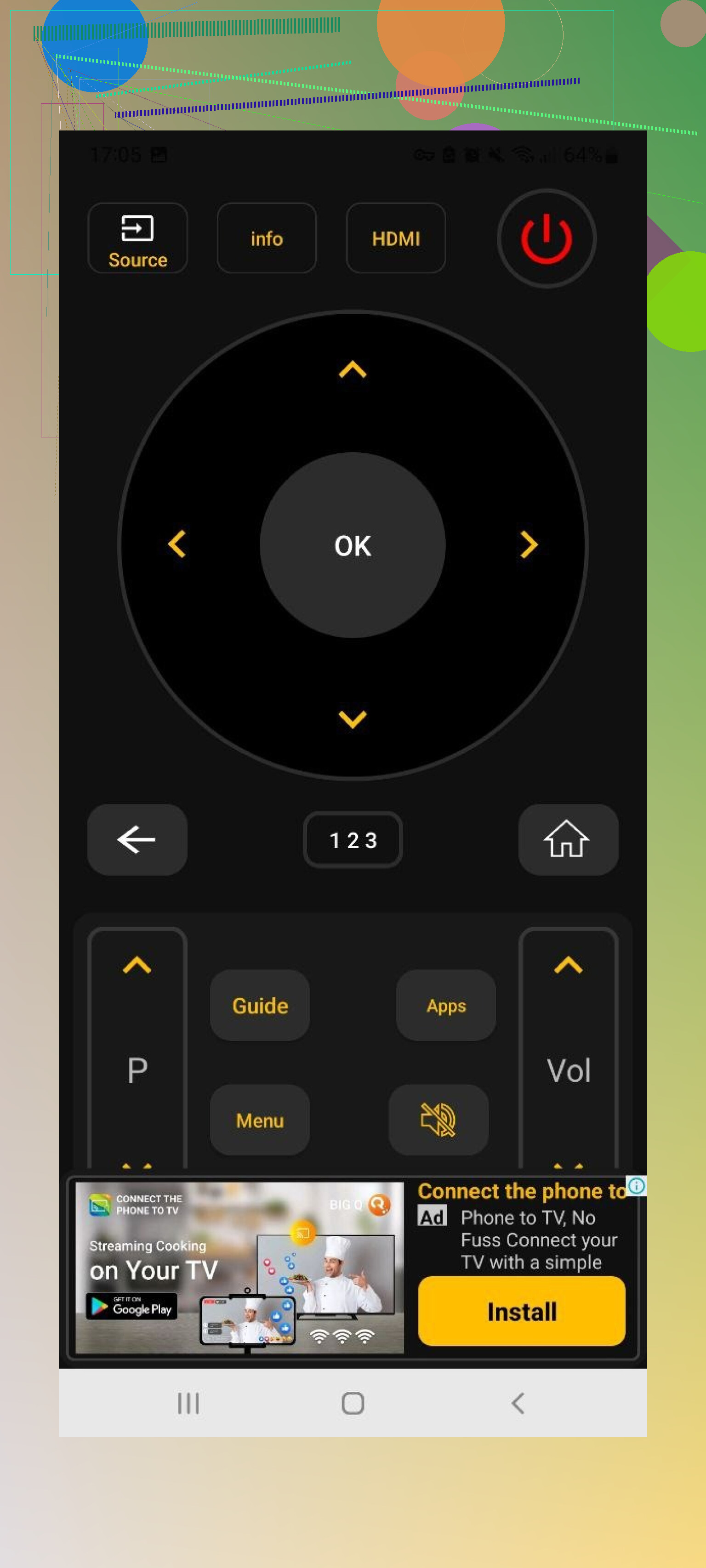
This one is everywhere on the Play Store. It supports Sony, Samsung, LG, Philips, TCL, Hisense, Panasonic, and more.
It has a big feature set:
• Trackpad
• Voice search
• App navigation
• On‑screen keyboard
• Works as a Wi‑Fi remote
• Works as an IR remote if your phone supports IR
The IR bit is useful if you have an older TV or poor Wi‑Fi.
Pros
- Works with a lot of TVs
- Can act as an IR remote in addition to Wi‑Fi
- All core features are free
Cons
- Ad volume is brutal and sometimes hard to close
- App crashed multiple times and lost connection
Price: free
Link: https://play.google.com/store/apps/details?id=codematics.universal.tv.remote.control&hl=en
My take:
I liked the feature set on paper. In reality, full‑screen ads and reconnecting several times killed it for me. My wife still kept it around for a bit, but I would not call it comfortable to use daily.
Remote Control For All TV | AI
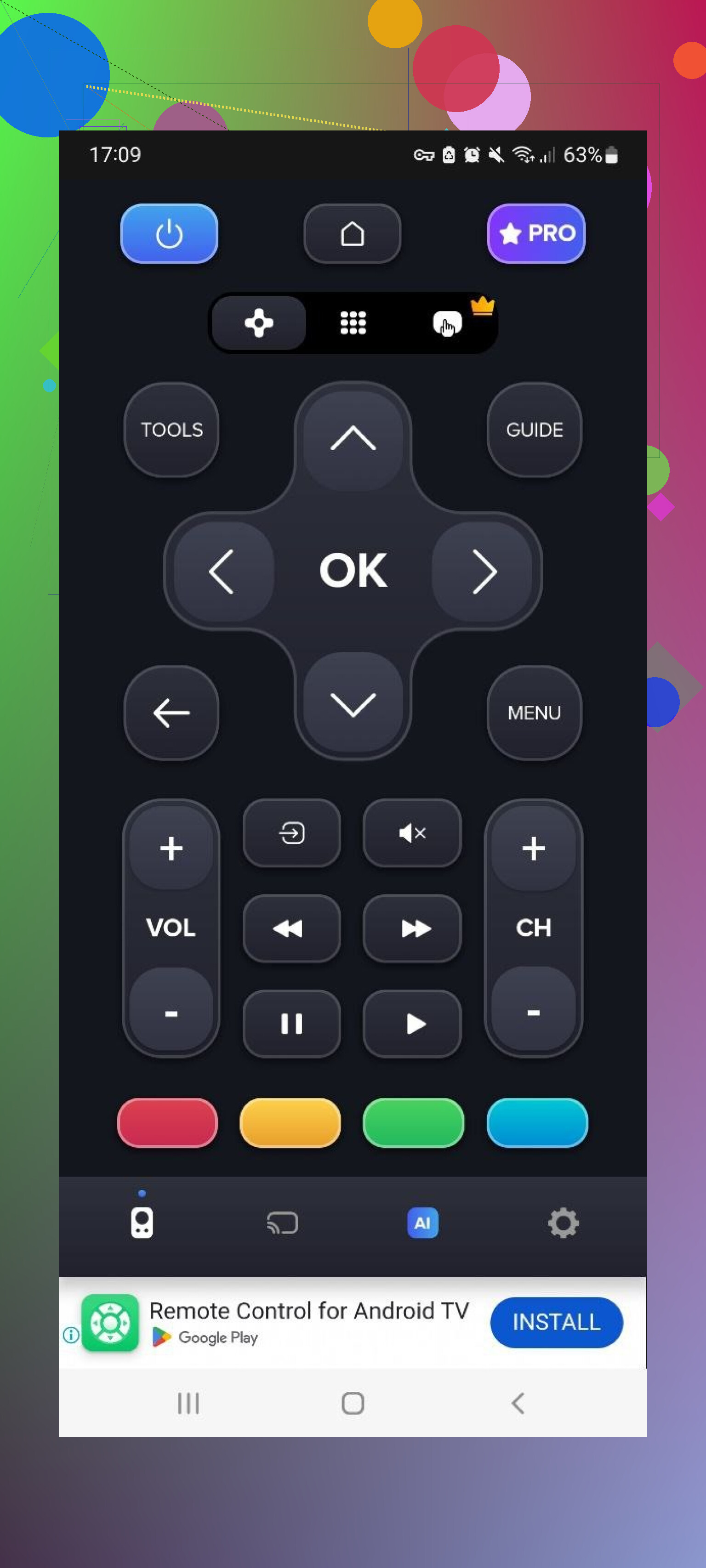
Again, a universal Wi‑Fi remote, with lots of brands listed.
On the free version you get:
• Basic remote controls
• Brand selection and pairing
But:
• Many ads
• Slow device scanning and connection
Paid tier adds:
• Ad removal
• AI assistant
• Keyboard with voice input
• Screen mirroring
Pros
- Broad brand support
- Simple basic controls in the free tier
Cons
- Ad density is high
- TV discovery is slow
- Most helpful stuff is paywalled
Price: from $4.99 and up
Link: https://play.google.com/store/apps/details?id=com.sensustech.universal.remote.control.ai
My take:
If you only want volume, input, and basic navigation, and do not care about delays, it works. For fast, daily use, waiting for connection and dealing with ads got annoying.
Universal TV Remote Control (Unimote)
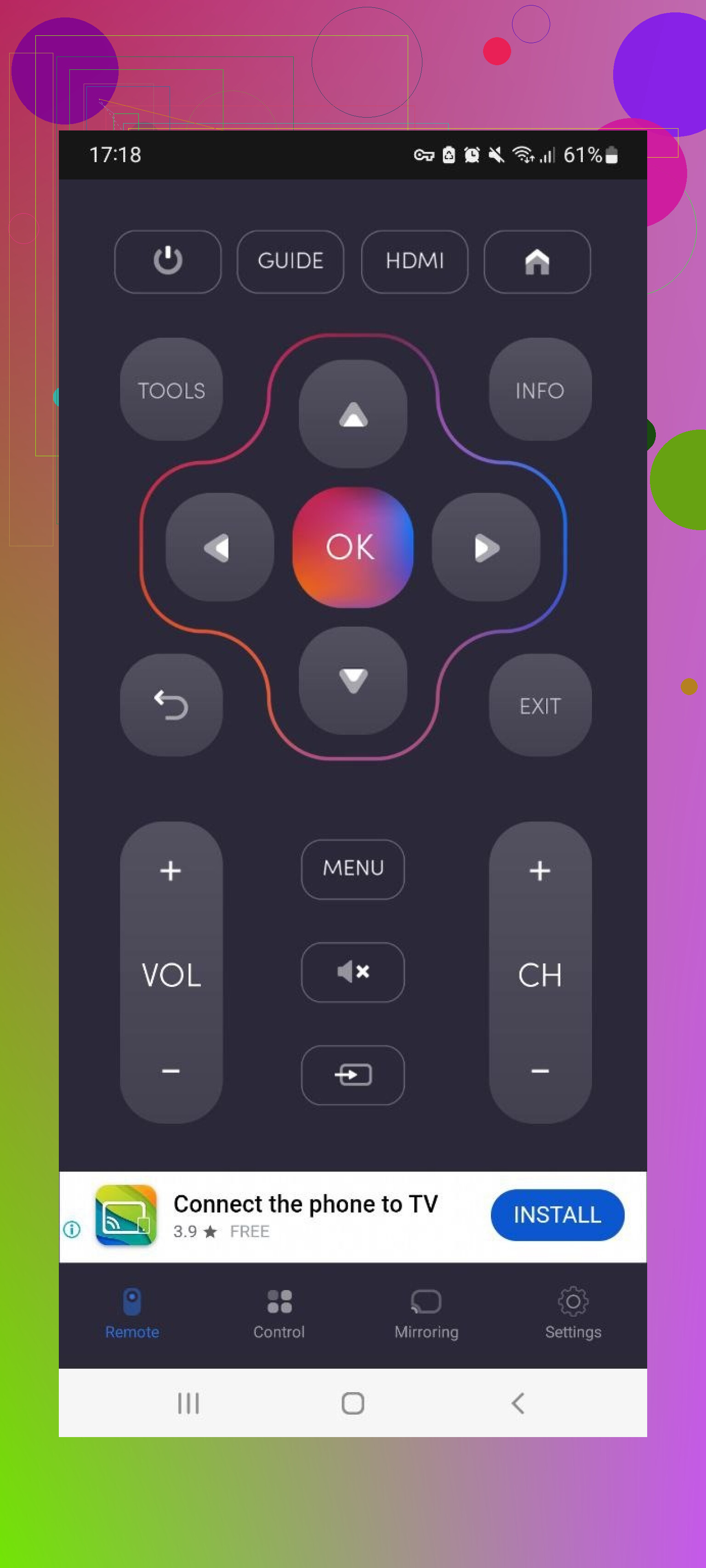
This one also supports both Wi‑Fi and IR, so it works with smart TVs and some older models.
TV detection was quick for me, but the actual connection took two or three tries. Ads show up back to back, often full‑screen.
Pros
- Simple layout for basic actions
- Supports IR and Wi‑Fi control
Cons
- Full‑screen video ads interrupt usage
- Many features need in‑app purchases
- Connection drops at random
Price: from $5.99 and up
My take:
It works as a backup. If your main remote disappears, this does the job for a short session. I would not rely on it as my only remote because of the ads and disconnects.
Universal TV Remote Control (another one)
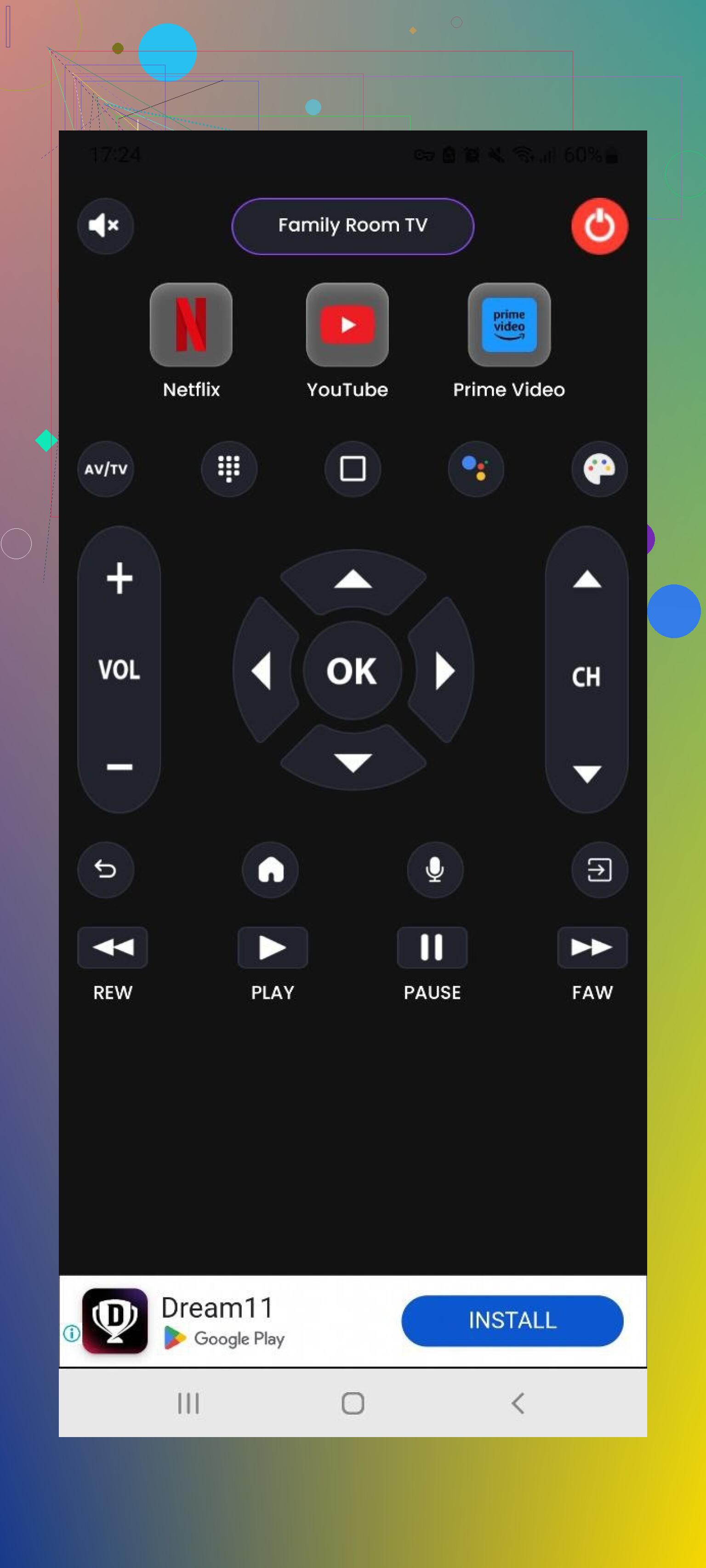
Yes, the names are all almost identical. This last one controls LG, Samsung, Sony, TCL, and others. It works through both Wi‑Fi and IR as well.
Features:
• Central control screen with basic navigation
• Power on and off
• Home and Menu buttons
• Basic playback controls: Play, Stop, Back, Forward
Pros
- All standard features are there
- Has a free trial
Cons
- Heavy on ads
- Most useful things require payment
Price: from 3.99 and up
Link: https://play.google.com/store/apps/details?id=com.uzeegar.universal.smart.tv.remote.control&hl=uk
My take:
Feature set is ok. The pricing and constant ad interruptions are not. If you hate ads, this will drive you nuts.
Part 3: Controlling your TV from a Mac
I also tested a couple of Mac apps. Controlling the TV from a Mac while working felt surprisingly natural.
TVRem Universal TV Remote on Mac
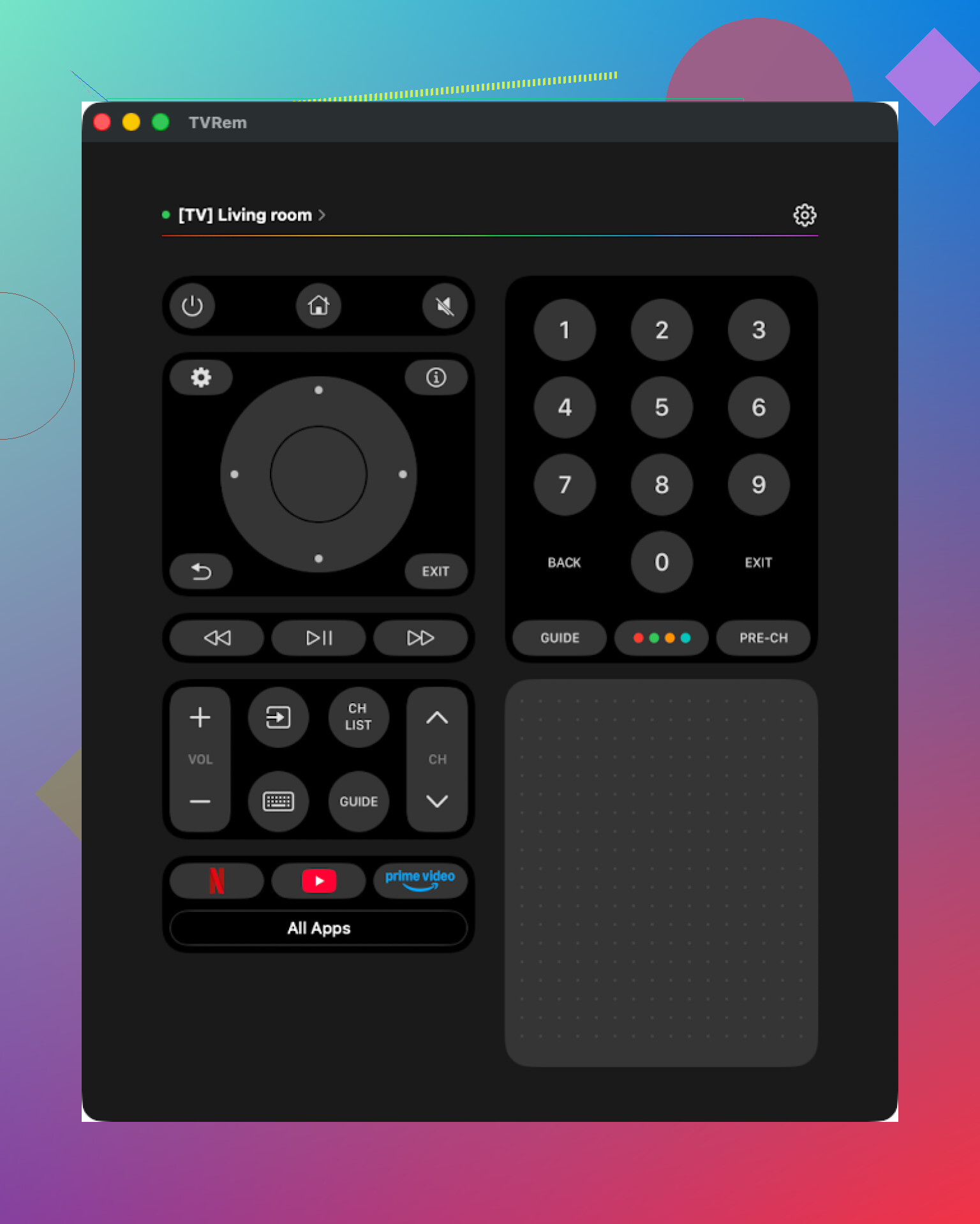
Same name as the iPhone one, and works in a similar way. I grabbed it from the Mac App Store and connected it to a Samsung TV.
Setup was minimal. It found the TV quickly. Interface is clean, almost bare, which I liked on a Mac.
Features I used:
• Touchpad
• Built‑in keyboard
• App launcher for TV apps
• Basic playback and navigation
Pros
- Simple and readable interface
- No ads, no locked sections
- Works with many common TV brands
- Everything needed for day‑to‑day use is included
Cons
- No Vizio support
Price: free
Link: TVRem Universal TV Remote App App - App Store
My take:
If you use a Mac near your TV, this is a nice “second remote” with zero cost. Same limitation as on iPhone though, no Vizio.
TV Remote, Universal Remote on Mac
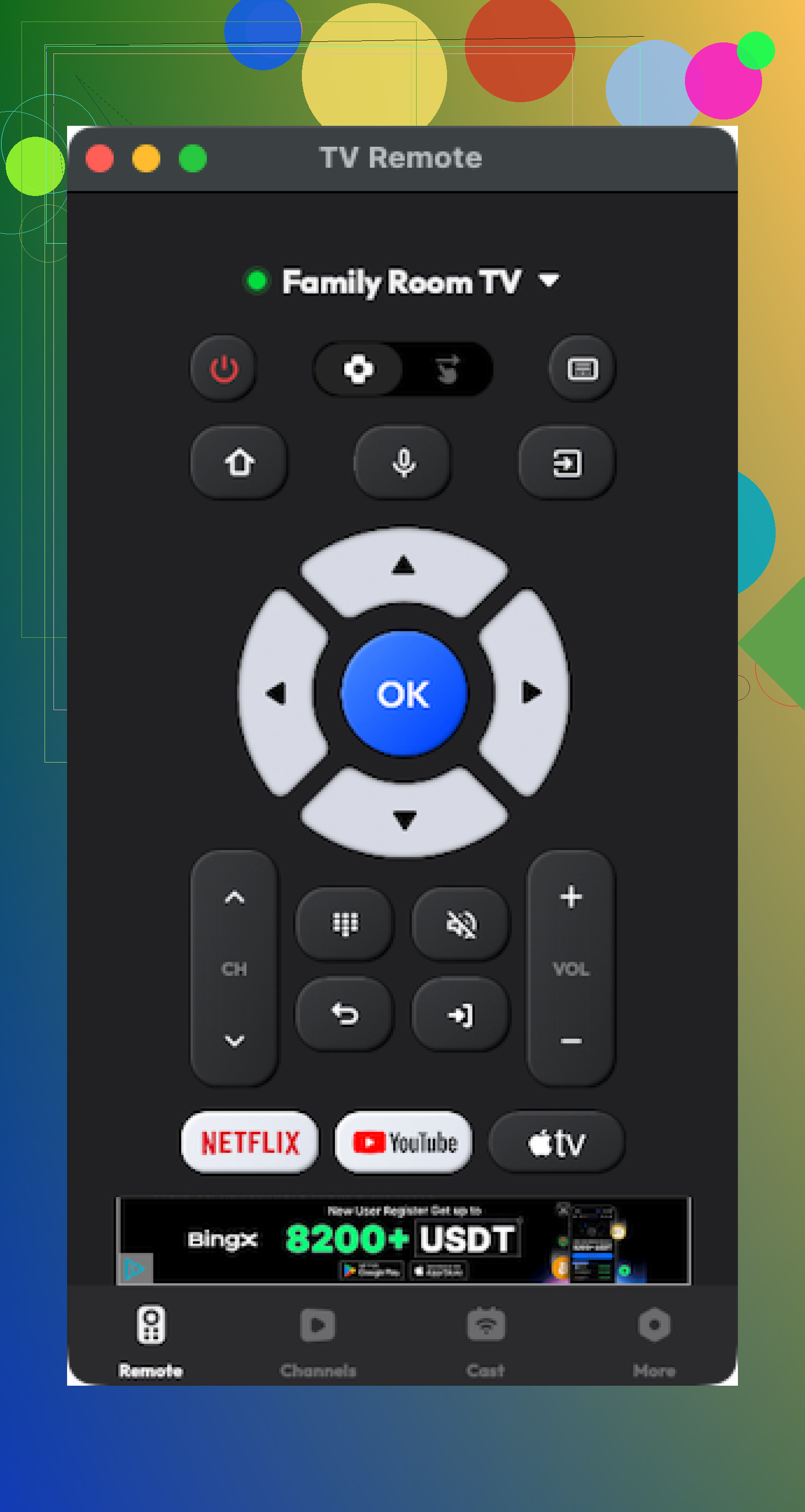
Also on the Mac App Store, with broad TV brand support.
It connected to my TV easily enough, but I hit a few crashes over several sessions.
Pros
- Interface looks ok
- Supports many brands and includes the core features
Cons
- A lot of features live behind a paywall
- Occasional crashes
Price: from $4.99 and up
Link: TV Remote, Universal Remote App - App Store
My take:
Works, but not my first pick. To make it fully useful you pay, and there is a small risk you will need support when it acts up.
Part 4: Phone remote apps vs physical remotes
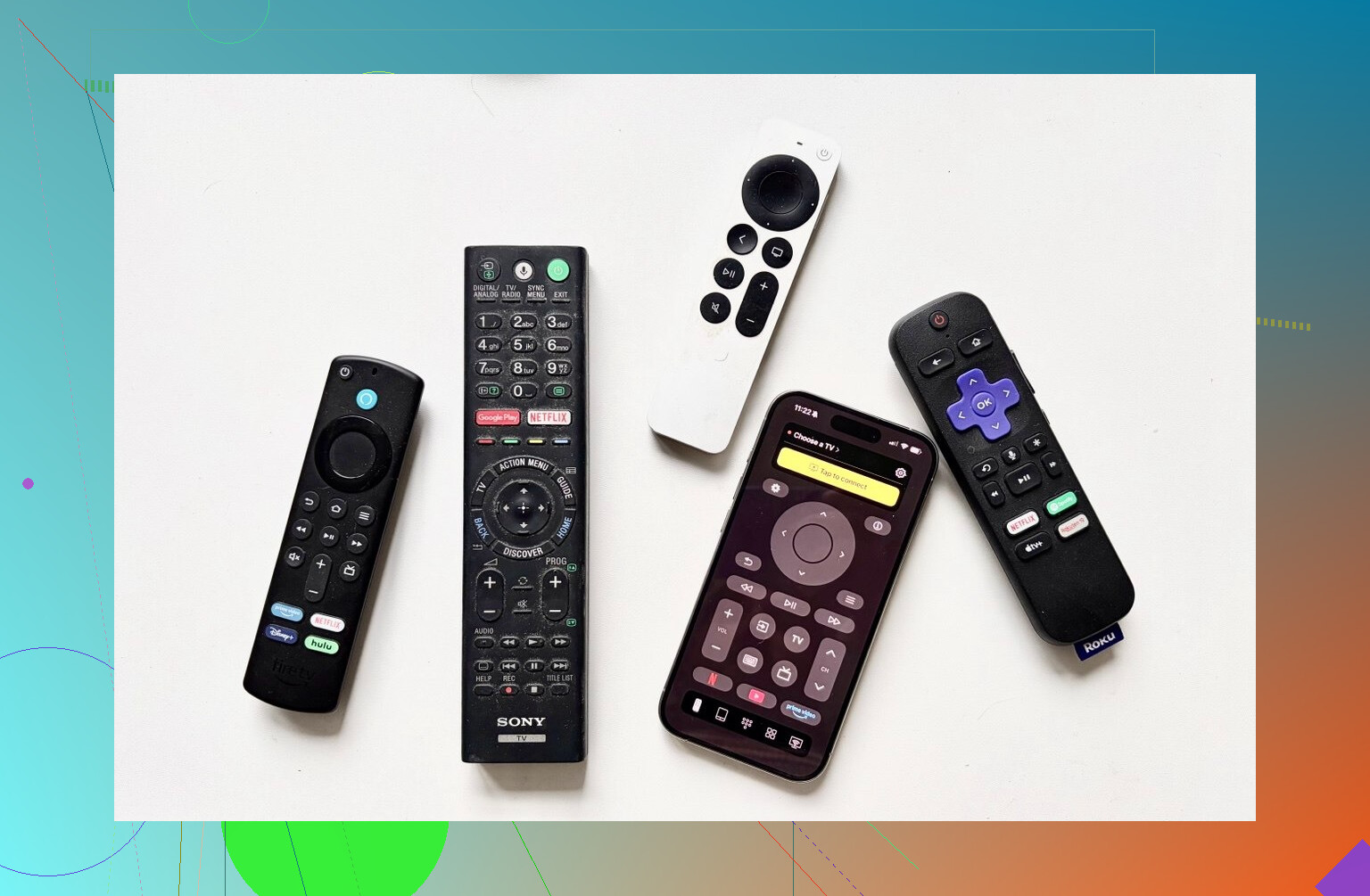
Quick definitions:
Physical remote: the plastic stick that ships with your TV or that you order as a separate replacement.
Remote app: software on your phone or tablet that controls the TV.
Why I ended up preferring apps in daily use
-
Harder to lose
My phone is almost always near me. Physical remotes migrate to other rooms, couch cushions, kids’ rooms, kitchen counters. -
Typing is less painful
Apps give you a full keyboard. Some also give you direct text input fields for search and logins. Typing passwords on an on‑screen TV keyboard with arrow keys is slow and error prone. -
Cost difference
Remote apps are often free or cheap. Replacement remotes for Samsung models from around 2019 to 2025 on Amazon land in the 15–20 dollar range. LG ones I checked were around 13–35 dollars depending on model and whether they had extra buttons like a pointer. A free phone app beats that if it works reliably. -
One app for several devices
If you have more than one TV, using a single phone to flip between them is simpler than keeping track of multiple physical remotes. Same idea if you have streaming boxes or other smart devices supported by the same app. -
Interface clarity
Phone UIs tend to group important actions together. Many smart TV remotes have lots of tiny buttons you never touch after day one.
Limitations I hit with remote apps
• They expect Wi‑Fi or Bluetooth
Most apps only work when the TV and phone share the same network or Bluetooth link. If the TV is in deep sleep or Wi‑Fi is off, the app does nothing. IR based apps avoid this but your phone needs an IR blaster.
• You are tied to your phone
If your battery is low, or your kid borrowed the phone, your “remote” is gone.
• Some TVs support fewer features
On older or cheaper models, the app only does basic stuff like volume and power. Do not expect every button on the original remote to exist in the app.
What I ended up using
After all this:
• On iPhone, I stuck with TVRem Universal TV Remote.
Free, no ads, touchpad and keyboard work well, and it handles my Samsung and LG. Vizio is the one gap.

• Second place on iPhone goes to TV Remote – Universal.
Paid, but functionally solid once you get past the paywall.
• On Android, my wife kept Universal TV Remote Control.
I do not love it because of the ad flood, but feature wise it reaches what she needs. Volume, input, and navigation all work.
• On Mac, I kept TVRem there too.
It is nice to pause, scrub, or change apps from the laptop while working.
If your priority is no ads and no surprises, start with TVRem on Apple devices.
If your priority is brand coverage, especially Vizio, you might need one of the paid ones like TV Remote – Universal.
Hope this helps you avoid a few of the more annoying installs.
36 Likes
If you want one thing to run TV, soundbar, streamer, maybe console, I’d skip phone‑only remotes and go hybrid: one hardware universal remote plus simple phone apps as backup.
Here is what works in practice.
-
Decide what you actually need to control
• TV: power, volume (if ARC/CEC), inputs, basic settings.
• Soundbar or AVR: volume, mute, input if not using HDMI ARC.
• Streaming box: directional pad, OK, home, back, play/pause.
• Game console: power and maybe basic media controls. You will still use game controllers for games. -
Physical universal remotes that do the job
Logitech Harmony was the gold standard, but it is discontinued. You can still buy used or old stock. If you are ok with that, a Harmony Companion or Harmony Elite still beats everything for multi‑device setups.
Pros:
• “Activities” like Watch TV that turn on TV, switch input, power soundbar, set volumes.
• Handles TV + soundbar/AVR + Apple TV / Roku / Fire TV + consoles via CEC or IR.
Cons:
• No future updates.
• Setup feels dated now.
If you want something current:
• Sofabaton X1
Good for 3 to 4 devices in one room. Has a hub and activities similar to Harmony. Setup through app, then family uses the physical remote.
• Sofabaton U2
Cheaper. Works via IR only. Fine if everything is in line of sight and you do not care about Wi‑Fi control. -
Make it family proof
For kids or non‑techy folks, you want:
• One main button to start “Watch TV” or “Watch Apple TV”.
• No input hunting on the TV itself.
• Volume always mapped to soundbar or AVR, never to TV speakers.
Harmony and Sofabaton X1 both handle this with activities. That is the thing your family will notice. -
Where phone apps fit
I partly agree with @mikeappsreviewer on phone remotes, but I do not trust them as the only remote when you have multiple boxes and a soundbar.
A good pattern:
• Use a physical universal remote for daily stuff.
• Keep one or two free phone apps for typing searches and as emergency backup.
If you are on Apple gear, TVRem is a decent pick like they said, especially for Samsung and LG. I would still not hand an iPhone to a kid as the main remote. -
Simple setup path
Step 1: Decide which devices matter most. If soundbar uses HDMI ARC, tie volume to that.
Step 2: Get either Sofabaton X1 or a used Harmony Companion.
Step 3: Run its setup on your phone or computer. Add TV, soundbar, streamer, console.
Step 4: Create one or two “Activities” only. Example:
• Watch TV: TV on, TV input HDMI 1, soundbar on, soundbar input TV ARC.
• Watch Streaming: TV on, TV input HDMI 2, soundbar on, soundbar input TV ARC, streaming box controlled by arrows.
Step 5: Teach the family those two buttons and ignore every other key. -
Game console notes
Consoles are odd:
• Xbox and PlayStation can respond to HDMI CEC for power and input switching. Your universal remote sends input change to TV, TV wakes console.
• You still use controllers for apps like Netflix or Disney, since they are optimized for gamepads.
Do not stress over full console control from the universal remote. Focus on power and input.
If you want the least headache:
• One Sofabaton X1 or used Harmony to handle everything.
• One free phone app like TVRem on iOS or a basic Android app, only for fast typing and backup.
That combo keeps setup manageable and keeps your family from juggling four different remotes.
If you want one thing that Just Works for TV + soundbar + streamer + maybe console, I’d actually flip the priority a bit from what @mikeappsreviewer and @hoshikuzu focused on.
They went heavy on phone/Mac apps and the Sofabaton / old Harmony route. Those are valid, but here’s what I’d look at first if “family‑proof and simple” is the main goal:
1. Start with HDMI‑CEC + ARC before buying anything fancy
Boring, but huge payoff:
- Turn on HDMI‑CEC in your TV settings
- Samsung: Anynet+
- LG: Simplink
- Sony: Bravia Sync
- Turn on HDMI‑ARC/eARC between TV and soundbar
If this is set up right:
- TV remote controls soundbar volume
- TV remote can wake the streaming box and switch inputs
- Often it can power the console and auto‑switch to it
You’d be surprised how far you get with one basic TV remote once CEC + ARC are behaving. A lot of folks skip this and jump to universal remotes too early.
2. If you still need a real universal remote, pick the “tier”
Instead of going straight to Sofabaton X1 like was suggested:
- Tier 1: Cheap IR universal remote (simplest for family)
Look for something like a GE / One For All style remote that:- Has codes for your TV brand + soundbar brand + streamer
- Lets you set “volume lock” to the soundbar
- Has 3–5 device buttons only
Pros:
- No apps, no hubs, no account signups
- Batteries in, punch in a few codes, done
- If it breaks, you buy another for 15–25 bucks
Cons:
- No “activities” with one button doing everything
- Line of sight required
For a lot of families, this is actually the sweet spot: everyone knows what “TV” and “STB” buttons mean.
3. Tier 2: Activity remotes that are still being made
Here’s where I disagree a bit with leaning heavily on old Harmony:
- Harmony is fantastic, but it’s dead product line
- Buying discontinued gear as your main family remote is asking for pain when it eventually fails
If you want activity macros like “Watch TV” in a modern product and don’t want X1 complexity:
- Consider something like One For All URC-7880 or similar models:
- They support activities (e.g. Watch Movie)
- Still just IR, no cloud account gymnastics
- Easier to explain to non‑tech people than a full app‑driven hub
Not as fancy as Sofabaton, but much less to babysit.
4. Where Sofabaton actually makes sense
I’d say:
- Sofabaton X1 is worth it if:
- You have a rack or equipment in a cabinet
- You really care about custom activities
- You do not mind spending time in an app to tune everything
Otherwise X1 is overkill. It is powerful, but it also gives you more ways to break things. Someone in the house hits the TV’s own power button and now your “Watch TV” macro is out of sync. Then you become Tech Support forever.
If you go Sofabaton:
- Keep activities minimal
- “Watch TV”
- “Watch Streaming”
- Hide the extra buttons with tape or just tell the family to ignore them
5. Consoles: manage expectations
This part people oversell:
- A universal remote is great for:
- Turning the console on/off via CEC
- Making the TV switch to the console input
It is not great for:
- Actually using the console UI or streaming apps
You will still grab the game controller almost every time.
So if that is your requirement, treat “console control” as power + input only, nothing more.
6. Where apps make sense in your setup
Compared to @mikeappsreviewer’s deep dive into apps:
- I would not use a phone app as the “main” family remote
- I would use them for:
- Text entry (searching movies, logging in)
- Emergency backup when the physical remote hides in the couch
If you are on Apple gear, TVRem is a good safety net like they said, especially for Samsung/LG. Just don’t build your whole setup around everyone needing a charged phone near the TV.
7. A practical, low‑drama setup path
- Turn on HDMI‑CEC + ARC. Test if TV remote controls soundbar and streamer.
- Buy a simple IR universal that:
- Controls TV, soundbar and streamer
- Locks volume to the soundbar
- Map things like:
- TV power/input to TV
- Volume to soundbar
- Navigation keys to streaming box
- Accept that console is controller‑only except for power/input.
- Install one remote app on your phone only for typing and backup.
You end up with:
- One cheap physical remote the whole family can use without thinking
- One phone app for the nerdy stuff like typing passwords
- Minimal moving parts, no dead product lines, no subscription popups
That’s usually enough to keep everyone from screaming “where’s the right remote” every night.
Short version: if you want one thing that works for TV + soundbar + streamer and is friend‑proof, I’d flip the stack a bit from what @hoshikuzu, @suenodelbosque and @mikeappsreviewer leaned on.
They went heavy on phone/Mac apps and “universal TV remote” apps like TVRem as a primary solution. I would treat those as backup and text‑entry helpers, not your main control. Wi‑Fi hiccups, people’s phones being dead, kids taking the phone to another room, all of that will bite you.
Physical “universal TV remote” as the core
Look for a mid‑range hard remote that can:
- Control at least 4 devices: TV, AVR or soundbar, streaming box, “other” (console / Blu‑ray)
- Do basic activities: “Watch TV” or “Watch Streaming” mapping power + inputs in one shot
- Lock volume to the soundbar so the family cannot accidentally blast TV speakers
There are several models branded as a universal TV remote that do this. Pros and cons in general:
Pros
- Always on the table, not tied to battery on someone’s phone
- One‑button macros are easier for kids and guests
- IR still works even if your Wi‑Fi or apps are acting up
- Setup is mostly one‑time code entry and quick learning from the original remotes
Cons
- Initial setup can be tedious if you have odd‑brand gear
- If your devices are hidden behind cabinet doors, plain IR might need very careful aiming
- Activities can drift out of sync if someone uses the TV’s own remote or console controller
Compared to pure app control that @mikeappsreviewer explored, you lose the on‑screen keyboard convenience, but you gain a “dumb, reliable stick” that always works.
How I’d mix everything without duplicating their steps
- Use a single universal TV remote for daily use.
- Turn on HDMI CEC so that power & input switching mostly just “follow” what you turn on.
- Keep one phone app (TVRem or similar) on your phone only for typing passwords and emergency backup.
- Do not expect the universal to actually navigate your console UI. Let the console controller handle that. Treat the remote as “power + input” only for the console.
On the app side, the “universal TV remote” apps that were discussed have their place, but for a household that wants to press Power and have everything wake up, a decent physical universal TV remote in the 20–40 dollar range is still the least stressful backbone of the setup.
You leaned on a universal remote as core, apps as backup. Simpler path. Make your streaming box remote the only remote. Enable HDMI CEC in TV setttings, Anynet+, Simplink, Bravia Sync. Use HDMI ARC or eARC for audio. Plug the streamer into HDMI 1. Pair the remote for TV power and volumn. Examples, Roku Voice Remote Pro, 30 to 35 dollars. Fire TV Alexa Voice Remote Pro, about 35 dollars. Apple TV Siri Remote, 59 dollars. Set TV to last input. Turn off TV speakers. Enable console CEC for power and input. Test Power, Volume, Home. Drawer the extras.