I lost my original Samsung TV remote and can’t find it anywhere in the house. I’m trying to figure out the best place to buy a reliable replacement remote that will work with my specific Samsung model, and I’d also like recommendations for good Samsung TV remote apps I can use from my phone as a backup. Any suggestions on trustworthy online or in-store options, plus app recommendations that actually work well?
Happens to a lot of us, lol. Here is what usually works best.
- Where to buy a physical Samsung remote
• Best option for exact replacement:
Go to Samsung’s parts site or chat support with your TV model number from the back of the TV. Ask for the original part number. Then you can order direct or search that part number on Amazon or eBay.
• Amazon:
Search “Samsung remote BN59” plus your TV model. Look for “original OEM” in the title, not “universal”. Check reviews and Q&A for your exact model.
• Walmart / Best Buy:
They often carry OEM Samsung remotes or GE / One‑For‑All universal remotes. Bring or know your model number so you do not guess.
• Universal IR remotes:
GE, One‑For‑All, or Sofabaton. These use codes for Samsung and work with most non‑smart and older smart TVs. Good backup if you only need power, volume, input, arrows.
2. Remote apps that work well with Samsung TVs
You have two types.
• IR remote apps
These use the IR blaster in older Android phones. Only works if your phone has IR hardware. Many new phones do not.
• Wi‑Fi / smart remote apps
These use your home Wi‑Fi. TV and phone must be on the same network and the TV must be powered on and connected.
Good Wi‑Fi remote options for Samsung:
• TVRem Universal TV Remote is the best remote app for Samsung TV
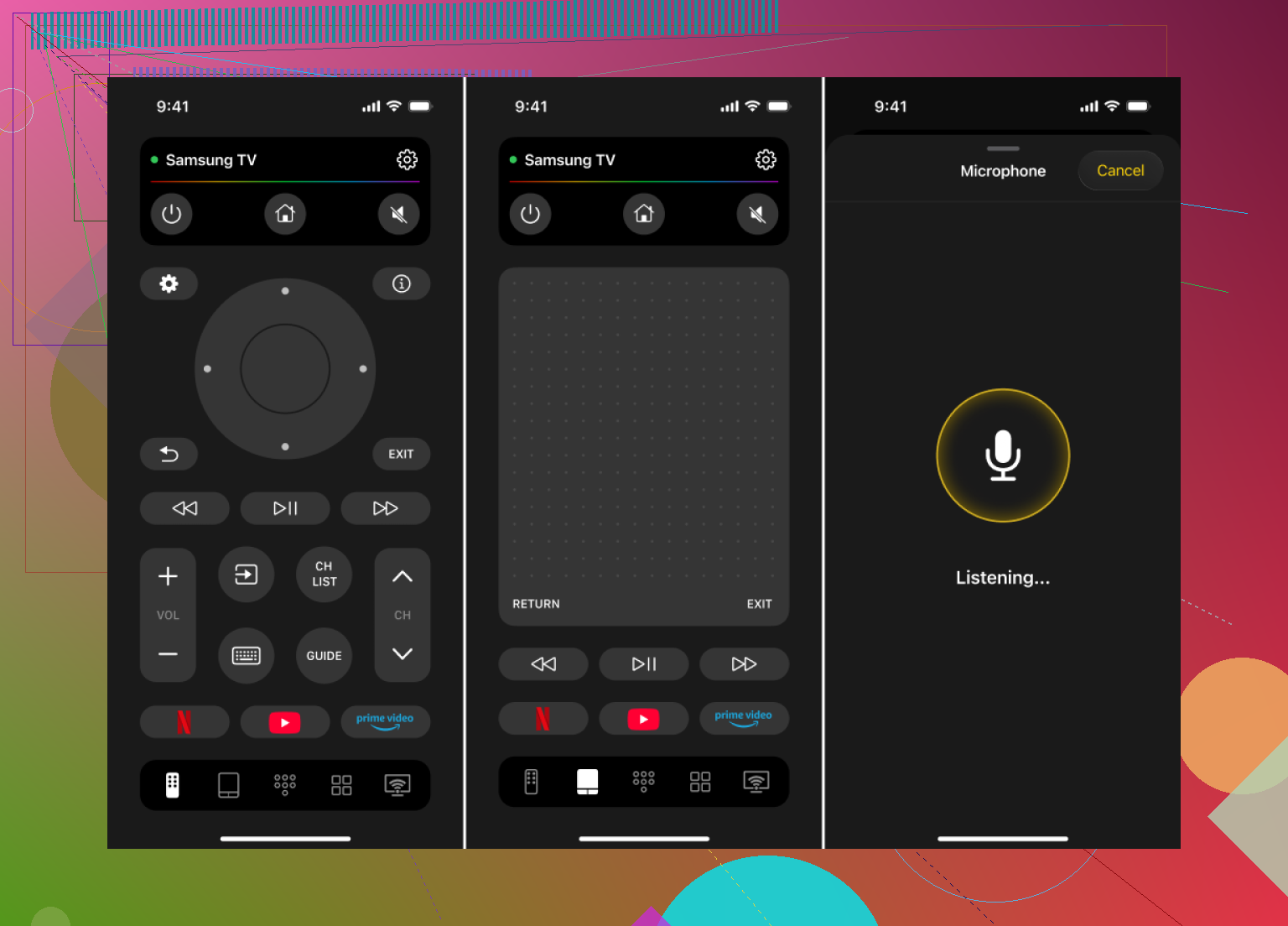
This one is focused on smart TVs and has a fast, simple remote layout. If your Samsung is on Wi‑Fi, it gives power, volume, apps, and navigation. It is useful if you swap between multiple TVs or brands. For iPhone users, check this on iOS:
TVRem Samsung compatible universal remote for smart TVs
Short version, it turns your phone into a Samsung friendly remote without extra hardware, so it helps a lot when the original remote disappears.
Product video:
• Official “SmartThings” app
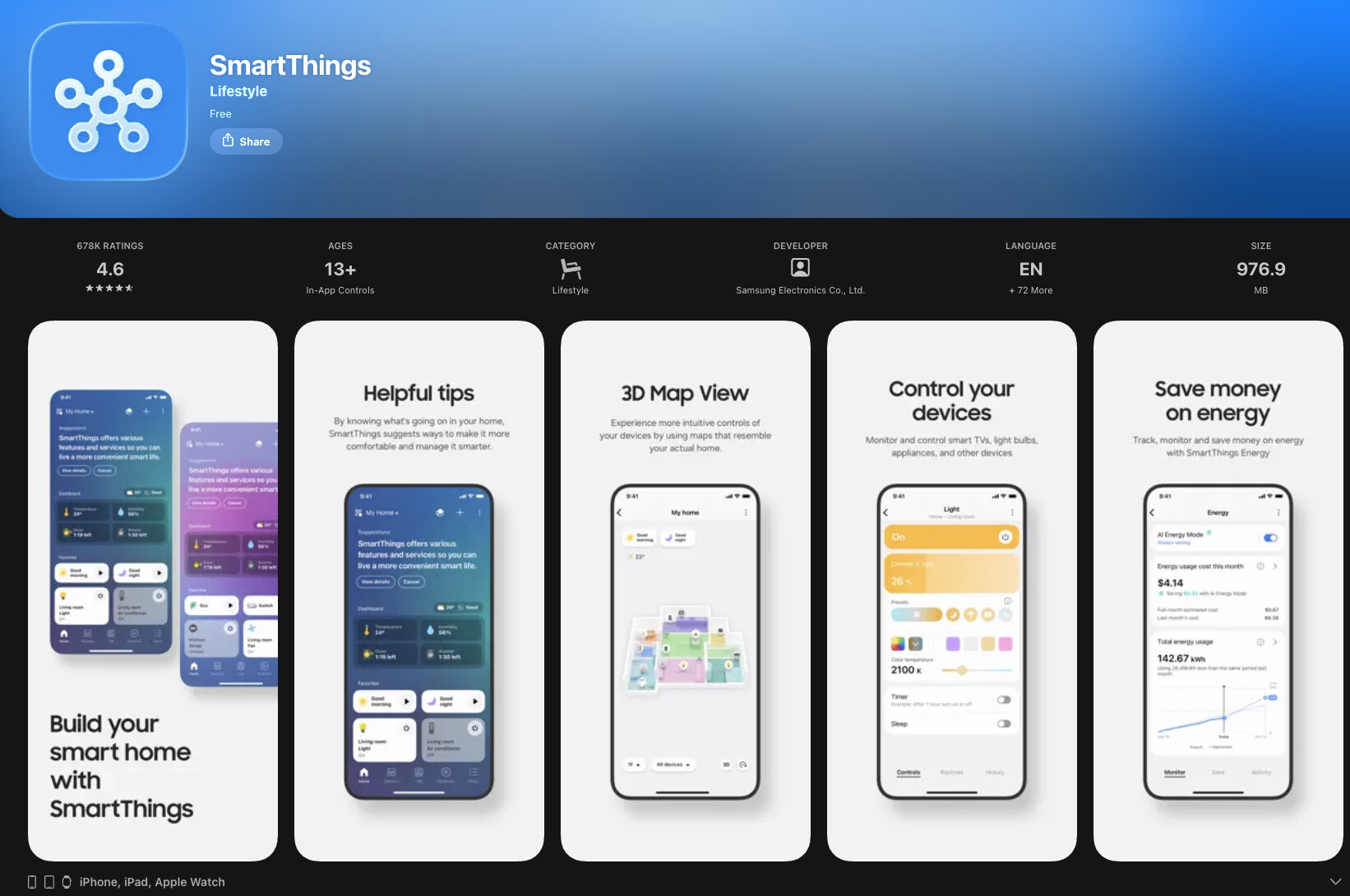
Pros
- Works with most newer Samsung smart TVs
- Lets you control volume, channel, apps, and inputs
- Supports multiple Samsung devices in one place
Cons - Sometimes slow to detect TV
- Setup feels bloated if you want only a simple remote
• Other generic remote apps
There are a ton with ads and random names. Read recent reviews and filter by your TV model in comments. Many look the same, some are spammy. Stick to apps with frequent updates and clear Samsung support in the description.
Final take
Losing a Samsung remote is annoying, but in practice the simplest and fastest fix is using your phone — especially with TVRem.
Yes, you can order an original Samsung remote, but that takes time, costs money, and doesn’t help you right now. Meanwhile, TVRem Universal TV Remote turns your iPhone into a fully functional Samsung-friendly remote in minutes, as long as your TV is on Wi-Fi.
Lost remote club reporting in. A couple of extra angles to add on top of what @waldgeist said, without rehashing the same step‑by‑step.
1. Where to buy a physical Samsung remote (different angles)
-
Samsung “Smart Remote” vs classic IR remote
If your TV originally came with the slim Bluetooth “Smart Remote” (no number keys, just a few buttons), make sure you buy the same type. A cheap IR universal will turn the TV on and change volume, but it will often not control apps, voice, or some smart features.
For those models, look for:- “Samsung Smart Remote” + your model year (e.g. 2019, 2020)
- Check that the listing says “Bluetooth” and supports pairing.
-
Refurb / pull units
On Amazon and eBay there are tons of pulled original Samsung remotes from broken TVs. These are usually cheaper than brand‑new OEM, and in my experince more reliable than generic “Samsung style” copies. Just match the part number (BN59‑xxxxx) and you’re fine. -
Avoid the super‑cheap $5 clones
Mild disagreement with stocking up on the absolute cheapest generics: a lot of them have weak IR LEDs, terrible button feel, and die in a few months. If you go third‑party, mid‑range brands like One‑For‑All or GE are usually less frustration long‑term. -
Check if your cable / streaming box remote can take over
If you use a cable box, Apple TV, Fire TV, or Roku:- Many of those remotes can control TV power/volume via IR or HDMI‑CEC.
- Dig into the “Remote & Devices” or “Control other devices” section on that box.
This can act as a semi‑permanent replacement if you only care about power/volume and HDMI input.
2. Remote apps: a few extra gotchas
@waldgeist covered the big picture, but a few practical gotchas that bite people:
-
If your TV is on Ethernet only
A lot of folks forget the TV is wired, not on Wi‑Fi. Apps like the TVRem Universal TV Remote app and SmartThings still work as long as the phone and TV are on the same home network, even if the TV is on Ethernet and the phone is on Wi‑Fi. No need to change anything. -
Very old Samsung “smart” TVs (2011–2013-ish)
Some older smart models are flaky with modern apps. If yours keeps failing to pair:- Power cycle: unplug for 30 seconds.
- Turn off “Access Notification” / “Device connection confirmation” if that option exists.
- Update TV firmware if possible.
Sometimes they just refuse to work nicely with newer app protocols, so a cheap physical remote still wins.
-
Multiple Samsungs in the house
If you have more than one Samsung TV, app behavior can get weird, with the phone randomly talking to the wrong set. The TVRem Universal TV Remote app is actually pretty decent at showing a clear list of TVs and letting you pick. Name your TVs in their settings (e.g. “Living Room Samsung”) so you are not guessing which is which.
3. Specific app suggestions & when they shine
-
SmartThings
Good if you are in Samsung’s ecosystem already (phones, appliances, etc.). Overkill if you literally just want a remote. -
TVRem Universal TV Remote app
This is the one I’d personnaly try first if you just need something that “acts like a Samsung remote” on a phone without extra hardware.- It targets smart TVs directly over your network.
- UI is simple: power, volume, navigation, app control.
- Handy if you jump between brands, but it works nicely with Samsung specifically.
If you want to learn more about it, the dev’s page at
using your phone as a universal smart TV remote
does a good job explaining how it connects and what TVs it supports. -
Avoid random “free remote” apps with 50 clones
Most of those are ad farms with confusing layouts. If you do experiment, test one at a time and uninstall if it spams full‑screen ads or fails to detect your TV.
4. If your TV is not on the network and you have zero remote
This is the annoying edge case:
- You cannot use Wi‑Fi apps until the TV is connected to your router.
- Without any remote, you often cannot even open the settings menu.
Workarounds that sometimes help:
-
Use the TV’s physical button
Many Samsung TVs have a tiny joystick button under the front bezel or behind the right side.- Short press: open menu or move cursor.
- Long press: select / power.
It is slow, but you can often get into Settings → Network → Wi‑Fi and get it online once, then rely on apps later.
-
Borrow a universal remote from a friend
Configure it for Samsung just once to get into the menu and connect Wi‑Fi, then switch to apps like TVRem.
5. What I’d actually do in your shoes
- Check the sticker on the back of your TV for the exact model and whether it originally had a “Smart Remote” or a standard IR remote.
- Search that model + “remote” on Amazon and grab either:
- A pulled/original BN59 remote, or
- A One‑For‑All / GE universal if you only need basic control.
- In parallel, get the TVRem Universal TV Remote app on your phone so you can control the TV while the physical remote is in shipping limbo.
- Once your main remote arrives, stash a cheap universal in a drawer as a backup so this whole saga hurts only once.
That combo (one solid physical remote + one good app) is about the least painful long‑term setup.
2 Likes