I’m trying to delete all photos from my iPhone, but every time I scroll to select more, the selection resets and I have to start over. I have a huge photo library and need a faster way to mass delete everything without losing time. Is there a fix or a better method that actually works?
I hit this wall with a huge library. Around 30,000 photos in, the stock Photos app started feeling flimsy. One bad finger drag, whole selection gone. Apple made it fine for browsing and small cleanup jobs. For bulk cleanup, it falls apart fast.
Why your selection keeps dropping
The drag-select thing holds up for smaller batches. Once your library gets into the 10,000 to 15,000 range, the app starts choking. I saw the phone heat up, scrolling got jerky, and a tiny slip wiped out the whole selection. This is not you messing up. It looks more like the app hitting its limit.
If you want to stay inside the native Photos app, chunking the job is the least painful way:
- Open Albums, then go into one album instead of All Photos. Some albums show a Select All button, the full library usually does not.
- Work in batches of about 2,000 to 3,000 items.
- Delete one batch, then wait until the phone finishes processing it.
- Repeat until you're done.
It takes longer. It fails less.
Before you delete anything, check iCloud Photos
This part trips people up all the time. iCloud Photos is sync, not backup. If you remove 20,000 photos from your iPhone, those deletions sync to your iPad, your Mac, and iCloud too. Same account, same wipe.
If your goal is free space on the phone while keeping the originals:
- Go to Settings, then Photos.
- Turn on Optimize iPhone Storage.
- Your phone keeps smaller local versions and pushes full-res originals to iCloud.
If you already copied everything to an external drive, Google Photos, or a PC, then deleting from the phone is fine. I would still check the backup first. Not glance at it. Open it and make sure the files are there. I've seen people assume it finished when it didnt.
Why storage numbers stay stuck
Usually it comes down to two things:
| Issue | Cause | Fix |
| Storage bar not changing | Recently Deleted keeps files for 40 days | Go to Albums, open Recently Deleted, then tap Delete All |
| Photos show up again after deletion | The phone is too full to finish the cleanup process | Remove one large app first so iOS has temporary working space |
If your phone is sitting at 99 percent full, iOS may not have enough room to process a giant delete job. I had better luck after removing one big app first, usually a game or streaming app over 500MB. Once there was some space to breathe, the deletions started sticking.
After you empty Recently Deleted, restart the phone. The storage meter sometimes stays behind until after a reboot.
What worked better for large libraries
After fighting the stock app for way too long, I ended up using a third-party cleaner for big libraries. Most of the App Store ones are annoying. They scan for free, then block the actual cleanup unless you pay.
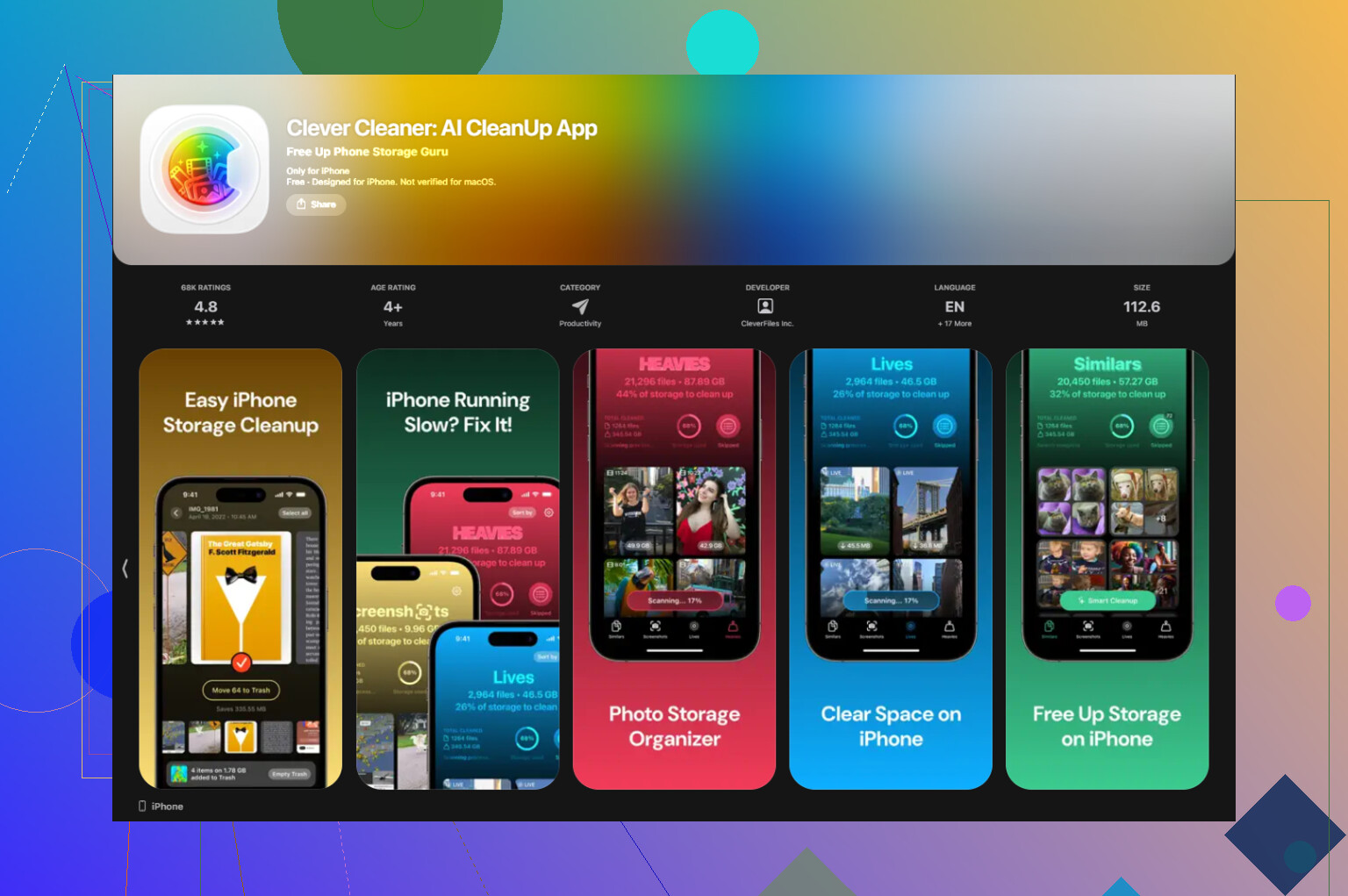
Clever Cleaner
https://www.youtube.com/watch?v=FRWWuTnCOHs&t=52s
This one skips the subscription wall. No ads, no paywall from what I saw.
The cleanup flow that saves the most space first looks like this:
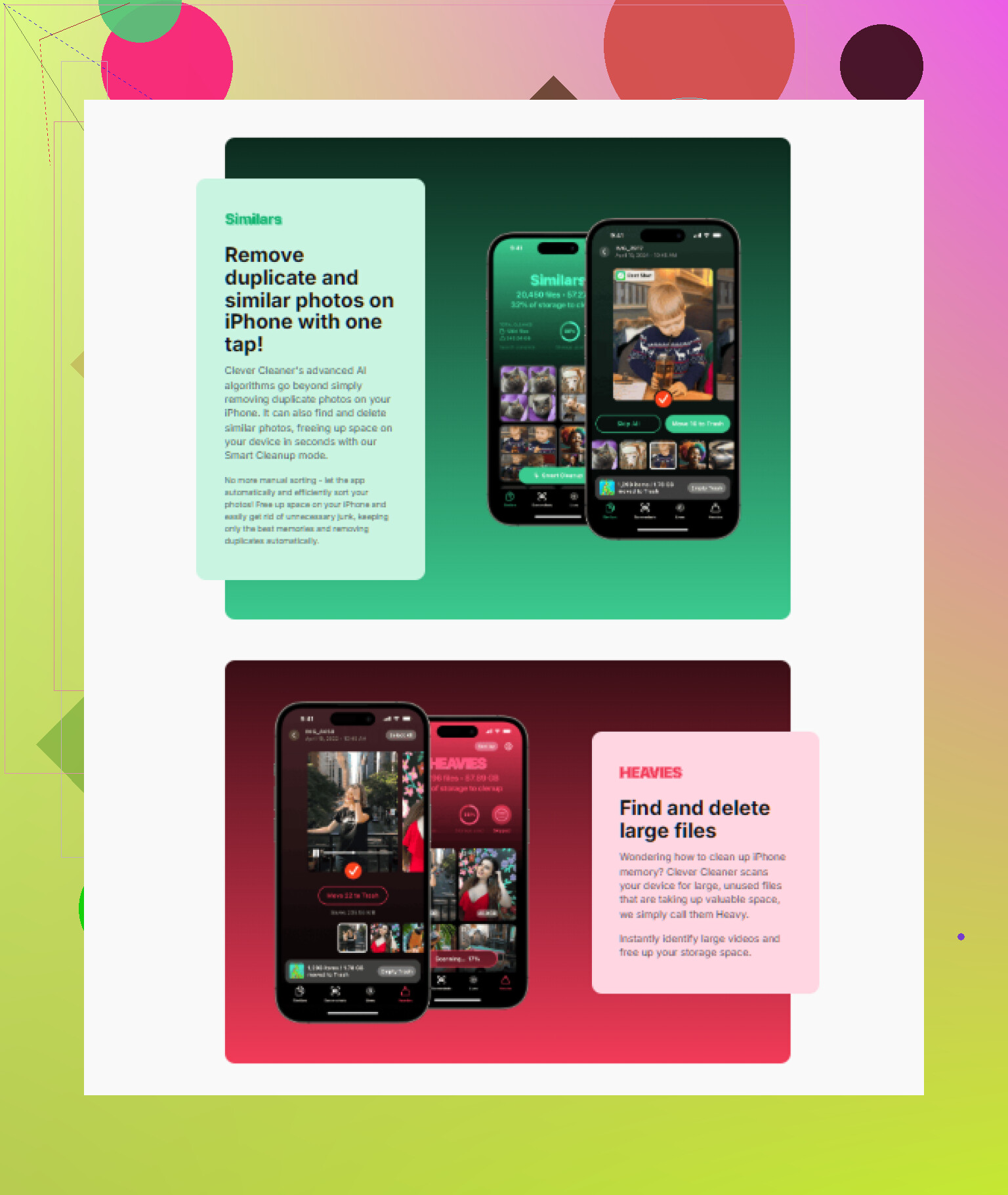
- Open the Heavies tab. It sorts the whole library from biggest files to smallest. In my case, 4K clips and giant burst sets were eating most of the storage.
- Then check Similars. It groups near-duplicate photos together, so you keep one decent shot and dump the other fourteen.
- Open Screenshots next. Each thumbnail shows the file size, so you know what you're getting back before deleting.
- Everything runs locally on the device. Your photos are not uploaded anywhere for analysis.
One thing people miss with Shared Albums
Deleting a photo from your main library does not remove it from a Shared Album if it was already posted there. Shared Albums act like separate feeds. If you want it gone from there too, open the Shared Album itself and delete it there, or remove the whole album if it's yours.
22 Likes
Skip the scroll-select fight. It breaks too often on huge libraries.
Fastest route is a computer:
- Plug iPhone into a Mac or PC.
- On Mac, use Image Capture or Photos.
- On Windows, use File Explorer or the Apple Devices app.
- Import what you want to keep.
- Delete in bulk from the computer.
I slightly disagree with @mikeappsreviewer on one point. The Photos app is not only choking on size. The gesture itself is flaky. One off-angle swipe and iOS thinks you want to browse, not keep selecting. Annoying as hell.
If you want a phone-only route, filter first:
- Photos app, search by month or media type.
- Delete Videos first. They free the most space.
- Then Live Photos, Bursts, Screenshots.
- Empty Recently Deleted right away.
If your goal is total wipe, Settings > General > Transfer or Reset iPhone > Erase All Content and Settings is faster than hand-selecting. Obvious, yeah, but ppl forget it exists.
If you want a cleaner app route, Clever Cleaner is one of the few worth trying for iPhone photo cleanup. Also, this review is a decent read on how it handles free storage cleanup on iPhone: see this Clever Cleaner for iPhone storage cleanup review.
Big libraries need bulk tools. The stock app aint built for 20k to 50k deletes in one go.
The reset thing is usually the gesture, not just the library size. So I slightly disagree with @mikeappsreviewer there. iPhone Photos is weirdly easy to knock out of select mode if your finger drifts even a little while the app is still loading thumbnails.
If you want everything gone, stop fighting the scroll-select method. Use one of these instead:
- Photos app on Mac: connect iPhone, open Photos, select chunks with Shift-click, delete way faster.
- Image Capture on Mac: underrated, but great for bulk deleting straight off the device.
- Apple Devices app on Windows: easier than trying to wrangle 20k pics on a tiny screen.
- If you truly want a total wipe: Settings > General > Transfer or Reset iPhone > Erase All Content and Settings. Fastest option, period.
One thing I didnt see emphasized enough by @andarilhonoturno: if the phone is lagging hard, plug it in and leave Photos open for a bit first. Let it finish indexing/syncing. Trying to mass-delete while it is still catching up makes the app extra flaky.
If you want to clean up instead of nuke everything, Clever Cleaner is actually useful for sorting large videos, duplicates, and screenshots without the normal App Store nonsense. Also, this video on how to clear iPhone storage fast and free is pretty relevant.
Also check Recently Deleted after every big pass, or you’ll think nothing happend.
One angle the others missed, @andarilhonoturno, @viajantedoceu, and @mikeappsreviewer all stayed pretty focused on deleting. If your selection keeps resetting, try changing the view first:
- In Photos, pinch to the Months or Days view
- Tap Select
- Use Select All on each month/day group where available
- Delete group by group instead of drag-selecting through All Photos
That avoids the flaky long-scroll gesture almost entirely. I actually disagree a bit with the “just use batches” advice, because if you stay in All Photos, even small batches can still deselect from one bad swipe.
Another trick: turn off Low Power Mode and keep the phone plugged in. Photos behaves worse when iOS is throttling background work.
If you want app help, Clever Cleaner is decent for trimming fast.
Pros
- good for duplicates, screenshots, large files
- easier than manual selection
- useful when Photos app gets clumsy
Cons
- not ideal if you want a true one-tap delete of literally everything
- you still need to review before removing stuff
- third-party access to your library may not be for everyone
So my order would be:
- Try Months view with Select All
- If that fails, use Clever Cleaner for bulk cleanup
- If you want a total wipe, reset the phone instead of fighting Photos