I’m trying to speed up my iPhone and fix some website issues by clearing cache and cookies in Safari, but I really don’t want to lose my saved passwords and logins. I’m worried that using the wrong option will sign me out of everything. What’s the safest way to clean things up while still keeping all my stored passwords and autofill data?
Short version so you do not lose saved passwords:
- Make sure passwords are stored in iCloud Keychain
- Clear only website data, not all Safari or system data
Do this:
-
Check your saved passwords
- Settings
- Passwords
- Make sure you see your logins there
- If you use iCloud Keychain
- Settings
- Tap your Apple ID at top
- iCloud
- Passwords and Keychain set to On
-
Clear cache and cookies in Safari without wiping passwords
- Settings
- Safari
- Tap Advanced at the bottom
- Tap Website Data
- Tap Remove All Website Data
This removes cache, cookies, tracking junk, and local site storage.
It does not touch your saved passwords list.
Stuff you should avoid if you want to keep logins:
- Do not tap Settings > Safari > Clear History and Website Data if you rely on automatic logins in Safari. It often wipes cookies that keep you signed in, even though passwords stay saved. You would need to log in again on many sites.
- Do not erase all content or reset all settings.
- Do not turn off iCloud Keychain without a backup of your passwords.
If you use Chrome or another browser:
- For Chrome
- Open Chrome
- Tap the three dots, then History
- Clear Browsing Data
- Select Cookies and Site Data and Cached Images and Files
- Make sure Passwords is NOT checked
- Clear
To help with speed and storage on the phone itself, off Safari, use a cleaner app instead of nuking browser data:
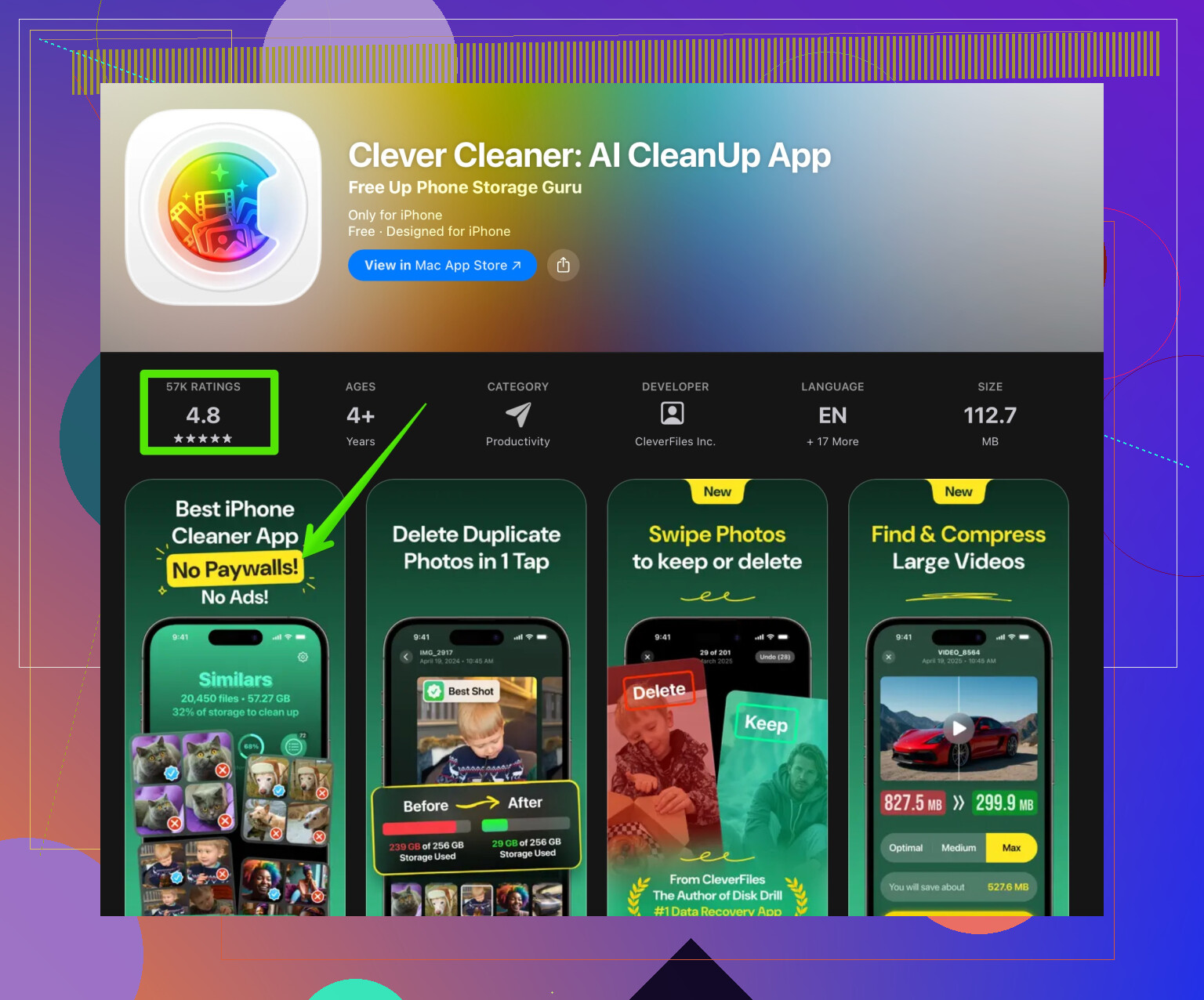
- Try something like the Clever Cleaner App for photos, duplicates, large videos, etc.
- It targets junk and large files without touching Safari passwords or cookies.
- Check this link for more info: clean up iPhone storage with Clever Cleaner App
Tip:
Do a small test first.
Clear Website Data for a single site:
- Settings > Safari > Advanced > Website Data
- Tap Edit
- Delete only one domain
- Then reload that site in Safari and see if it fixes your issue without messing other logins.
I’ve been in the exact same boat: “I want stuff faster, but if I get logged out of 40 sites I’m gonna lose it.”
@byteguru nailed the Safari-specific steps, so I’ll try not to just repeat all that and add some extra angles + a bit of caution.
First, what actually stays vs what gets nuked
On iPhone there are basically 3 separate things people mix up:
-
Saved passwords
- Stored in Settings > Passwords (and optionally iCloud Keychain).
- These are not the same as cookies.
- Even if cookies are wiped, the passwords are usually still there, you just have to log in again once.
-
Cookies & site data
- Keep you signed in, store preferences, cart contents, etc.
- Clearing this is what usually signs you out, even if your passwords are still saved.
-
History
- Just your browsing history and search history in Safari.
- Clearing this does not delete passwords, but often goes together with wiping cookies if you use the “nuclear” option.
So your real fear isn’t “losing passwords,” it’s “being forced to log back in everywhere.” Those are related but not identical.
Stuff I’d do before clearing anything
-
Export or back up passwords as insurance
If you’re paranoid like I am:- Settings
- Passwords
- Tap the three dots (top right)
- Export Passwords
Save them somewhere safe (encrypted or on a Mac). That way, even if something goes sideways, you’re not starting from scratch.
-
Double-check autofill is on
- Settings
- Passwords
- Password Options
- Make sure “Autofill Passwords” is turned on and “iCloud Keychain” or your password manager is checked.
This is what saves you time after cookies are wiped, since you can instantly re-login.
If you want to speed things up without touching Safari logins at all
Here’s where I slightly disagree with just leaning on Safari data alone: a slow iPhone is often more about overall storage and background clutter than browser cache.
Try this first:
-
Clean up big junk outside Safari
- Photos > look for “Duplicates” and merge.
- Delete old videos and message attachments.
- Offload unused apps in Settings > General > iPhone Storage.
-
Use a cleaning tool for non-Safari junk:
A storage cleaner is way safer for your logins than “Clear History and Website Data.”
That’s where something like the Clever Cleaner App fits really nicely. It focuses on photos, duplicates, large files and other clutter without messing with Safari passwords or browser cookies. If you want a quick way to reclaim storage and speed things up, check out
this iPhone storage optimizer with AI cleanup features.
This often gives you the “phone feels faster” effect without going near your login cookies.
If a specific site is broken instead of everything
Instead of wiping all Safari data like a flamethrower, try:
- Go to:
Settings > Safari > Advanced > Website Data - Use Edit
- Delete just the problem site.
You can repeat that for 2–3 sites that are acting up. That usually fixes weird logins, stuck carts, or layout bugs without logging you out of every other service on Earth.
Extra things to avoid that people overlook
- Don’t reset “All Settings” unless you’re really stuck. It won’t delete passwords, but you’ll lose networks, preferences, etc, and it feels like a mess.
- Don’t sign out of your Apple ID or toggle iCloud Keychain off and on casually. That can cause sync confusion with passwords if you mistype your passcode/verification.
- If you use another browser like Chrome or Firefox, make sure you’re only clearing cookies/cache and leaving passwords unchecked. One wrong tap and the saved logins in that browser are gone.
Short version of a safe strategy
- Make sure passwords are all visible in Settings > Passwords and backed up / synced.
- Speed up the phone first by freeing storage and using something like Clever Cleaner App to clear non-browser junk.
- For broken sites, clear individual site data instead of clearing everything in Safari.
- Only if things are really bad, then clear website data globally, knowing that you’ll stay stored but will need to log back in using autofill.
That way you keep your saved passwords, minimize the mass sign-out chaos, and still get a snappier phone.
84 Likes
You actually have two separate goals here that tug in different directions:
- Fix broken / sluggish sites.
- Avoid the mass sign‑out nightmare.
@byteguru covered the system‑level Safari bits well. I’ll lean more on strategy and what not to touch.
1. Don’t go straight for “Clear History and Website Data”
That big red button in Settings > Safari is the nuclear option. It:
- Wipes history
- Wipes all cookies / site data
- Keeps passwords, but logs you out basically everywhere
If your main fear is constant re‑login, I’d treat that option as last resort, not step one.
2. Use a layered approach instead
Think of it in three levels, from gentle to aggressive:
Level 1: In‑browser resets
In Safari itself:
- Close all tabs
- Force quit Safari (swipe up from the app switcher)
- Reopen and test problem sites
Sounds trivial, but memory and tab overload can mimic “bad cache” issues.
Level 2: Targeted cleanup
Here I slightly disagree with the “clean everything site‑related once it’s annoying” mindset. I’d only touch:
- Settings > Safari
- Turn off “Block All Cookies” if it’s on
- Under “Privacy & Security” temporarily disable “Prevent Cross‑Site Tracking,” test, then decide
These don’t delete anything; they just change how Safari behaves. Good for diagnosing if a site is broken because of privacy features, not stale cache.
Level 3: Granular site data reset
Instead of carpet‑bombing all sites:
- Settings > Safari > Advanced > Website Data
- Search for the specific broken site
- Delete just that entry
You might get logged out of that single site, not 40 others. This is where you fix the worst offenders with minimal collateral damage.
3. Protect passwords beyond just “they live in Settings > Passwords”
Yes, Safari passwords are separate from cookies. But I’d still add:
- Use a dedicated password manager (1Password, Bitwarden, etc.) in addition to iCloud Keychain if you rely on your phone as the only device.
- If you ever lose iPhone access or mess up iCloud, you still have your logins elsewhere.
This is one point where I’m a bit more paranoid than @byteguru: I don’t fully trust a single sync system as my only backup.
4. Make the phone feel faster without touching Safari data
A lot of “my browser feels slow” is actually “my phone is suffocating on storage / memory.”
Non‑Safari optimizations that don’t risk logins:
- Offload unused apps in Settings > General > iPhone Storage
- Clean up old Messages attachments (big videos, photos)
- Turn off background app refresh for apps you barely use
- Restart the phone at least once in a while; iOS keeps a ton in memory
For cleaning clutter like duplicate photos, bursts, and random junk files, a storage tool helps. The Clever Cleaner App is useful here because it focuses on:
Pros:
- Finds duplicate / similar photos and huge videos so you can free space quickly
- Targets “real” junk like redundant media instead of browser data
- Can be quicker than combing Photos and Files manually
Cons:
- You still have to review what it suggests; tap‑happy deletion can remove photos you actually care about
- Doesn’t directly fix Safari cache, so it complements, not replaces, browser tweaks
- Some advanced cleanup features may be locked behind paid options
Net effect: iPhone feels snappier, Safari has more breathing room, and your sign‑ins stay untouched.
5. When you really must clear Safari data globally
If sites are totally unusable and lighter fixes fail, then:
- Accept that you will get logged out
- Rely on autofill from iCloud Keychain or your password manager to re‑login fast
Before doing that, I’d confirm:
- Settings > Passwords shows all important logins
- Autofill Passwords is enabled
- Any third‑party password manager is working and unlocked
At that point, clearing “Website Data” globally is less scary: it costs you time, not the passwords themselves.
6. Simple decision path
- Only 1 or 2 sites are broken → Clear data for those specific sites.
- Phone feels slow across the board → Free storage and run something like Clever Cleaner App, adjust background stuff, then test again.
- Tons of sites act weird and nothing else works → Clear global website data, with passwords safely synced and backed up.
This way you keep the benefits of a cleanup without turning every site into a fresh login chore.
You covered avoiding the nuclear Clear History and Website Data, using a layered fix, toggling privacy features, deleting site data per domain, backing up passwords, freeing storage with tools like Clever Cleaner, and using global reset only last.
Simpler alternative:
Use a separate Safari Profile in iOS 17+. Steps: Settings, Safari, Profiles, Add Profile. Name it Troubleshoot. Use that profile to visit teh flaky sites. Its cookies and cache stay isolated. Your main accouts keep logins. If the site works there, move on. If not, delete that profile and nothing in your main profile changes.