My old iPad has started freezing almost every time I switch apps, and now it takes forever to respond. I’ve tried closing apps and restarting it, but the lag keeps coming back. I need help figuring out how to speed up this iPad and stop the freezing so I can use it normally again.
Older iPads tend to bog down in the same few places. I kept seeing the hitch when jumping between apps, then the whole thing got worse after a big iPadOS update. A few changes helped more than the usual cleanup advice.
Stuff I changed first
The two settings with the biggest payoff were both under Accessibility.
- Open Settings, then Accessibility, then Motion. Turn on Reduce Motion. The usual zoom effect when apps open and close gets replaced with a simpler fade. On older iPads, this cut down a lot of the stutter when I bounced between apps.
- Open Settings, then Accessibility, then Display & Text Size. Turn on Reduce Transparency. This removes a lot of the blurred background effects in iPadOS. Older GPUs seem to choke on those more than people expect.
Then I went to Settings, General, Background App Refresh and shut it off. If your iPad feels tired even when you're doing basic stuff, background apps chewing memory is often part of it.
Also worth checking, Low Power Mode. If it got turned on and you forgot about it, performance drops on purpose. On an old iPad, you feel it fast.
Right after an update
I would wait a day or two before deciding the update ruined the device. After a major install, the iPad often spends hours doing indexing and other cleanup in the background. During that stretch, it runs hotter and slower.
If it's still dragging after two days, do a forced restart. On models with a Home button, hold Power and Home until the Apple logo shows up. I’ve had post-update lag clear up from this alone.
The thing people miss, storage
This ended up mattering more than I expected. Once storage gets close to full, around 90 percent or so, the whole system starts feeling sticky. App switching lags. Typing gets delayed. Random pauses show up. iPadOS needs breathing room for temp files and routine background tasks. If your free space is nearly gone, the device fights itself.
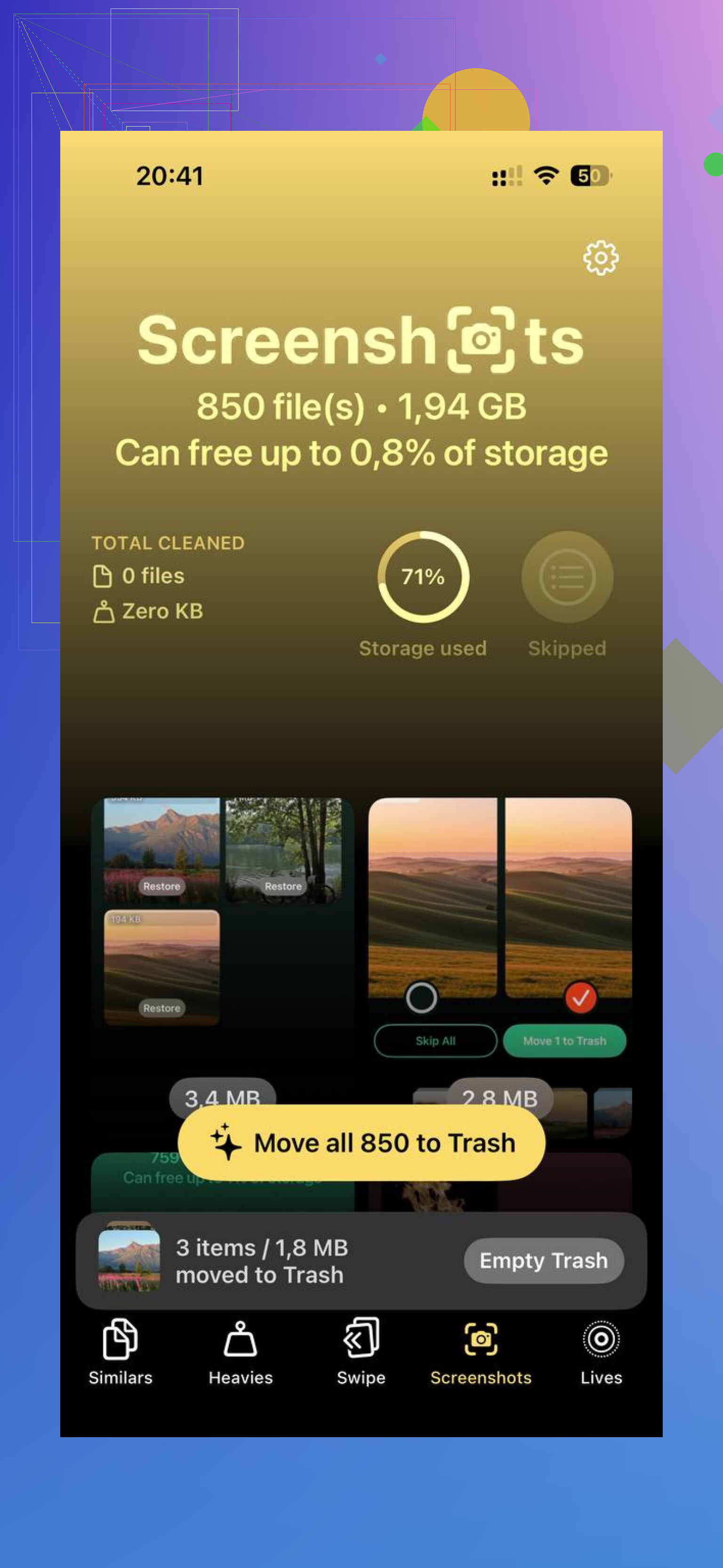
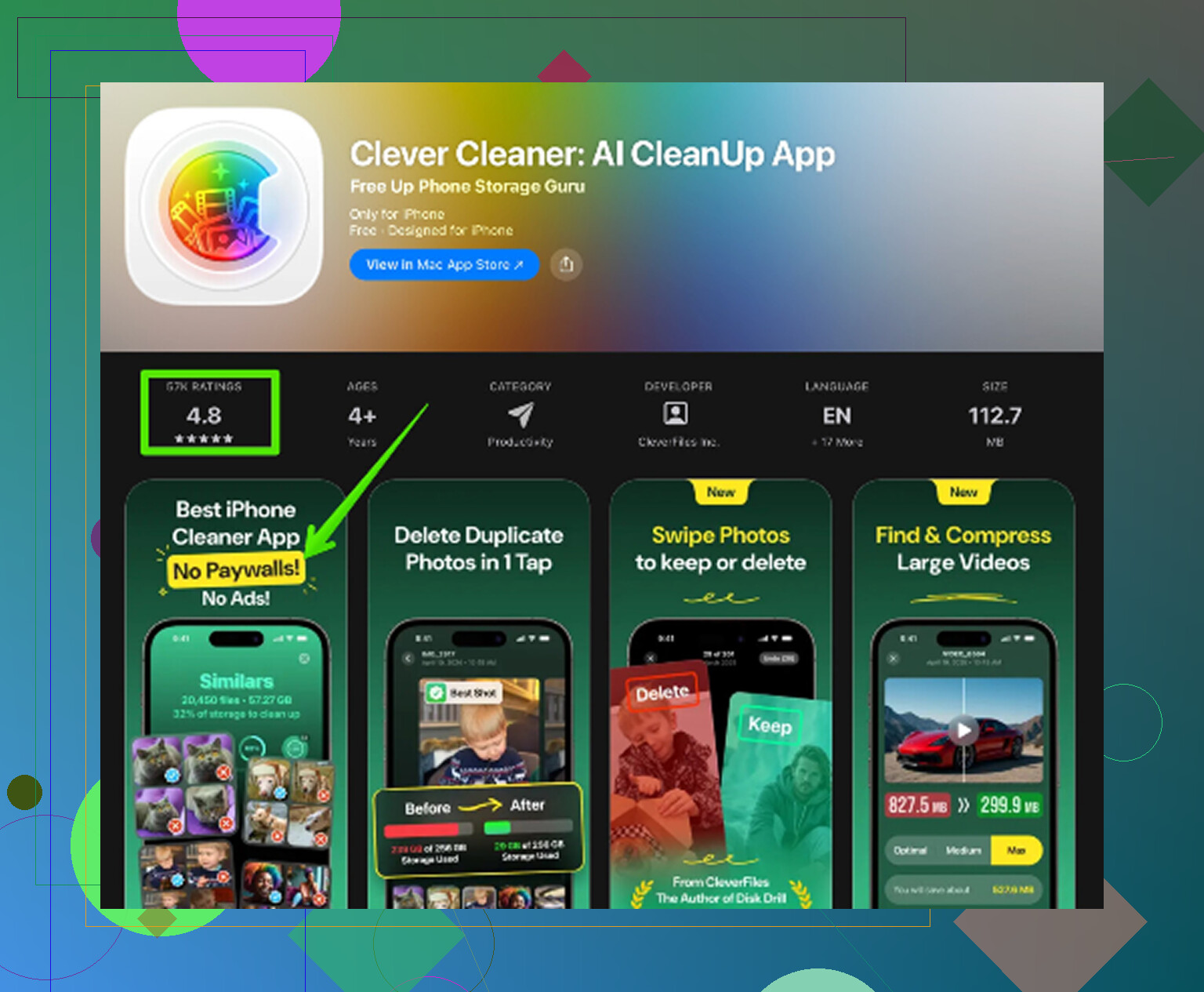
Cleaning a huge photo library by hand is a pain. I used Clever Cleaner because the built-in Photos app was taking forever. It groups similar shots, marks a best one, and makes burst cleanup less miserable. It also sorts your largest files first, so old screen recordings and bloated videos show up right away. I liked seeing file sizes before deleting anything. Nothing gets uploaded off the device. After I cleared about 10GB, app switching improved more than it did from the animation tweaks. Weird but true.
Factory reset, worth it or not
From what I saw, yes. If the iPad still feels off after trying the easy fixes, a full reset helps more than people want to admit. Go to Settings, General, Transfer or Reset iPad, then Erase All Content and Settings.
Back it up to iCloud first. Then, during setup, pick New iPad if you can tolerate reinstalling your apps. Restoring from a backup sometimes brings old junk right back with it, including whatever config problem was slowing things down in the first place. Starting fresh is annoying, but my results were better.
If Safari is the main problem
Then I’d look at Safari itself, not the whole iPad. Go to Settings, Safari, Clear History and Website Data. Years of cached files, cookies, and old site data can make browsing feel rough even when other apps seem fine. If web pages are where your lag shows up most, this is one of the first things I’d try.
14 Likes
If app closing and restarts did not fix it, I’d look at memory pressure and battery health next.
A few things I’d do before a reset.
-
Check battery health.
Older iPads with worn batteries slow down under load. If the battery drops fast, gets hot, or the iPad shuts off at 20 to 30 percent, the battery is part of the issue. Apple does not show battery health on every iPad, which is annoyng, so an Apple Store diagnostic helps. -
Remove heavy widgets.
Too many Home Screen widgets keep polling for data. Weather, news, stocks, maps. Pull them off for a day and see if app switching improves. -
Turn off Siri suggestions.
Settings, Siri, then disable suggestions in Search and on Home Screen. On older hardware, indexing and suggestions add lag. -
Check which app is freezing the system.
If the lockups happen after one app, delete and reinstall that app first. I’ve seen one bad app wreck multitasking for the whole device. -
Update apps, not only iPadOS.
Old app builds often fight newer iPadOS versions. Open App Store, update all. Boring fix, but it works more often than ppl think. -
Disable automatic downloads.
App updates and media sync in the background can choke an old iPad. Settings, App Store, turn off automatic app downloads and updates for a test.
I partly disagree with @mikeappsreviewer on closing apps as a habit. On iPad, force-closing all the time often makes things worse because each app has to cold start again. If one app is stuck, close that one. Leave the rest alone.
If storage is tight, their point stands. Clear space first. For photo junk, duplicate shots, and giant videos, free iPhone cleaner app for deleting duplicate photos and large files is a solid pick. Same idea applies if your pics live in iCloud and sync across Apple devices.
If none of this helps, your iPad might simply be at the edge of what the current iPadOS build wants. Sad, but true. At tht point, a fresh reset or replacing the battery gives the clearest answer.
I’d check one thing neither @mikeappsreviewer nor @andarilhonoturno really leaned on enough: whether the iPad is just getting crushed by Safari tabs and system logs, not “apps” in general.
A few extra things worth trying:
- Open Safari and manually close every tab group. Old iPads can act absolutely cooked when Safari is hoarding 80 tabs in the background.
- Go to Settings > Privacy & Security > Analytics & Improvements > Analytics Data. If you see the same app name crashing over and over, that app is probly the real culprit.
- Turn off Handoff and AirPlay Receiver in General. Those background handoff features can add weird lag on aging devices.
- Remove VPN profiles if you use one. Some VPN apps make the whole system feel delayed, not just browsing.
- Check for overheating. If it lags more while charging, especially with a cheap cable/brick, that matters. Thermal throttling is real.
I slightly disagree with the “wait it out” advice if this has been going on for weeks. At that point, it’s not post-update indexing, it’s just the iPad being unhappy.
Also, if storage cleanup is part of the fix, Clever Cleaner is still a legit option for clearing duplicate photos, giant videos, and random media junk fast. If you want a quick visual walkthrough, this Clever Cleaner walkthrough for freeing up iPhone and iPad storage is easier than poking around settings forever.
If none of that changes app switching, the honest answer is maybe the RAM and chip are simply too old for the current iPadOS. Happens alot with older models.
I’d add one angle the replies from @andarilhonoturno, @codecrafter, and @mikeappsreviewer only touched indirectly: network and account load.
Old iPads often freeze during app switching because the system is juggling iCloud, Mail, Photos sync, and notifications all at once. That can look like a “slow tablet” when it’s really background account churn.
What I’d try that’s different:
-
Turn off Mail Push
Settings > Mail > Accounts > Fetch New Data > switch Push off, use Fetch manually or hourly. Old iPads hate constant mail polling. -
Trim Notifications hard
Go app by app and disable banners for stuff you do not need instantly. Notification-heavy apps can make the whole UI hitch. -
Disable Live Photos wallpaper / dynamic wallpaper
Static wallpaper is lighter. Sounds minor, but old hardware benefits from every little cut. -
Review iCloud sync toggles
Especially Photos, Notes, Drive, and app-specific iCloud switches. If storage is full in iCloud or sync is stuck, the iPad can act weirdly sluggish. -
Reset All Settings, not full erase first
Settings > General > Transfer or Reset > Reset > Reset All Settings. This keeps your data but clears buggy settings, Wi‑Fi configs, keyboard dictionaries, and system weirdness. I actually think this is worth trying before a factory wipe.
One small disagreement: I would not obsess over widgets first unless you have a ton of them. Notifications and syncing usually hit older iPads harder.
If storage is part of the mess, Clever Cleaner is fine for cutting duplicate photos and big videos fast.
Pros: easy sorting, quick wins, less manual digging.
Cons: mostly useful if media clutter is your real problem, and cleanup alone will not fix aging RAM or battery issues.
If none of that helps, the honest answer is probably hardware age plus newer iPadOS. At that point, battery service or replacement is the real fix, not another tweak.