I’m trying to organize photos on my iPhone into different albums, but when I move or add them, I get confused about whether they’re actually moved or just copied. I recently cleaned up my photo library and now some pictures seem to be in multiple albums. I need help understanding the best way to manage iPhone photos between albums without losing anything or creating duplicates.
Huge photo libraries get ugly fast. I hit the same wall once mine crept into the tens of thousands. What helped was not grinding harder. It was changing how I handled the mess.
What tripped me up in Apple Photos
The Photos app on iPhone does not file pictures into albums the way a normal folder system would. When you add an image to an album, it stays in the main library and also shows up in the album. It is more like a label than a move. Recents is not some holding bin you empty out later. It is the running feed of everything. When I finally got my head around that, the app made more sense and I stopped fighting it.
Why I’d clean the trash first, every time
If your library is packed with blurry shots, five attempts at the same dog photo, burst leftovers, and random screenshots from 2021, sorting it feels ten times worse. Mine was like this. On top of being annoying, low free storage made the phone drag. Apps opened slow. The camera hesitated. Stuff felt sticky.
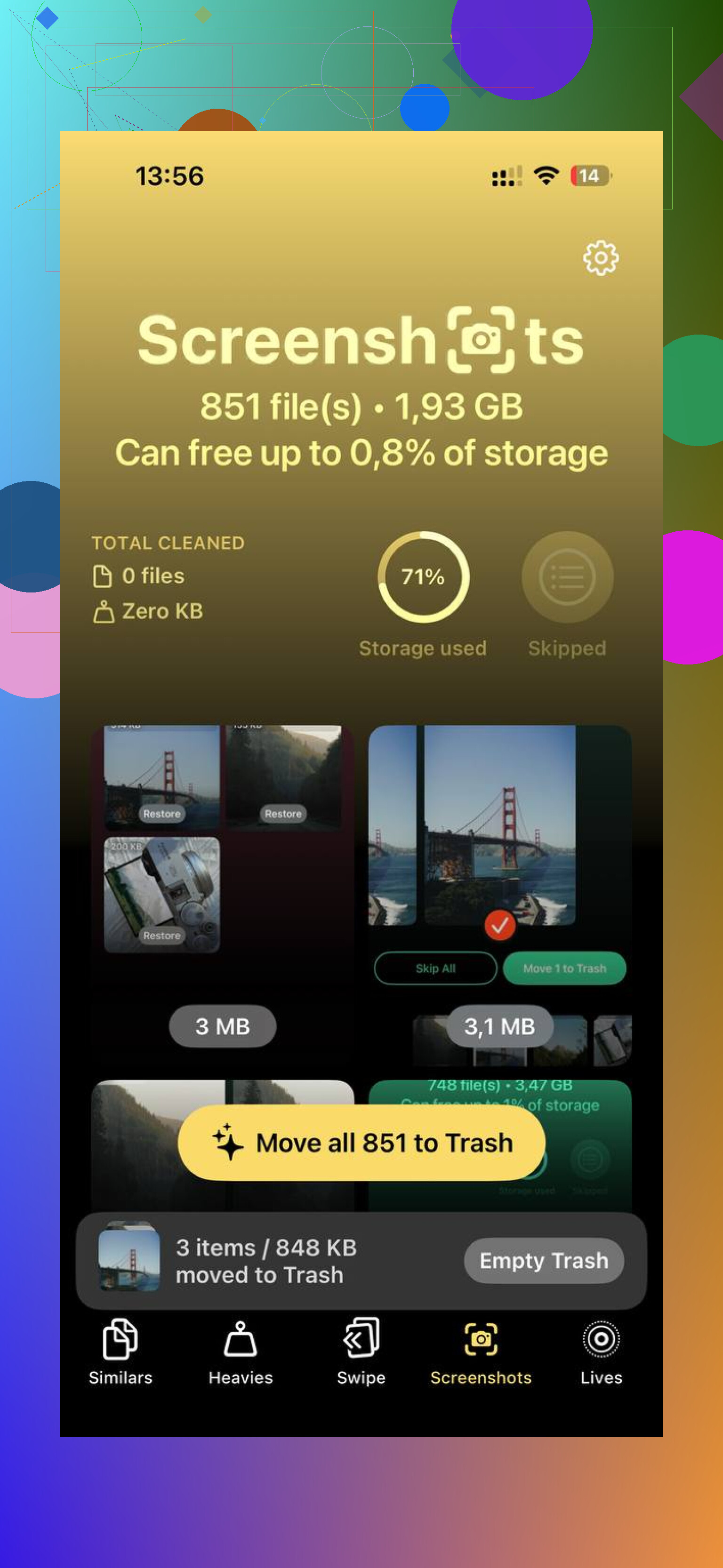
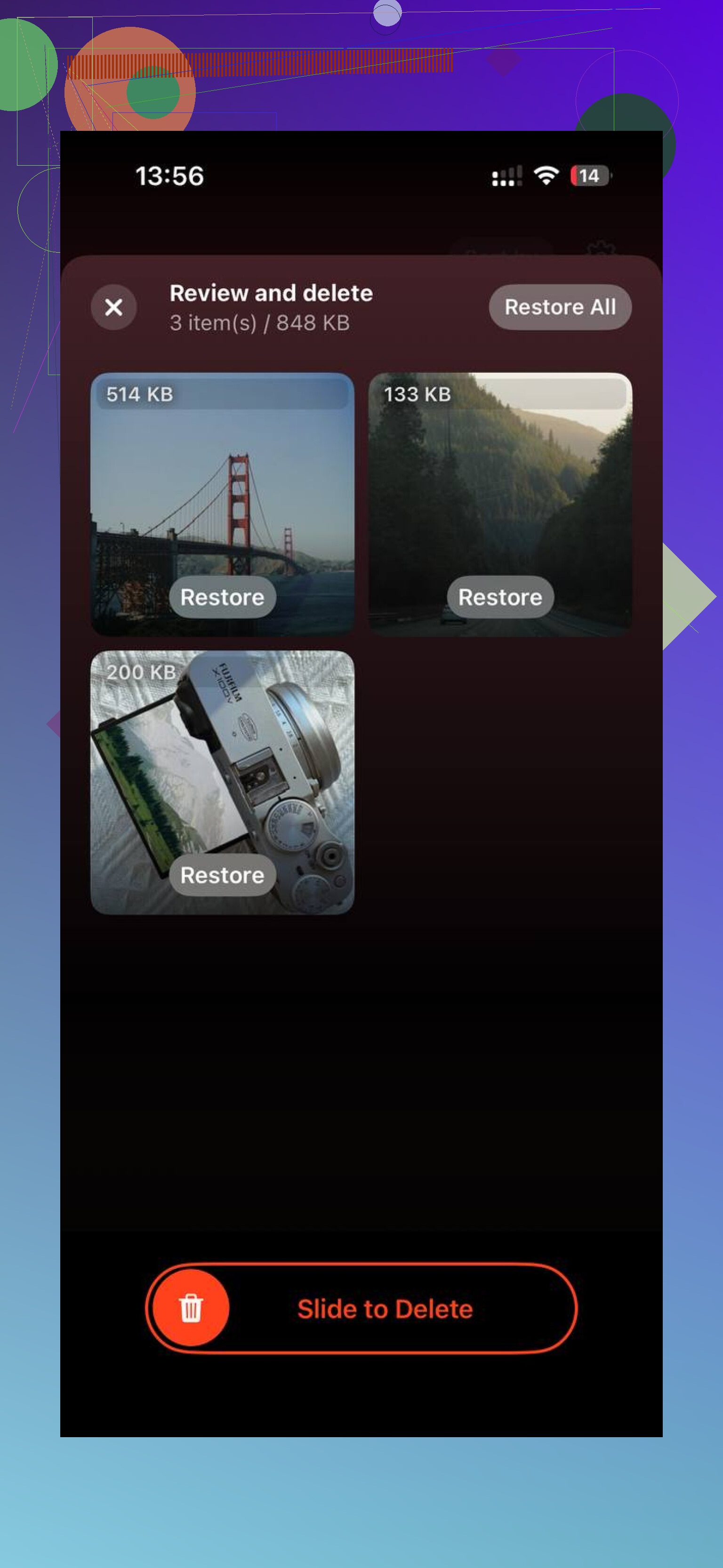
Apple’s built-in Duplicates section under Utilities is fine for exact copies, but it missed most of the lookalike junk for me and took its sweet time updating. For deeper cleanup, I had better luck with Clever Cleaner. It was free when I used it, no ads, no sub popups shoved in my face.
The part I kept going back to was the size view. Big files rose straight to the top, with exact numbers, so the giant 4K clips stopped hiding in the pile. Then the similar-photo grouping did the boring part I never finish on my own. It bunched together near-matches, burst runs, and those three or four tries of the same sunset where one is fine and the rest are dead weight. I trimmed a chunk of storage, around 8 GB if I remember right, and the phone quit acting clogged up. It gave me a clean enough starting point to sort the library without wanting to throw it across the room lol.
How I’d organize it without burning a whole weekend
The big mistake is trying to fix every photo in one sitting. I did that. Lasted maybe fifteen minutes before my brain checked out. Smaller routines worked better.
Use the date trick. Search today’s date in Photos. It pulls up pictures taken on the same month and day across different years. This made cleanup weirdly easier for me because I was already looking at old memories, so deleting junk felt less like admin work. I’d toss the blurry stuff, duplicate angles, and accidental pocket shots as I went.
Do one short pass a week. Ten minutes was enough. I treated Recents like an inbox. First pass, remove obvious garbage. Second pass, drop the keepers into a few albums. This held up way better than those once-every-six-months cleanup marathons.
Keep the album setup boring. Too many albums turns into another mess. I stuck with a few wide buckets. Personal stuff. Screenshots and saved reference junk. A holding spot for photos I wanted to edit later. That covered most of it. When I tried getting fancy, I stopped maintaining the system after like a week.
For giant backlogs, use a faster sorting app. I tried swipe-based sorting with apps like Slidebox, and it felt quicker than Apple’s tap, select, share, add flow. If you’ve got years of backlog, speed matters or you wont keep doing it.
The goal I landed on
I stopped chasing a perfect library. You do not need twenty okay shots from one dinner or one concert. You need the couple worth keeping. If your phone is choking on storage, clear the junk first so it runs normally again. After that, a few minutes each week is enough to keep things under control. No giant reset session, no fancy system, no nonsense.
12 Likes
Photos on iPhone do not move between albums like files in folders. That part trips up a lot of ppl.
Here’s the clean version.
-
Your Library is the master list.
Every photo lives there first. -
Albums are references.
When you add a photo to an album, you are not moving it out of Library. You are placing a pointer to it in that album. -
Deleting matters.
If you delete a photo from the main library, it disappears from every album too.
If you remove a photo from an album, it stays in the library.
That’s the core rule.
A fast test:
Open an album, tap a photo, hit the trash icon. iPhone usually asks if you want to Delete Photo. That removes it everywhere.
If you use the album options and choose Remove from Album, it only leaves that album.
One place I sort of disagree with @mikeappsreviewer, Recents is useful, but I would not treat it like a work queue forever. It’s a date-based stream, not a project board. I get better results with 4 to 6 albums max, then Favorites for the best shots.
My setup:
Family
Trips
Work
Screenshots
To Print
Favorites
If your library still feels messy after cleanup, use search more. Search “beach,” “dog,” “receipt,” “video,” or a month like “March 2024.” Apple’s object and text search is decent now.
If you want a cleanup app before sorting, Clever Cleaner is worth a look for duplicates and similar pics. For a visual guide, this Clever Cleaner iPhone photo cleanup guide walks through the process in a simple way.
Short version, albums copy the reference, not the file. Delete from Library, gone everywhere. Remove from Album, still kept. That one rule saves a lot of confsuion.
What trips people up is that iPhone albums are not folders. They’re more like playlists.
So if you add a photo to Album B, it usually still stays in your main library and can also stay in Album A. You did not “move” the file in the computer sense. Apple Photos just shows the same photo in multiple places.
The part I’d add to what @mikeappsreviewer and @stellacadente said: stop using albums like storage bins. Use them like views.
My system is:
- keep everything in Library
- use Favorites for best shots
- make albums only for temporary projects like “Sell Stuff,” “Trip 2025,” or “Send to Mom”
- use search and captions way more than albums
Captions are underrated btw. Swipe up on a photo and add “passport,” “receipt,” “kitchen paint,” whatever. Later, search actually works way better than digging through 19 albums you forgot you made.
Also, if pics seem to be “missing” after cleanup, check:
- Recently Deleted
- Hidden
- Duplicates
- whether iCloud Photos is syncing
- if you removed from an album instead of deleting
One small disagreement with the “keep only a few albums” advice: if albums help your brain, make more. Just don’t expect them to behave like folders, becuase they won’t.
If your library is still bloated before organizing, Clever Cleaner is honestly useful for clearing similar shots and big files first. This explainer on how to clear iPhone storage fast with Clever Cleaner is pretty easy to follow.
Short version:
- Add to album = not moved
- Remove from album = still in library
- Delete photo = gone from everywhere
Apple made this way more confusing than it should be, tbh.