I tried exporting the document again with the smaller file size setting, but the upload portal still rejects it as too large. It’s a 7-page scanned form with handwritten notes in the margins, so I’m trying to avoid making those harder to read.
How can I reduce the PDF file size further without losing legibility? I’ve read about lowering image resolution, but I’m not sure how to judge the result beyond checking it on my screen.
When using the ‘smaller file size’ option there is no guarantee that the file will be within the portal limit. Try to scan your form so that you have clear page images. Always keep the original. If the colours are irrelevant then try scanning it in greyscale. Don’t scan in pure black and white if there is light script as this can cause issues where the lighter lines are lost. If you have options to adjust the resolution then try scanning at 300dpi and if you need a smaller file then try 200dpi. Only change one thing at a time so you can see what has affected the legibility of the document.
Scan the page with the smallest and lightest notes on the page. Check the compressed version of the document to ensure that decimal points, struck through information and letters that may be unclear are all still present. Print the page at actual size (not fit to page). This will give you an indication of how it looks in print. If you need to zoom in on the page this can help identify any broken lines.
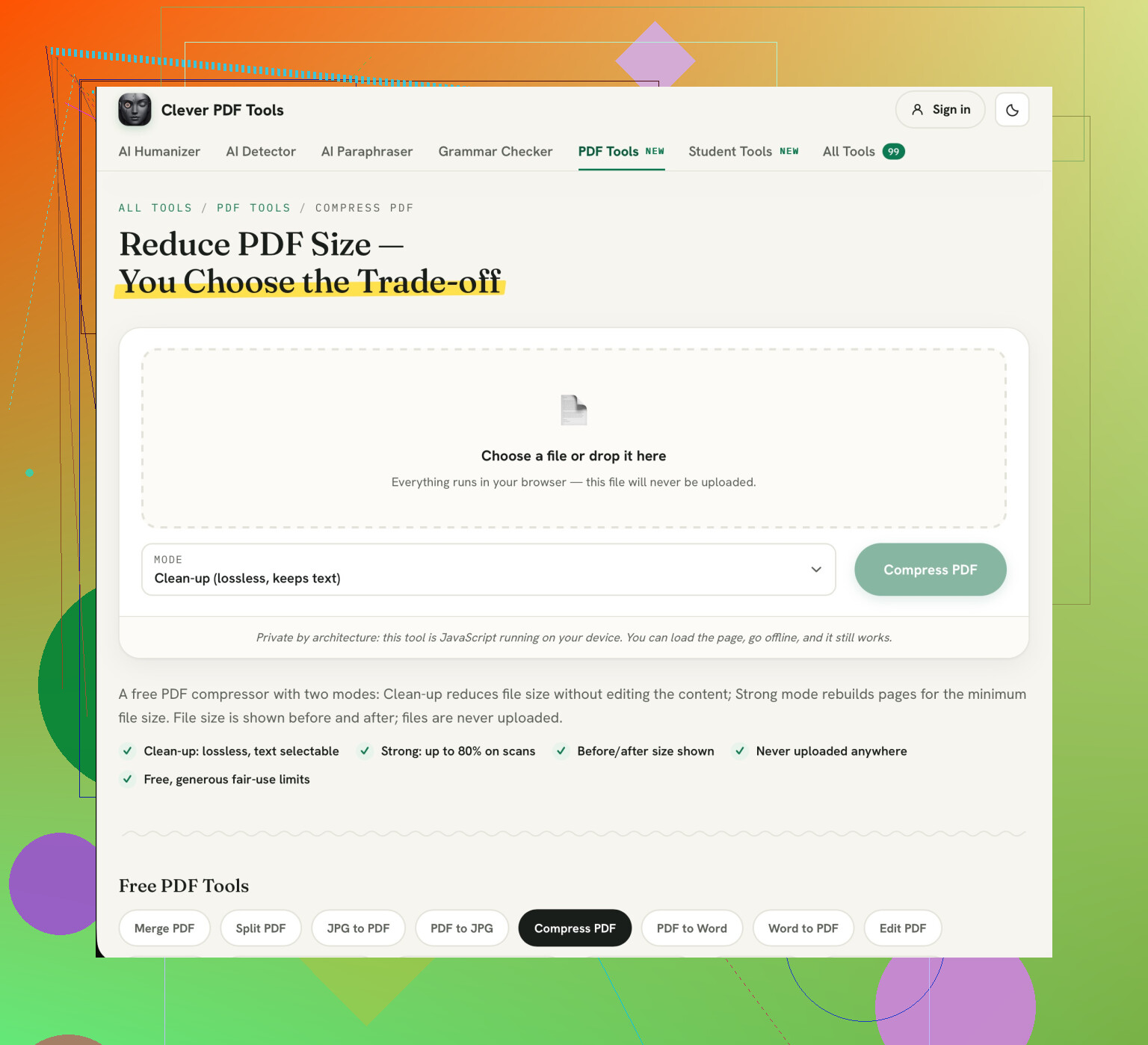
For a form without sensitive information, you could try Clever AI Humanizer’s Compress PDF tool on a copy. Keep private forms in an offline workflow. Generate each new attempt from the original rather than repeatedly compressing the last attempt, and check every page before uploading. What’s the current file size, and what limit does the portal give you?
8 Likes
Is there a file limit? If you can upload several PDFs to that particular portal, you may want to divide your document into sections with clear labels so they don’t take away the handwritten notes. However, you should check if this is the case first before using the Clever AI Humanizer. The most important thing is to retain any faded writing. Unless you are forced to put it all in one file, you should avoid this at all costs. If there is a limit on all your attachments then this will not help.
You might need to compress the scans themselves. Usually the largest file size will be the images of the pages you have scanned. If you can split them using the portal, this could help. However, try messing around with the images.
Always work on a copy of the original. In your PDF editor look for options to compress or downscale the images. Try scaling them down a little. Check that the smallest of your margin notes are ok. If the ink colours don’t mean anything try converting to grayscale. Don’t go straight to black and white as you may lose some of your lighter pen strokes.
This should not be done using the Clever AI Humanizer. We want to keep the handwriting as an image. Before uploading ensure that your lightest notes are still there. Check the file size of your compressed copy to make sure it isn’t too large.
Ensure that there isn’t just one page of high file size by reducing the quality of the whole. You may be able to reduce the file without worrying about the pages with the worst handwriting.
As a quick test you can export each page as an individual PDF to a temporary folder and see the file sizes. If your editor allows this try using the extract pages function. This will not necessarily be used as individual attachments but will help with troubleshooting. Whilst the individual pages will not sum up to the exact size of the original they will give you a place to focus on if one is significantly larger.
I agree with @m3g4_root about targeting the scanned images, but I wouldn’t automatically apply the same compression to every page. Look at the larger pages first. Check whether they have a different scan resolution, unnecessary color, or a dark, noisy background. If your editor lets you optimize selected pages, try that on a working copy. Otherwise, you could rescan just the problem page and replace it, rather than putting the whole form through another export.
A good rule of thumb is to consider whether a page has large dimensions due to scanning settings or whether they need additional information retained. Pages with larger print areas and large handwriting are good candidates to have increased compression applied to them whereas pages covered in small notes by the margins are less likely to be suitable. If all the pages extracted are fairly similar in size, you can ignore the page by page process.
Once you have reduced the size of your page, ensure the pages are in the right order, correct orientation and the handwriting is clear. When replacing pages there will be different errors introduced. If you cannot compress enough to get under the total without making the notes illegible, stop here and contact the operator of the portal for alternative methods of submitting your upload. If your upload is accepted but cannot be read by the reviewer it will be of little use.
Before reducing the scan quality further, confirm that the portal is actually receiving the smaller file. Save the file with a unique file name and easy to locate. Delete the failed attachment and manually select the new file. Be wary of losing too much of the handwriting by reducing the quality.
Check if there has been a large reduction, minimal reduction or no reduction in the file size by looking at the file properties of both the original file and exported file on your computer. If there has been a minimal reduction, it probably isn’t worth doing again. If the new file is under the given limit and still being rejected, stop trying to compress the file and check what the exact error message says on the portal. It would be best to look into why you can’t upload the file.
I would agree with trying to reduce the scanned images but before doing this, try a basic reduction. If the file is only slightly over the limit, don’t go for the highest compression. If it is significantly over the limit then a different method may be required. What app are you exporting from? Does the error actually say there is a size limit?
If you are going to scan again then make sure you do not remove the handwritten margins by the auto-crop feature. If you are replacing the problem page then make sure you replace it with the whole page.
Before you save your scan look at your preview. If the crop box is tight around your printed fields then enlarge it to include your notes. Turn off the auto-crop if it keeps trying to crop it incorrectly. Your margins are important and shouldn’t be thrown away.
When you are comparing the replaced page with the original page, look to see if there is any missing information. Even if the page is completely legible it could miss some information. Make sure you have the correct page borders and then play with the compression.
The first thing to realise is that half the bloat in a scanned PDF will not be the image data from the pages themselves. Most scanning software will include high quality thumbnail images, duplicate colour profiles and an OCR text layer. There is also usually a great deal of residual metadata included with each save. You can clean up / optimise the file by removing all of this unnecessary data. Some editing software will allow you to reduce the file size, however you will be able to see exactly what has been removed during an audit. This can reduce the file size dramatically, without affecting any of your pen strokes.
I’m with @hacksudo8 on checking the real error before grinding the quality down. People assume ‘too large’ every time, but portals also choke on the wrong PDF version, password flags, or a file that’s technically fine but times out on a slow connection. If the stated limit is, say, well above your file size and it still bounces, compression won’t fix anything. You’d just be making a legible document worse for no reason.
In practice, this is less complicated. Open the file, remove any metadata, reduce the colour to grey scale if the ink colours do not have any meaning. Only once you have done this will you need to consider reducing the resolution. Using the Compress PDF function within Clever AI Humanizer will do this all in one go if there is no private information in the form. However, if there are names or case numbers in the form, we would recommend keeping it on your computer. Once finished, open the file and zoom in on the smallest of margin notes to ensure you have not gone too far.
Don’t keep scanning the rejected file using the smaller file size option. It doesn’t know how big your portal is, you’re basically shooting in the dark. If it didn’t go below the limit of your portal on the first run it won’t suddenly do so by running it again.
The point @hacksudo8 and @bluefalcon9284 made about reading the actual error is the one I’d put first, ahead of all the compression talk. Portals love to throw a generic rejection that people read as ‘too big’ when it’s actually a timeout, a PDF version the backend doesn’t like, or a security flag on the file. I’ve seen plenty of threads where someone spent an afternoon crushing a scan down only to find the upload box was choking on the filename having a weird character in it. Confirm it’s genuinely a size problem before you touch quality.
A quick note - grayscale scanning is different to grayscale editing. I saw a few suggestions about doing this. While this is correct, if you have scanned the pages in colour then you are going to lose some of the file size as you won’t be able to remove so much data. If you still have the original version, re-scanning to grayscale will be the best option. This is because there are fewer steps, smaller file size and your margin notes will be preserved as you’re not compressing.
While this tool can be useful, it isn’t a magic bullet. Scans that are bad to start with won’t be saved. You’ll still end up with a smaller piece of garbage. If you don’t have a proper PDF editor then this can be useful. The clever AI Humanizer compression tool works within the browser and for a non-sensitive form can be a quick way to try out the metadata and resolution cleanup. Just don’t include any documents with names/Case numbers.
If you are just over then keep it as light as possible. If you are substantially over then split into pages (if this is an option within the portal) and don’t fight it.