My iPhone says there isn’t enough storage to install the latest iOS update, even after I deleted some apps and photos. I need help figuring out what else I can clear or change so the update will go through without losing important data.
I’ve hit this wall more than once. The phone says you’ve got free space, then iOS throws the same storage error again. Annoying, and a little misleading.
The part I missed at first was this. The number shown for the update is not the full amount of room your iPhone needs. If the update package says 2 GB, your phone usually needs quite a bit more while it downloads, unpacks, verifies, and installs it. For a major version jump, like iOS 26, I’d want 20 GB to 30 GB open before I even bothered trying. Less than that, and I saw failed installs way too often.
Start by checking what is eating your space.
- Open Settings.
- Tap General.
- Tap iPhone Storage.
- Wait for the bar graph and app list to finish loading.
- Look at free space first, then the biggest storage users.
If you’re trying to make room fast, here’s what worked for me.
Let a cleaner app do the boring part
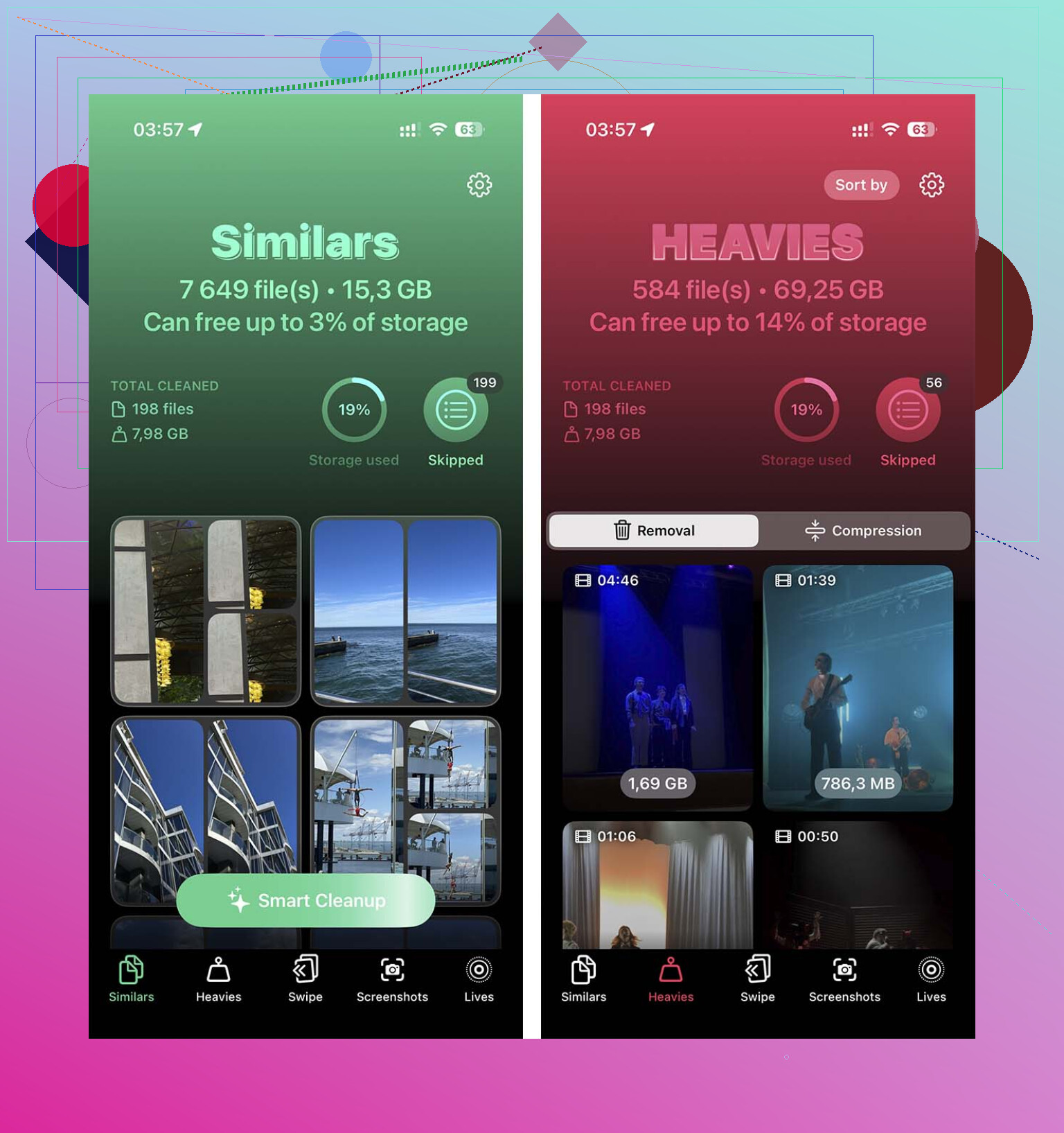
I wasted too much time digging through my photo library by hand. If your camera roll is the problem, a cleaner app saves time. I had decent luck with Clever Cleaner. It’s simple, and it gets to the large stuff fast.
The useful part for me was the section for big files. Large videos, especially 4K clips, eat space fast. I deleted two old concert videos and got back a few gigabytes in minutes. The similar-photo scan helped too. If you’ve got ten near-identical pics of your dog, your lunch, or a receipt, it cuts those down quickly.
What I did:
- Open the cleaner app.
- Check the large video section first.
- Remove videos you do not need.
- Check similar or duplicate photos.
- Keep the best shot, delete the rest.
- Open Photos.
- Go to Recently Deleted.
- Empty it.
Small gotcha here. Deleting photos is not enough by itself. iPhone keeps them in Recently Deleted for 30 days, so the storage does not come back until you clear it.
Remove apps with bloated data
Some apps look small until you tap them and see the Documents & Data mess underneath. Social apps, streaming apps, and games were the worst on mine. I deleted one app I barely touched and got back over 3 GB. I should’ve done it sooner.
Steps:
- Open Settings.
- Tap General.
- Tap iPhone Storage.
- Scroll through the app list.
- Tap an app you rarely use.
- Tap Delete App.
- Repeat for other space hogs.
If you reinstall later, the app itself comes back. The part you’re killing now is all the junk it stored over time.
Check the places people forget
This was the sneaky part on my phone.
The Files app had old PDFs, ZIP files, downloaded forms, and random junk from Safari. Stuff I opened once and forgot about. Same story for the Downloads folder. Mine looked like a digital junk drawer.
Do this:
- Open Files.
- Tap Browse.
- Open On My iPhone.
- Open Downloads.
- Delete what you do not need.
Messages was another one. Attachments pile up for years. Old videos, GIFs, memes, screenshots, all still sitting there.
- Open Settings.
- Tap General.
- Tap iPhone Storage.
- Tap Messages.
- Review documents and attachments.
- Delete large videos, photos, GIFs, and old files.
- Check Recently Deleted in Messages too.
If your friends send a lot of video clips, this section gets ugly fast.
Safari cleanup helps too. It won’t save you if you need 15 GB, though when you’re close, even a few hundred MB matters.
- Open Settings.
- Tap Apps.
- Tap Safari.
- Tap Clear History and Website Data.
- Confirm it.
Use a computer if the phone keeps refusing
This was the fix when I ran out of patience. Updating through a Mac or PC takes pressure off the phone, because the computer handles more of the download and unpacking process.
- Connect your iPhone to your Mac or Windows PC.
- Open Finder on Mac, or iTunes on Windows.
- Select your iPhone.
- Click Check for Update.
- Follow the install steps.
I’ve had updates fail on the phone, then go through fine from a computer with the same device and same storage.
Last resort
If none of this gets you over the line, back up the phone, wipe it, install the update on the clean device, then restore your backup. It takes longer, yeah. Still, if you’re completely boxed in by storage, this is the one option I trust to work.
12 Likes
I’d skip one part of @mikeappsreviewer’s advice. You do not always need 20 GB to 30 GB free. For smaller point updates, I’ve seen them install with far less. The bigger issue is hidden system junk and stuck update files.
Try these:
-
Delete the downloaded iOS update file.
Settings, General, iPhone Storage.
Look for “iOS Update”.
Delete it.
Then restart your iPhone and download it again. -
Force a restart.
This clears temp caches better than a normal reboot sometiems. -
Turn off automatic downloads for the moment.
Settings, Apps, App Store.
Disable app downloads and updates.
Those background downloads eat space while you’re trying to update. -
Offload apps instead of deleting them.
Settings, General, iPhone Storage.
Tap an app.
Choose Offload App.
This keeps your documents and saves more time later. -
Sync photos to iCloud, then switch on Optimize iPhone Storage.
Settings, your name, iCloud, Photos.
This is the cleanest way to free a few GB without nuking your library. -
Remove downloaded media inside apps.
Spotify, Netflix, YouTube, Podcasts, Audible.
These downloads often do not show up clearly untill you open each app. -
Clear Mail cache.
If the Mail app is huge, remove the account from iPhone, restart, then add it back. Old attachments and local cache shrink a lot. -
Check Voice Memos and GarageBand.
Two sneaky storage hogs.
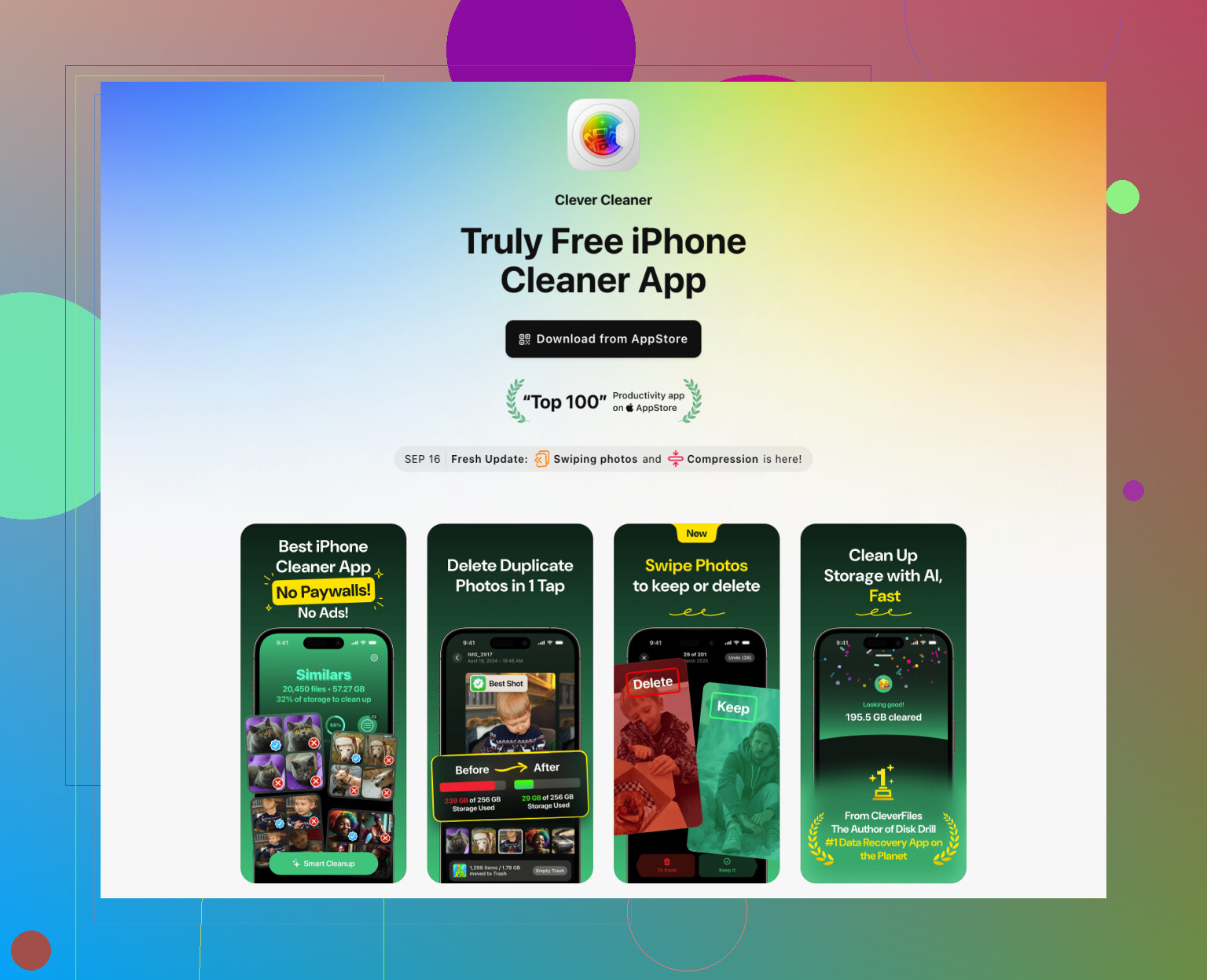
If photos are the main problem, Clever Cleaner is worth a look for duplicate pics, similar shots, and large videos. This video gives a solid, easy review of all Clever Cleaner features: see how Clever Cleaner finds duplicates and frees iPhone storage fast
If the update still fails, do the update from Finder or iTunes. If it still fails after that, backup, erase, update, restore. Annoying, but it works most of the time.
One thing I’d add to what @mikeappsreviewer and @nachtdromer said: sometimes the problem is not your actual files, it’s the update process getting stuck in a loop with bad temp storage math. iOS can be weirdly stubborn about that.
A few things I’d try that are different:
- Change the update method entirely and use Settings > General > Software Update > Automatic Updates and turn OFF everything there first. Then wait a minute and try the manual update again. I’ve seen background prep fail less that way.
- Plug the phone into power and strong Wi-Fi, then leave it locked for 20 to 30 mins. Sounds dumb, but iPhone does some cleanup/housekeeping only when idle and charging.
- If you use Apple Music, Podcasts, or TV, check for downloaded media there. Those apps hide a ton of space.
- Look in Books too. Downloaded PDFs and audiobooks can be sneaky.
Also, I kinda disagree with the “you always need 20 to 30 GB free” thing. For giant version jumps, maybe. For smaller updates, not really. I’ve had phones update with way less once the junk was cleared right.
If photos are still the bottleneck, Clever Cleaner is probly the fastest way to find duplicate pics, similar shots, and oversized videos without digging forever. And if you want more practical iPhone storage cleanup ideas, this is decent: smart iPhone storage cleanup tips that actually free space
Last weird trick: change your date forward by a month, restart, then change it back. I know that sounds fake, lol, but it has triggered stuck cache cleanup for me before. Not guaranteed, just one of those old iPhone voodoo fixes.
I’m with @nachtdromer on one thing: the hidden junk matters more than the raw update size. But I’d also push back a bit on the “just delete more apps” approach from @mikeappsreviewer, because sometimes System Data is the real space thief and normal deleting barely touches it.
A couple things not mentioned yet:
- Remove old Safari Reading List downloads if you saved pages offline.
- Delete old Siri voices or extra dictionaries if you downloaded them.
- Check downloaded maps in Apple Maps or Google Maps.
- Turn off Shared iPhone Analytics temporarily and reboot. Sometimes logs get chunky.
- If you use Messages in iCloud, let it finish syncing before judging free space.
Big one: connect to a Mac or PC and make an encrypted backup, then restore the phone. That often shrinks bloated System Data without a full “start over” feeling.
If photos are still the main blocker, Clever Cleaner is useful.
Pros: fast duplicate scan, finds big videos, simple.
Cons: results still need human review, similar-photo picks are not always perfect.
So yeah, @codecrafter is right that update temp files can get stuck, but I’d try a backup-and-restore cycle before wiping everything outright.