I found a Synced Media section on my iPhone, but I can’t tell what files, photos, or videos are actually stored there. I think this showed up after syncing with a computer, and now I need help figuring out what’s inside so I can manage storage and decide what to keep or remove.
I hit the same mess after an iOS update, and it took me longer than I want to admit to figure out why storage looked wrong.
What 'Synced Media' usually means
This category is local stuff copied from a computer onto your iPhone through iTunes, Finder, or Wi-Fi sync. Music, movies, TV shows, podcasts, audiobooks, photos, all of it. Old-school transfer, not cloud storage.
Apple used to hide this better. A synced album would sit under Music, synced photos would blend into Photos, and most people never noticed the difference. On newer iOS builds, Apple split it out into its own bucket. So a song downloaded on the phone stays tied to the app. The same song pushed from your Mac or PC lands under 'Synced Media.'
It is not iCloud. iCloud mirrors or backs up your data online. Synced Media sits on the phone itself.
Why it stays there even after you delete things
This part is the annoying bit. If those files came from a computer sync, the phone often treats them like read-only items. You remove what you see in Photos or Music, then check storage again, and the bar barely moves. I saw the same thing. Trash options were grayed out, storage stayed bloated, and nothing made sense.
The fix usually has to happen from the computer that managed the sync.
Plug the phone into your Mac or PC. Open Finder on Mac, or iTunes or Apple Devices on Windows. Then go tab by tab, Photos, Music, whatever was synced before, and uncheck the content you no longer want on the phone.
If storage still looks haunted, the empty-folder trick worked for me. I made a new folder on my computer with nothing in it, then set photo sync to use that folder. After sync finished, the old photo data on the phone got overwritten with zero files. Dumb workaround, but yeah, it cleared the leftover chunk.
Does this slow the phone down
From what I saw, yes. Once free space gets tight, iPhones start acting rough. Typing lags. Apps reload more often. Camera stuff hangs. Mine felt sticky across the whole UI. Keeping a few gigabytes free helped a lot. Around 5 to 6GB seems to be the minimum range where things stop feeling cramped.
In my case, Synced Media was only part of the problem. The rest came from screenshots, duplicate photos, and giant old videos I forgot existed.
What I used to clean the rest
I don’t trust most cleanup apps. Too many are packed with ads or lock simple features behind payment walls. I ended up trying Clever Cleaner, mostly because I was out of patience.
What stood out was how plain it was. No ad spam. No paywall thrown in my face. It showed file sizes clearly, which mattered more than any fancy claim. I could see which screenshots were wasting space and which videos were huge.
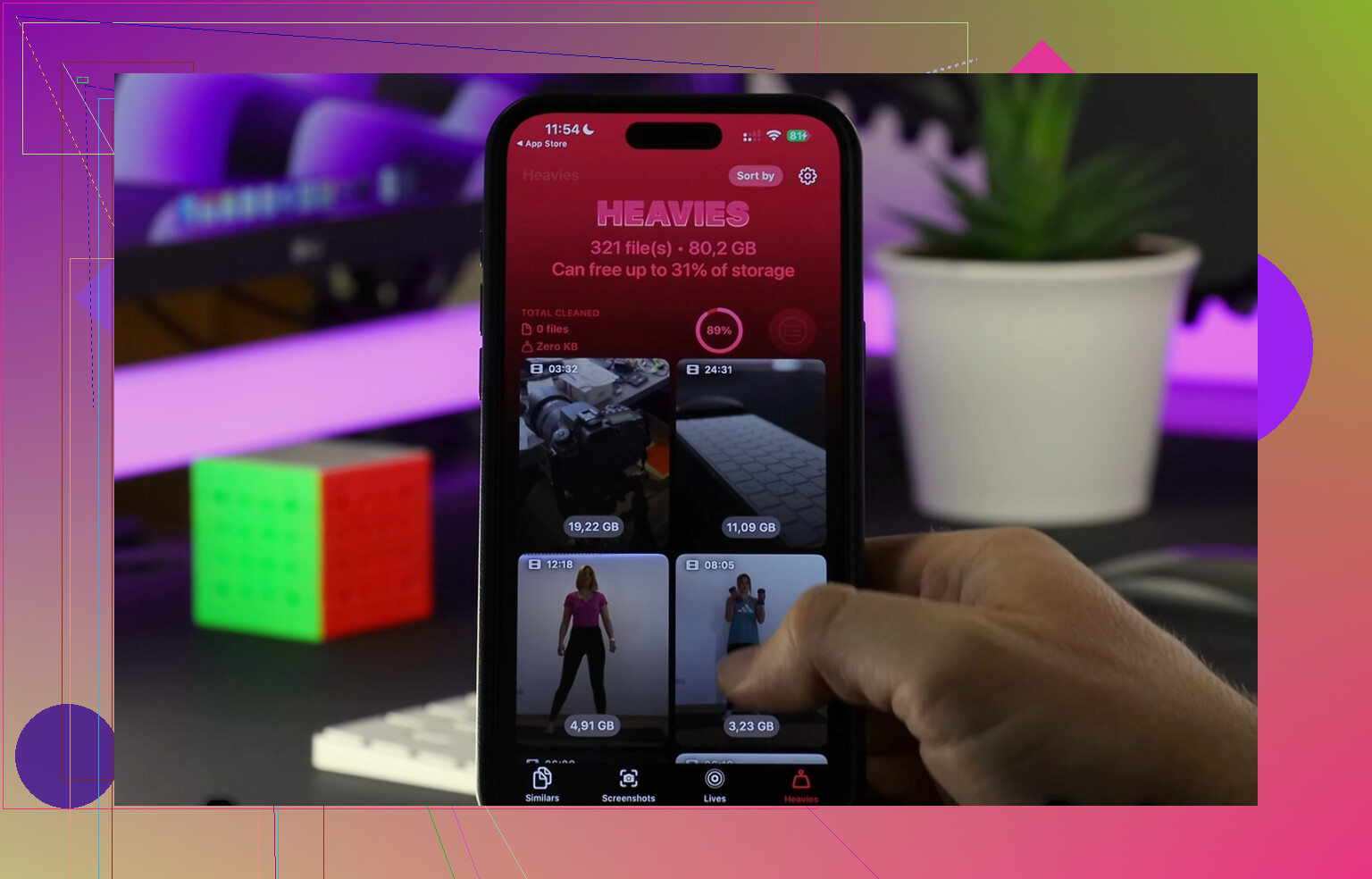
The 'Heavies' section helped first. It sorts media by size, so you spot the big offenders fast. Mine was an old 4K clip sitting there like a rock in a shoe.
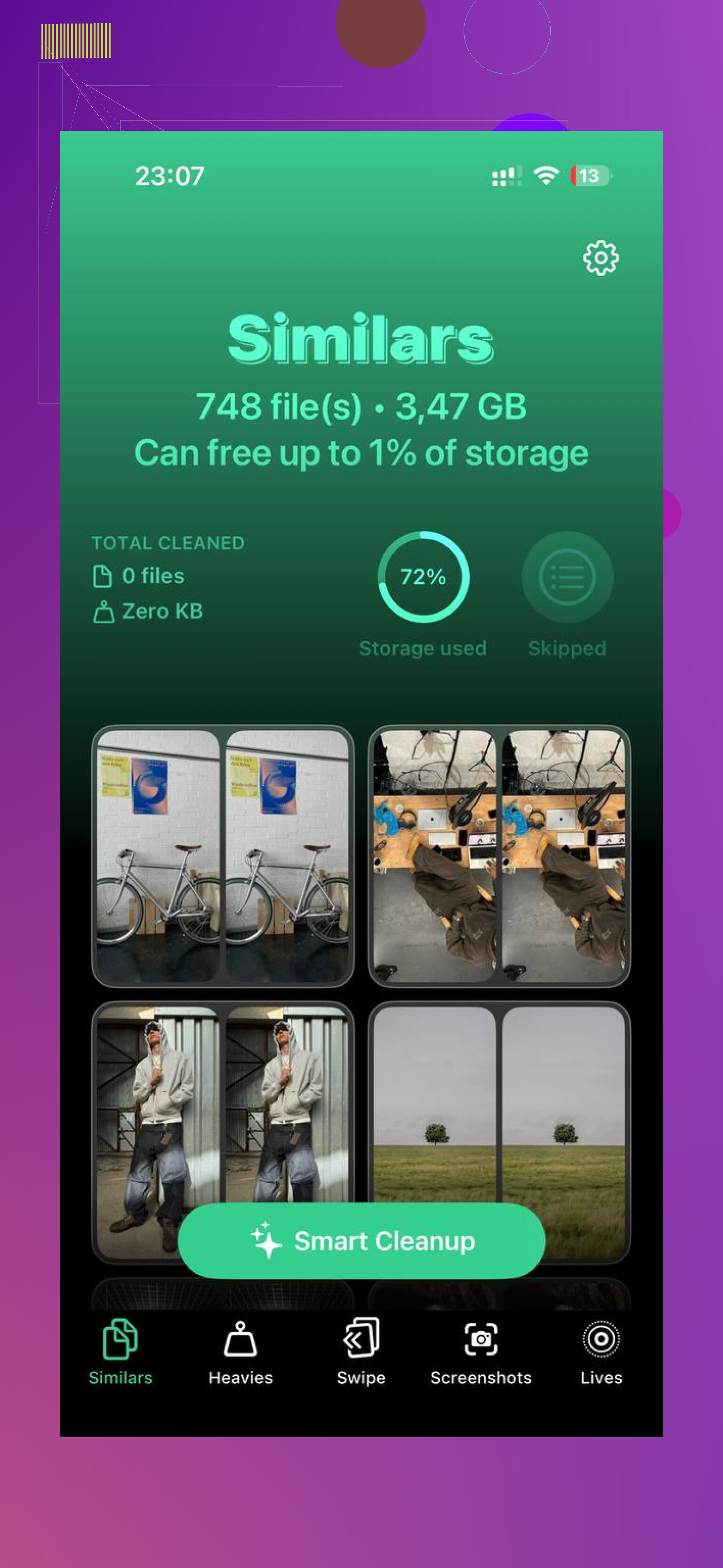
The duplicate finder was more useful than I expected too. It grouped near-matching photos, the usual burst-shot junk and repeated tries of the same pic. It marked a best version, then I checked the rest and deleted what I didn’t need. Nothing felt hidden or weird.
I also liked one detail most apps gloss over. Processing happened on the device, so my photos were not being shipped off somewhere else. For me, that mattered.
After I cleared the synced leftovers from the computer side and removed around 15GB of extra junk, the phone stopped dragging. Apps opened normally again. Keyboard lag went away. Storage finally made sense.
If your 'Synced Media' section is huge, start with the computer sync first. That’s where the stuck files usually live. After that, clean up the normal clutter so the phone has breathing room agian.
17 Likes
You usually won’t get a neat itemized list for Synced Media inside iPhone Storage. Apple labels the space, but hides the inventory. Annoying, yep.
Best way to identify what’s in it:
-
Check the apps where synced content lives.
Music app for synced songs, albums, playlists.
TV app for movies and shows.
Podcasts app for old transferred episodes.
Books app for audiobooks.
Photos app for albums synced from a computer. -
Look for signs the content was synced, not downloaded.
In Photos, synced albums often lack normal delete behavior.
In Music, some tracks show up on the phone but not from Apple Music or purchases. -
Compare storage before and after toggling app sync categories on your computer.
This is the part @mikeappsreviewer touched on, and I agree with the idea, but I don’t think the empty-folder trick should be your first move. First check Finder on Mac, or Apple Devices on Windows, and review each media type one by one. If you disable Music sync and 8 GB disappears after sync, you found your culprit. Same for Photos, TV, Podcasts, and Books. -
Check Settings, General, iPhone Storage, per app.
If Synced Media says 20 GB, but Music only shows 500 MB and Photos shows 12 GB, your missing chunk is often video or books.
If you want a faster audit of what is eating local space outside Synced Media, Clever Cleaner is useful for large videos, duplicate photos, and screenshots. Their pitch is simple, clear iPhone storage fast by finding large files and duplicate media in a few taps. This clip shows it better: see how Clever Cleaner finds large files on iPhone
Short version, iPhone shows the bucket, not the file list. Your best bet is tracing it by app type and sync source. Kinda dumb, but taht’s how Apple set it up.
You probably can’t fully “open” Synced Media as a browsable list on the iPhone itself. That’s the dumb part. Apple shows the storage category, but not a proper contents view.
Where I slightly disagree with @mikeappsreviewer and @sognonotturno is this: I would not assume every byte in that section is still tied to a currently active sync library. Sometimes it’s just stale indexing after updates, backup restores, or switching computers. So before doing the whole empty-folder workaround, try a few checks that are less destructive:
- Restart the phone, then re-check storage after a few mins on charger + Wi-Fi
- Update iOS if you’re on an older build
- Check if Sync Library for Apple Music is on, because mixed cloud + old computer sync can make storage labels look weird
- In Photos, see if you have a “From My Mac” type album behavior. Those are usualy the giveaway
Another decent clue is your backup size on a computer. If you make an encrypted local backup and compare app/media totals, you can often infer whether the “Synced Media” chunk is mostly photos/video versus audio. Not a perfect method, but it helps narrow it down without blindly unsyncing everything.
If your main goal is just finding what else is eating space besides this mystery category, Clever Cleaner is useful for surfacing large videos, duplicate pics, and screenshot junk. Also, this thread is a decent read on it: see real Reddit feedback on Clever Cleaner for iPhone storage cleanup.
So yeah, short version: you usually can’t view Synced Media directly on-device. You identify it by behavior, storage changes, and whether old computer-synced stuff is still hanging around. Very Apple, very annoyng.
You can get one extra clue Apple never surfaces well: check whether the data survives a normal app offload.
If you offload Music, TV, or Books in Settings and the big storage chunk barely changes, that usually means the files are not owned by the app in the normal downloadable sense. They are part of that synced bucket and have to be removed through sync settings, not app cleanup. That’s where I slightly part ways with @sognonotturno, @hoshikuzu, and @mikeappsreviewer. Comparing sync categories is useful, but I’d first test ownership of the data before changing sync settings.
Another trick: connect the iPhone to a Mac and open Image Capture. If your normal camera-roll photos appear there, but the missing space does not match what Image Capture sees, the mystery chunk is probably not your regular Photos library. That often points toward synced music/video or old imported photo albums.
If your goal is not just identifying Synced Media but reclaiming space overall, Clever Cleaner can help with the non-synced junk after you isolate the mystery chunk.
Pros of Clever Cleaner
- good at spotting large videos and duplicate photos
- simple view of what is actually heavy
- useful after synced media is ruled out
Cons
- it will not directly expose Apple’s hidden Synced Media inventory
- less useful if your issue is mostly music or TV files synced from a computer
- cleanup apps in general are only as good as what iOS lets them see
So, short version: you probably cannot open Synced Media as a file list, but you can figure out whether it belongs to apps, camera roll, or computer sync by testing what actually loses storage when offloaded or disconnected from normal media views.