I’m trying to free up storage on my iPhone, but I can’t figure out where my downloads went or how to remove them. I downloaded a few files and videos recently, and now my storage is filling up even though I don’t see them in the Files app or Safari. What should I check to find and delete hidden downloads on an iPhone?
I ran into this on my own iPhone, and the annoying part is simple. Downloads are scattered all over iOS. There is no one place where all of it sits, so deleting one batch does not mean your storage is clean.
Where iPhone downloads end up
What I found:
- Safari saves downloaded files in the Files app
- Downloaded songs stay inside the Music app
- Offline stuff from apps like Netflix or Spotify stays trapped in those apps
- Chrome and Firefox keep their own folders inside Files
So if you clear one folder and your storage barely moves, yeah, this is why.
Deleting downloads from Files
This is the part most people need first, since Safari dumps most files here.
- Open Files
- Tap Browse
- Under On My iPhone, open Downloads
- If you use Chrome or Firefox, open those folders too
- Tap the three-dot menu, hit Select, pick the files, then delete them
Small gotcha. iPhone does not wipe them right away. It moves them into Recently Deleted. I missed this the first time and thought storage reporting was broken. Go back to Browse, open Recently Deleted, and empty it. Until you do that, the space is still taken.
Clearing Safari’s download list
This part confused me at first because it looks like deleting, but it only wipes the list.
Open Safari, tap the Downloads icon, then tap Clear.
That removes the history entry. The file itself still sits in Files unless you delete it there too.
Removing downloaded music in one shot
I would not bother deleting albums one at a time.
Go to Settings > Music > Downloaded Music. Tap Edit in the top corner, then use the red minus button next to All Songs.
This removes the local copies from your phone. Your library stays there for streaming later.
Finding downloads hidden inside apps
This is where the big storage hogs usually hide. Netflix, Spotify, YouTube, and similar apps keep offline files inside the app. You will not see them in Files.
What worked for me:
- Open Settings
- Go to General > iPhone Storage
- Wait a few seconds for the storage bar and app sizes to load
- Scroll through the app list
If one app is sitting at 15GB, 20GB, or more, there is a good chance offline downloads are the reason. Open the app itself and look for a section named Downloads, Offline, or something close to it, then clear it there.
Why this helps when the phone feels slow
I noticed slowdown once storage got cramped. Apps froze more, the camera took longer, and general scrolling felt rough. iOS seems to hate running low on free space because it loses room for temp files.
Deleting downloads helps, but on my phone the bigger storage problem was media, mostly photos and videos.
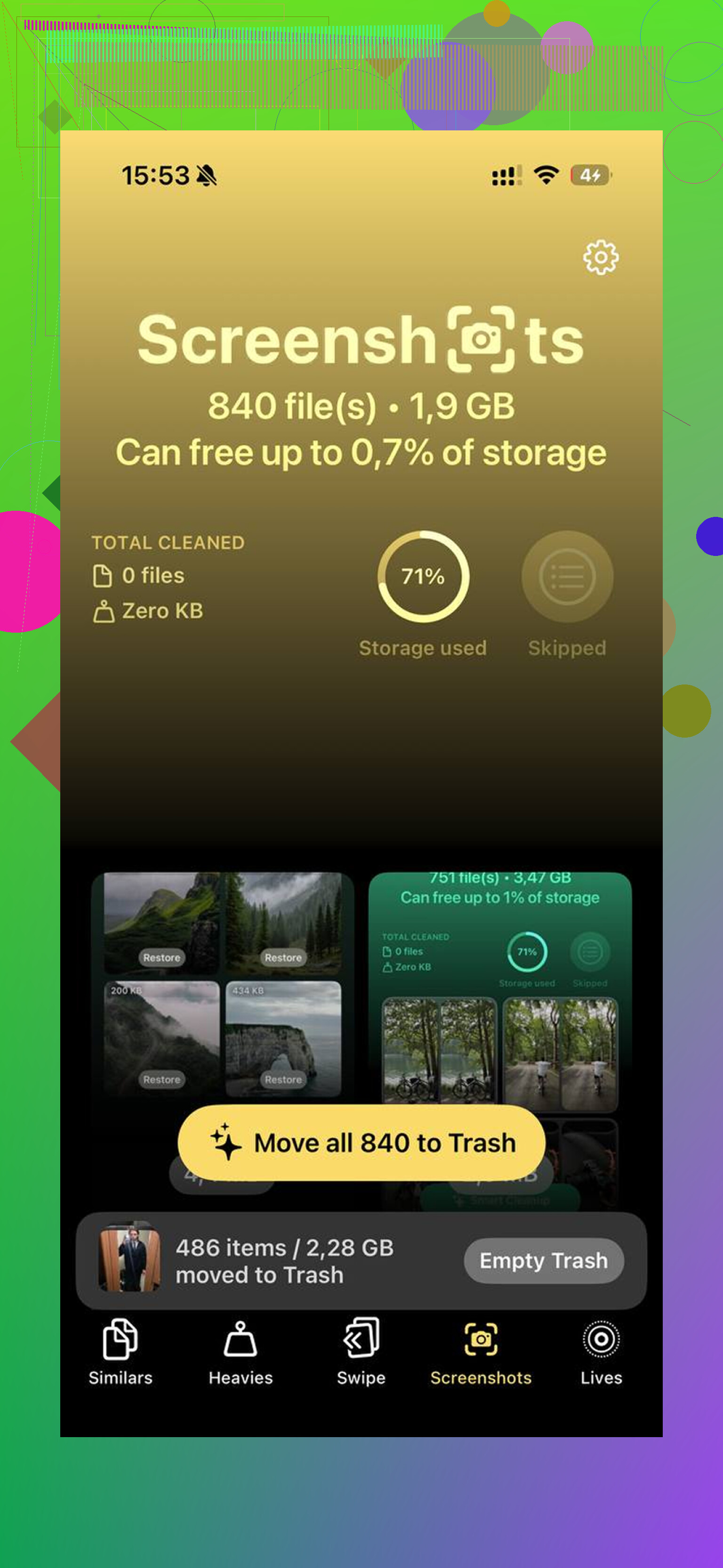
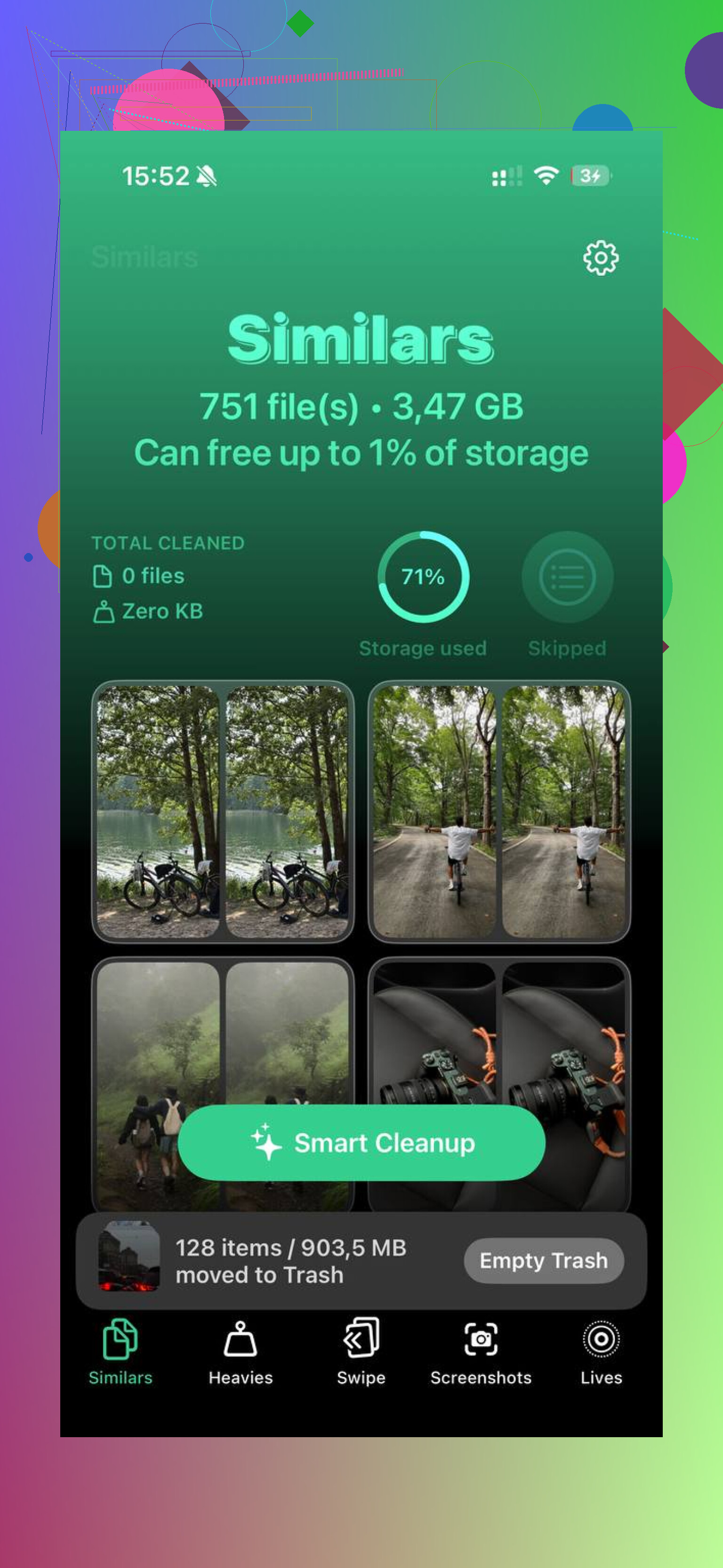
I used Clever Cleaner afterward for the photo mess. What stood out to me was the Heavies tab, since it puts the biggest files first with exact sizes, so the bloated 4K clips show up fast. The Similars tab groups near-duplicate photos and picks a best shot, which made burst cleanup less painful. Processing stayed on the device, which I preferred.
After I cleared the download folders by hand and cleaned the photo library, I got back around 40GB. The lag stopped after tht.
4 Likes
A lot of “missing downloads” are not missing. They sit inside Messages, TV, Podcasts, Books, and app caches.
Try the spots people skip:
-
Messages
Go to Settings, General, iPhone Storage, Messages.
Review Large Attachments.
Delete old videos and photos there.
One thread with a few clips eats 2GB to 5GB easy. -
TV app
Open Settings, General, iPhone Storage, TV.
Remove downloaded movies or episodes.
Same idea for Podcasts and Books. -
Mail app
Big attachments stay cached longer than people expect.
If Mail is huge in iPhone Storage, remove the account and add it back. Annoying, but it works. -
Offload bloated apps
I disagree a bit with @mikeappsreviewer on one point. I would check app storage before digging through every folder. Faster. Go to Settings, General, iPhone Storage. If an app is 8GB and the app itself should be 300MB, your junk is in there. Delete and reinstall if the app has no built-in cleanup. -
Check iCloud Drive downloads
Files app, Browse, iCloud Drive.
Some files are stored locally for offline use. Remove those if you do not need them. -
Restart after cleanup
iPhone storage numbers lag sometimes. Delete stuff, empty Recently Deleted, then reboot. Space often updates after taht.
If photos and videos are the main problem, Clever Cleaner is worth a look. It helps free up iPhone storage fast by finding large videos, duplicates, and similar shots without much digging. This quick video shows how it helps clean up iPhone storage fast: see a fast iPhone storage cleanup in action.
If “System Data” is huge, say how much. Different fix.
One thing I’d add to what @mikeappsreviewer and @boswandelaar said: sometimes the “download” is not really a file you can hunt down at all. A lot of apps save temp media, preview files, or cached video chunks, and iPhone storage counts it even though you never see a neat Downloads folder.
A few extra places to check:
- Photos app imports: if you saved a video from Safari or a social app, it may have gone straight into Photos, not Files.
- Voice Memos: easy to forget, but long recordings are huge.
- Screen recordings: these pile up fast and look like normal videos in Photos.
- Telegram/WhatsApp: media auto-downloads can quietly eat gigs.
Also, I kinda disagree with digging through every folder first. Sometimes the faster move is:
Settings > General > iPhone Storage
Then look for the apps with suspiciously large sizes. If an app is bloated, it’s usually faster to clear downloads inside that app or delete/reinstall it than play hide-and-seek across iOS.
If your issue is mostly videos/photos you saved while downloading stuff, Clever Cleaner is actually useful. It helps find large videos, duplicate pics, and similar shots faster than manually scrolling forever. This breakdown of Clever Cleaner features for freeing up iPhone storage explains what it does pretty well.
One more annoying iPhone thing: storage numbers can be delayed. Delete files, empty Recently Deleted, then wait a bit or reboot. iOS is weird like taht.
One angle I think @boswandelaar, @espritlibre, and @mikeappsreviewer only partly touched: check the download location setting itself so future files stop vanishing into weird places.
Go to Settings > Safari > Downloads.
That tells you whether Safari is saving to:
- iCloud Drive
- On My iPhone
- or a custom folder
If it’s set to iCloud Drive, the file may not look “local” at first, but it can still take space if you tapped Download Now for offline use. In Files, long-press the file and see if Remove Download appears. I actually prefer this over deleting sometimes, because it keeps the file in iCloud but frees phone storage.
Also, use the Files search bar. Search by file type:
.mp4.zip.pdf.mov
That’s often faster than manually opening every folder.
One small disagreement with the “just delete and reinstall big apps” advice: for apps with drafts or local documents, that can backfire. I’d only do that after checking the app doesn’t store anything important offline.
If the storage problem turns out to be saved videos and duplicate photos rather than true downloads, Clever Cleaner can help.
Pros
- Finds big videos quickly
- Good for duplicate and similar photos
- Faster than manual cleanup
Cons
- Less useful if your storage issue is mostly app cache
- You still need to review before deleting
- Won’t magically expose every hidden app download
So, for “invisible downloads,” my shortlist would be: check Safari’s download location, search by file extension in Files, and use Remove Download for iCloud items instead of full deletion when possible.