I need to see how much storage is left on my iPhone, but I can’t get into the Settings app right now. I’m trying to figure out what’s taking up space because I can’t download apps or update iOS. Is there another way to check iPhone storage without using Settings?
I keep running into the same mess. You go to record a video, or pull down some huge game, and iPhone throws the “Storage Almost Full” alert in your face. Then the phone starts dragging its feet. If you want to see what’s eating space, iPhone storage is annoyingly layered.
Checking storage without opening Settings
If you want the most dependable storage readout without using the Settings app, I’d plug the iPhone into a computer.
On a Mac, open Finder and click your iPhone in the sidebar. On Windows, use the Apple Devices app or iTunes. After it connects, look at the storage bar near the bottom. I’ve found this view easier to trust before installing a big app or moving a pile of videos over.
One thing I noticed, the phone itself sometimes shows stale numbers for a bit. The computer view tends to look cleaner. During sync, temporary junk often gets cleared first, so the free-space number you see there feels closer to what you’ve got right now.
When the phone won’t turn on
I ran into this once with an older device I was planning to sell. If the iPhone won’t boot and you only need the total capacity, an IMEI lookup helps.
You can find the IMEI on the SIM tray on most newer iPhones. On older ones, like the iPhone 6, it’s printed on the back. It might also be on the original box, or inside your carrier account under the device management page.
The weird part of the storage chart
The section called System Data, older iOS versions called it “Other,” trips up a lot of people. I stared at that chunk for way too long the first time I saw it.
It’s a catch-all bucket. Siri voices, dictionaries, fonts, logs, caches, bits saved by apps, all of it lands there. Stream enough music or video and iPhone stores pieces locally so stuff loads faster later. iOS is supposed to trim those files when space gets tight. In my expereince, it does, but not fast enough when you need room now.
Why low storage makes the phone feel bad
Once free space drops too low, performance starts getting weird. I saw apps opening slower, camera delay, and little interface hiccups. It wasn’t subtle. A few months back my iPhone 13 felt broken, then I checked and had around 2GB left. That was the whole story.
So if your phone feels sluggish, don’t only think battery health or old hardware. Storage gets ignored way too often.
Built-in tools help, up to a point
Apple gives you some cleanup suggestions in Settings, like offloading unused apps or reviewing large attachments. Those are fine for quick triage. They’re not great if your photo library is the real problem.
I tried the usual route first, delete a few apps, clear old messages, poke around in attachments. It worked a little. It did not fix the main issue.
What ended up working for me
What helped most was focusing on photos and videos first, since those tend to be the main space hogs on a lot of iPhones.
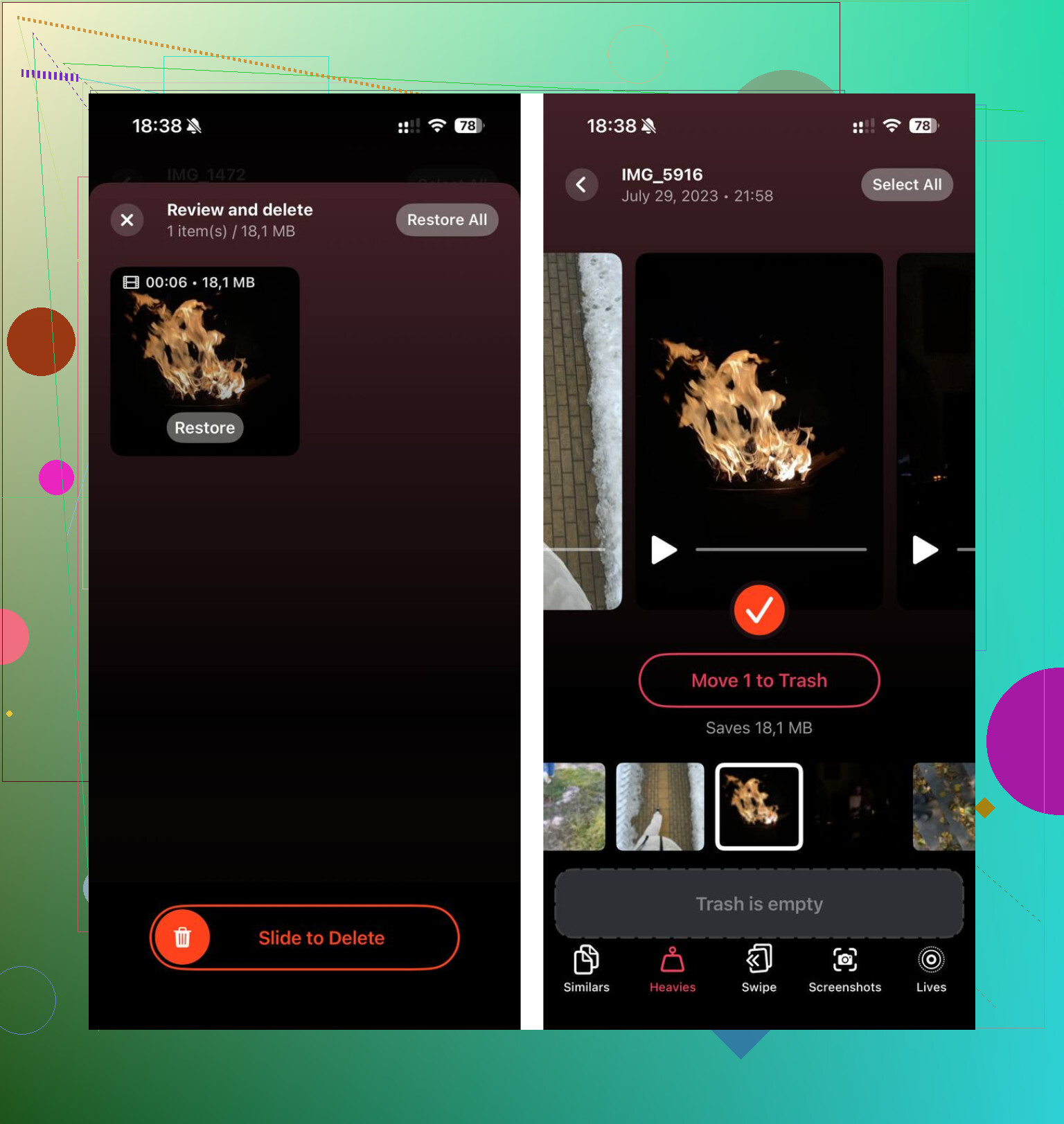
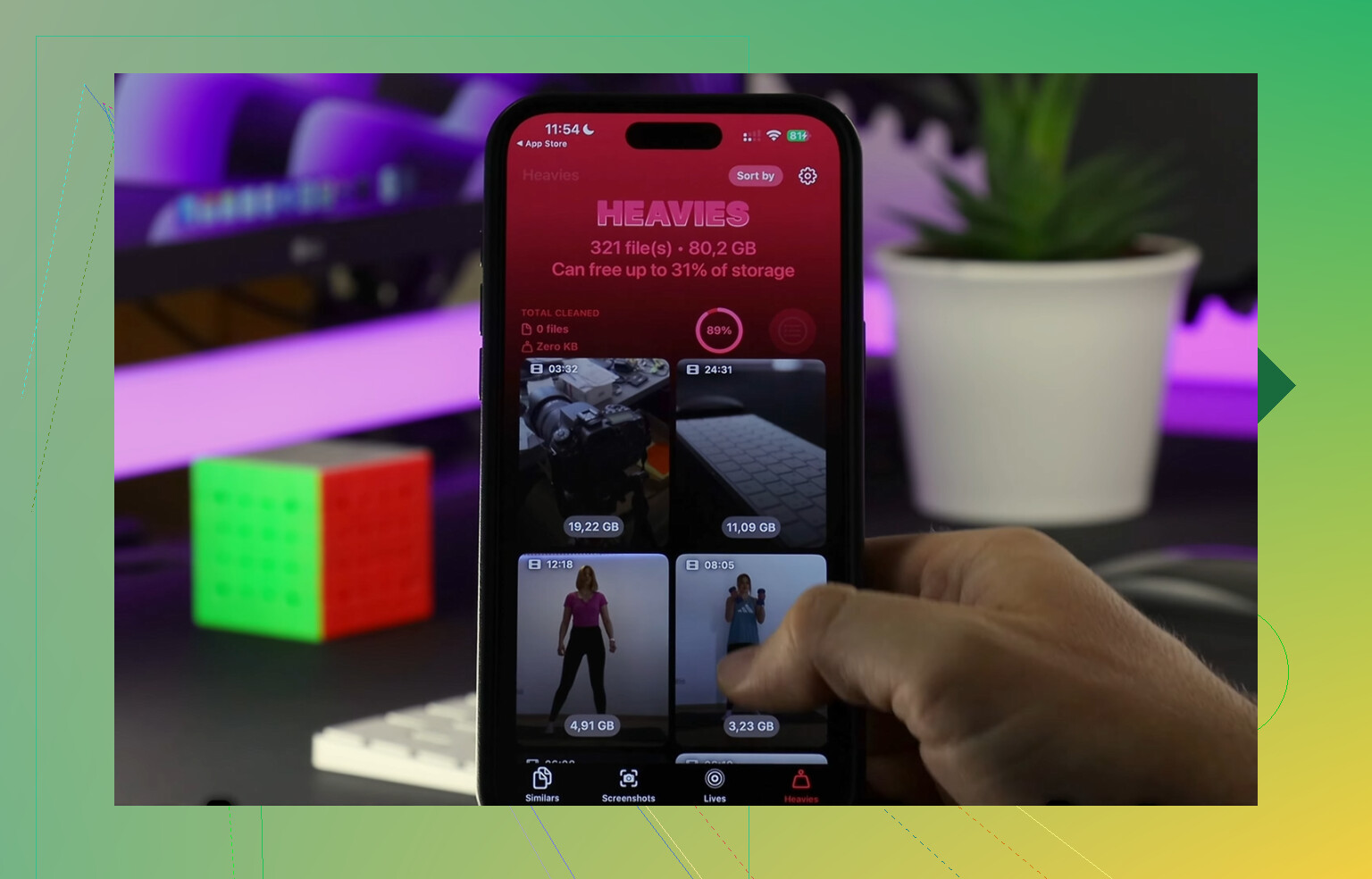
I used Clever Cleaner for this. The useful part for me was how direct it felt. No ads popping up, no paywall halfway through, no fake “trial” routine. I mostly cared about finding giant media files fast, and it did that.
The “Heavies” section lays out large photos and videos by size, so you can spot the old 4K clip sitting there taking 2GB by itself. That sort view saved me a lot of time.
The other feature I ended up using was the “Similars” section. If your camera roll looks like mine, you’ve got five near-identical shots of the same thing because one had better focus, one had better lighting, one had less blur. This tool groups those together so you keep the best one and dump the rest.
I also liked one detail people skip over. It processes things on the device. Your photos aren’t being shipped off somewhere else. It even shows the exact file size for screenshots, which sounds minor until you start clearing stuff and want proof you’re making a dent.
What I’d do first
If your iPhone feels slow, check the storage bar before doing anything else. If you’re close to full, start with your largest videos, duplicate-looking photos, and screenshots. In my case, clearing those out brought the phone back to normal way faster than deleting random apps I’d need again later.
2 Likes
If Settings is dead, try Spotlight first. Swipe down on the Home Screen and search for terms like storage, iPhone Storage, or Photos. On some iOS versions, search jumps straight into the storage page even when digging through Settings manualy is a pain.
Another angle, App Store. Tap your profile picture. If an app update fails with low-space alerts, iPhone is already near full. Not a clean number, but it confirms the issue fast.
For what is taking space, Photos app gives clues without Settings. Open Albums, then Videos, Screenshots, Screen Recordings, Live Photos, and Recently Deleted. Videos are often the big one. A few 4K clips eat multiple GB fast. Messages is another sneaky hog. Open Messages and sort through big video threads.
I slightly disagree with @mikeappsreviewer on one part. Computer view is useful, but it does not always break down storage enough to help you clean it up fast. It shows the pie, not the mess.
If your phone still works, Clever Cleaner is worth a look for finding large media and duplicate photos. That tends to free space faster than deleting random apps you reinstall two days later.
Also, if you want a quick visual walkthrough, this iPhone storage cleanup video guide is easier to follow than poking around blind. It helped me spot a few dumb files I forgot were there.
One more way nobody mentioned yet: use Apple support pages tied to your Apple ID to at least confirm device capacity and sometimes current backup size. It does not replace the full storage breakdown, but if Settings is locked up, it helps narrow things down. Go to iCloud.com from a browser, check your device info and backup details. If your latest backup is huge, odds are Photos, Messages, or app data are the culprits.
I kinda disagree with @mikeappsreviewer on the computer method being the most “dependable.” It’s fine for a snapshot, sure, but sometimes Finder/iTunes reports are weirdly delayed too. And @viajantedoceu is right that the real problem is usually media, not apps.
If you just need a practical workaround without Settings, check these:
- Files app: browse On My iPhone and iCloud Drive for giant downloads, ZIPs, or video files
- Photos search: search for “video”, “screen recording”, or just open Recents and sort mentally by the obvious monsters
- Apple TV / Music / Podcasts / Netflix / Spotify: downloaded offline stuff hides there all the time
- Safari tabs/downloads: not usually huge, but worth checking if you save files locally
Also, if your goal is cleanup more than just checking, Clever Cleaner is probly the fastest route for photo/video clutter. Their large-file and duplicate cleanup is way more useful than manually hunting through albums. If you want a decent overview, this guide on the top iPhone cleaner app for freeing up storage fast lays it out pretty clearly.
Short version: without Settings, you can estimate and investigate, but for exact free space, computer or Apple account info is your best bet. For finding what’s eating it, media apps and Photos are where I’d look first.
One angle the others did not hit: ask Siri. “How much storage do I have left?” sometimes returns device capacity info or kicks you toward the right area without manually opening Settings. Not perfect, and I actually disagree a bit with @viajantedoceu and @mikeappsreviewer that external views are always the fastest, because if your phone is still usable, the quickest clue is often inside the apps causing the problem.
Check these app-specific storage clues:
- Camera app: if video recording options get limited or saving feels delayed, storage is critically low
- Mail app: huge attachment threads can clog local space
- Voice Memos: long recordings add up fast and are easy to forget
- Books/Kindle/Adobe apps: downloaded PDFs and audiobooks can be massive
- Files app recents: better than browsing folder by folder, since giant downloads usually show there first
Also, restart the iPhone once. Sounds dumb, but cached temp files sometimes clear enough to make the storage warning update more accurately.
On Clever Cleaner:
- Pros: quick for large videos, duplicate photos, screenshot cleanup
- Cons: mostly helpful for media clutter, not a full breakdown of every app’s hidden data
So yeah, @suenodelbosque is right that media is usually the real villain. If you cannot access Settings, I’d inspect Files, Voice Memos, Mail attachments, and then use Clever Cleaner for the photo library mess.