My iPhone storage is almost full, and I don’t want to use iCloud for extra space. Photos, videos, and apps are taking up most of it, and now I can’t update apps or save new files. I need help with the best ways to free up storage or add more space without paying for iCloud.
I ran into this too, and the annoying part is how Apple words storage stuff. Paying for iCloud does not add space inside your iPhone. It gives you online storage for backups, photos, and syncing. Your phone’s built-in storage stays the same.
The internal storage is fixed from day one. Apple solders the storage chip onto the logic board, so there’s no normal way to upgrade it later. If your iPhone came with 128GB, you’re living with 128GB.
What threw me off was how bad performance got when my phone was nearly full. Apps took longer to open. The camera hesitated. Swapping between apps felt rough. I didn’t connect it at first, but low free space was a big part of it. iPhones need some breathing room for temp files and system tasks. When storage gets squeezed, the whole thing feels off.
The first place I’d check is Settings > General > iPhone Storage. That screen tells you where the space went. On mine, the main offenders were photos, videos, and a pile of cached junk buried under System Data.
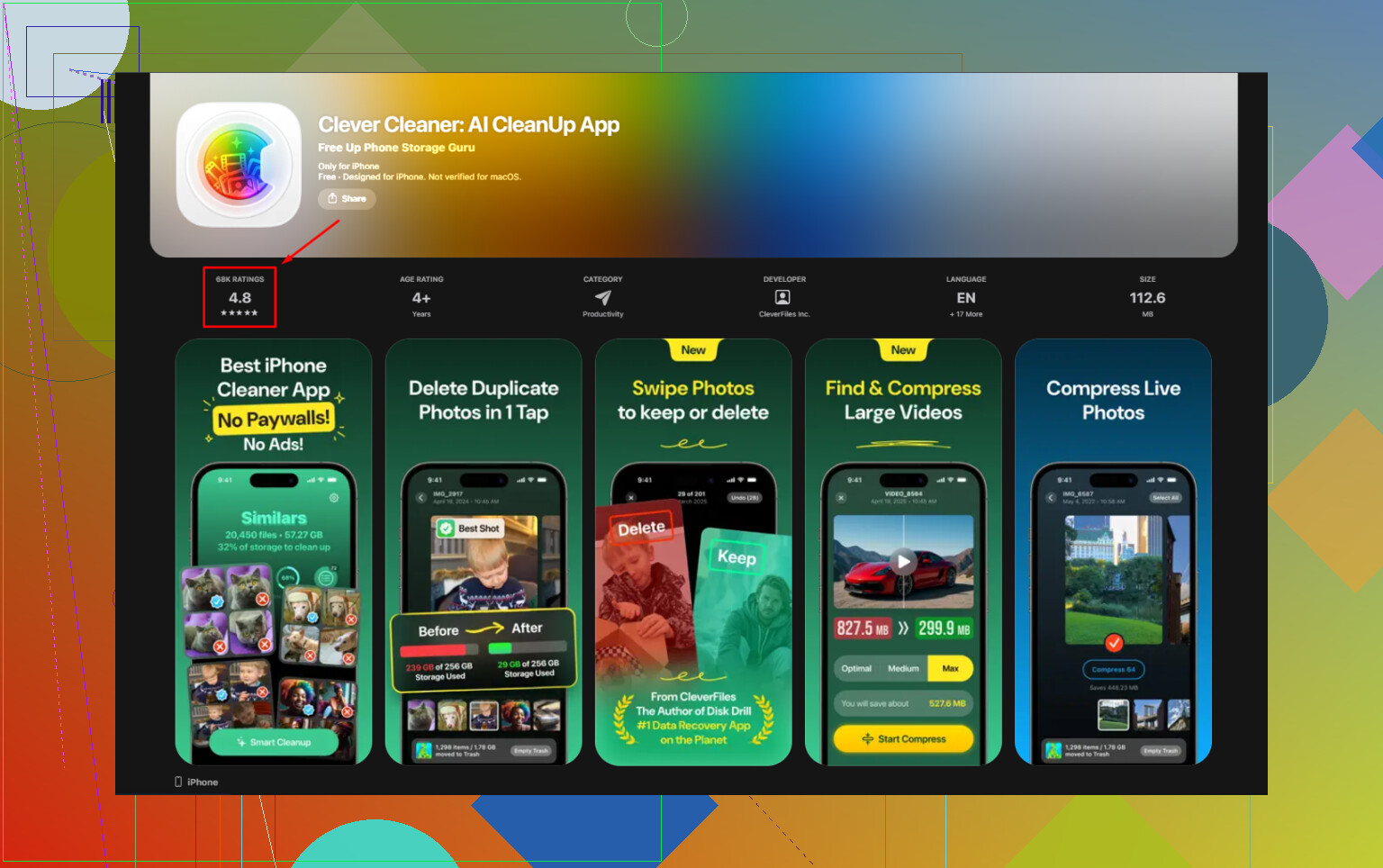
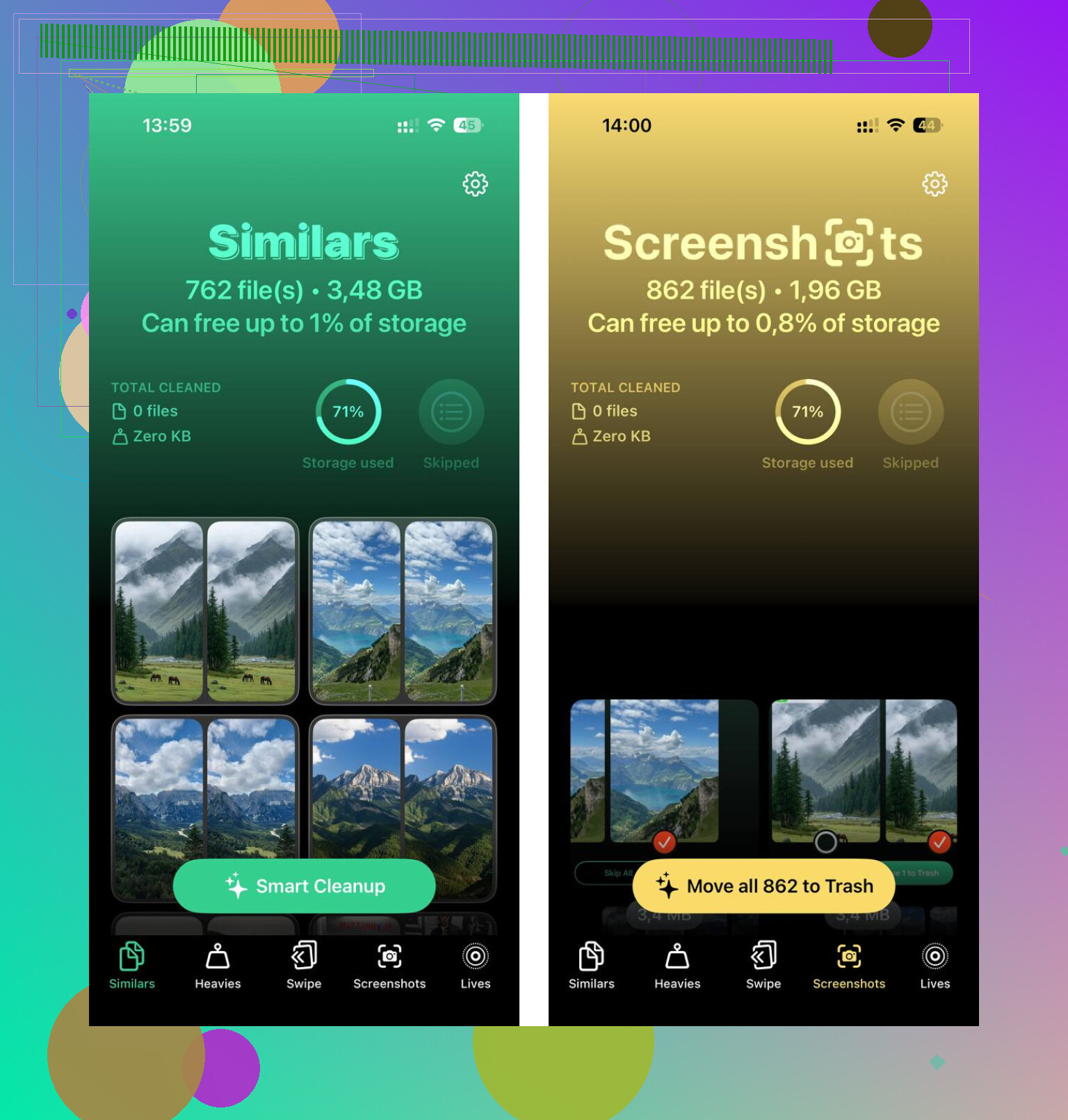
I tried cleaning by hand for a while. It was slow, messy, and I kept missing stuff. Then I tested a third-party cleaner. Most of them looked shady, if I’m honest, full of paywalls and trial tricks. The one I stuck with was Clever Cleaner. It was free when I used it, no ads, no subscription wall, which felt rare. The part I liked most was its Heavies section. It sorts media by file size, so you spot the giant videos, screen recordings, and random files eating gigabytes.
Another useful bit was the Similars section. I take too many repeat shots, same angle, same subject, tiny differences. It flagged near-duplicates fast. I also liked seeing photo analysis happen on the device instead of being shipped off somewhere else. After I removed around 12GB of duplicate photos and old recordings, my phone stopped stalling. Night and day, no joke.
If your goal is more usable space without a monthly bill, external storage is the straight answer. You can buy a Lightning or USB-C flash drive, depending on your iPhone. SanDisk iXpand drives are one option. Plug the drive in, move photos and videos over, then delete those files from the phone. Done. One purchase, no recurring fee. If you already have camera cards lying around, a Lightning-to-SD card reader works too.
If you want to spend nothing, I’d start with these:
- Offload unused apps
Go to iPhone Storage and use Offload Unused Apps. This removes the app itself but keeps its documents and data. If you reinstall later, your stuff is still there. - Clear Safari data
Go to Settings > Apps > Safari, then clear history and website data. Safari hangs onto more junk than people think. - Delete big message attachments
Group chats are storage hogs. Videos, GIFs, memes, voice notes, all of it sits on the phone. In iPhone Storage, look for Review Large Attachments and clear them in batches. - Use free cloud space elsewhere
Google Photos offers 15GB free. Dropbox gives 2GB free. It’s not huge, though it helps if you need somewhere to park files without paying Apple.
Also, the old wired method still works best for a lot of people. Connect the iPhone to a Mac or PC, copy your largest videos to the computer, then remove them from the phone. It takes a few minutes, sure, but it’s dependable and costs nothing if you already own the computer.
So no, you can’t buy more internal iPhone storage after the fact. What you can do is free space, move files off the device, and stop paying monthly if you don’t want to. I ended up doing a mix of cleanup and external storage, and tht fixed the problem better than I expected.
7 Likes
You do not add internal storage to an iPhone. Apple does not let you upgrade it later. So the fix is reducing what lives on the phone.
I agree with most of what @mikeappsreviewer said, but I would not lean too hard on random cloud services if your goal is ‘without iCloud.’ It still means moving stuff off-device to somebody else’s server. If you want local control, use a computer or external drive.
What I’d do first:
-
Change photo settings.
Go to Settings, Camera, Formats. Set photos to High Efficiency. HEIF and HEVC files are often 30 to 50 percent smaller than JPG and H.264. New photos and videos take less space from now on. -
Lower video recording size.
4K 60fps eats storage fast, around 400MB per minute. 1080p 30fps is closer to 60MB per minute. Go to Settings, Camera, Record Video and drop it if you do not need max quality. -
Remove offline downloads.
Netflix, Spotify, YouTube, Podcasts, Maps. These hide gigabytes. Open each app and delete downloaded content inside the app. Deleting the app alone sometimes leaves data behind after reinstall. -
Reset app caches the brute force way.
For apps like Instagram, TikTok, Facebook, Reddit, deleting and reinstalling often frees 1GB to 5GB if you use them a lot. Annoying, but it works. -
Set Messages to auto-delete old chats.
Settings, Apps, Messages, Keep Messages. Pick 1 Year or 30 Days if you do not need decade-old group chat junk. This helps more than people think. -
Check voice memos and GarageBand.
People forget these. A few long recordings chew through space prety fast.
If your photo library is the problem, a cleaner app saves time. Clever Cleaner is worth a look for sorting duplicate shots and large media. Here’s the App Store page for free iPhone storage cleanup with Clever Cleaner.
If you want zero monthly cost, best setup is simple. Keep 10 to 15 percent of your iPhone free, move old videos to a PC, Mac, SSD, or flash drive, and lower future photo/video sizes. That fixes the issue faster then chasing tiny files one by one.
You can’t actually add internal storage to an iPhone. That part is fixed, so on that I agree with @mikeappsreviewer and mostly with @sognonotturno. Where I slightly disagree is the “just lower camera quality” advice as a first move. That saves space later, sure, but it doesn’t solve the jam you’re in right now.
What usually works fastest:
- Delete and reinstall the worst offender apps. Social apps hoard junk.
- Remove downloaded music/video inside apps, not just the app itself.
- Open Files and check On My iPhone. People forget PDFs, ZIPs, downloaded docs, etc.
- Empty the Recently Deleted album in Photos. Same for Files.
- Restart after cleanup. iOS sometimes recalculates storage weirdly.
If photos are the big problem, using Clever Cleaner can speed up the boring part by finding duplicate shots and large files faster. Also worth reading this review of a truly free iPhone storage cleanup app if you want a clearer idea of how it helps.
Best no-iCloud long-term fix is old-school: move media to a computer or external SSD, then delete it from the phone. Not glamorous, but it works. Apple kinda wants you to pay monthly, lol.
Big picture: @sognonotturno, @shizuka, and @mikeappsreviewer are right that you’re not upgrading the iPhone itself. But I slightly disagree with the “external drive first” angle for everyone, because if the phone is already choking, the fastest win is usually fixing hidden storage waste before buying anything.
A few things not mentioned enough:
- Check Photos > Albums > Screen Recordings. Those are often gigantic and forgotten.
- In Voice Memos, swipe left and delete old long recordings. Then clear Recently Deleted there too.
- If you use WhatsApp/Telegram, open their internal storage manager. Those apps can hold several GB of media that won’t show clearly elsewhere.
- Mail app can bloat too. Removing and re-adding a huge email account sometimes clears local caches.
- If Apple Music is syncing your whole library, turn off Automatic Downloads.
If sorting photos is the pain point, Clever Cleaner is decent for speeding that up.
Pros
- fast duplicate/similar photo review
- helps surface large media
- easier than digging manually
Cons
- still needs you to approve deletions
- “similar” photos are not always true duplicates
- less useful if your storage problem is mostly apps, not media
So the real no-iCloud answer is: clean caches, purge app-specific media, move keepsakes to computer/SSD, then use something like Clever Cleaner only for the repetitive photo cleanup part.