I need to move a bunch of files from an FTP server directly to a folder in my OneDrive account. I haven’t found a simple solution that doesn’t involve downloading the files first and then uploading them again to OneDrive, which is time-consuming. Has anyone managed to automate or streamline this process? I’m open to using tools, scripts, or third-party services. Any advice or step-by-step help would be appreciated.
Moving Files from FTP to OneDrive Using CloudMounter: The Street-Smart Walkthrough
Let’s Cut to the Chase: What Even Is CloudMounter?
First off, check out CloudMounter on the Mac App Store. If you’re tired of juggling window after window just to move files between your FTP server and OneDrive, you kind of need this tool in your digital toolbox. CloudMounter acts like that one friend who always knows a shortcut—but for cloud storage and remote servers.
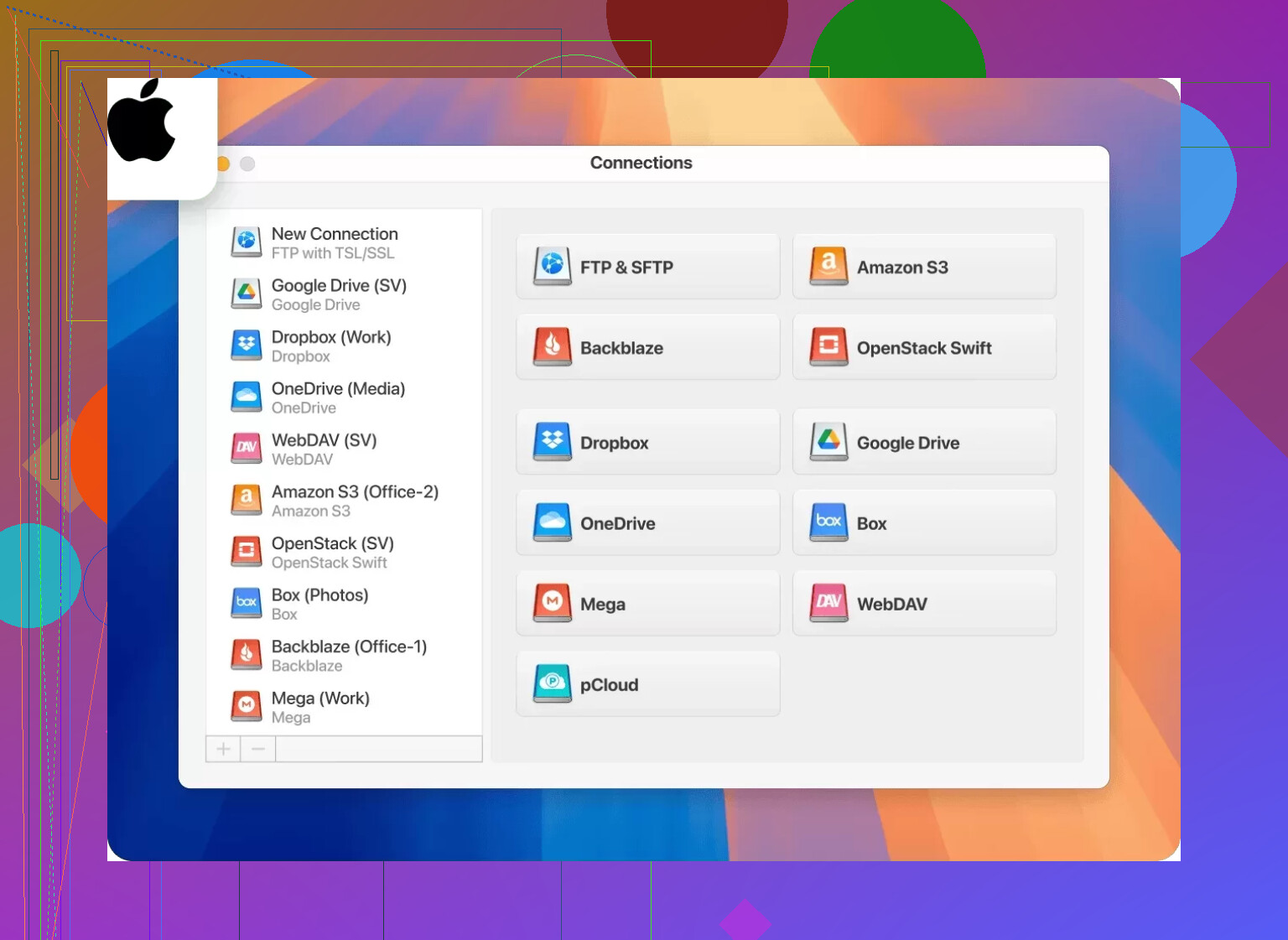
Step-by-Step: The Stuff They Don’t Put in the Ads
1. Download, Install, Yada Yada
Not rocket science—just grab CloudMounter from the official App Store page (yeah, that same link), then install it like any other Mac application. Drag, drop, wait for it to finish brewing.
2. Kick Off CloudMounter
Yeah, just open it. Ignore the splash screen if it feels preachy.
3. Plug In Your FTP Credentials
On the main panel, find FTP in the list of connection types. Punch in your server’s address, your username, and password. (No, “password123” is still not secure.) Hit Connect and watch it light up green—or throw an error if you typo’d something.
4. OneDrive, Come on Down
Back to the same window! Click OneDrive, log in with your Microsoft account, pray that you remember your 2FA codes, and give CloudMounter whatever permissions it demands. If it nags about authorization, just lean in, it’s standard procedure.
5. Both Drives Showing Up? Nice.
You’ll see your FTP server and your OneDrive as new “drives” in Finder. It’s like they’re just hanging out on your desktop waiting for you to, I dunno, play digital matchmaker.
6. Drag ‘n Drop Like a ’90s Kid
Now here’s where muscle memory kicks in: Open both drive locations in Finder and just drag your files from FTP to OneDrive. Folder full of cat memes? Sure. Quarterly reports? Yes. As long as you’re not copying your entire Steam library, you’re golden.
7. Monitor the Progress
Sometimes MacOS likes to throw pop-ups about large transfers. Let it do its thing. CloudMounter will show status bars—grab a coffee, doomscroll on your phone, whatever. Just don’t kill your Wi-Fi mid-transfer.
8. Clean Up and Exit
Once your files have landed in OneDrive, disconnect the FTP server and OneDrive in CloudMounter if you’re done. Paranoia never hurt anyone—especially when talking about sensitive files.
Extra Lessons I’ve Learned (the Hard Way)
- Transfer speed is at the mercy of your internet. University Wi-Fi? Forget it.
- CloudMounter sometimes coughs if you try too many files at once. Work in batches for sanity.
- Both connections feel native, but they’re not—so don’t unplug your laptop halfway.
- OneDrive’s upload limits may bite if you’re moving monster files.
TL;DR
CloudMounter stacks both your FTP and OneDrive right into Finder. You copy, you paste, you’re done. No manual zip, no command line, no holding your breath hoping something didn’t break. Just be patient—the digital gods will reward you with a clutter-free workflow.
Want to dive deeper? Their full app is here. Dive in, or stick to the above steps and save yourself a weekend.
8 Likes
Here’s the blunt truth: there’s no magical “teleport from FTP to OneDrive” button unless you’re using something like CloudMounter or similar cloud tools. Sure, @mikeappsreviewer gave the CloudMounter rundown (and if you’re on Mac, yep, it does the trick—mount both, drag, drop, pray for stable Wi-Fi). But if you’re not feeling it, there ARE alternatives—some are unnecessarily complicated, some are paywalled nightmares, and some just flat-out don’t work unless your patience is set to “Zen Master.”
If you want a real cloud-to-cloud transfer (so you’re not running stuff through your laptop), check out multicloud managers like MultCloud or Otixo. MultCloud lets you link FTP and OneDrive, and files move server-to-server—no download/upload. Free tier’s limited and it’s slower than molasses if you don’t pony up, but for small jobs, it’s less hassle and doesn’t hog your bandwidth. Downside: privacy is a bit “eh?” since you’re handing over your logins to a web app—some folks don’t mind, some run for the hills.
Zapier/IFTTT? Forget it. Not built for large file moves (if it even supports FTP source anymore). And please don’t even start with Power Automate unless you love fighting Microsoft workflows, because it’s whacky, clunky, and not built for big data moves.
If you’re on Windows and like open source, RaiDrive is a decent alternative to CloudMounter. Similar approach: mount FTP/OneDrive as “drives” and drag files between them in Explorer. Not as slick, but hey, it’s free for light use.
TL;DR: Either go with @mikeappsreviewer’s CloudMounter path for Mac, use something like MultCloud for offloading it to a web service, or DIY with RaiDrive if you’re on Windows and feeling adventurous. No method is perfect, and you’re either trading speed for convenience or risking privacy for automation.
And anyone who says there’s a seamless, one-click, free, secure solution for FTP → OneDrive in 2024 is straight up trolling you.
If you want a dead simple ‘no middleman’ answer, sorry – FTP and OneDrive were apparently never meant to be friends. Everyone keeps hyping up CloudMounter (yeah, I’ve seen @mikeappsreviewer and @reveurdenuit’s love letters to it), and honestly it’s fine if you want direct access via Finder or Explorer. But, I gotta say, mounting as virtual drives is nice… until you realize you’ve just moved the bottleneck to your own internet pipe. Whatever magic those tools claim, you’re still doing the ol’ download-upload shuffle – it’s just hidden in the background.
Now, some folks push for the ‘cloud-to-cloud’ options (MultCloud, Otixo) and on paper, great: it’s server-to-server so you don’t burn your bandwidth. But, sign up to some rando web app and fork over all your credentials? Yeah, no thanks. I’ll take “slightly annoying” over “potential breach risk” any day.
I’ve played with Power Automate too, but unless you enjoy debugging random SharePoint/FTP connector errors at 2 AM, skip that pain. RaiDrive is a neat Windows answer if you hate Macs or don’t want to pay, but prepare for random drive drops and funky transfer issues.
So, not super inspiring, but here’s what I landed on: for big jobs, use CloudMounter to at least make the process not actively suck. Anything super sensitive? Download locally, scan, then re-upload to OneDrive. And if anyone ever finds a truly direct, secure, and fast FTP ➔ OneDrive pipeline, let us know – the dream lives on, lol.
Alright, let’s cut through the digital fog. If you want to move files directly from an FTP server to OneDrive without babysitting uploads twice, the native options are, frankly, underwhelming. Cloud tools like MultCloud or Otixo promise cloud-to-cloud transfer and avoid hammering your personal connection… but, as others have pointed out, you’ve got to weigh handing over credentials to some third-party. (Not my flavor; trust issues run deep.)
That brings us to CloudMounter, which keeps popping up in these threads for a reason. The big win: mount both FTP and OneDrive like virtual drives, so Finder (or Explorer) just treats them as folders. Drag, drop, and off it goes—no scary command-line nonsense required. It isn’t magic, though: your machine acts as the go-between, so network speed is still your cap, and doubling the data over your pipe is inevitable. For “work in the background and forget it’s happening,” it’s pretty smooth, especially for non-enterprise needs.
Pros:
- Super easy—feels native, and the Finder integration is slick
- Reliable for most small to mid-sized transfers
- Good for folks wary of web services holding your credentials
- No need for extra automation wrestling or Power Automate headaches
Cons:
- Still reliant on your local bandwidth (no true direct server-to-server transfer)
- Can choke or get flaky with thousands of tiny files or massive batches
- Mac focus leaves Windows users hanging a bit (unless you like alternatives like RaiDrive)
- Paid (not everyone’s keen on another subscription or App Store buy)
Competitors like MultCloud or Otixo intrigue if you don’t mind web-based control panels and giving up login info, but, like others mentioned, security tradeoffs are real. Power Automate works if you love making flows and debugging SharePoint connectors, but yikes, that’s a rabbit hole.
Honestly, if your files aren’t corporate-crown-jewels, CloudMounter is a solid blend of accessible and safe-ish for most users, so long as you know it’s not skipping the data-download dance. For really secret or massive files, though: local scan-and-upload beats regrets. Anyone else waiting for OneDrive to just add FTP import natively?