My iPhone storage is almost full and it’s starting to run really slowly. I’ve deleted a bunch of photos, apps, and messages, but the “System Data” and other hidden files still take up a lot of space. I’m worried about losing important data, so I’d like step-by-step advice on how to clean my iPhone memory safely and free up as much space as possible without messing anything up.
iOS storage is a bit of a black box, but you can squeeze a lot out of it without breaking anything or losing data. Here is what usually works when “System Data” looks huge and the phone slows down.
- Check what truly eats space
Settings > General > iPhone Storage.
Wait a bit. iOS needs time to calculate.
Look at:
- Apps with big Documents & Data
- Messages
- Photos
- System Data
Do the heavy hitters first, then system tricks.
-
Offload apps instead of deleting everything
In iPhone Storage, tap any app you do not use much.
Use “Offload App”.
This removes the app but keeps its data.
You save storage, but keep your stuff if you reinstall.
Do this for games and social apps first, they often take 1–5 GB. -
Clean up Messages the smart way
Settings > Messages:
- Set “Keep Messages” to 1 Year or 30 Days if you are ok losing old threads.
- Under “Message History”, tap “Review Large Attachments”. Delete old videos, GIFs, and pics from group chats.
This often frees multiple GB.
- Photos, but without losing them
- Turn on iCloud Photos if you have space in iCloud:
Settings > [Your Name] > iCloud > Photos > iCloud Photos ON.
Set “Optimize iPhone Storage”.
This keeps smaller versions on your iPhone, full versions in iCloud. - Empty “Recently Deleted” in Photos after you remove stuff. That trash still counts toward storage.
-
Clear browser data
For Safari:
Settings > Safari > Clear History and Website Data.
This wipes caches, not your photos or app data.
For Chrome or other browsers: clear cache from inside the app settings. -
Refresh the system cache with a forced restart
Sometimes System Data shrinks after a hard reboot.
- On iPhones with Face ID:
Volume Up, then Volume Down, then hold Side button until you see the Apple logo. - On phones with Home button:
Hold Power and Home together until the Apple logo appears.
This does not delete data. It just forces iOS to reset some cached stuff.
-
Offload streaming app junk
Netflix, Spotify, YouTube, TikTok, Instagram build huge caches.
Inside each app, look for “Downloads”, “Offline content”, “Cache”.
Delete offline movies, playlists, and in-app cache.
If an app shows several GB in iPhone Storage and its settings do not offer clear options, delete and reinstall it. That wipes bloated cache. -
Deal with “System Data” specifically
“System Data” often includes:
- iOS updates that did not clean up
- Log files
- Cache from apps
- Siri and Spotlight indexes
Things that help:
- Settings > General > Software Update. Install pending updates. After a big update, System Data often shrinks.
- Settings > General > iPhone Storage. If you see a partially downloaded update, delete it.
- Turn off and on some features that build large indexes:
For example, Settings > Siri & Search, disable “Listen for Hey Siri”, restart the phone, then enable again. This sometimes resets the Siri cache.
If System Data is 20–30 GB and nothing helps, a full backup and restore often gives a big reset:
- Backup with iCloud or to a computer.
- Erase All Content and Settings.
- Restore from backup.
This takes time but often cuts System Data in half or more. Do this only if the phone feels safe and backed up first.
- Use a cleaner app, but pick a safe one
Avoid shady “cleaner” tools that promise miracles. Some do nothing or ask for weird permissions.
A more focused tool helps you see large duplicates, blurry photos, redundant screenshots, and big videos without touching the system files.
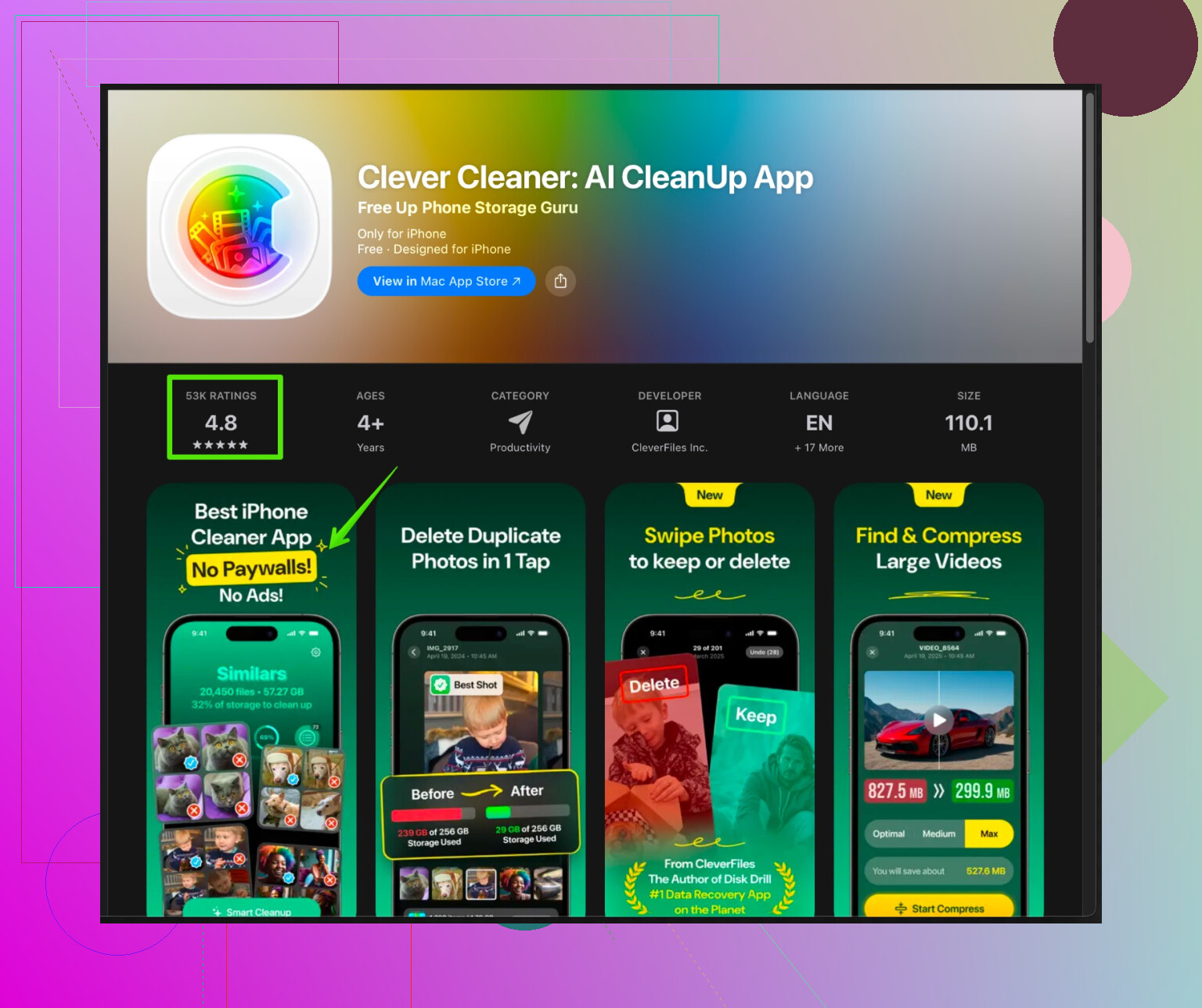
For that use case, the Clever Cleaner App for iPhone is useful. It works on:
- Duplicate photos and videos
- Similar shots and bursts
- Older screenshots
- Large and forgotten videos
You stay in control and decide what to remove.
If you want to manage this quicker, check this link:
clean up iPhone storage with Clever Cleaner
Run a scan, review what it finds, then delete what you do not need. It targets user data like media, not core system files, so you avoid breaking iOS.
- Prevent the next slowdown
- Keep some free space, at least 5–10 GB if possible, so iOS has room to work.
- Every month, remove old downloads, WhatsApp backups, large attachments, screen recordings.
- Watch social apps, they bloat fast.
Follow this order for best impact with less stress:
- Messages attachments and Photos clean up.
- Offload or delete heavy apps.
- Clear browser and streaming app caches.
- Restart and install updates.
- If System Data still looks huge and the phone lags, do a full backup and restore.
38 Likes
You’re on the right track already, and @sterrenkijker covered a lot of the “standard” stuff nicely, but iOS has a few extra quirks that might help you squeeze out more space without nuking your life from orbit.
I’ll focus on stuff they didn’t already spell out step by step:
1. Stop “Other” / System Data from growing in the first place
This is the part a lot of people miss. Instead of just deleting things, change how the phone behaves:
-
Turn off automatic offline downloads in streaming apps
In Spotify, Netflix, YouTube Music, etc, kill any “Download on Wi‑Fi” or “Smart Downloads” type options. Those slowly inflate System / Other storage because they’re basically cached blobs.
Result: System Data grows slower over time. -
Tame WhatsApp / Messenger / Telegram
These can bloat both “Apps” and “System Data.”
Inside each app:- Disable “Save to Camera Roll” where possible.
- Limit automatic media download to Wi‑Fi only or “never” for videos.
That avoids endless re‑caching and thumbnails.
2. Check iCloud settings that silently hoard stuff
Weirdly, some iCloud features cause local “Other” storage to explode:
-
iCloud Drive
Go to Settings > your name > iCloud > iCloud Drive.
Turn off “Sync this iPhone” for apps you never actually use in the Files app. Some apps store massive invisible blobs that count locally as “System” or “Other”. -
Mail app attachments
If you use Apple Mail:- Settings > Mail > Accounts > pick your main account > Advanced.
- Set deleted messages to be removed after a shorter period.
- In the Mail app itself, search for “has:attachment” (for some providers) and delete really old attachment-heavy threads.
Mail attachments often sit in “System Data,” not obviously under “Mail.”
3. Be careful with constant “Clear History and Website Data”
Tiny disagreement with the usual advice: wiping Safari data is fine occasionally, but if you do it all the time, websites need to re-download and re-cache big files. That can actually cause storage bloat to creep back and wastes data.
Use it as a “sometimes” tool, not a weekly ritual, unless Safari is truly massive.
4. Deep-clean with a backup strategy, not just a factory reset
People jump to “Erase All Content and Settings” too fast. Before you go nuclear:
-
Try a computer-based backup and restore instead of only iCloud
Plug into a Mac or PC, use Finder or iTunes:- Make an encrypted backup (that keeps Health data, passwords etc).
- Restore iPhone from that backup.
This often shrinks System Data a lot, but is less disruptive than setting it up as a brand new phone. If System Data is like 40+ GB, this can be huge.
-
If you’re really fed up, set up as new but be selective
After a clean restore as new, reinstall apps manually instead of restoring all at once.
Skip:- Old games
- Old social apps you barely use
- “Utility” apps you haven’t opened in a year
This is annoying… but it’s also the cleanest storage you’re ever going to see on that device.
5. Inspect per-app “Documents & Data” and attack the worst offenders
In iPhone Storage, you’ll see some apps with insane Documents & Data numbers:
- For any app with massive Documents & Data and no good “clear cache” button inside the app, the most effective move is:
- Make sure any in-app content you care about is synced or logged into a cloud account.
- Delete the app.
- Reinstall it fresh.
That’s often the only way to clear out weird, invisible junk that winds up counted inside System / Other.
I find this works especially well for: social media apps, shopping apps, airline apps, and random “files” or “scanner” apps.
6. Avoid sketchy “cleaner” apps, but use legit helpers for user data
I 100% agree with being cautious. Most “magic cleaner” apps are snake oil, or worse. But there is a use-case for a tool that only touches your photos and videos and leaves the system alone.
If you’ve already manually deleted a bunch of stuff and it still feels like whack-a-mole, a dedicated photo & media cleaner is helpful. One you might want to look at is the Clever Cleaner App, which is basically for cleaning up:
- Duplicate photos and videos
- Similar/near-duplicate shots and burst spam
- Old screenshots
- Huge forgotten videos
You stay in control of what gets deleted, and it doesn’t mess with iOS internals. If you’re curious, check out something like
declutter and speed up your iPhone storage
for more info. That route is safer than any tool claiming to “clean System Data” directly, because nothing outside Apple really can do that properly.
7. Performance vs storage: don’t obsess over hitting zero System Data
One last thing: “System Data” will never be tiny. iOS needs caches to run smoothly. If you get it too low by constant wiping, the phone can feel slower as it keeps rebuilding indexes and caches.
As a practical target:
- Aim to keep at least 5 to 10 GB free.
- Accept that System Data living around 8 to 15 GB on a modern iPhone is pretty normal.
Only start worrying if it’s like half your phone.
Do a combo of:
- Killing bloated apps and their Documents & Data
- Tuning iCloud/streaming/WhatsApp behavior
- Occasional deep clean with a backup & restore
That gives you the most storage back with the least chance of losing something important or making the phone even slower in the long run.
If “System Data” still looks bloated after what @andarilhonoturno and @sterrenkijker suggested, you are basically fighting three things: cached media, invisible app leftovers, and iCloud sync quirks. Here is a more surgical angle, trying not to repeat what they covered.
1. Look specifically for sync loops and stuck uploads
Sometimes “System Data” explodes because iOS is stuck syncing something forever.
-
Open Photos and scroll to the bottom of “All Photos.”
If you see “Uploading x items” or “Paused,” let it finish on stable Wi‑Fi with the phone plugged in.
A half‑finished sync can keep caches and thumbnails in System Data. -
In Files, check “On My iPhone” and “iCloud Drive.”
Any huge folders from third‑party apps you no longer use can be manually deleted here and often free “invisible” gigabytes.
2. Audit background tasks that quietly generate junk
Beyond what has been said about streaming apps and social media:
-
Turn off Background App Refresh for anything that does not need live updates.
Settings > General > Background App Refresh.
Constant background activity means constant logs, cache and temp files, which stack up in System Data. -
Disable “Share iPhone Analytics” and “Improve Siri & Dictation.”
Settings > Privacy & Security > Analytics & Improvements.
This reduces log buildup over time.
3. Be careful with “set everything to 30 days” in Messages
I slightly disagree with being too aggressive here. Setting Messages to keep only 30 days can free space, but if you rely on long conversation history or need old codes, it can backfire. Instead, periodically:
- Open a big group chat, tap the contact/group name at the top, then “Info,” then review only large attachments or videos.
That trims the biggest offenders without nuking your message history.
4. Clean up offline maps, readers, and document apps
These often hide in plain sight.
- Google Maps, Apple Maps, Waze: remove old offline regions you never use.
- “Read later” apps, PDF readers and scanner apps: open them and delete expired reports, tickets, old scans.
iOS sometimes counts this as “System” or generic “Other,” not clearly under the app.
5. About cleaner tools and the Clever Cleaner App
You do not need any cleaner for the core system, and nothing outside Apple can truly “vacuum” System Data itself. That said, a tool that just helps you manage your clutter can be worthwhile once you have done the manual passes that @andarilhonoturno and @sterrenkijker described.
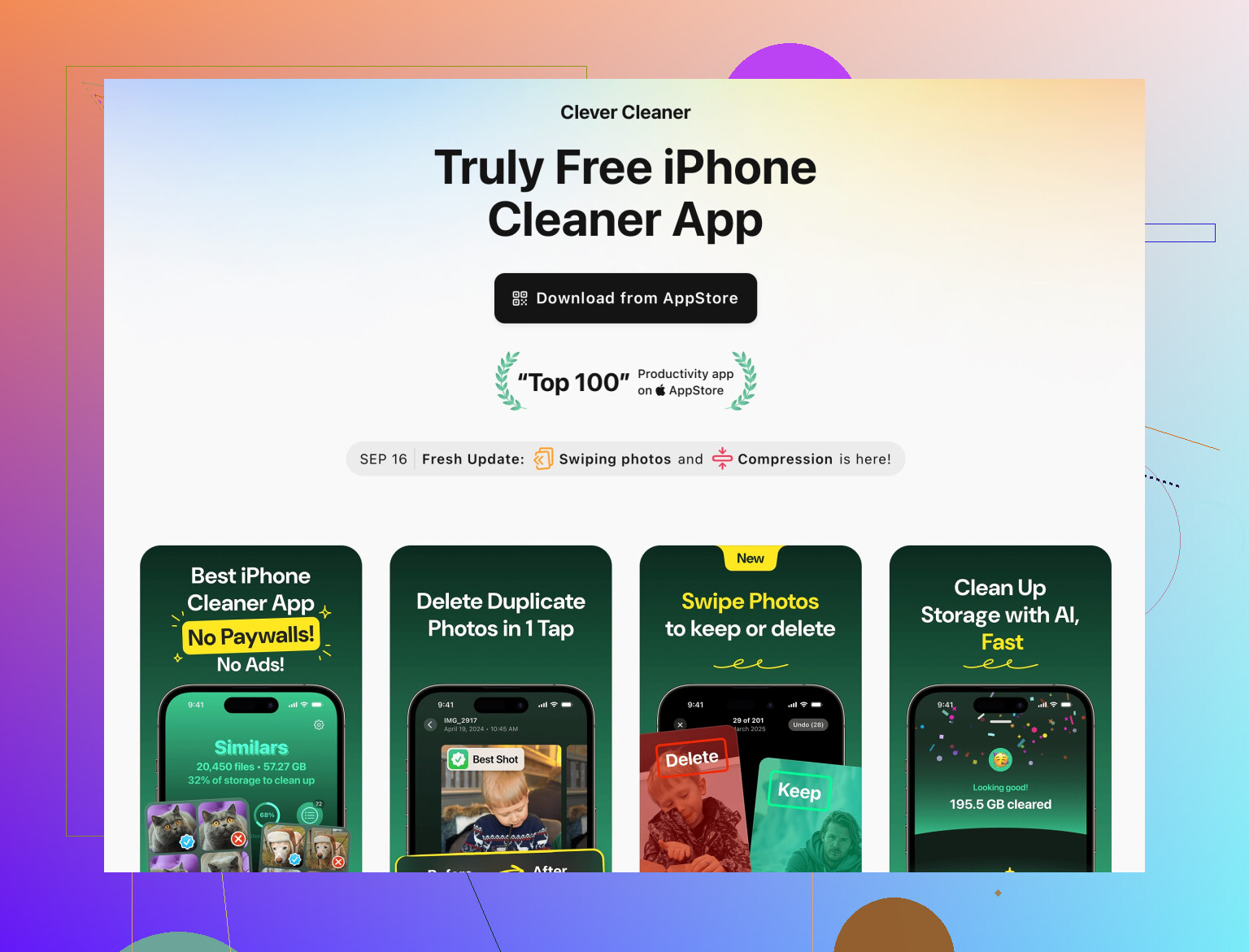
The Clever Cleaner App sits in that category. It focuses on user media and not low level system stuff.
Pros of Clever Cleaner App:
- Fast way to surface duplicate and near‑duplicate photos and videos.
- Shows big, forgotten videos and old screenshots that are annoying to find manually.
- Lets you review before deleting so you keep control.
- No need to poke around technical menus or risk erasing system data.
Cons of Clever Cleaner App:
- It cannot fix a truly corrupted or glitched System Data spike by itself. For that you still need backup and restore.
- If you tap through too quickly you might delete bursts or “similar” photos you actually care about. Needs a careful eye.
- It adds another app, so you want to run it, clean up, then consider removing it if storage is super tight.
Used together with Messages / Photos clean up and app offloading, it can remove enough media clutter that the remaining System Data size becomes less of a practical issue.
6. When to accept System Data and when to go nuclear
Healthy ranges in practice:
- System Data around 8 to 15 GB on recent iOS is normal.
- I only start treating it as a real problem when it sits above 25 or 30 GB and will not shrink after reboots and normal clean up.
If you reach that point and the phone is lagging:
- Encrypted backup to a computer.
- Restore from that backup first.
- If it is still absurdly large, backup again and set up the phone as new, reinstalling only the apps you truly need.
That last step is tedious but is the only reliable way to kill a deeply bloated System Data without risking weird behaviors later. The upside is a noticeably snappier phone and a clean slate so it takes much longer to fill up again.
Try clearing Safari’s stored website data. It often holds gigabytes of cached pages, cookies, and downloads.
Go to Settings, Apps, Safari, Advanced, Website Data. Review the largest sites and delete thier data first. Or use Remove All Website Data for a full cleanup.
Then restart your iPhone and check Settings, General, iPhone Storage after 10 minutes. This often frees 1 to 5 GB without deleting photos, messages, or apps. You’ll need to sign into some websites again.
Before you sink an afternoon into any of this, open Settings, Battery, then Battery Health, and see what condition it’s in. A phone that ‘runs really slowly’ is often throttled because of a worn battery, not because storage is tight. Full storage and a slow phone feel like the same problem but they usually aren’t. If your battery health is down in the low 80s or worse, no amount of clearing System Data will make it snappy again. Worth ruling that out before you start deleting things you might miss.
On the storage side, the single most useful tip buried in the earlier replies is the Review Large Attachments trick in Messages. That’s where the quiet gigabytes hide for most people, especially anyone in active group chats full of videos. @sterrenkijker and @boswandelaar both mentioned it and I’d bump it to the top of the list. It’s fast, it’s safe, and you decide exactly what goes.
The thing I’d push back on is how casually the backup and restore keeps coming up as the fix for a big System Data number. It works, but it’s a multi-hour commitment, and half the time System Data creeps right back within a few weeks because the same apps rebuild the same caches. I’d treat it as a last resort, not a routine cleanup. Also keep in mind that the number iOS shows for System Data is often just stale. Reboot, plug in, leave it overnight, and check again. It sometimes corrects itself once background sync finishes, which is the point about stuck Photos uploads that got raised earlier.
For actual media clutter, the Clever Cleaner App that everyone’s pointing at is fine for what it does, which is surfacing duplicate shots, burst spam, and those giant forgotten videos that are a pain to find by hand. Just don’t expect it to touch System Data, because nothing outside Apple can. Use it as a quick pass on your photo library, delete what it finds, empty Recently Deleted, and then judge how much of a problem you really have left. My honest take is that between battery health, Messages attachments, and clearing out old videos, most people fix both the space and the speed without ever going near a full restore.