I accidentally formatted an external hard drive that had important photos, work documents, and backup files on it. I stopped using the drive right away, but I’m not sure which data recovery software or recovery method actually works after a format. Looking for help with the best way to recover files from a formatted drive before anything gets overwritten.
I’ve messed this up before, and the first few minutes matter more than people think. If you formatted the wrong drive, stop touching it now. Don’t copy files to it. Don’t install anything on it. If it’s external, unplug it. If it’s your main system disk, keep use to a minimum. Every write cuts into your odds.
Start with backups, not recovery scans
I’d check backup sources before doing anything fancy or paid. A lot of people forget some folders were syncing in the background the whole time.
Look here first:
- OneDrive, Google Drive, or iCloud Trash or Recently Deleted
- Time Machine on Mac
- File History on Windows
If your files are sitting in one of those, you skip the whole recovery mess and get your stuff back fast.
Recovery software is the next move
If there’s no backup, I’d move to recovery software right away. For normal cases, this is the route most people end up taking.
I’ve had decent results with Disk Drill. It handles formatted drives, runs on both Windows and Mac, and supports the file systems most people run into.
The safe way to do it:
- Install Disk Drill somewhere else, not on the drive you formatted.
- Run a scan on the formatted drive and go through the results.
- Save recovered files to a different drive.
Couple of side notes from trying too many of these tools. PhotoRec digs up a lot, but it’s rough around the edges and file names often come back mangled or gone. Recuva is easier if you’re on Windows, though in my use it falls off hard once partitions were reformatted more heavily.
When software isn’t enough
If the files matter a lot, family photos, work docs, anything you can’t recreate, a recovery lab is the next step. It costs more. Sometimes a lot more. Still, labs have tools and methods you won’t get from home software.
One thing people miss is the type of format. This changes your odds by a lot.
- Quick Format usually removes the file system records, so the data blocks might still be there until something overwrites them.
- Full Format is worse. On modern Windows systems, it writes zeros across the drive and checks for errors. Once sectors were overwritten, software recovery is done.
So yeah, the order matters. Stop using the drive. Check backups. If no backup exists, scan with a recovery tool as soon as you can, and recover files onto another device. Waiting around or writing new data is where people lose the last good shot.
3 Likes
If it was a quick format, your odds are still decent. If it was a full format, odds drop hard. One small disagreement with @mikeappsreviewer, I would make a sector-by-sector image of the drive first if the files matter more than the cost of another disk. Work from the image, not the original. If a scan crashes or the drive starts failing, you still have one clean copy to work with.
Best order I’d use:
- Clone the formatted drive with something like HDD Raw Copy Tool, ddrescue, or R-Studio’s imaging feature.
- Scan the clone or image with 2 different tools. Recovery apps miss different file types.
- Recover to a separate drive with lots of free space.
- Sort results by file type and date. Photos often come back fine even when folder structure is toast.
Tools worth trying:
- Disk Drill, easy UI, good for photos and common docs.
- R-Studio, stronger on partition rebuild and damaged file systems.
- UFS Explorer, pricey, but solid when the drive had weird partition issues.
- PhotoRec, ugly but strong for raw file carving.
One more thing. If this was an SSD in a USB enclosure, TRIM might have wiped blocks fast. In those cases, lab recovery is often the only shot, and sometims not even labs win.
For a clear Disk Drill review, features, and recovery workflow, this video helps:
watch this Disk Drill recovery walkthrough and feature breakdown
If the backup files on that drive were old system images or archives, prioritize docs and photos first. Those usually recover cleaner than giant backup containers.
I mostly agree with @mikeappsreviewer and @espritlibre, but I would not jump straight into trying every recovery app you can find. That’s how people turn one mistake into three.
What I’d do first is figure out what kind of drive and format happened:
- HDD external drive: usually much better recovery odds
- SSD or flash-based external: odds can drop fast because of TRIM/garbage collection
- Quick format: often recoverable
- Full format: way worse
Also, if the drive is making weird noises, disconnect it and skip DIY stuff. Software won’t fix failing hardware.
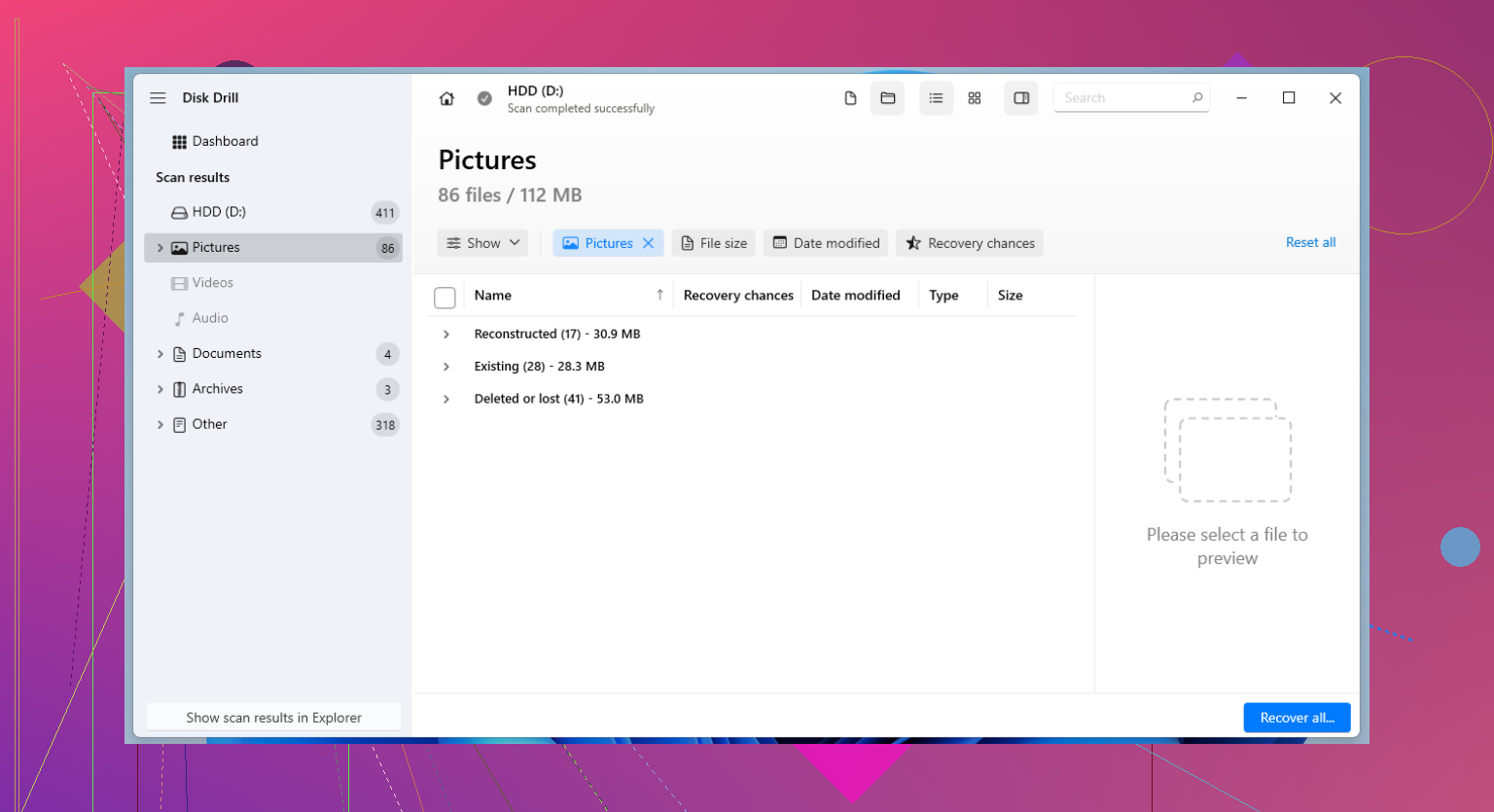
For software, Disk Drill is a solid first pass because it’s easy to use and previews photos/docs well. If Disk Drill finds the file tree, that’s usually a good sign. If it only finds raw files, expect messy names and folders. For work docs, file integrity matters more than just “it found 20,000 files,” so previewing recovered files is a big deal.
One thing people forget: large backup archives like ZIPs, PSTs, VM images, and system backups often recover poorly if even slightly damaged. So recover the irreplaceable photos and documents first, then go after the bulky backup files.
If you want extra reading, this is useful: formatted drive recovery tips that are actually easy to follow
Short version:
- Confirm HDD vs SSD.
- Scan with Disk Drill from another computer/drive.
- Recover only to a different disk.
- Prioritize photos/docs first.
- If results look bad and the data is mission critical, stop and use a lab.
That’s the boring answer, but boring is how you avoid making it worse tbh.
One small pushback on @espritlibre and @sognonotturno: if the drive is healthy and this was just a plain quick format on a normal external HDD, I would not always spend hours trying multiple apps right away. Start by identifying whether the old partition/file system can be reconstructed cleanly. Sometimes that gets you original folders and names instead of a giant pile of carved files.
What I’d check first:
- Was it NTFS, exFAT, APFS, HFS+, ext4?
- Was it quick format or full format?
- Is it HDD or SSD/flash?
- Did the computer offer to “repair” it before or after formatting?
Why that matters: file-system-aware recovery is usually better than pure carving if you want documents, project folders, and usable filenames back.
About Disk Drill specifically:
Pros:
- Very easy preview workflow
- Good for common photo and document recovery
- Friendly if you do not want to mess with command line tools
- Decent at filtering results so you can triage faster
Cons:
- Can become messy on heavily damaged or repeatedly formatted volumes
- Raw recovery results may lose names/folder structure
- Not my first choice for weird partition maps or partially failing drives
- License cost can feel steep if recovery ends up poor
So yes, Disk Drill is a reasonable first scan, especially if you want a simple interface. But I’d still validate found files before celebrating. Preview ten random photos, open several Office/PDF files, and check file sizes. “Found” does not always mean “usable.”
Also agree with @mikeappsreviewer on one point people overlook: giant backup containers are low-value first targets. Recover the irreplaceable small stuff before wasting space and time on monolithic archives that may be corrupt anyway.