I accidentally deleted important photos from my SD card while moving files to my computer, and now they’re gone from both places. These pictures are really important to me, and I need help figuring out the best way to recover deleted photos from an SD card before anything gets overwritten.
I ran into this more than once, mostly with camera cards, and the main thing is speed. If you deleted the photos and then stopped using the SD card right away, your odds are still decent.
When photos get deleted from an SD card, the files often stay there for a while. What gets removed first is the file system entry, sort of the index your camera or computer uses to find them. The image data usually sits on the card until something new writes over it. So first step, stop. Do not shoot more photos. Do not record video. Do not move files onto the card. Leave it alone.
If I were doing this on my own machine, I’d start with Disk Drill. I’ve had better luck with it than with the tiny free tools people toss around in old forum threads. It reads SD cards from cameras, drones, phones, Switch consoles, dash cams, and the usual pile of stuff people keep in a drawer.
What stood out for me was this. It does more than hunt for files you deleted five minutes ago. It also helps when the card turns unreadable, shows up as RAW, gets corrupted, or was formatted by mistake. It recognizes common photo formats like JPG and PNG, plus camera RAW files such as CR2, NEF, ARW, DNG, and other formats from Canon, Nikon, Sony, Fujifilm, and similar brands.
Video recovery matters too. A lot of SD cards hold fragmented video, especially from action cams, drones, and mirrorless bodies. Some tools fall apart there. Disk Drill did better for me on those jobs.
Here’s the way I’d handle it.
What to do first
- Pull the SD card out of the device right away.
- Put it into a proper card reader on your computer.
- Skip connecting through the camera if you have another option.
- Install and open Disk Drill.
- Pick the SD card from the drive list.
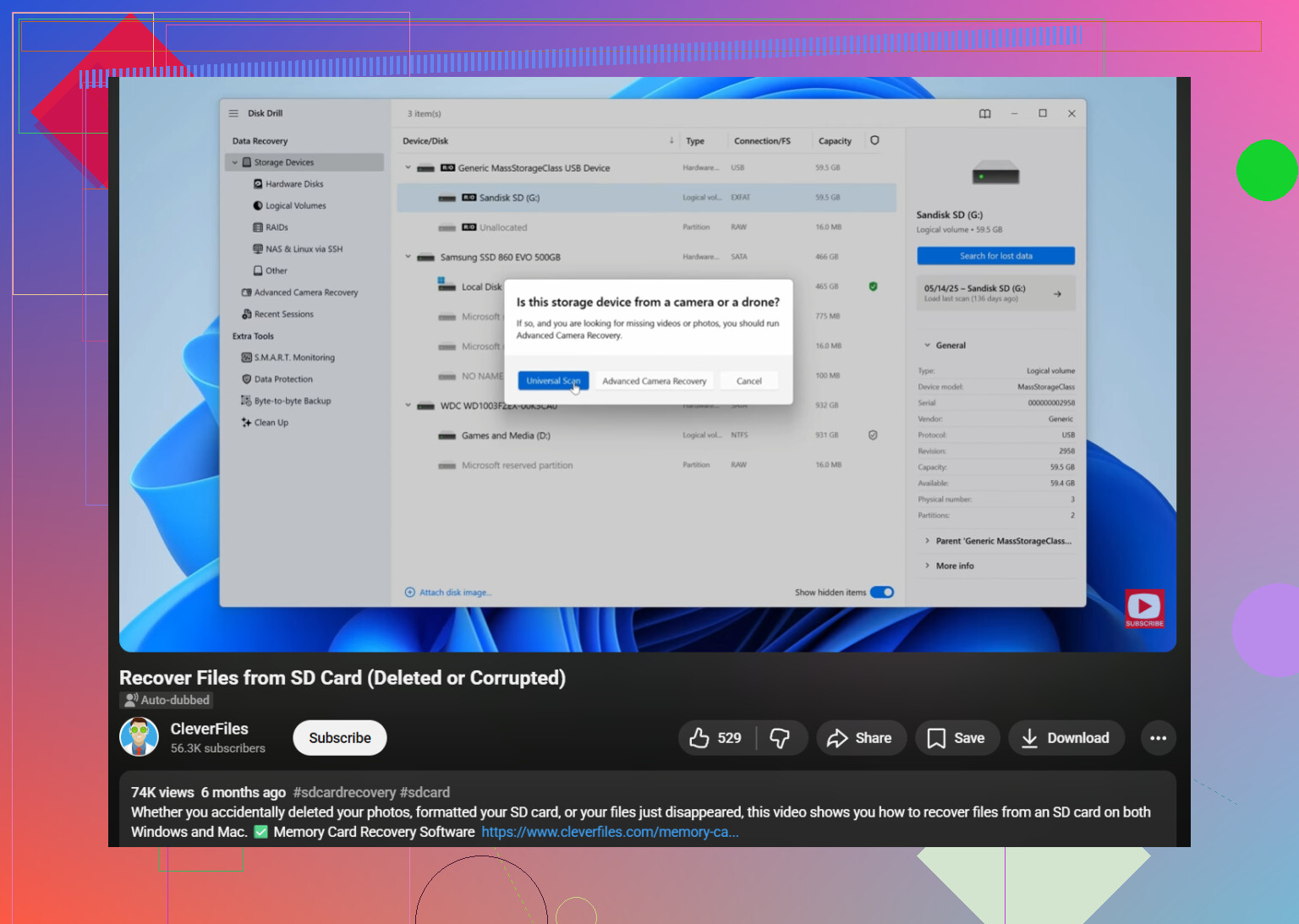
- Hit “Search for lost data” and use Universal Scan.
- Let the scan run all the way through.
- Open “Review found items” and check the Pictures category.
- Preview what you find. If a file previews cleanly, I usually take it as a good sign.
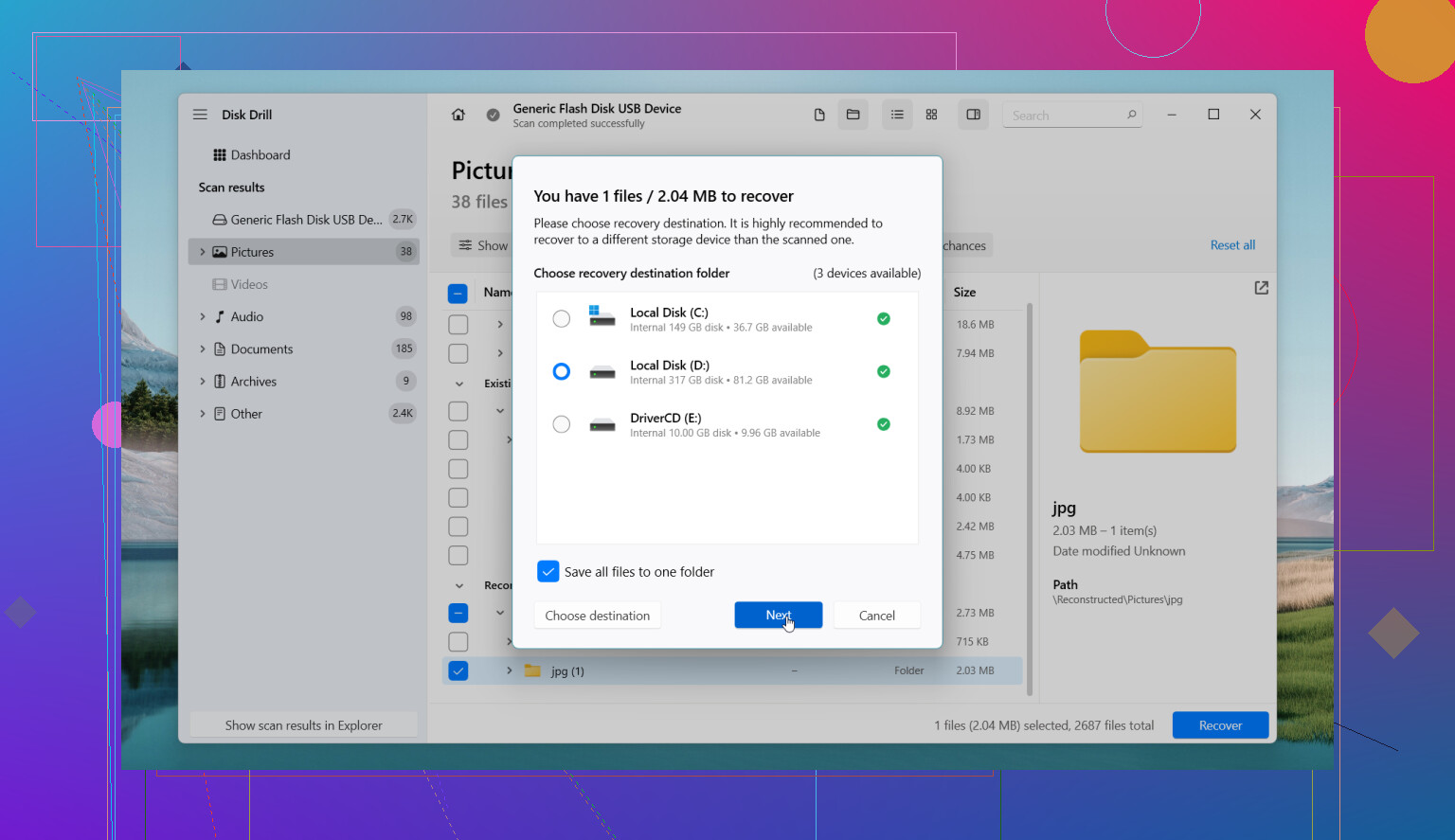
- Save recovered files to your computer or another drive. Do not write them back to the same SD card.
If the card looks blank or broken
I’ve seen cards show as empty, unreadable, or ask to be formatted, and the files were still there. Sometimes the file system is the part that’s damaged, not the photo data itself. So don’t assume the card is wiped only because Windows or macOS acts weird.
If the card keeps disconnecting, freezes during scans, or starts acting flaky, I’d make a byte-to-byte image first and work from that copy. This matters more than people think. You get one stable read now, then you stop stressing the original card. If the card is dying, repeated scans are how people make a bad day worse.
Free version notes
The free version of Disk Drill lets you scan and preview files. On Windows, you get up to 100 MB of free recovery. On Mac, the free side is more about previewing, so bigger recoveries usually mean paying for it. Not fun, but I’d rather know this up front than after a two hour scan.
Other tools I’ve seen work
PhotoRec
Ugly interface. Strong recovery. Fully free.
I used it once when I didn’t care about filenames and only wanted the images back. It tends to recover files without the original folder layout, so you end up sorting a mess later. Still, for raw recovery, it punches above its weight.
DiskGenius
More technical. Better if the issue involves partitions or a damaged card structure.
If you already suspect the SD card has partition problems, this one is worth a shot. I wouldn’t hand it to someone who hates dense menus.
DiskDigger
More of an Android fallback.
If the SD card is sitting inside an Android phone and you do not have a PC nearby, it might help. I would not put it in the same tier as desktop recovery tools. Deeper scans often need root, which is a whole separate headache.
When software stops being enough
If the card is physically damaged, disappears at random, gets hot, or your computer doesn’t detect it at all, software starts losing value fast. At that point I’d stop trying random tools and think about a recovery service. I know people hate paying for that, I do too, but grinding a failing card with repeated attempts is how you turn “maybe recoverable” into “gone.”
If your photos matter, the safe order is simple. Stop using the card. Read it through a card reader. Scan it. Preview files. Recover to another drive. If the card is unstable, image it first. That’s the route I’d take.
1 Like
Do not put anything back on the SD card. That matters more than people think.
I agree with @mikeappsreviewer on stopping use right away, but I’d add one thing first. Check your computer’s trash or recycle bin, and check the folder you copied into. A bad move operation often fails mid-transfer, and the files end up in temp or recently deleted locations. I’ve seen peole miss this and waste time scanning.
If the card still mounts, run recovery from a card reader, not from the camera. Disk Drill is a solid pick because it previews photos well, which saves time when you have hundreds of hits. If the filenames are gone, sort by file type and date. For SD card photo recovery, preview support matters more than fancy menus.
If Disk Drill finds little or nothing, switch tactics and try PhotoRec. It’s messier, but it digs by file signatures and sometimes pulls images other tools skip. You lose folder structure, but saved photos beat neat folders.
If the card disconnects or reads slow, clone it first. One bad scan on a failing card can make things worse. Also, if TRIM was involved through a phone or newer device, recovery odds drop a lot, though on SD cards it’s less common than SSDs.
This guide helped a friend sort the process fast, SD card photo recovery walkthrough on YouTube.
Recover to your computer or another drive. Not back to the SD card. Thats the part people mess up.
I’d do one extra thing before diving into recovery apps: check whether your computer did a failed move instead of a pure delete. On Windows, look in Users\YourName\AppData\Local\Temp, your Photos import folder, and search the PC for *.jpg, *.png, *.cr2, *.nef, etc. On Mac, check Photos import folders and Recently Deleted. Sometimes the files are not “gone,” just dumped somewhere dumb.
After that, yeah, what @mikeappsreviewer and @techchizkid said about not using the card anymore is spot on. I do slightly disagree with jumping from tool to tool too fast though. Repeated full scans on a sketchy SD card can be rough on it. Pick one solid tool first, scan once, then decide.
If you want the easiest route, Disk Drill is probly the best starting point for SD card photo recovery because the preview is actually useful and it handles a lot of camera RAW formats. If the card is acting weird, make an image/backup of it first and scan the image, not the original card. That’s the safer play.
Also, if the card has important photos and your computer keeps dropping the connection, stop DIY stuff early. That’s usually where people make it worse.
For more community troubleshooting, this thread is pretty relevant: Reddit discussion on SD card photo recovery help
Big thing: recover files to another drive, not back to the SD card. People still mess this up somehow.
One angle the others only touched lightly: if this happened during a move, your computer may have copied part of the data into a hidden cache before deleting the source entry. So besides Recycle Bin/Trash, check your photo app library, cloud sync folders, and any “Recently Imported” area. Windows Photos, OneDrive, iCloud Photos, Google Drive for desktop, even Adobe apps can quietly hold copies or thumbnails.
I slightly disagree with the usual “scan immediately no matter what” advice. If the card seems unstable, the smartest first move is to make an image of it and work from that. Less risk.
About Disk Drill:
Pros
- very good photo preview
- easy to sort results by type/date
- supports lots of RAW formats
- simpler than PhotoRec
Cons
- free recovery is limited
- can return lots of duplicates
- not my first pick for severe physical failure
So my order would be: search the computer for strays, check sync apps, image the card if it’s flaky, then scan the image with Disk Drill. If that misses files, fall back to signature-based recovery. @techchizkid, @vrijheidsvogel, and @mikeappsreviewer are all right about one thing though: do not recover anything back onto that SD card.