I accidentally deleted important GoPro video files from my SD card after a trip, and now I can’t find them on the camera or my computer. I haven’t used the card much since it happened because I’m hoping there’s still a way to recover the deleted GoPro footage. I really need advice on the best SD card recovery methods or software that might help restore the videos.
Yeah, that sucks. I’ve had a card go sideways after a shoot, and the worst move was touching it too much after the files vanished.
First thing I’d do, stop using the SD card now. No new clips. No format. No “repair” button yet. When GoPro files get deleted, the data often stays there until new footage lands on top of it. Every extra recording cuts into your odds.
Stuff I’d check before scanning the card
- If you pay for a GoPro subscription, sign in and look through the cloud Media Library and the Trash folder.
- Put the card back in the camera once, see if the GoPro offers file repair on its own.
- Open the card on your computer and look for LRV files. Those are the low-res preview clips. Not ideal, still better than nothing if the main file is toast.
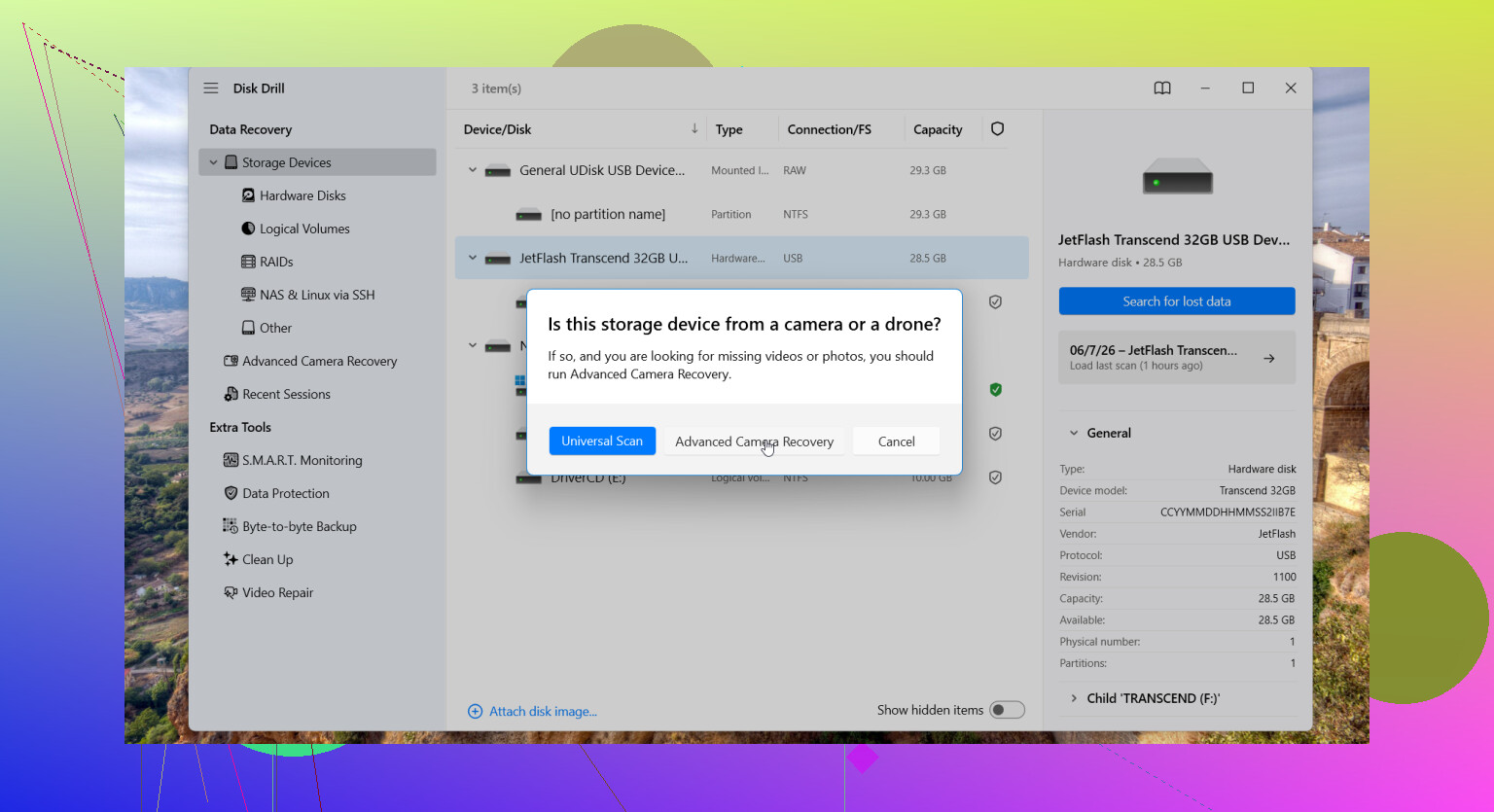
If the clips are gone from the card listing, I’d try Disk Drill. I used it once on action cam footage and got back more than I expected. The part worth trying for GoPro footage is its Advanced Camera Recovery mode.
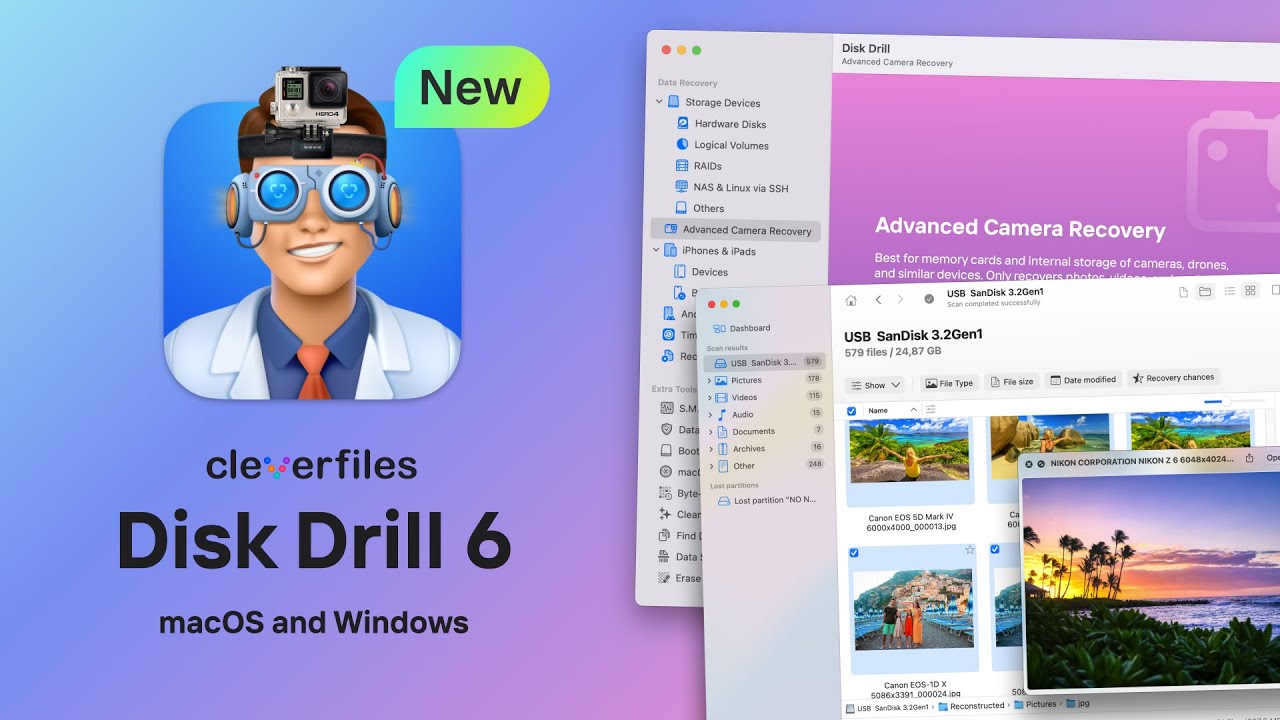
From what I saw, this mode helps with footage from gear like GoPros, drones, and dash cams, where video data gets scattered across the card in chunks instead of sitting in one clean block.
That matters more than people think. GoPro files often end up split into a mess of fragments, sometimes hundreds, sometiems more. A lot of recovery apps will spot pieces of the video, then fail when rebuilding them. End result, file shows up, won’t play. Or it plays half way and dies. Disk Drill’s Advanced Camera Recovery mode was made for this kind of fragmented footage and it supports GoPro formats, including MP4 and LRV.
Three things I would not skip
- Use a card reader. Don’t plug the GoPro into your computer for recovery if you have another option.
- Save recovered files somewhere else, your desktop drive, an external SSD, anything except the same SD card.
- If the card throws errors or disconnects, make a byte-for-byte image first, then scan the image instead of beating up the original card.
If you haven’t shot much new footage since the files disappeared, your odds are still decent. Not guaranteed, but not dead either.
5 Likes
Stop using the card. You did the right thing there.
I agree with @mikeappsreviewer on one part, keep writes off the SD card. I slightly disagree on putting it back in the GoPro again to let the camera do anything. If the card matters, I would leave the camera out of it from this point. GoPro repair prompts sometimes help damaged headers, but they also write to the card. I don’t like those odds.
What I’d do next:
- Put the microSD in a good card reader.
- Check free space on the card.
- If the deleted videos are gone, but the used space still looks high, your data is often still there.
- Make an image of the card first if your PC sees read errors.
- Scan with Disk Drill on the computer, not through the camera.
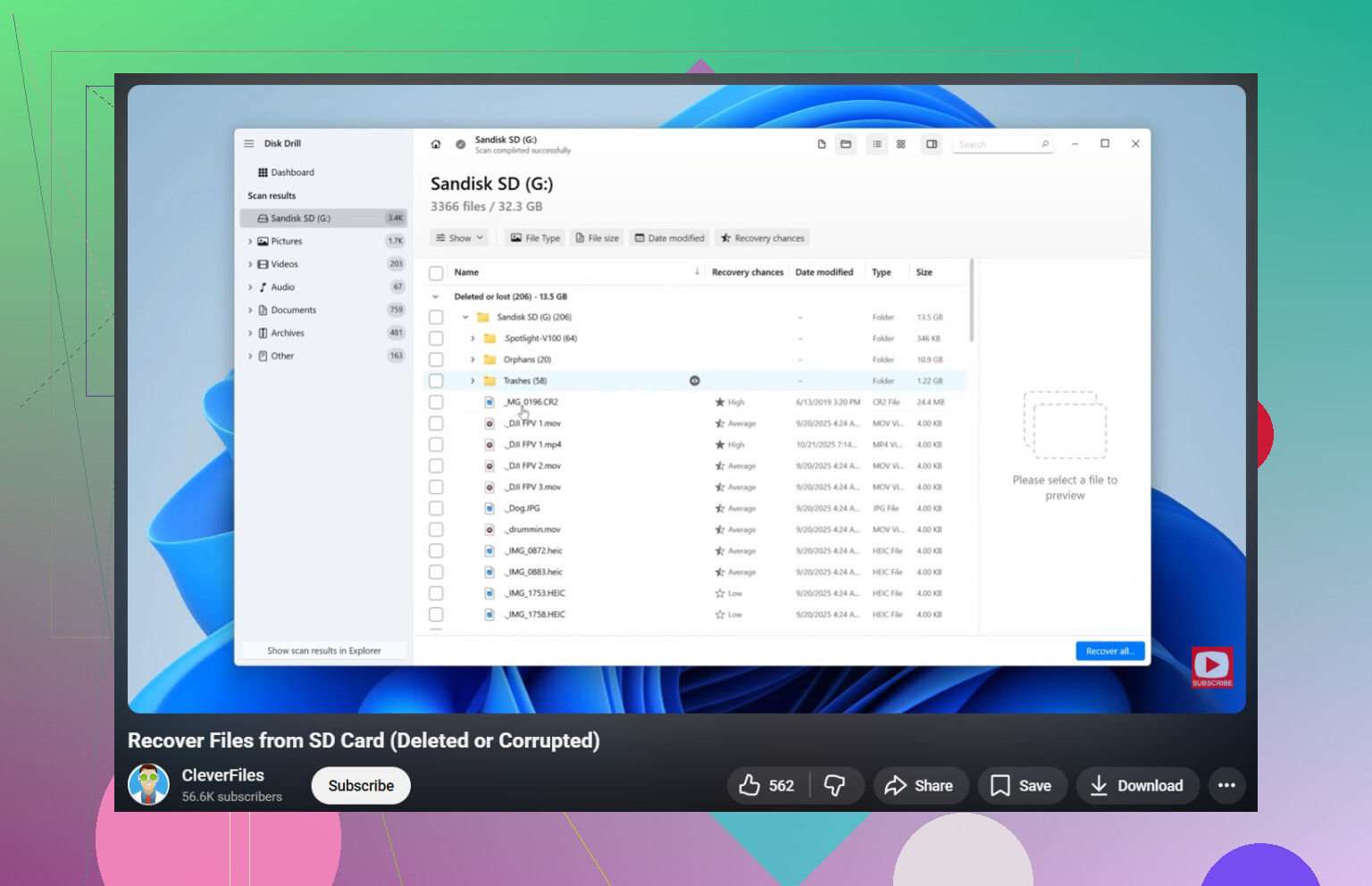
Disk Drill is worth trying here because GoPro footage often gets saved in chunks. Standard undelete tools miss parts and return broken MP4s. Disk Drill tends to do better with action cam video recovery, esp if the file system entry got deleted but the video data is still on the card.
One more thing people skip. Look in DCIM for .THM files and clip number gaps. If you see GX01xxxx.MP4 missing but nearby numbers exist, recovery odds are usuallly better than if the whole folder structure is gone.
If the card was quick-formatted, recovery is still possible. If you recorded new clips after deletion, the overwritten parts are gone.
This guide on GoPro and camera SD card video recovery is decent too, watch this camera SD card recovery tutorial.
Main rule, recover to your computer or another drive, not back onto the same card.
I’m with @kakeru on one thing: I would not put the card back in the GoPro just to see what it does. Cameras love doing “helpful” stuff that writes to the card, and that’s not what you want right now.
Where I’d add something different is this: before recovery, check whether the files were actually deleted or just hidden/corrupted in the directory. On a computer, enable hidden files and look for weird zero-byte MP4s, duplicate folders, or a card that suddenly shows as empty but still has used space. That sometimes points to file system damage, not true deletion.
Also, if you recover the MP4 and it still won’t play, don’t assume it’s dead. GoPro clips often come back with damaged headers. A video repair tool can sometimes rebuild them if you have another working sample clip from the same camera/settings. People skip that step way too often.
If you do scan it, Disk Drill makes sense here, mostly because GoPro footage can be fragmented and generic undelete apps are kinda trash at reassembling action cam video. I’d recover everything to a different drive, then sort after.
Also useful reading here: GoPro Hero 8 lost video recovery discussion and fixes.
Big thing: if the card is fake, failing, or suddenly much slower than normal, stop trying DIY stuff after one solid pass. Repeated rescans can make things worse. Some folks learn that the annoyng way.
I’d add one check nobody’s mentioned clearly: inspect the card with a hex/file viewer for mdat and ftyp signatures before doing multiple recovery passes. If those are still present in big contiguous regions, your odds are better than the empty-folder situation makes it look.
I mostly agree with @kakeru and @reveurdenuit about keeping the GoPro out of the loop. Slight disagreement with @mikeappsreviewer on trying in-camera repair first. On fragile cards, even one “helpful” write can cost you a clip.
My order would be:
- Lock the SD card with an adapter if possible.
- Clone it first if SMART/read issues appear.
- Run one deep scan, not five different tools back-to-back.
- Sort recovered files by size and timestamp, not filename alone.
About Disk Drill:
Pros: good at finding deleted camera media, handles fragmented action cam footage better than basic undelete apps, interface is easy, preview is useful.
Cons: not magic if sectors were overwritten, deep scans can take a while, and recovered filenames/folder structure may be messy.
Also, if recovered GoPro MP4s do not open, try repairing them using a known-good sample from the same camera/settings. That step saves more “corrupt” recoveries than people think.