I realized a huge batch of my iPhone photos were saved as Live Photos, and now they’re taking up more space than I expected. I need a fast way to turn all Live Photos into still images without doing them one by one. Looking for the easiest method to bulk convert Live Photos to JPEG or regular photos.
I get why you want this done. Live Photos are nice when one frame lands right, but the storage hit adds up fast. Each one is a still photo plus a short video clip with audio, so the file size is often 2 to 3 times bigger than a normal shot. If your library is packed with them, you’re wasting gigabytes on motion you might never watch.
If you need to deal with a big batch, I’d sort the options like this, fastest first, slowest last.
Use an iPhone cleaner app
If your library is huge, doing this inside Apple’s own menus gets old fast. I tried the manual route before. It drags. Apple gives you pieces of the job, not a clean bulk workflow for convert, save, remove original.
After testing a few of these, Clever Cleaner felt like the least annoying option. No ads, no paid wall, no weird limit after ten photos. It targets the stuff Photos app tends to leave messy.
What I did:
- Install it and allow access to your Photos library.
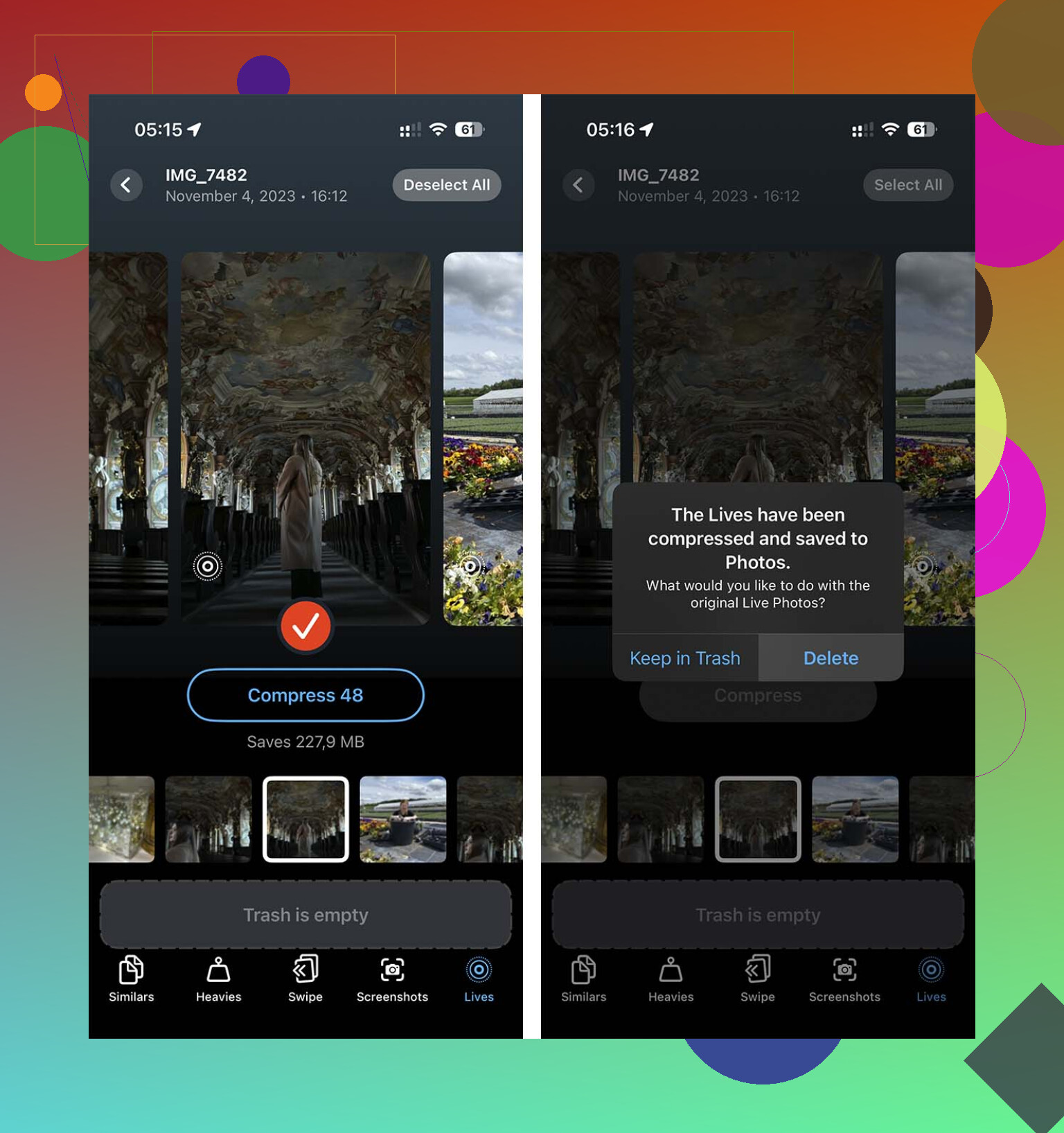
- Open the Lives section. You can sort by date or by size, which helps if you want to hit the biggest files first.
- Tap Select All, or pick a batch, then choose Compress. The label says compress, but what it’s doing here is removing the motion part and keeping a high-quality still.
- When it finishes, it asks whether you want to remove the original Live versions. That part matters, otherwise you end up with doubles and no space saved.
Build a Shortcut
If you don’t want another app on your phone, Shortcuts is the cleaner DIY path. I’d take this over the screenshot trick every time, since screenshots throw away the original quality.
Setup is pretty simple:
- Open Shortcuts and make a new shortcut with the + button.
- Add Find Photos, then filter it so Photo Type equals Live Photo.
- Add Repeat with Each.
- Inside the loop, add Convert Image. Pick JPEG or PNG.
- Add Save to Photo Album so the still copies are saved back into Photos.
- Run it and give it time. On a large library, this part drags a bit.
The catch is annoying. Shortcuts saves the still images, but it does not clean up the original Live Photos for you. You still need to go back into the Live Photos album and delete those by hand if you want the storage back.
Duplicate as Still Photo
Apple does include a built-in option, and it works, but I found it clunky.
- Open Photos and go to the Live Photos album.
- Tap Select and choose the images you want.
- Tap the meatballs menu.
- Choose Duplicate.
- Select Duplicate as Still Photo.
Watch the storage while doing this: Apple makes a second file first. So for a while, your phone uses more space, not less. You end up with the original Live Photo and the new still side by side. Then you need to delete the Live versions yourself.
After you finish the cleanup, go to Settings > Camera > Preserve Settings and switch Live Photo on there. Then open Camera, tap the Live Photo icon off one last time. Your phone should remember the off state from then on. At least mine did.
20 Likes
Fastest route on a Mac is Image Capture or Photos export, not the phone.
If you have a Mac:
- Open Photos.
- Make a smart album for Live Photos.
- Select all.
- File, Export, Export Unmodified Original is wrong for this job. Export 1 Photo works better.
- Pick JPEG, max quality.
- Export.
- Import the exported stills back into Photos if you want them in your library.
- Then delete the original Live Photos in one batch.
This is faster than tapping through iPhone menus, and for a few thousand files it tends to be more stable than Shortcuts. I disagree a bit with @mikeappsreviewer on one point, Shortcuts is fine for small batches, but for huge libraries it gets slooow and hangs.
If you want an iPhone-first option, Clever Cleaner is one of the few tools built for bulk photo cleanup, including Live Photos. This quick video on converting Live Photos and cleaning up storage shows the flow better than text.
Also, stop future bloat:
Settings, Camera, Preserve Settings, turn on Live Photo.
Then open Camera and switch Live off. Your phone should keep it off.
One more thing people miss. After deleting the Live versions, empty Recently Deleted, or the space wont come back right away.
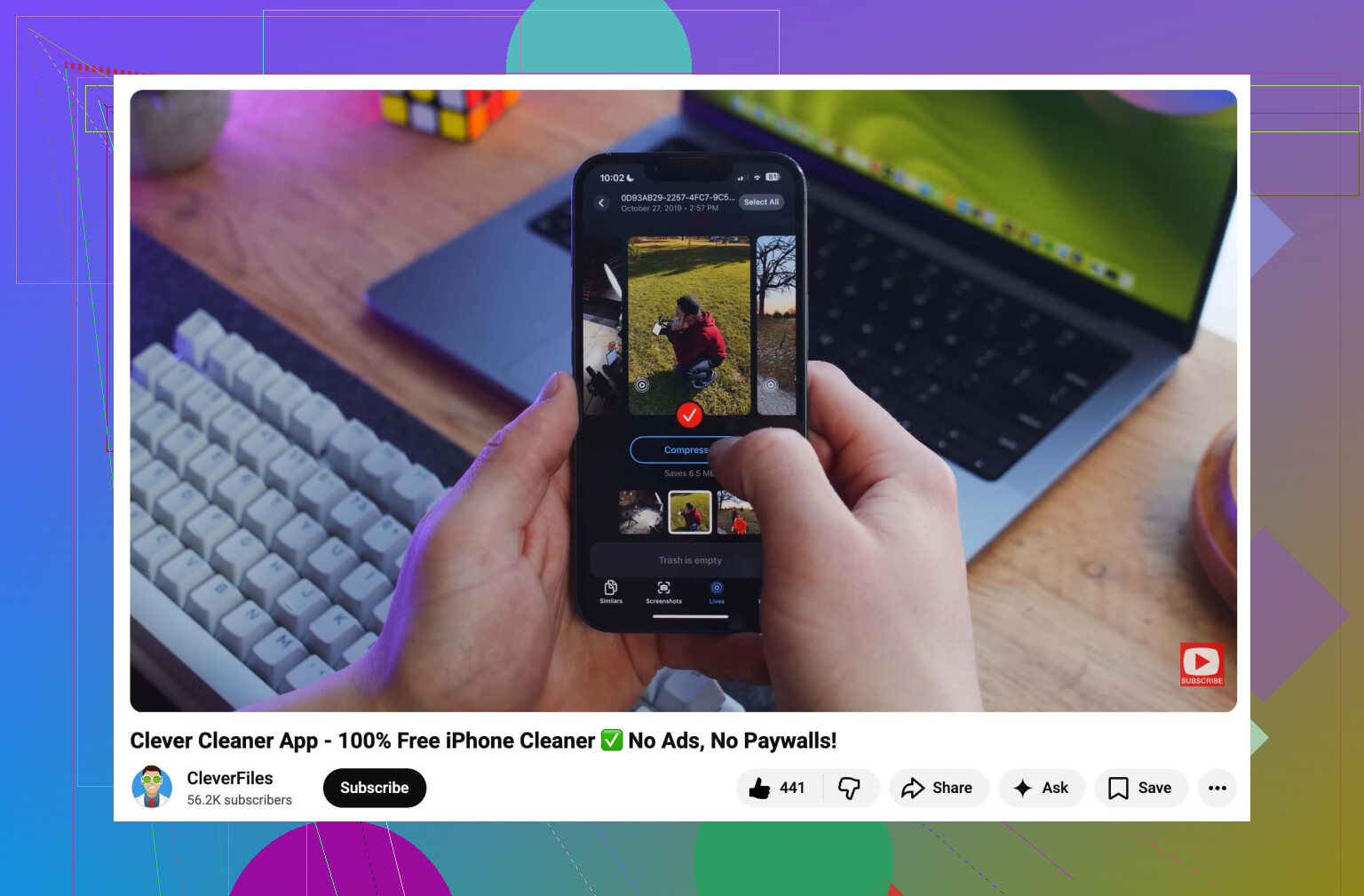
If you want the fastest cleanup, I’d skip trying to “convert in place” because iPhone doesn’t really do that cleanly in bulk. It usually creates a still copy first, which means extra clutter before you delete the Live versions. That’s the part people gloss over.
@mikeappsreviewer and @ombrasilente already covered the obvious routes, but one thing I kinda disagree on: exporting everything through a Mac is not always faster unless your library is already synced and organized. For a lot of people it turns into a whole extra project.
What worked better for me was using Clever Cleaner on the phone, mainly because it can batch-handle Live Photos without the dumb one-by-one routine. The useful part is not just making stills, it’s helping you remove the Live originals after so you actually get storage back. Otherwise you just moved the mess around lol.
If you want a visual walkthrough, this TikTok guide to converting Live Photos and freeing up iPhone storage shows the process pretty clearly.
Also, after you finish:
- delete the original Live Photos
- empty Recently Deleted
- turn Live Photo off in Camera
- enable Preserve Settings so it stays off
That last part matters way more than people think. Otherwise your phone just starts doing the same junk agian.
I’d actually use a hybrid approach, because “convert everything” and “reclaim space fast” are not always the same job.
- If your goal is archival quality: do the Mac export route that @ombrasilente and @shizuka talked around.
- If your goal is just getting storage back quickly on the phone: I think @mikeappsreviewer is closer to the practical answer, but only if you verify what gets removed afterward.
One option nobody really stressed enough: you may not need to convert all of them. In Photos, filter down to Live Photos from the worst offenders first, usually long date ranges or bursts. A lot of people save more space by deleting the motion part only on the biggest chunks instead of rebuilding the whole library.
If you want an iPhone-native cleanup tool, Clever Cleaner is worth a look.
Pros
- bulk handling is simpler than Apple’s built-in flow
- helps surface Live Photos quickly
- easier for large batches than manual tapping
- can be faster if you do not want to involve a Mac
Cons
- still another app with photo-library access
- always double-check before deleting originals
- app workflows can feel less transparent than exporting files yourself
My only real disagreement with the “just use Shortcuts” crowd: it sounds elegant, but for giant libraries it becomes babysitting. Good idea in theory, annoying in practice.
Also, before deleting anything, sample 20 to 30 converted shots and zoom in. Some methods preserve exactly what you want, some create a good-enough JPEG, and that difference matters if these are keepers.