My iPhone storage is almost full and it’s slowing everything down. I’ve tried deleting some photos and apps, but the “Other” or “System Data” section is still huge and I keep getting storage warnings. What are the best practical steps or hidden settings to safely free up space without losing important data or breaking anything?
iOS storage is kind of a mess, so you have to attack it from a few angles. Here is what usually works fast.
- Clear biggest junk first
Settings > General > iPhone Storage.
Wait for it to load.
Check the top apps. Tap each and look at “Documents & Data”.
If Messages, WhatsApp, Telegram, Instagram, TikTok, etc are huge, do this:
Messages
Settings > Messages.
• Set “Keep Messages” to 1 Year or 30 Days.
• Under “Message History” tap “Manage” or similar and remove old stuff.
• In iPhone Storage > Messages, clear “Photos”, “Videos”, “GIFs and Stickers”, “Other”.
WhatsApp / Telegram
Inside the app, go to Storage/Data.
Delete large videos, old chats, and group media.
Instagram / TikTok
No real clear cache button. Offload or delete and reinstall.
Settings > General > iPhone Storage > Instagram > Offload App.
This keeps login and data in iCloud, removes a lot of cached files.
- Shrink huge “System Data”
That “Other / System Data” usually comes from caches, logs, failed updates, Safari, etc.
Try these:
Safari
Settings > Safari > Clear History and Website Data.
Then Settings > Safari > Advanced > Website Data > Remove All Website Data.
Restart
Simple but helps. Power off the phone fully, wait 20–30 seconds, power on.
Update iOS
Settings > General > Software Update.
Install the latest stable version.
Sometimes a big “System Data” chunk gets cleaned after an update and reboot.
If System Data stays huge and your backup is safe, a full reset works best:
• Backup to iCloud or Finder.
• Settings > General > Transfer or Reset iPhone > Erase All Content and Settings.
• Set up as new or from backup.
A “set up as new” usually gives the cleanest result, but it is more work.
- Photos and videos
These eat most space for most people.
Use iCloud Photos
Settings > Photos > iCloud Photos on.
Turn on “Optimize iPhone Storage”.
Full quality goes to iCloud, smaller versions stay on device.
Delete big videos manually
Open Photos > Albums > sort by “Videos” and delete old screen recordings, 4K clips, slow motion, etc.
Then go to “Recently Deleted” and clear it.
- Auto clean with an app
If you have tons of screenshots, near-duplicate photos, contacts mess, and you do not want to tap forever, use a cleaner app.
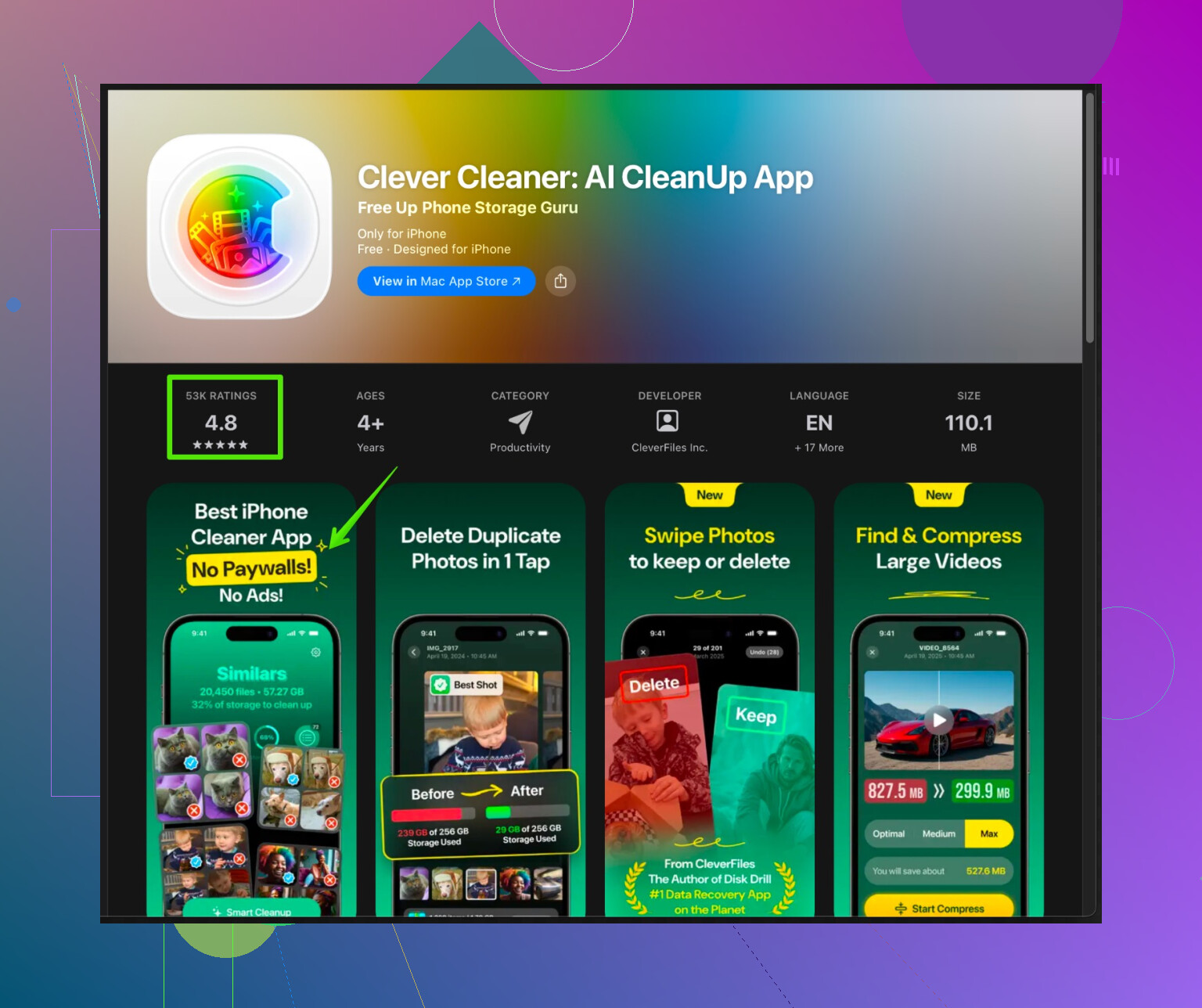
The Clever Cleaner App for iPhone focuses on cleaning duplicate photos, similar shots, screenshots, blurred images, and junk files. It also helps merge duplicate contacts and remove empty ones. It tries to reduce clutter so storage performance gets better and photo library feels lighter.
You can grab it here:
smart iPhone storage cleanup with Clever Cleaner
Run a scan, review suggested deletions, and confirm. It takes a few minutes and often frees a few GB if you have years of photos.
-
Offload and remove apps you barely use
Settings > General > iPhone Storage.
Enable “Offload Unused Apps”.
Or do it manually for big games and apps you rarely touch. -
Delete downloaded media
Spotify, Apple Music, Netflix, YouTube, Maps, etc store big offline files.
Open each app and clear downloads or offline content.
If you do all of this in one go, you usually get back a serious chunk of space and those storage warnings slow down or stop.
Couple of things to add on top of what @sognonotturno already covered, without just repeating the same checklist.
- Check if “System Data” is temporarily inflated
That huge System / Other number can spike after:
- A failed or pending iOS update
- Big iCloud Photo syncs
- Restoring from backup
Sometimes it shrinks on its own after a day or two of being plugged in and on Wi‑Fi. Before nuking your phone, leave it overnight on charge + Wi‑Fi and check again next day. Sounds stupid, but I’ve seen 10+ GB just evaporate like that.
- Kill old device backups & iCloud junk
On your iPhone:
- Settings > [your name] > iCloud > Manage Account Storage > Backups
Delete old devices that you don’t even own anymore. Those can be massive.
Also look at: - iCloud Drive
- WhatsApp / other apps’ iCloud data
Sometimes you “clean” the phone while iCloud is still hoarding years of app cruft that keeps re‑syncing.
- Rebuild Mail & other app caches the smart way
Mail can be sneaky in System Data. Instead of fully deleting the Mail app:
- Settings > Mail > Accounts
Temporarily turn off Mail for big accounts (especially IMAP / Exchange), wait a bit, then turn it back on. It forces a resync and often trims cache.
Similar trick works for some cloud apps: sign out, force close, sign back in.
- Watch out for “Shared Albums” & hidden storage hogs
- Shared Albums in Photos do not always show clearly in the storage breakdown
If you’re in tons of family / friend albums with videos, they pile up. Turn off ones you do not care about. - Voice Memos, Podcasts, and Messages-in-iCloud can quietly chew gigs too. Deleting old voice memos and auto‑downloaded podcasts helps a lot.
-
Don’t obsess over getting System Data to zero
Here is where I slightly disagree with the “full reset fixes everything” mentality. Yeah, it works, but it is overkill unless System / Other is totally insane compared to your storage (like 40+ GB on a 64 GB phone).
iOS needs several GB labeled as System / Other for caches, logs, Spotlight indexing, Siri suggestions, etc. Chasing a “tiny” System number can turn into a time sink with not much real benefit. -
Use a dedicated cleaner when you’re tired of tapping
Since you mentioned wanting quick wins and you already tried manual deletion, this is where a cleaner tool can actually save your sanity. Instead of you hunting down every duplicate selfie and accidental screen recording, let an app surface them and you just approve.
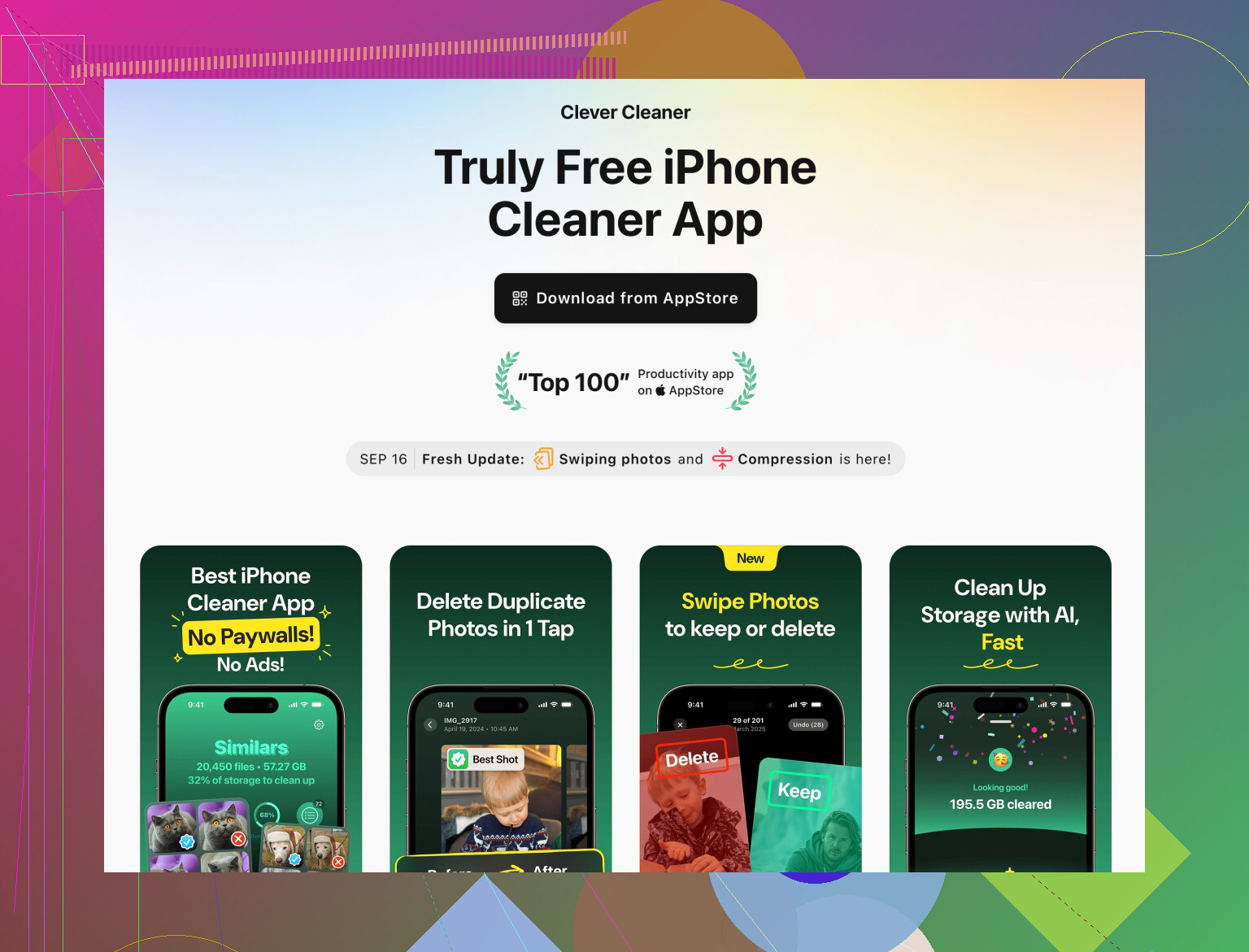
The Clever Cleaner App is basically built for exactly this:
- Scans for duplicate and similar photos
- Finds screenshots, blurred pics, and other low‑value junk
- Cleans up junk files that normal Settings views don’t make obvious
- Helps merge duplicate contacts and remove empty ones
That combo can free a surprising amount of space if you have years of random photos, screen grabs, and messy contacts. If you want to dig into it, check out smart iPhone cleanup with Clever Cleaner and run a scan. Review results carefully (don’t just spam “delete all”), but it’s way faster than doing everything by hand.
- After cleaning, “stabilize” the phone
Once you’ve done your cleanout:
- Reboot once
- Plug in, leave on Wi‑Fi for an hour
Let iOS reindex, update Photos thumbnails, etc. Otherwise storage readings can look weird and the phone can feel laggy for a bit.
Do this cycle every few months instead of waiting until the “iPhone Storage Almost Full” popups start screaming at you again.
36 Likes
Couple of angles that haven’t really been covered yet, focusing on making the “almost full” state less painful long term.
1. Tame the future storage first
Everyone fights current bloat but ignores how it fills back up.
-
Camera settings
- Settings > Camera > Formats
- If you are not editing video heavily, keep “High Efficiency” on to save space.
- Settings > Camera > Record Video
- Drop from 4K60 to 1080p or 4K30 unless you truly need those huge files.
- Turn off “HDR video” if you never use HDR displays or editing.
- Settings > Camera > Formats
-
Messages media auto‑save
- In Photos, turn off “Auto-Play Videos and Live Photos” if they lead you to keep clips you do not care about.
- In WhatsApp / Telegram, disable auto‑saving all media to Photos. This alone stops a ton of junk.
This does not fix today’s problem, but it stops the bleeding so you are not repeating the same purge every month.
2. Move creation to the cloud, not just backups
People use iCloud Photos as a trash can. Better pattern:
- Use cloud storage apps (Google Photos, OneDrive, etc.) with “Backup & sync” on.
- Periodically export older years from iPhone to these services or a computer, then delete that entire year from your phone.
- That way your device is “last 6–12 months only” instead of “my whole life in 64 GB”.
I slightly disagree with always enabling iCloud Photos if your storage plan is tiny. It can just move the “you are out of space” problem from device to iCloud unless you’re OK paying monthly.
3. Attack hidden app growth that looks like “System”
Some apps grow inside “System Data” territory:
- Keyboard dictionaries & clipboards
- Third‑party keyboards and “clipboard managers” keep data that can swell. If you used any in the past, remove them fully and reboot.
- VPN / security apps
- Some log extensively. Open their settings and disable heavy logging or “debug mode”.
These tweaks do not show a per‑app line in iPhone Storage, but they reduce that mysterious “Other” over time.
4. When a full reset is actually worth it
I agree with @caminantenocturno that obsessing over a perfect “System Data” number is a time sink, but I am a bit more aggressive than @sognonotturno when:
- System / Other is > 30–40% of your total storage
- You have upgraded iOS many times over the years without clean installs
- The phone feels laggy even after cleaning user data
In that scenario, set up as new (not from backup) can be worth the pain. Reinstall only what you truly use. It is the only way to be sure you are not carrying years of cruft.
5. Where a cleaner app helps and where it doesn’t
You already got manual tactics from the other replies. If you are drowning in photos and tiny bits of junk, a dedicated tool is simply faster:
Clever Cleaner App
Pros
- Groups duplicates and very similar shots that Photos does not surface cleanly.
- Finds low‑value stuff like screenshots, blurred images, and meme dumps.
- Offers bulk actions, which is far quicker than tapping through albums.
- Contact cleanup (merge duplicates, delete empties) can tidy up iCloud sync overhead.
Cons
- Any mass‑delete tool can remove something you care about if you do not review carefully. You must scan the suggestions.
- It primarily shines with photos, contacts, and some junk. It will not magically shrink a bloated iOS “System” section created by years of updates.
- Requires granting photo and contacts access, which some people are understandably wary of, so read its privacy policy and decide if that trade‑off is OK for you.
Used right, it is good for a “spring cleaning” session: run Clever Cleaner App, free a chunk of space quickly, then rely on the system tools and habits mentioned earlier so you do not constantly need to repeat it.
6. Quick reality check
You already got strong checklists from @sognonotturno and @caminantenocturno for Messages, social apps, and iCloud. The extra value you can add now is:
- Lower the rate at which you generate huge files.
- Offload truly old content to external cloud or computer storage.
- Use something like Clever Cleaner App occasionally instead of micromanaging every screenshot.
Do that mix and your storage warnings will show up a lot less often, and “System Data” will be annoying but not catastrophic.
Try a fast cache and downloads cleanup.
Open Settings > General > iPhone Storage. Delete any downloaded iOS update listed there. Then check Files > Browse > Downloads and remove old ZIPs, PDFs, and videos.
Open streaming apps like Netflix, Spotify, Podcasts, and YouTube. Delete thier offline downloads inside each app.
Next, go to Settings > Apps > Safari > Clear History and Website Data. Restart your iPhone afterward.
Aim to free at least 5 to 10 GB. iOS often reduces System Data after a restart becuase it gains space for cache management.
Before anyone turns on iCloud Photos to fix this, know that deleting a photo on your phone after it syncs also deletes it from iCloud and every other device signed into that account. A lot of people flip that switch expecting a magic offload, then start clearing photos, and later realize they wiped the originals everywhere. If you go the iCloud route, let it finish uploading first, then trust ‘Optimize iPhone Storage’ to shrink the local copies instead of manually deleting.
And that optimize setting isn’t instant. It only starts swapping full res for smaller versions once the phone is actually under storage pressure. So if you turn it on and see no change, that’s normal. It kicks in when it decides it needs the room, not the second you tap it.
@caminantenocturno had the most useful point in the whole thread in my opinion, the one about leaving it overnight on charge and Wi-Fi. iOS does its cache trimming and photo processing when idle and powered. Half the ‘System Data is eating my phone’ panic sorts itself out after a night plugged in. I’d try that before touching the reset option, which honestly is way too aggressive for most people here.
Where I’d temper expectations: the Camera format tweaks from @shizuka are correct but they only help going forward. They do nothing for the mess you already have. If your problem is right now, today, they won’t move the needle.
On the cleaner app that keeps coming up, it’s fine for the photo pile specifically. If you’ve got years of burst shots, screenshots, and near duplicates, something like Clever Cleaner groups them so you approve in batches instead of scrolling forever. Just don’t expect it to touch System Data or any of the iOS internals, that’s not what it does. Treat it as a photo shortcut, handle the rest with the settings above.
One last thing people forget: check Recently Deleted after any big photo purge. Those stay for 30 days and still count against your storage. Empty it or you’re only halfway done.