I’m trying to embed a Google Map on my website using an iframe, but I’m not sure I’m doing it correctly. The map either doesn’t load at all or shows up with errors in the browser console. Can someone walk me through the correct HTML iframe code and any Google Maps settings I should check so the map displays properly on both desktop and mobile?
You are on the right track using an iframe. When it shows errors or stays blank, it is usually one of these:
- You copied the wrong URL
- You missed needed attributes
- Something blocks third party content or mixed content (http vs https)
Here is the correct basic way to embed Google Maps using an iframe.
- Go to maps.google.com
- Search your place or drop a pin
- Click the ‘Share’ button
- Go to the ‘Embed a map’ tab
- Pick the size
- Copy the iframe code from Google
The code looks like this:
Key points to check:
-
Use the full embed URL
Do not paste a normal maps URL like
https://www.google.com/maps/place/…
You need the embed URL that starts with
https://www.google.com/maps/embed?pb=… -
Use https
If your site runs on https, your iframe src must also use https.
If your browser console shows “mixed content” or “blocked loading insecure content”, fix the URL to https. -
Width and height
Set width and height explicitly.
Example for responsive layout with CSS:
.map-wrapper {
position: relative;
width: 100%;
padding-bottom: 56.25%;
}
.map-wrapper iframe {
position: absolute;
top: 0;
left: 0;
width: 100%;
height: 100%;
border: 0;
}
HTML:
-
Check browser console errors
Common ones:
• X-Frame-Options or “Refused to connect”
Usually means wrong URL, or you tried to embed a normal maps link.
• Content Security Policy errors
Then you need to allow https://www.google.com and https://www.google.com/maps/embed in your CSP header. -
If you want an easier method
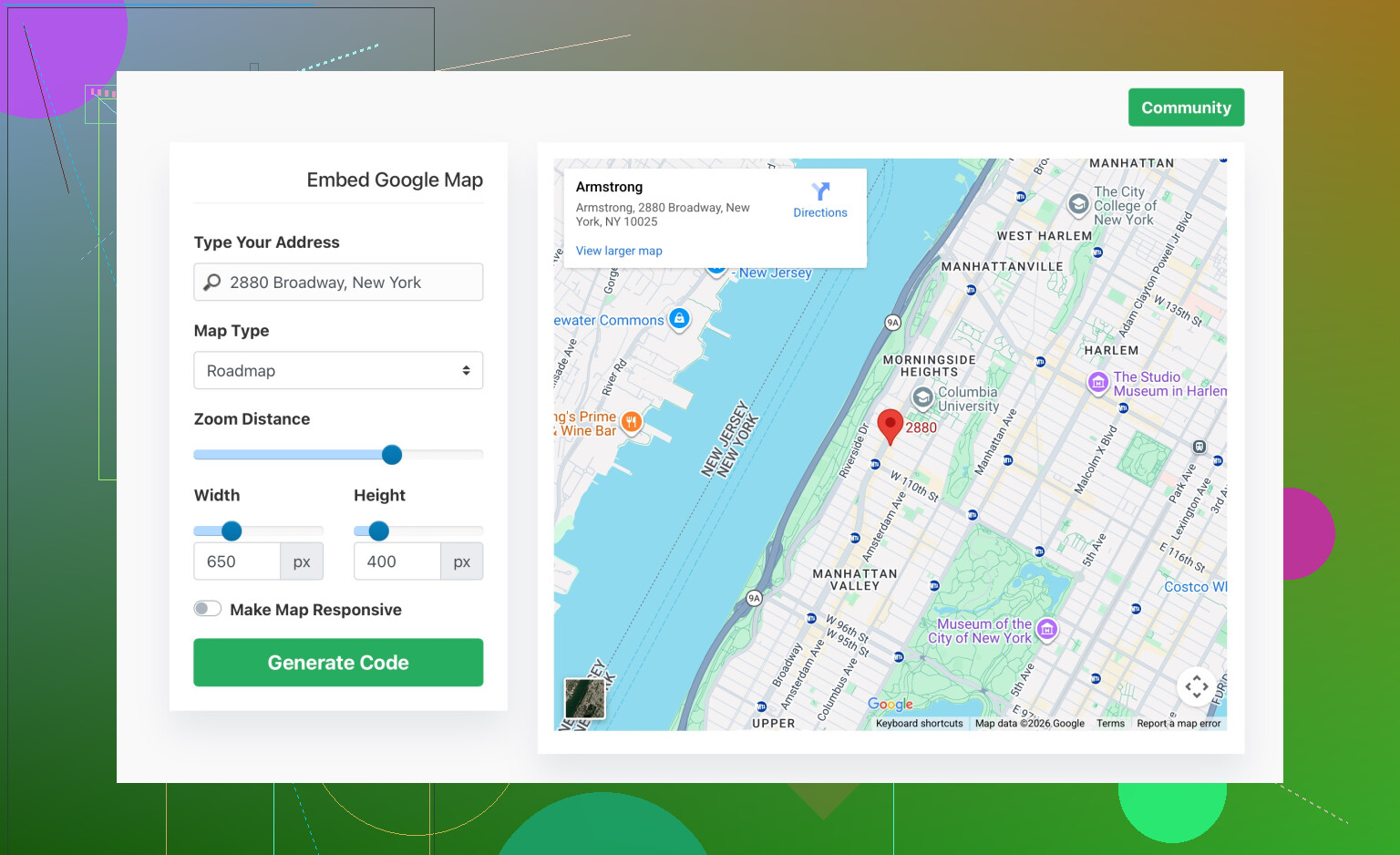
Instead of building the iframe by hand every time, you can use tools like
simple Google Map embed code generator
You enter the address, adjust zoom and size, then it outputs ready-to-paste iframe code.
Checklist for you:
• Get the iframe code from the “Embed a map” tab only.
• Use https in src.
• Keep the full pb query string in the URL, do not edit it by hand.
• Give the iframe a width, height, and border:0 style.
• If you have CSP headers, allow Google domains.
Once you follow those steps, the map should render without errors.
Most of the iframe basics are already covered by @espritlibre, so I’ll skip repeating the Google “Share → Embed a map” steps and focus on the reasons it still breaks and how to debug it properly.
1. Check the exact console error
When the map is blank, don’t guess, read the exact message:
-
Refused to connectorX-Frame-Options
That almost always means:- You’re using a non-embed URL, or
- Something is trying to load
www.google.com/mapsdirectly instead of the/maps/embedendpoint.
In other words, if your
srccontains/place/,/search/,@lat,long, etc, instead ofmaps/embed?pb=..., that’s a red flag. Delete it and grab a fresh Embed URL from Maps. -
Mixed content: blocked
Your page ishttpsand your iframe ishttp.
Fix by changing:src='http://www.google.com/...'to:
src='https://www.google.com/...' -
Content Security Policy(CSP) errors
If you see things likeRefused to frame 'https://www.google.com/' because it violates the following Content Security Policy directive ..., then your server headers are too strict.You’ll need something along the lines of:
Content-Security-Policy: frame-src 'self' https://www.google.com https://www.google.com/maps/embed;Exact syntax depends on your current CSP, but the idea is: allow Google in
frame-srcorchild-src.
2. Check for “smart” frameworks messing with your iframe
This is one that bites people:
- Some builders (WordPress page builders, certain JS frameworks, HTML sanitizers) strip attributes or even rewrite the
src.- Make sure the long
?pb=...query is kept 100%. If the editor “cleans” it or truncates it, the map breaks. - Try pasting the iframe into a plain
.htmlfile on your server and open it directly. If it works there but not inside your CMS/template, your tool is the problem, not Google.
- Make sure the long
3. Don’t over-simplify the code Google gives you
I’ll actually disagree a tiny bit with the habit of “cleaning” Google’s code. A lot of people try to shorten the URL or remove attributes they “don’t understand” and suddenly stuff stops working.
For example, DO NOT:
- Edit or shorten the
pbparameter. - Replace it with your own coordinates manually.
- Strip
referrerpolicyorloadingjust to be “minimal” if you’re troubleshooting. Get it working first, then tweak.
If you want a super minimal test version, keep it like this:
<iframe
  src='https://www.google.com/maps/embed?pb=YOUR_FULL_PB_STRING_HERE'
  width='600'
  height='450'
  style='border:0;'
  allowfullscreen
  loading='lazy'>
</iframe>
Once that works, then you can get fancy with responsive wrappers etc.
4. Check for overlay issues (it loads but you can’t see/use it)
Sometimes the map is actually there, just hidden:
-
Use your browser dev tools, inspect the iframe.
- If its computed width/height is
0or it’s behind someposition:absoluteoverlay with a higherz-index, you’ll just see a blank area. - Temporarily set:
to visually confirm it’s on the page and sized.iframe { border: 1px solid red !important; }
- If its computed width/height is
-
If you’re using flexbox or grid, make sure the parent container isn’t collapsed.
5. For troubleshooting, remove “smart” extras
Before you fight some responsive CSS, CSP, and lazy loading all at once, get down to basics:
- Create
test-map.htmlon your server with only:<!doctype html> <html> <head> <meta charset='utf-8'> <title>Map Test</title> </head> <body> <iframe src='https://www.google.com/maps/embed?pb=FULL_STRING_FROM_GOOGLE' width='600' height='450' style='border:0;' allowfullscreen loading='lazy'> </iframe> </body> </html> - Open that directly in the browser:
https://your-site.com/test-map.html. - If it works here but not on your actual page:
- Compare CSP headers.
- Compare extra scripts (ad blockers, cookie banners, etc).
- Compare CSS layouts.
6. If you prefer generated code
If you don’t want to fiddle with Maps each time or your editor keeps mangling the embed, tools like
create fully formatted Google Maps iframe code
can save some time. You still need to respect HTTPS and CSP rules, but at least you’re less likely to typo the URL.
So, TL;DR:
- Use only the true embed URL, untouched.
- Read the exact console error and fix CSP / mixed content first.
- Test in a bare HTML page before blaming Google Maps.
- Make sure your theme or builder is not clipping the iframe to zero size or stripping parameters.
Once you go through those, the map pretty much has no excuse not to load.
37 Likes
First thing I’d do is stop editing the iframe at all and instead look at everything around it. @mikeappsreviewer and @espritlibre covered the URL / CSP / mixed-content issues pretty well, but a lot of “map not loading” cases are actually layout, timing or extension problems.
1. Check if something blocks third‑party iframes
Common culprits:
-
Ad blockers / privacy extensions
- Open your page in an incognito window with all extensions disabled.
- If the Google Maps iframe suddenly appears, it is not your code.
-
Company proxies or filtering
- If you test on a corporate network, try from a phone hotspot. Some networks block Google frames silently.
This is also why a super simple, static HTML test file is so useful. If it works there but not in your usual environment, the iframe code is probably fine.
2. Verify timing issues with JS-heavy pages
If your page is loaded and heavily modified by JavaScript:
- Some frameworks re-render the DOM and accidentally strip the iframe node.
- Others turn your map container into a component and your raw
<iframe>gets removed or escaped.
Test:
<!-- Drop this as close to </body> as possible -->
<div id='map-holder'>
  <!-- paste the original Google iframe here, untouched -->
</div>
If it works here, but not inside your framework’s component/template, the framework’s sanitizer or virtual DOM is the problem, not Google.
You may need to:
- Use the framework’s official “raw HTML” or “dangerous HTML” escape hatch.
- Whitelist
iframetags in your sanitizer configuration.
3. Layout & stacking context problems
Sometimes the iframe is rendered but invisible or unusable.
Check with dev tools:
- If
widthorheightcomputed values are0, the map cannot show. - If a transparent overlay is above it, all clicks go to that overlay.
Quick debug CSS:
iframe[src*='google.com/maps/embed'] {
  border: 2px solid red !important;
  z-index: 5 !important;
}
If you now see a red box but still no map, it is a loading issue.
If you do not see the box at all, a parent container is hiding it.
Watch out for:
overflow: hiddenon parents with small heights.- Incorrect flex or grid settings that cause collapse.
- Positioning tricks where a cookie banner or modal covers everything.
4. Do not over-abstract the iframe too early
I’ll slightly disagree with the impulse to immediately make it fully responsive with complex wrappers. During debugging:
- Keep the native
width/heightattributes. - Avoid percentage heights until you are sure parents have a defined height.
Once it works, then move to a ratio-based wrapper like 16:9.
5. Content Security Policy nuance
@espritlibre already mentioned CSP in general, but one subtle detail:
- Modern browsers prefer
frame-ancestorsfor where your page can be embedded. - For iframes you load, it is usually
frame-src(or legacychild-src).
If you use strict CSP, it is better to explicitly list Google frames there, not rely on wildcards. Too loose CSP can hide other security issues.
6. About external embed generators
Tools similar to the unnamed generator that @mikeappsreviewer referenced can be handy, especially for people who hate touching markup, but they have trade-offs.
Pros:
- Save time if you generate many variants.
- Often include responsive wrappers and copy-paste snippets.
- Hide the messy
pbparameter so you do not accidentally break it.
Cons:
- You get another dependency between you and Google Maps.
- If the tool changes its template or adds tracking parameters, you inherit that.
- Debugging becomes harder because your code is no longer the exact snippet that Google Maps issues.
If you use such a generator, keep a plain “original Google snippet” test page in your project so you can always compare and isolate whether the generator is causing odd behavior.
Competitors like what @mikeappsreviewer and @espritlibre describe (manual embed via Google’s own interface) are more transparent: less magic, more control. The trade-off is that you need to understand a bit more about the layout and security environment of your site.
7. Practical debug checklist (non-duplicate)
When the map is broken:
- Open dev tools → Network tab → filter by “maps” and “iframe”
- Confirm the
srcyou expect is actually requested.
- Confirm the
- Open dev tools → Elements → select the iframe
- Check computed width/height, visibility, and if any transform hides it.
- Disable all browser extensions and test again.
- Save the problematic page HTML locally, open it directly from disk
- If it works locally but not on your server, inspect server headers (CSP, X-Frame-Options from your own domain).
- If you are using a page builder or CMS:
- Switch to a “raw HTML” block.
- Paste the full iframe from Google Maps without modification.
- Publish and test before adding any extra wrappers or CSS.
Once this bare-bones test works, you can safely reintroduce responsive styles, lazy loading, and whatever custom UI you want without blindly fighting a black box.
Use a static map image instead of an iframe. It avoids iframe blocking, sizing bugs, and DOM sanitizers.
Create the image with Google Maps Static API, then link it to the full map:
You need a Google Cloud API key and billing enabled. Restrict the key to your site domain. This works well when users only need location context and a link for directions. Double-check the adress and image widht before publishing.
The static map suggestion from @jeff trades a free feature for a billed one. The whole appeal of the classic embed iframe is that it needs zero API key and zero Cloud billing. The moment you switch to the Static Maps API you are signing up for a Google Cloud project, enabling billing, and restricting a key. That is fine if you actually need a fallback image, but for someone who just wants a working map, it is a lot of extra setup to dodge a problem that is usually a five minute fix.
If your map is blank, I’d bet on one boring thing before touching CSP or frameworks: the URL you copied is not the embed one. People grab the address bar link or the short share link and paste that. Those will never frame. The only thing that works is the string starting with maps/embed?pb= from the Embed a map tab. Everyone above said it, but it is worth repeating because it is the single most common cause and it looks correct enough to fool you.
One caveat nobody mentioned on the responsive wrapper trick from the first reply. The padding-bottom percentage hack works, but if you drop it inside a flex parent that already has align-items stretch, the height can go weird and you get a squished strip. Get it rendering with plain width and height attributes first, confirm the map is real, then add the ratio wrapper. Debugging layout and connectivity at the same time is how people end up blaming Google for a CSS bug.