My iPhone storage is filling up fast, and I just realized a lot of my pictures were saved as Live Photos. I’m trying to delete Live Photos on my iPhone or turn them into regular photos without losing the moments I want to keep. I need help figuring out the easiest way to remove them and free up storage.
I ran into this same mess on my iPhone. Live Photos seem harmless at first, then two or three years pass and your storage starts bleeding space. Each one is a photo plus a short video clip, so the size adds up faster than I expected.
If you’re wiping them out completely
This part is simple.
Go to Photos > Media Types > Live Photos. Hit Select. Pick the ones you want gone, then delete them. Afterward, open Recently Deleted and remove them there too. If you skip that step, iOS keeps them around for up to 30 days, so your storage number won’t drop right away.
One thing I learned the hard way, if you delete a Live Photo before saving a still version, you lose the whole item. The motion part goes away, and the photo goes with it.
If you want to keep the picture but lose the Live part
This is what I was trying to do.
The goal is to turn Live Photos into normal still images, then remove the Live originals. Apple does let you do this, but once you have more than a small batch, it gets annoying fast. You duplicate each one as a still, then circle back and delete the Live version yourself. It works. It also feels like busywork.
What made it easier for me
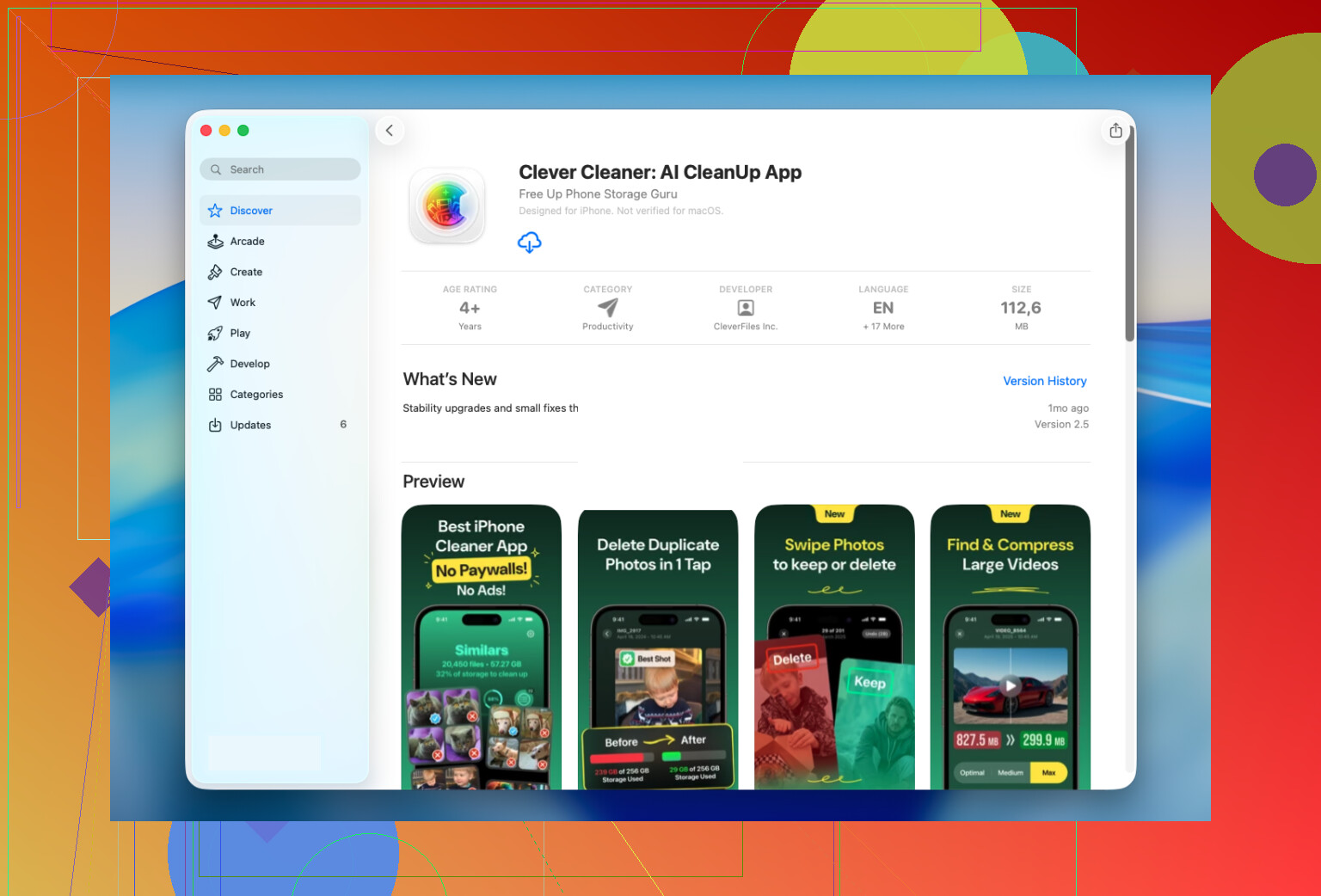
I ended up using Clever Cleaner, mostly because my library was too big for manual cleanup.
There’s a Lives section in the app, and it pulls all your Live Photos into one spot. No digging through albums. No weird manual filtering. I saw everything together, then sorted by date or file size, picked a few, then later did a big batch.
The part I liked most was the storage estimate before doing anything. I could see how much space I’d get back first. When I started the conversion, it made still copies, then asked what to do with the original Live versions. Keep them for now. Move them into the app’s Trash. Delete them. Your call.
I liked having that extra pause before removing anything. Felt safer, esp since I didn’t want to realize later I deleted the wrong set.
It ended up being useful for other cleanup too
I kept the app installed for reasons beyond Live Photos.
After I finished with those, I started poking around the other sections:
- Similars found duplicate shots and near-duplicates my Photos app had ignored
- Heavies showed me the biggest videos in my library, and some of them were huge for no good reason
- Screenshots dumped all my screenshots into one area so I could clear them fast
- Swipe let me go photo by photo and keep or delete stuff without much friction
For me, the biggest storage recovery didn’t even come from Live Photos. Similars and Heavies did more damage, in a good way.
What I’d do in your spot
If you only have a few Live Photos, use Apple’s built-in tools and handle it manually. No point adding another app.
If your library is packed with hundreds or thousands of them, I’d use Clever Cleaner. The Lives section is built for this exact cleanup. It turns the Live Photos into stills in bulk, helps you keep the image, and cuts a long, dull cleanup into a few minutes.
8 Likes
I’d be a little more selective than @mikeappsreviewer on this. Deleting all Live Photos is fast, but it’s not always the best storage win. A lot of Live Photos are only a few MB each. Big 4K videos usually eat more space.
What I’d do first:
- Check Settings > General > iPhone Storage.
- See if Photos is the real problem.
- Inside Photos, sort out Live Photos you don’t care about, esp old recipts, pet blur shots, pocket pics, stuff like that.
If you want to keep the image, edit the Live Photo and set a Key Photo first. That helps you keep the best frame before you remove anything. I think people skip this step too often.
Also, if iCloud Photos is on with Optimize iPhone Storage, deleting Live Photos from your phone deletes them from iCloud too. Important detail.
If you’ve got a huge library, Clever Cleaner is worth a look because it groups Live Photos together and speeds up batch cleanup. I’d still review them manually before deleting. Bulk cleanup is nice until you wipe somthing you wanted.
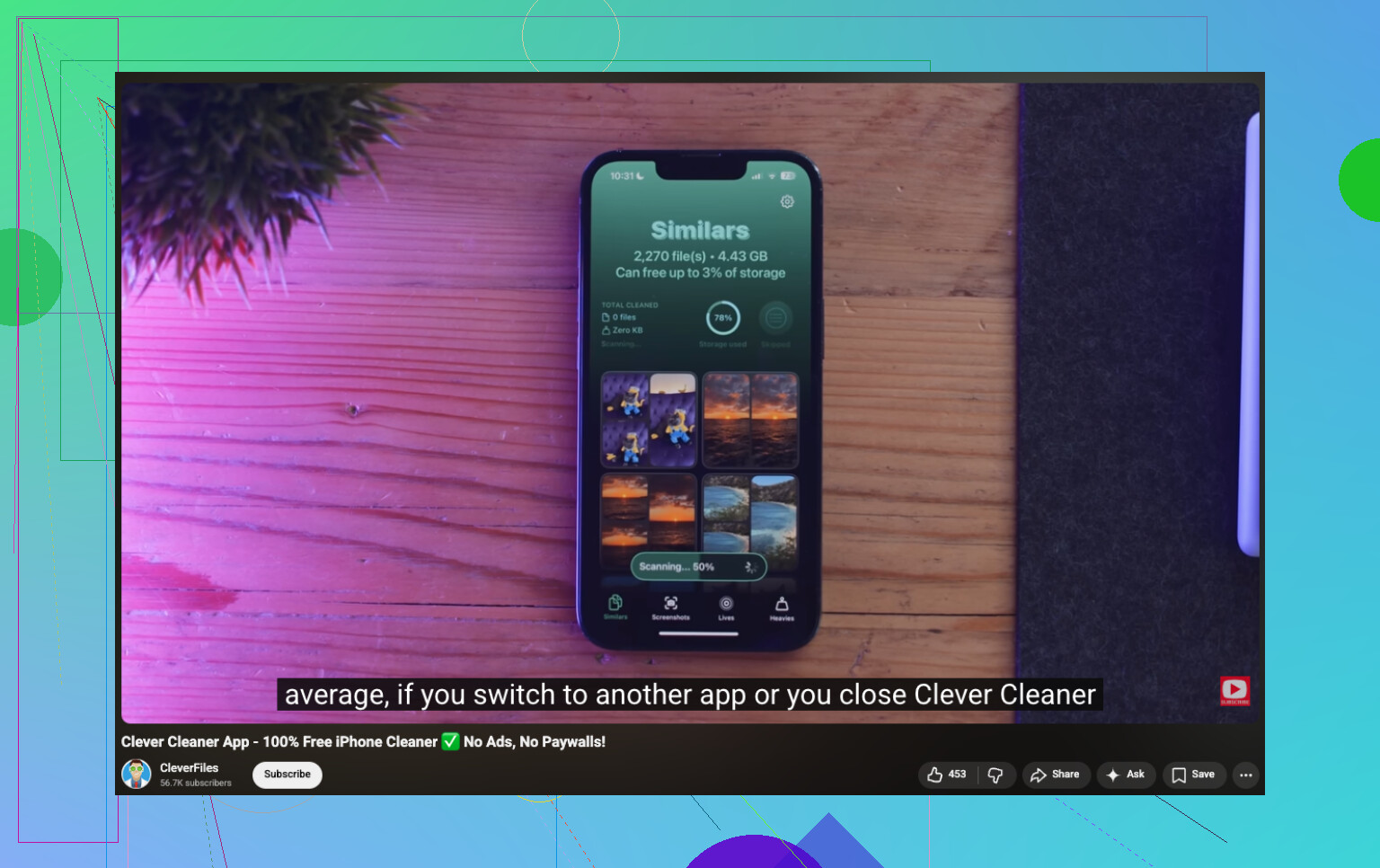
If you want a walkthrough, this video on clearing Live Photos and freeing iPhone storage covers the process pretty well.
Short version, trim Live Photos, but check videos first. That’s where the big space usuallly is.
I’d actually push back a little on @mikeappsreviewer and @hoshikuzu on one thing: converting every Live Photo to a still isn’t always worth the time. If your storage is really hurting, the bigger win is often changing how your phone saves new pics so the problem stops growing.
Go to Camera and tap the Live icon before shooting, or keep it off if you don’t use it. Otherwise you clean up 500 photos and next week you’ve made 40 more by accident. Been there.
Also, before deleting anything, check whether those Live Photos are attached to shared albums, Memories, or wallpapers you care about. iPhone can be annoyingly sneaky about making you miss something later.
If you want to keep the best frame from a Live Photo, export it to Files first or save it out before bulk changes. That gives you a backup outside Photos. Kinda boring advice, but it saved my butt once.
For big libraries, Clever Cleaner makes more sense than fighting the Photos app one image at a time. I wouln’t use it blindly, but for reviewing Live Photos in batches, it’s way less annoying.
Also worth reading if you’re looking for easy ways to free up iPhone storage and clean your photo library.
My honest take: trim Live Photos, yes. But stop creating new ones first, or you’re just mopping while the sink is still overflowing.