I just got a Mac and I’m struggling to set up OneDrive for my files. I used it on Windows before, but the Mac version seems different. Can anyone walk me through the steps or point out good tips for syncing and accessing files efficiently? I’d really appreciate any help or advice.
Syncing OneDrive on Mac: An Honest Walkthrough
Fire up your Mac, pull up a chair—let’s talk about syncing OneDrive without losing your mind. I’ve seen plenty of guides mess around with terminology, so here’s the nitty-gritty without all the fluff.
Download First, Breathe Later
Look, if you haven’t already grabbed the official OneDrive app straight from Microsoft, do it now. Nothing’s going to happen until that’s sorted, so don’t overthink it. Once installed, blast through the sign-in with your Microsoft account (pro tip: have that password ready unless you enjoy password resets).
Finder Play-by-Play
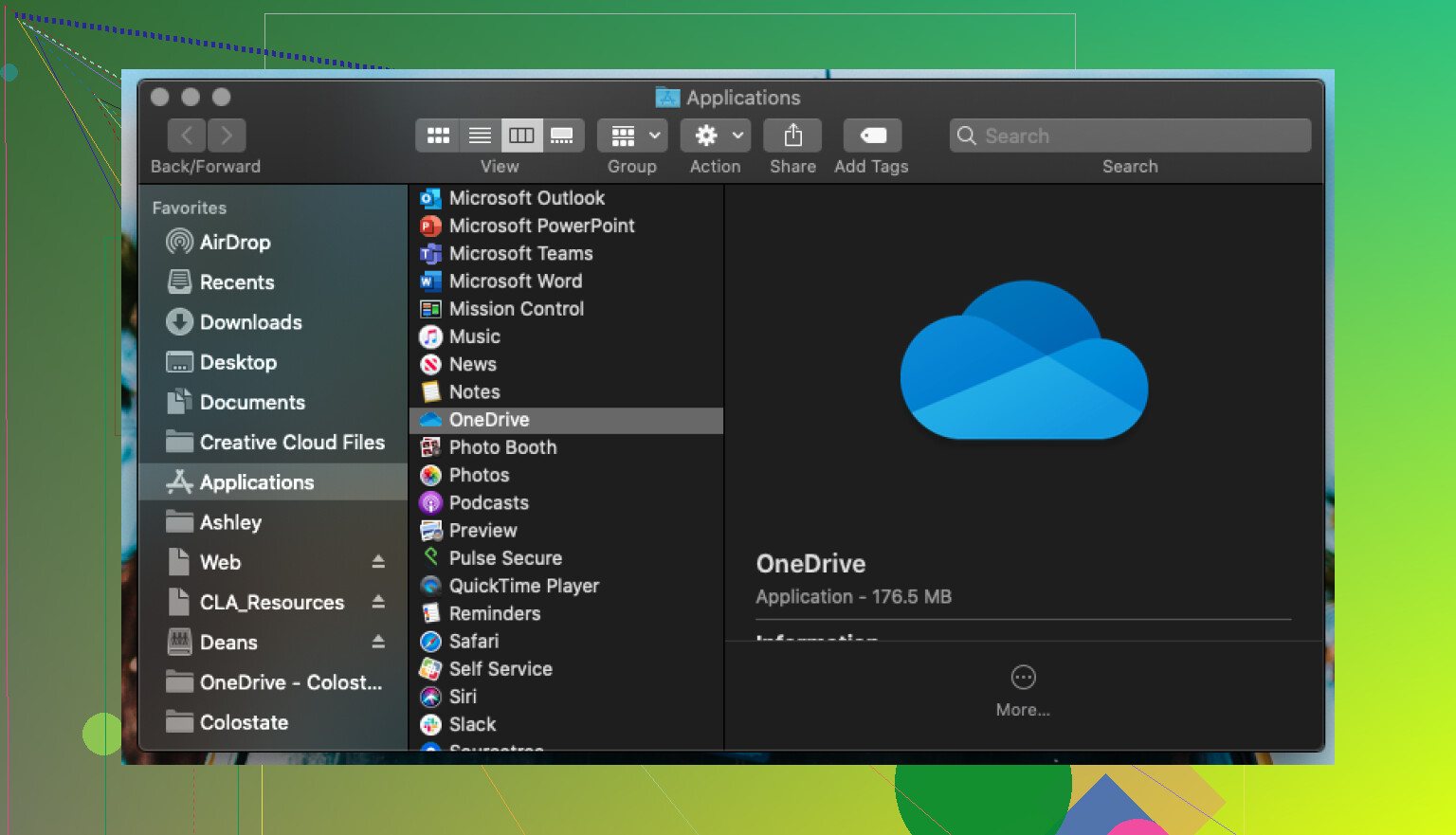
Once you’re in, voila—look left in Finder, and a shiny new “OneDrive” folder pops up in your sidebar. It’s like when they finally paved your street: suddenly everything’s easier. Just drag stuff right into that folder. Uploads as easy as dragging a pizza out of the oven—except less mess.
Don’t reinvent the wheel here: files are managed the exact same way as any other folder. No weird extra steps, no hoops. And yes, here’s what that looks like:
For the “There’s Got to Be a Better Way!” Crowd
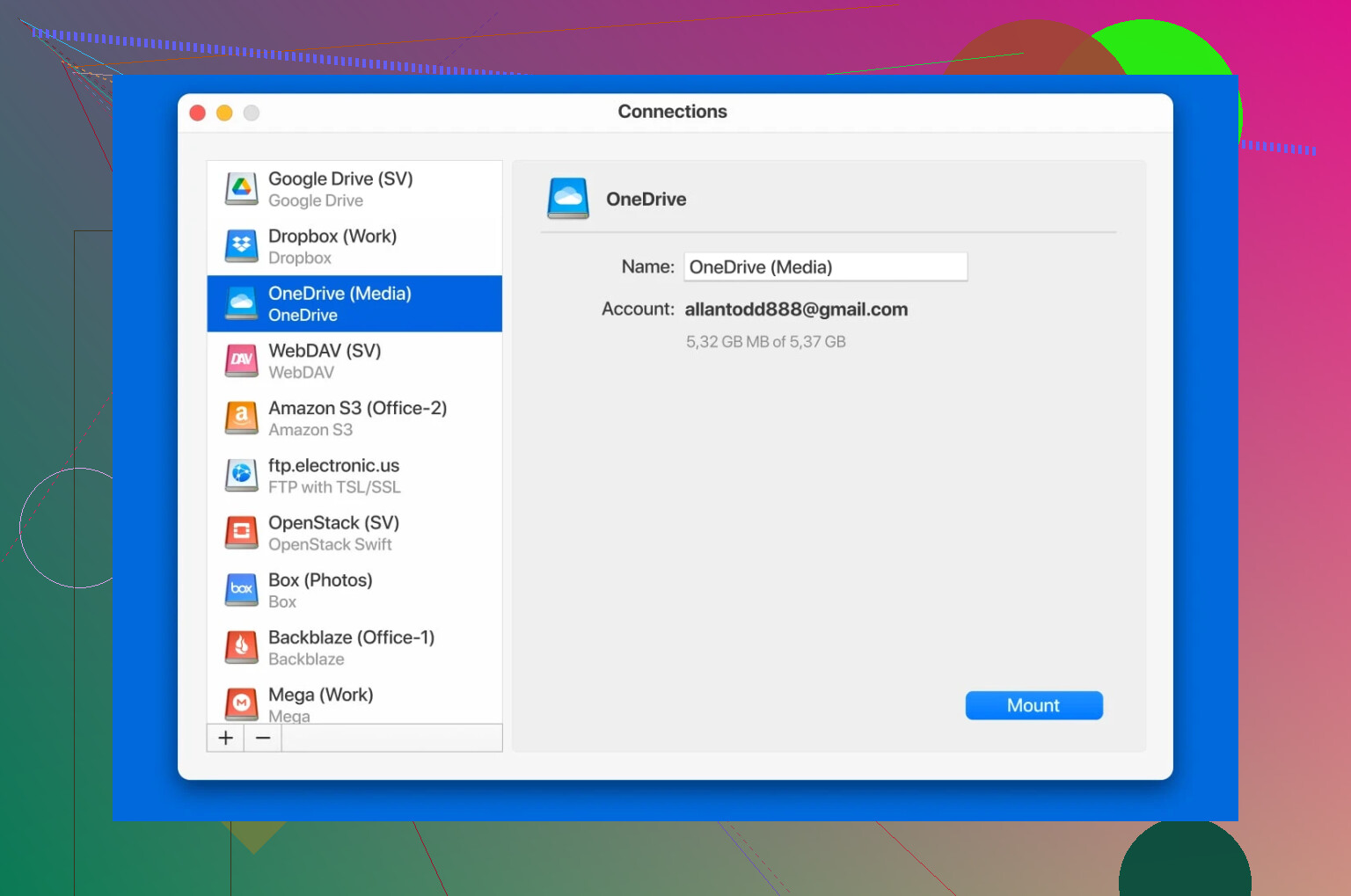
Ever wish Finder could just hook into every cloud service, like a universal remote? That’s what I wanted. So I poked around until I hit on something called CloudMounter. It’s basically a magic trick for your Mac—it lets you treat cloud storage like an external drive. No more fiddling with clunky web interfaces, just… open Finder, poke around, and use your files.
If you’re curious, check them out at CloudMounter. The best part? The OneDrive integration costs nothing. Mount or disconnect your cloud accounts whenever you feel like it—it’s all there in one spot. Sure, they’ll try to tempt you into buying a premium license, but unless you want to juggle like seven clouds at once, you probably don’t need it.
Why Bother? Encryption, That’s Why
For the folks side-eyeing anything “cloud” because of security: CloudMounter isn’t just a pretty face. It’ll wrap your files in an extra layer of encryption, so random data leaks won’t keep you up at night. And unlike shortcuts slapped into Finder, this integration feels like everything is on your local drive—point, click, open, done.
TL;DR
- Download OneDrive for Mac.
- Sign in. Finder will show OneDrive like a regular folder.
- Drag and drop till your heart’s content.
- Want more? CloudMounter makes cloud storage feel native and offers free OneDrive access with encryption.
- Real-time peace-of-mind, no navigating clunky websites.
If you’re juggling files between Mac and the cloudy abyss, this is as painless as I’ve found it. Got roadblocks? Drop a reply. Tech headaches are more fun when we suffer together.
33 Likes
Honestly, Macs and OneDrive are like oil and water sometimes. You get Finder integration, yeah, but it doesn’t always “just work” like on Windows. @mikeappsreviewer nailed the basics—drag stuff into your OneDrive folder, files sync automatically, everyone’s happy (until something goes wrong, lol).
But here’s where I kinda disagree: for a lot of people, you don’t actually need those extra apps like CloudMounter unless you’re working with lots of cloud drives. The stock Microsoft OneDrive app on Mac has gotten better. Make sure you’ve got Files On-Demand turned on in OneDrive preferences. Right-click the OneDrive icon in your menu bar > Preferences > “Files On-Demand”. This saves space so stuff isn’t clogging your drive but is still visible in Finder—you only download it when you open the file. If you don’t double-check this setting, you might end up using gigs of storage for files you barely touch.
Also, if Finder is being glitchy (sometimes OneDrive gets stuck syncing or the status icons don’t show), reboot OneDrive: click the cloud icon up top, select “Quit OneDrive,” then reopen from Applications. Sounds dumb, but fixes lots of syncing nonsense.
Pro tip: If you share files between Windows and Mac, watch for weird file names (colons, slashes, etc.)—Mac’s Finder will let you name files in a way that Windows OneDrive sometimes hates. I found out the hard way during a group project…mass file renaming party afterward. Joy.
All told, yes—drag and drop just works for most basic needs. If you really want to get cloud-crazy with everything visible in Finder like a boss, CloudMounter is cool (and free for OneDrive, at least until they want your cash for extra clouds). But 90% of folks don’t need that unless you’re managing Google Drive, Dropbox, and OneDrive at once.
Last thing: keep OneDrive updated via the Mac App Store. Old versions bug out more than they ought to. And hey, Apple’s built-in Spotlight search finally indexes your OneDrive folder, so searching is less painful than it used to be.
Any super-specific quirks you’re hitting, or just looking for barebones sync? The roadblocks with OneDrive on Mac are quirky, but not insurmountable—just sometimes face-palm worthy.
Gotta hand it to @mikeappsreviewer and @sognonotturno, they covered most of the obvious Mac+OneDrive hurdles, but here’s the bit no one wants to admit: even with the Finder tricks and dragging/dropping all day long, the OneDrive Mac app is… let’s say, “quirky” (and that’s being generous). Sometimes you’ll see your file status icons, sometimes Finder just nopes out and you end up playing the classic “is it syncing or nah?” guessing game.
One thing I do that neither of them mentioned—don’t rely on the menu bar cloud icon for all your status needs. The actual OneDrive folder in Finder should have those little green checkmarks (synced), blue clouds (online-only), or spinning icons (syncing), but when those vanish or mismatch what the app’s saying, it’s reboot time (OneDrive, not your Mac—unless you like living dangerously).
Another weird quirk: on Mac, there’s no true integration into the “Open/Save” dialog of every app like on Windows. So some older Mac software may not “see” your OneDrive folder by default. The workaround? Favorite it in Finder, or just drag it to your sidebar. Super basic, but you’ll thank me the 40th time you try to save a PDF straight to OneDrive from Preview.
Now, not to double down on @mikeappsreviewer’s CloudMounter hype, but here’s the real reason I use it: OneDrive’s own selective sync sometimes nukes your available space with annoying local copies. With CloudMounter, your files never truly touch your disk unless you want them to. Also, if you use other cloud providers (Google Drive’s slow Mac sync, anyone?), it’s the Swiss Army knife app you wish you’d known about a year ago.
Final tip: If you’re into scripting/automation, Automator on macOS hates syncing folders. Want true cross-platform magic? Map your OneDrive folder location somewhere sane, not buried five subfolders deep inside Users/YourName. MacOS lets you move the main OneDrive folder—do it on day one, before it indexes 20GB of nonsense and you cry.
So, bottom line: install the app, keep it updated, keep an eye on icons, consider CloudMounter if you want more control or use multiple clouds, and don’t trust that everything is as seamless as Windows. Mac+OneDrive is a love-hate romance—enjoy the drama.
Let’s be real—OneDrive on Mac is like bringing Windows leftovers to a backyard BBQ: mostly fine, but there’ll be a few guests who just don’t vibe. Yeah, all the menu bar and Finder stuff works… until it doesn’t (props to the earlier breakdowns for honesty there). Big shoutout to the detail that OneDrive’s Finder icons get weird—mine vanish whenever my Mac sneezes.
But here’s the side nobody talks about: performance. The built-in OneDrive app can hog CPU during big syncs and, when it’s scanning for changes, forget using your machine for heavy lifting. Want a set-it-and-forget-it workflow? Good luck.
Now, about CloudMounter—genuinely slick for those tired of local copies eating up SSD space, as mentioned by the others. Pros: mounts OneDrive like an external drive (no more “will it sync/won’t it?” drama), keeps your drive lean, offers extra encryption if you’re the cautious type. Cons? You’ll hit a wall if you want fancy stuff like auto-backups or ultra-smart offline access—it’s more utility knife, less full toolbox. Also, direct file search inside mounted drives can lag compared to native folders, because macOS treats them differently. But there’s real value over OneDrive’s app, especially if you’re juggling Google Drive, Dropbox, or Box at the same time.
Some folks root for third-party apps like Transmit or Mountain Duck, which are decent but usually paid—and, frankly, not as plug-and-play with OneDrive as CloudMounter. And, while Finder sidebar tricks work, Apple’s built-in “Tags” feature can be buggy when you mix-and-match with cloud folders, so don’t bet your workflow on them. Others have shared their love for different sync clients, but they all hit the same snags sooner or later.
Last tip: don’t obsess over status badges. They’re cool when they show up, but I trust right-click “View Online” more than any badge. If you’re serious about not losing a file, that extra click’s worth it.
All in all—CloudMounter is solid if you want a hands-off, clutter-free OneDrive experience, despite a few quirks. If you’re chasing that Windows-level smoothness, keep your expectations—and your backup routine—realistic.
The earlier replies focus on Finder syncing and extra apps. For a simpler start, try OneDrive through your browser.
Open the OneDrive website and sign in with the same account you used on Windows. Browse your files there, or drag a file from Finder into the webpage to upload it.
Bookmark the page for easy acess. Test with one document first, then upload your next batch.
This approach handles uploads and downloads without installing another app. For automatic folder syncing, you’ll still need the desktop client.
I’d start here untill you’re comfortable with your Mac.
Nobody’s asked whether this is a personal OneDrive or a work/school account, and it changes everything. Those two run as separate setups on Mac, and if yours is tied to a company or school login, the admin may have locked Files On-Demand or restricted where the sync folder lives. So before following @sognonotturno’s advice about toggling Files On-Demand, check which account type you actually signed in with, because the option isn’t always yours to flip.
On the CloudMounter talk, I’d just flag one practical thing the others skipped: a mounted drive needs to reconnect after a reboot, and the login token drops now and then, so it’s not truly fire-and-forget either. Fine as a way to keep files off your SSD, just don’t assume it stays mounted on its own.
Honestly, for someone fresh off Windows, I’d leave the native app alone for a week and get used to the green check versus cloud icons first. Add complexity once the basics stop confusing you, not before.