I’m running out of storage on my iPhone and I think a lot of it is from app cache and Safari data, but I’m not sure of the best and safest way to clear it without deleting important stuff. I’ve seen different tips online and they all say something different. Can someone walk me through the correct steps to clear iPhone cache and free up space?
Short version. You clear cache on iPhone in three main places: Safari, individual apps, and “Other/System Data”. Here is what actually works and what is a waste of time.
- Check what eats space first
Settings → General → iPhone Storage.
Wait a bit. iOS loads data.
Look at:
- Top apps in the list
- “System Data” size at the bottom
If System Data is huge, only a reboot or backup/restore helps. No button clears it fully.
- Clear Safari cache safely
This only removes website data, not passwords in Keychain.
Go to Settings → Safari → Clear History and Website Data → Confirm.
If you want to keep logins, uncheck “iCloud Tabs” and similar stuff when possible, or log back in after.
For deeper Safari cleanup:
Settings → Safari → Advanced → Website Data → Remove All Website Data.
This wipes stored site data and cache. You stay logged out on many sites.
- Clear app cache, per app
iOS has no global “clear cache” button, so you use two tricks.
A) Offload apps
Settings → General → iPhone Storage → pick an app with big size
Tap “Offload App”.
This removes the app binary, keeps documents and data.
Then tap the app icon on your home screen to reinstall.
Some apps rebuild a smaller cache on reinstall, others keep the same bloat. Check the new size.
B) Delete and reinstall
For apps with huge “Documents & Data” where offload does not help:
- Long press app → Remove App → Delete App
- Reinstall from App Store
You lose local data that is not synced to cloud.
Safe targets: most social apps, streaming apps, shopping apps.
Be careful with: messaging apps that store chats locally, games with local saves, work apps.
- Targets that free the most space fast
- Photos → Review “Recently Deleted” and empty it.
- Messages → Settings → Messages → Keep Messages → 1 Year or 30 Days.
- WhatsApp or similar → Settings → Storage and Data → Manage Storage → delete big chats and media.
- Streaming apps (Netflix, YouTube, Spotify) → clear downloads from inside each app.
-
Use a cleaner app if you hate doing it by hand
For cleaning duplicate photos, similar screenshots, large videos and junk, a cleaner tool helps.
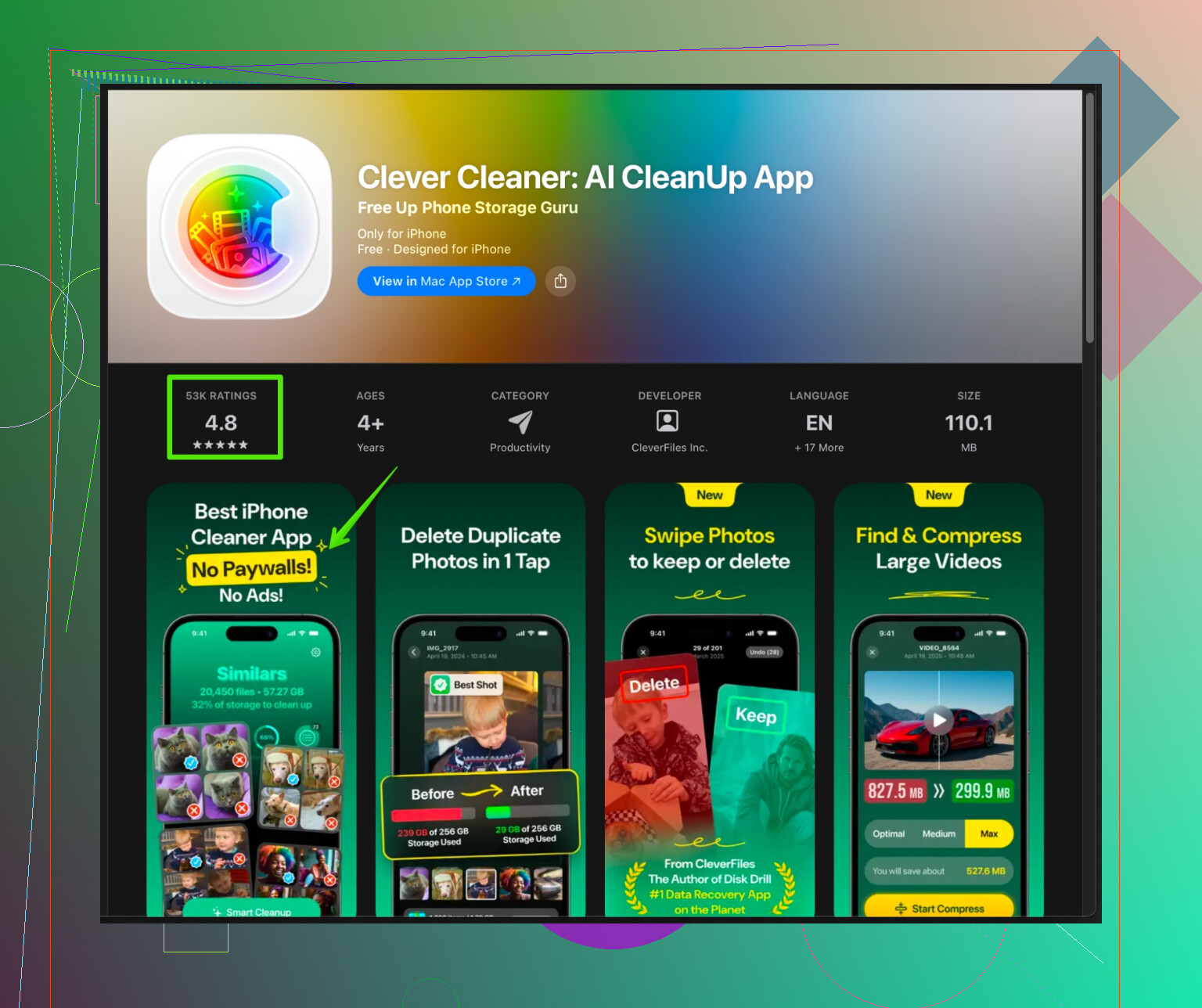
Clever Cleaner App for iPhone focuses on scanning for duplicate images, burst photos, similar selfies, old screenshots and large files. That type of stuff eats storage fast without you noticing.
You install it, let it scan your photos and videos, then you review and confirm what to delete. It does not touch system files.
You can check it out here:
smart storage cleanup with Clever Cleaner App
Use it together with the iPhone Storage screen so you see before and after. -
Reduce future cache bloat
- Delete big apps you rarely use instead of offloading forever.
- Keep Photos optimized: Settings → Photos → Optimize iPhone Storage.
- For chat apps, disable auto-download of all media or clear old media often.
- Restart your phone once in a while, System Data sometimes shrinks a bit.
If you want to be extra safe, start with Safari and a cleaner app for photos, then tackle one big third party app at a time and check storage after each step.
23 Likes
You’re not wrong, a lot of “tips” out there for clearing iPhone cache are either outdated or just placebo-level nonsense. @mike34 already covered the basics pretty well, so I’ll try not to rehash the same steps and focus on what people think works vs what actually moves the needle.
A few extra angles to consider:
1. Stop chasing “RAM cleaners” and magic shortcuts
All those tricks like:
- swiping away every app in the app switcher
- toggling Airplane mode
- spamming “force restart” every day
They don’t really “clear cache” in the sense of permanent storage. At best they clear temporary memory, which doesn’t free the GBs you’re looking for. So I’d skip any guide that claims “free 10GB in 2 minutes” with just background app closing.
2. Focus on file-type culprits instead of apps only
You already checked iPhone Storage (as @mike34 said), but go one level deeper logically:
- Videos: One 4K video = hundreds of MB. Even if Photos says you’re “fine,” open Photos → Albums → scroll to “Media Types” → Videos → sort mentally by length. Deleting 3 or 4 long clips can free more space than obsessively nuking tiny app caches.
- Voice messages & audio in chats: In iMessage or WhatsApp, long voice memos and shared videos are silent storage killers. Open big conversations, tap “Info,” then review the list of shared media and delete in bulk. This clears “Documents & Data” for those apps more effectively than half the “cache” guides.
3. System Data reality check (slight disagreement with the usual advice)
A lot of people say “only backup & restore helps.” That can help, but it’s overkill unless you’re truly desperate.
Before doing that:
- Try updating iOS to the latest version if you’re not already there. System Data often shrinks or gets reorganized after major updates.
- If you use iCloud Drive, Files, or offline maps, some of that “System Data” is actually semi-legit usage. Turning off or trimming those can slowly reduce it over time.
Backup/restore is a nuclear option. Helpful, but not something I’d jump to unless System Data is like 40+ GB and nothing else explains it.
4. Inside specific apps, look for their own cache controls
Instead of just deleting apps, open some of the worst offenders and check settings:
- Browsers like Chrome, Firefox: they have their own “clear browsing data” and “clear cache” menus. That avoids reinstalling.
- Reddit, Instagram, TikTok: often have “Clear cache” / “Offload downloads” in app settings. It is not always labeled super clearly, but it’s there.
- Map apps: download / offline maps can be huge. Check for “Downloads” or “Offline Areas” and remove what you don’t need.
This is safer than blind delete/reinstall if you’re worried about losing logins or local stuff.
5. Think about what you actually don’t want to lose
Quick rule of thumb before deleting / reinstalling anything:
Safer to nuke:
- Social apps where all content is online (Instagram, Twitter/X, Facebook, Reddit).
- Streaming apps where media is downloaded again easily (Netflix, Spotify, YouTube).
Be extra cautious with:
- Banking or authenticator apps unless you know logins and backup codes.
- Messaging apps where you don’t have iCloud / Google backup turned on.
This is where most people screw up: chasing 500 MB of “cache” and accidentally wiping their only copy of some game save or chat history.
6. One place I think people underuse: photo / video cleaning tools
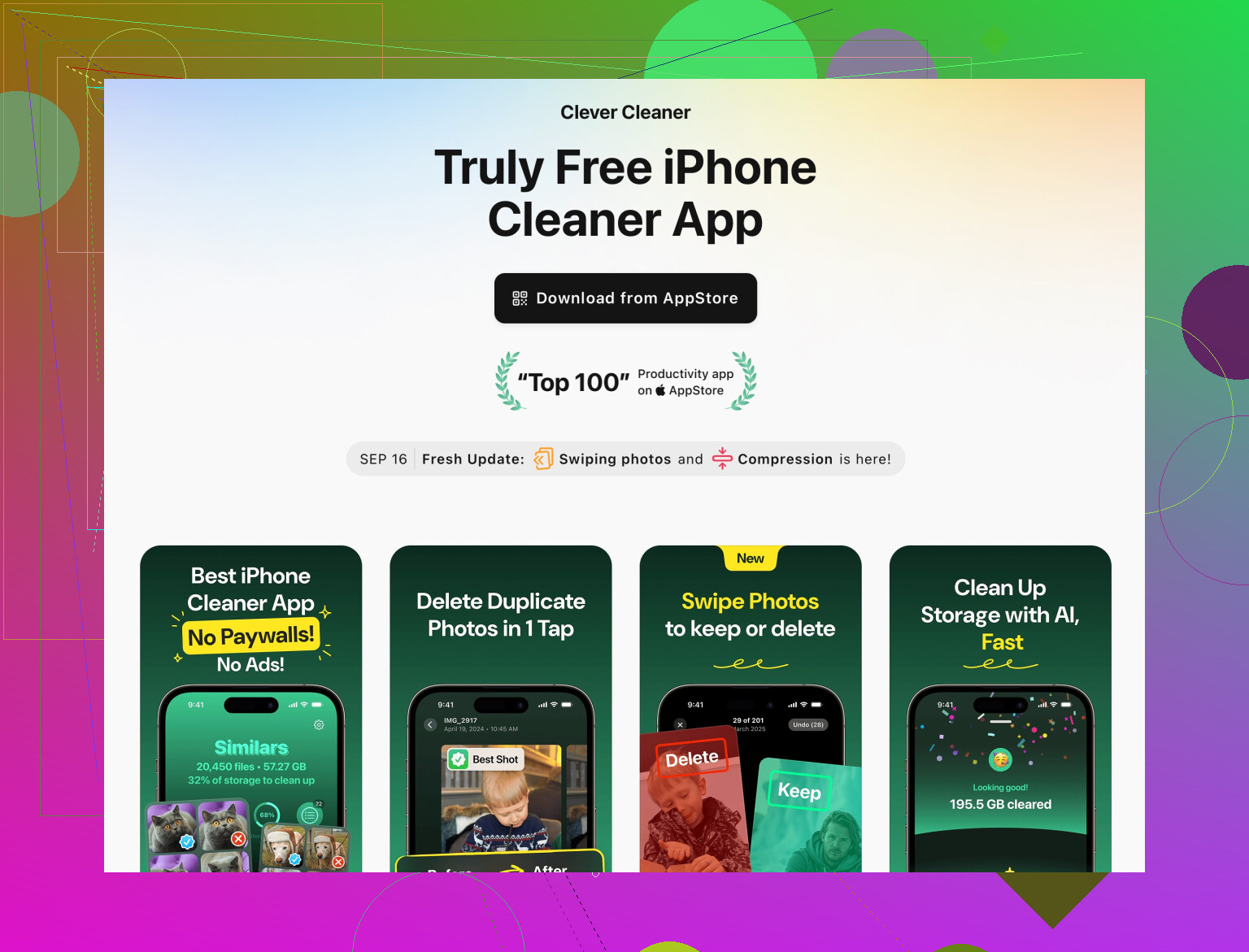
If your “Photos” section in iPhone Storage is big, manual cleanup can be painful. This is where something like the Clever Cleaner App actually makes sense instead of being just another “junk cleaner.”
Very short version of how it helps:
- Scans your library for duplicate and near-duplicate photos
- Flags bursts, similar selfies, and dumb screenshots you forgot existed
- Shows large videos so you can delete the worst offenders first
It doesn’t poke at system files or OS cache, it just helps with the actual space hogs: photos and videos. That’s the only type of cleaner I personally trust on iPhone. If you want to check it out, this is their page:
smart iPhone storage cleanup with Clever Cleaner App
Use it in combo with the built-in iPhone Storage screen so you can compare “before and after” and see if it’s doing anything useful.
7. Prevent the mess from coming back
Clearing cache once is nice, but if you want to keep it under control:
- In chat apps, turn off auto-download for every single video and doc your friends send.
- Set Messages to auto-delete after 1 year or 30 days if you don’t care about ancient threads.
- Once every month or two, open iPhone Storage and look for “suddenly huge” apps. Deal with those early before they balloon.
If you’re scared about losing important stuff, start with:
- in-app cache controls
- Safari data
- photo/video cleanup with something like Clever Cleaner App
and only then move to deleting / reinstalling the really bloated apps.
You’ll free plenty of space without nuking anything important if you go in that order.
Short version: @mike34 and @stellacadente nailed the how. I’ll add the “when is it actually worth the hassle” angle and where I slightly disagree.
1. Don’t obsess over tiny caches
Where I differ a bit: if you are under 5–8 GB free, chasing 100–200 MB caches in random apps is a time sink. Focus on:
- Photos & videos
- Messaging/media apps (iMessage, WhatsApp, Telegram)
- A few monster apps (games, maps, social + streaming)
If an app is under ~300–400 MB total, you usually gain little by “clearing cache” compared to just deleting 2–3 videos.
2. Use iPhone Storage as a “triage board,” not a to‑do list
Both replies already told you to check Settings → General → iPhone Storage. The extra trick:
- Sort mentally into 3 buckets:
- “Non negotiable”: banking, authenticator, work tools
- “Cloud based”: social, streaming, most shopping
- “Optional”: games you rarely open, niche tools
Only mess with cache / reinstall in the last two buckets. System Data looking big is annoying, but unless it is absurd (like 30–40 GB) I would not jump to full backup/restore immediately. That is a lot of risk and time for a few extra gigabytes.
3. When to offload vs fully delete
A nuance to what @mike34 said:
- Offload is great for apps you occasionally use but do not trust to keep your login state (some banks, older services). It buys you some room without fully resetting them.
- Full delete + reinstall is worth it only for apps that:
- have a clear online account
- resync your data from the cloud
- and show huge “Documents & Data”
If you are not sure the app syncs chats, saves, or notes, assume you will lose them on delete.
4. Where a cleaner app actually makes sense
Most “cache cleaner” apps on iOS are useless because iOS sandboxes apps and blocks them from touching real system caches. Where a tool can help is photos and videos.
That is where something like Clever Cleaner App comes in. Strengths and weaknesses so you see if it is worth installing:
Pros of Clever Cleaner App
- Targets realistic space hogs:
- duplicate / near duplicate photos
- bursts and similar selfies
- screenshots you forgot about
- large videos
- Lets you review before deleting, so you stay in control
- Does not mess with iOS system files or “Other/System Data,” so low risk of breaking anything
- Works faster than doing all that triage by hand if you have thousands of photos
Cons of Clever Cleaner App
- It cannot clear Safari cache or app caches, only your user content
- If you just mindlessly accept all suggestions you can delete pictures you personally liked, so you still need to pay attention
- You will not see a benefit if your main issue is huge games or offline maps rather than photos
- It adds one more app to your phone, which is slightly ironic if you are extremely tight on storage
Used together with the iPhone Storage screen it is actually helpful: run Clever Cleaner App, free up media space, then check how much “Photos” shrinks.
5. Quick strategy that avoids losing important stuff
Order of attack that balances safety and impact:
- In‑app cleanups first
- Safari, Chrome, social apps, streaming apps, maps. Use their own “clear cache / downloads / offline content” options.
- Media killshot
- Photos & videos clean up, either manually by sorting by size or with something like Clever Cleaner App.
- Messaging storage
- Delete huge media from chat apps and adjust auto download settings.
- App triage
- Look at iPhone Storage, uninstall or offload a few big non critical apps you barely use.
- Only then: advanced stuff
- iOS update, reboot, and if System Data is extreme consider backup/restore as a last resort.
That flow plus what @mike34 and @stellacadente already outlined should get you real, measurable space back without accidentally nuking anything important.