My WD My Passport external hard drive suddenly stopped opening, and I can’t access years of photos, documents, and backups stored on it. The drive shows up when I plug it in, but it won’t open or lets me view the files. I need advice on WD My Passport data recovery, what might have caused this, and the safest way to recover my data without making things worse.
I’ve had this happen with a WD My Passport more than once, and yeah, the first few minutes matter more than people think.
Stop using the drive now. Don’t copy files to it. Don’t run cleanup tools. Don’t try random “repair” steps from search results. Pull back for a second.
When a file gets deleted, the data usually stays on the disk for a while. What disappears first is the file system entry pointing to it. If new data lands in the same spot, recovery odds drop fast. On older My Passport HDD units, I usually had a decent shot. On newer SSD versions, TRIM makes the window smaller because the drive starts clearing unused blocks on its own.
Check Disk Management first
Right-click Start.
Open Disk Management.
Find the WD drive in the list.
This tells you a lot with almost no risk.
If the drive appears with the right capacity, like 1TB or 2TB, even if Windows labels it RAW or Unallocated, I’d still treat it as a decent DIY case. Usually the hardware is visible, but the file system is damaged or missing. If the drive does not appear there at all, even after you swap the cable and port, I’d start thinking hardware trouble. At that point a recovery lab is often the safer move.
What I’d use for recovery
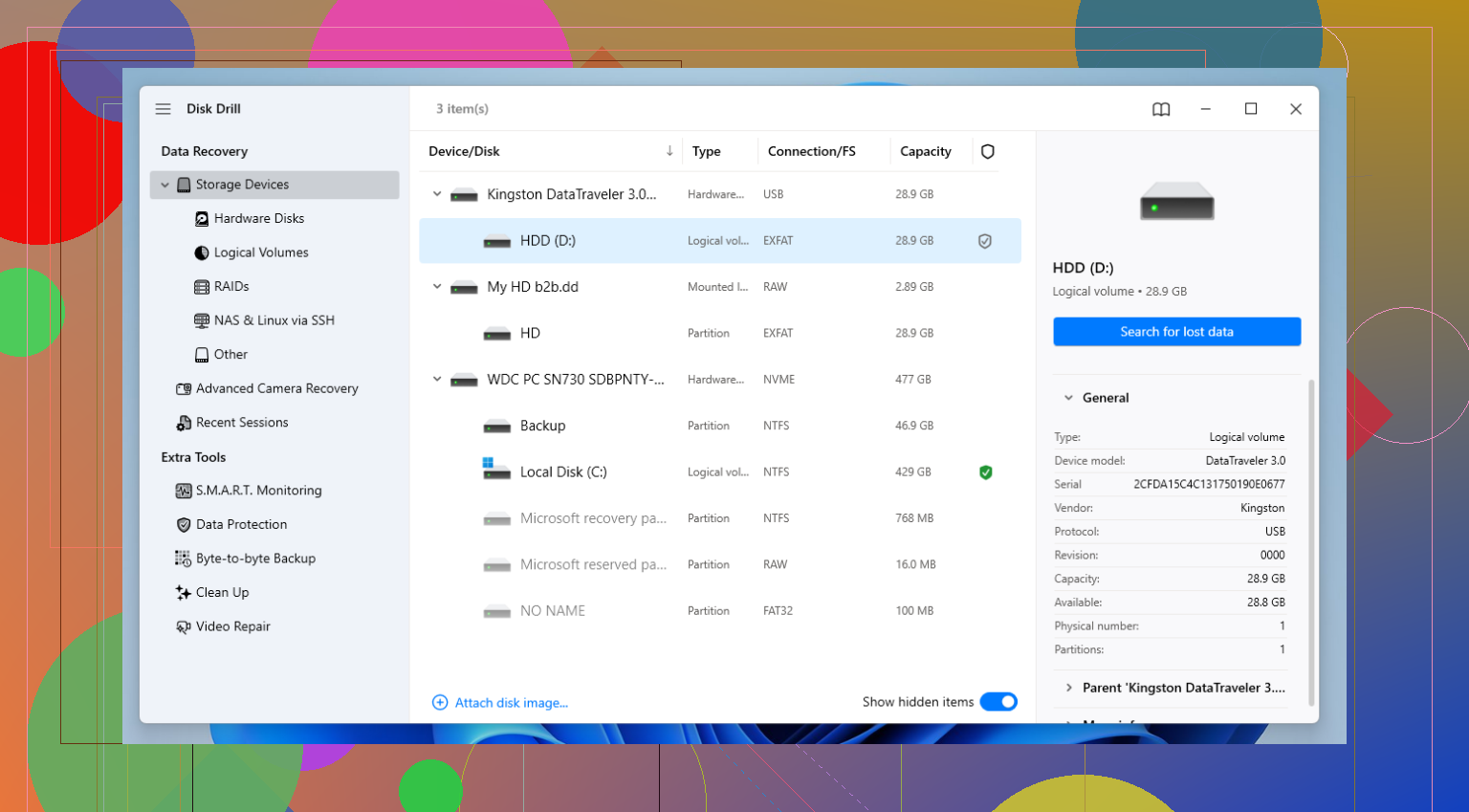
If Disk Management still sees the drive, I’d go with recovery software next. I’ve tried a pile of them over time, and for this kind of WD job, Disk Drill worked better for me than most. It handled deleted files, damaged partitions, and accidental formats without too much drama. I used it on NTFS and exFAT My Passport drives with decent results.
The recovery steps I’d follow
Install the recovery app on your internal drive or another disk, never on the WD drive you’re trying to save.
Connect the My Passport after the software is ready.
If the drive is slow, clicks, freezes, or disconnects, make a clone first. In Disk Drill, use the Byte-to-byte Backup tool. I lean on this a lot with shaky WD drives because scanning the image is easier on the hardware than hammering the original disk over and over.
Scan the drive, or scan the backup image if you made one.
Pick Universal Scan for the broadest pass.
While the scan runs, start checking results. I usually open Deleted or lost and Reconstructed first.
Use preview before recovering. If a photo opens, or a document preview looks normal, I treat it as a good sign the file is still intact.
Recover the files to a different location. Your PC, another external drive, or cloud storage. Do not write them back to the same WD disk during recovery.
One thing I learned the hard way
Set up backups before the next scare. WD points people toward Acronis True Image now, and it’s fine for scheduled backups. Brand reliability helps, sure, but every drive fails if you wait long enough. I keep important files in at least two places now because losing a folder once was enough for me, lol.
If your drive still shows the right size in Disk Management, your odds are usually better than they feel in the moment.
9 Likes
If the WD shows up but won’t mount, I’d split this into 2 cases.
Case 1, the drive spins fine, no clicking, no long freezes. This is often file system damage. In tht case, recovery software is the fastest DIY path. @mikeappsreviewer covered the scan angle well. I’d add one thing first, check SMART health with CrystalDiskInfo. If you see reallocated sectors, pending sectors, or bad health status, stop poking the drive over and over.
Case 2, it clicks, disappears, hangs File Explorer, or takes minutes to identify. That points more toward hardware failure. Don’t run CHKDSK first. I know people love suggesting it, but on a failing WD Passport it has made things worse for me.
For DIY recovery, Disk Drill is still one of the better picks because it previews photos and docs well, which saves time. If your files preview cleanly, your odds are beter. Recover to a different drive, always.
If Windows assigns no letter, try giving it one in Disk Management. If it says RAW, skip formatting.
Also, WD My Passport models often have hardware encryption on the USB bridge board. This matters. If you pull the drive out of the enclosure and connect it straight to SATA, the data may look scrambled. A lot of people miss tht and think the disk is dead.
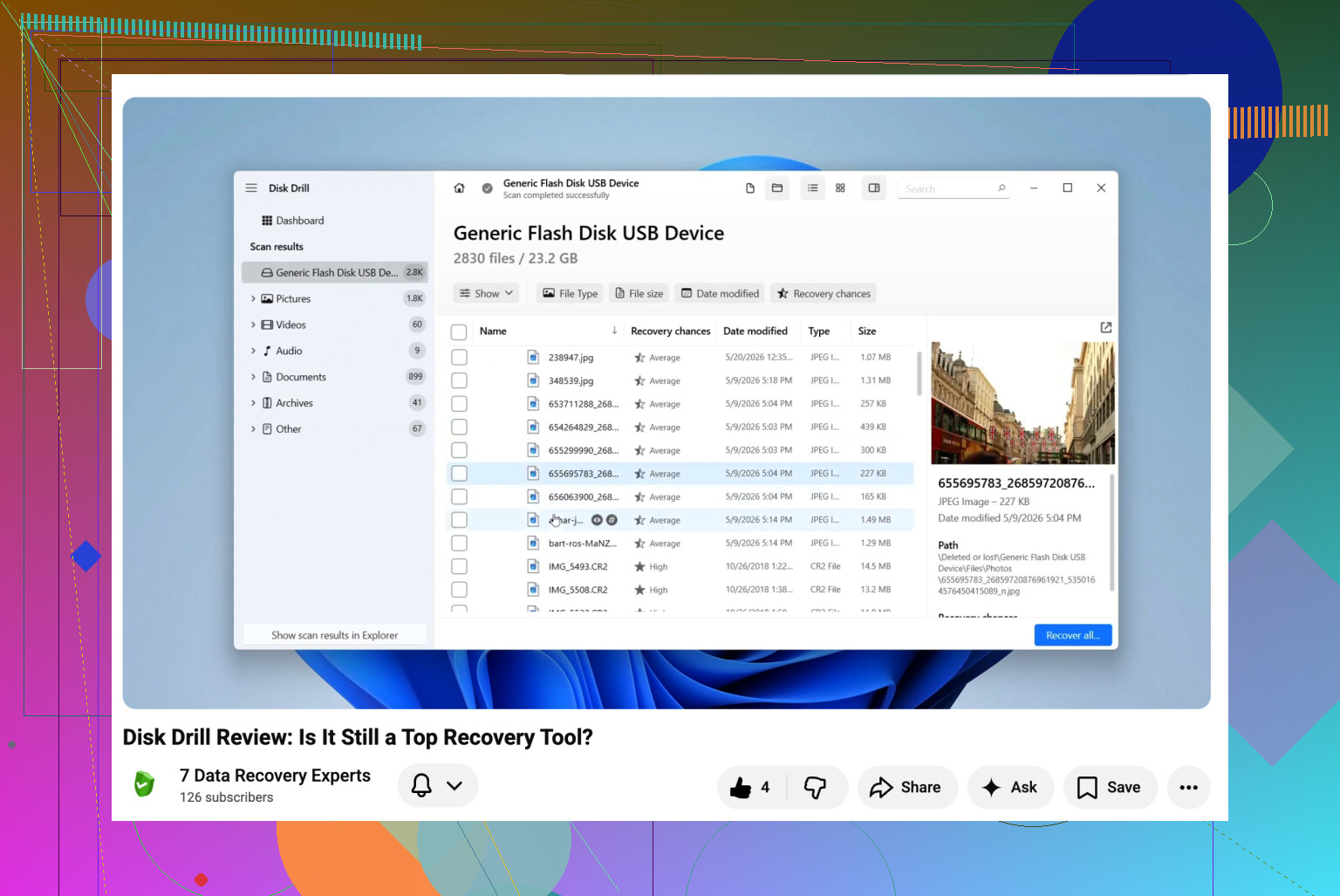
If you want a walkthrough first, this Disk Drill data recovery video guide for external hard drives is a decent starting point.
If it shows up but won’t open, I’d actually avoid jumping straight into repair mode. @mikeappsreviewer and @himmelsjager are right about not writing to it, but I’m gonna disagree a little on one thing: sometimes people spend too long testing, rescanning, swapping ports, checking letters, checking SMART, checking vibes, checking the moon phase… and the drive just gets worse.
What I’d do first is this:
- Try it on one other computer
- Try one different USB cable
- If same result, stop messing with it
Reason: WD My Passport units are notorious for dumb enclosure issues, power weirdness, and filesystem corruption that looks scarier than it is. If the drive is detected with the correct size, that’s still promising. If Explorer freezes when you click it, that usually means Windows is choking while reading damaged metadata.
One thing not mentioned enough: check Event Viewer in Windows. Look under Windows Logs > System for disk, ntfs, or volmgr errors right when you plug it in. If you see tons of I/O errors, timeout resets, or bad block messages, don’t keep hammering the drive. That’s a sign the problem may be physical, not just logical.
Also, do not initialize it if Windows asks. And yeah, skip CHKDSK unless you’re fine gambling with the directory structure.
For recovery, Disk Drill is a solid pick because it handles flaky external drives pretty well and lets you pull files off to another disk. But if the drive is making noises, disconnecting, or getting super slow, DIY can turn into “welp now it’s really dead” pretty fast.
If this happened after a drop, that changes the whole conversation. Then I’d read this thread on WD external drive dropped and recovery options first, because dropped-drive cases are a diferent animal.
If you want, post what Disk Management says exactly:
- file system
- capacity
- drive letter or none
- any clicking / beeping / freezing
That’ll narrow it down fast.