I’ve used a few project management tools on Windows, but I recently switched to a Mac and some of my go-to apps either don’t work well or feel really clunky on macOS. I’m looking for recommendations on the best project management apps that are truly optimized for Mac, with smooth performance and solid integrations. What are you using right now that you’d actually recommend, and why?
I spent most of last Monday battling a “Disk Almost Full” popup while trying to push a release out the door. Every time I exported a new build, macOS looked at me like, “You sure about that?” It was a nice reminder that the “best” project management setup is not necessarily the one with animated timelines and gorgeous Gantt charts, but the one that doesn’t make you want to frisbee your Mac across the room.
Everyone throws around the usual tools like Trello or Mural, which are fine, but the stuff that really saves my sanity is whatever keeps my files organized, my storage under control, and my team out of my DMs asking “where is that thing again?”
Below is what I actually use, what kind of mess each solves, and where they fall flat.
The mainstream tools I keep using anyway
I use all three of these. None of them are perfect, but ripping them out would probably cause a small riot.
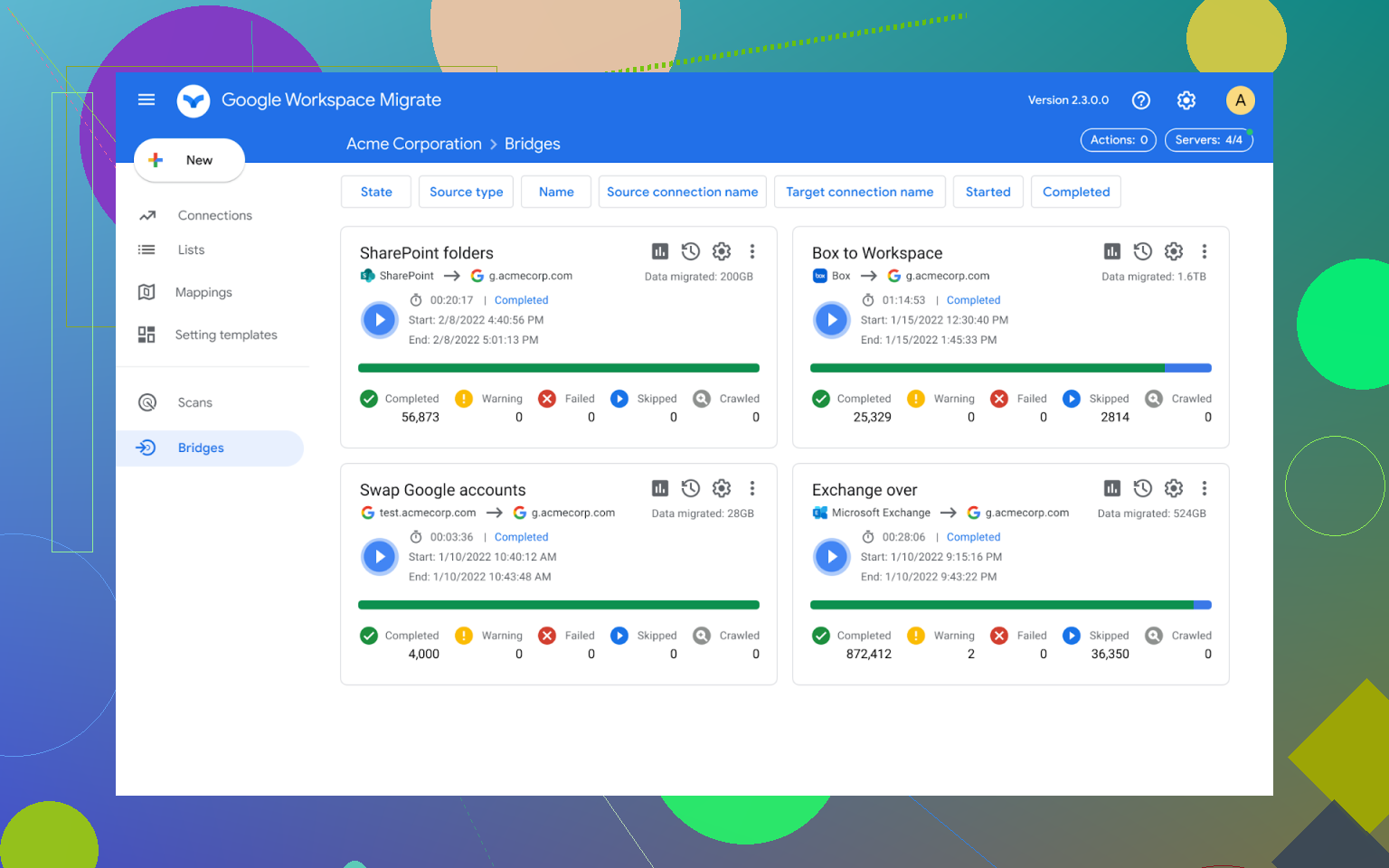
Google Workspace
Google Workspace is that team member who constantly annoys you but somehow still gets invited to every meeting.
Docs, Sheets, Slides, Drive, all of it. I live there whether I want to or not. Sheets is where every project schedule goes to slowly drift out of sync with reality, but when you need five people editing the same doc without version conflicts, it is still the easiest option I know of.
On a Mac, it never feels as smooth as a good native app, especially for big spreadsheets, but I have yet to find anything that hits the same “everyone already knows how to use it” factor.
Trello
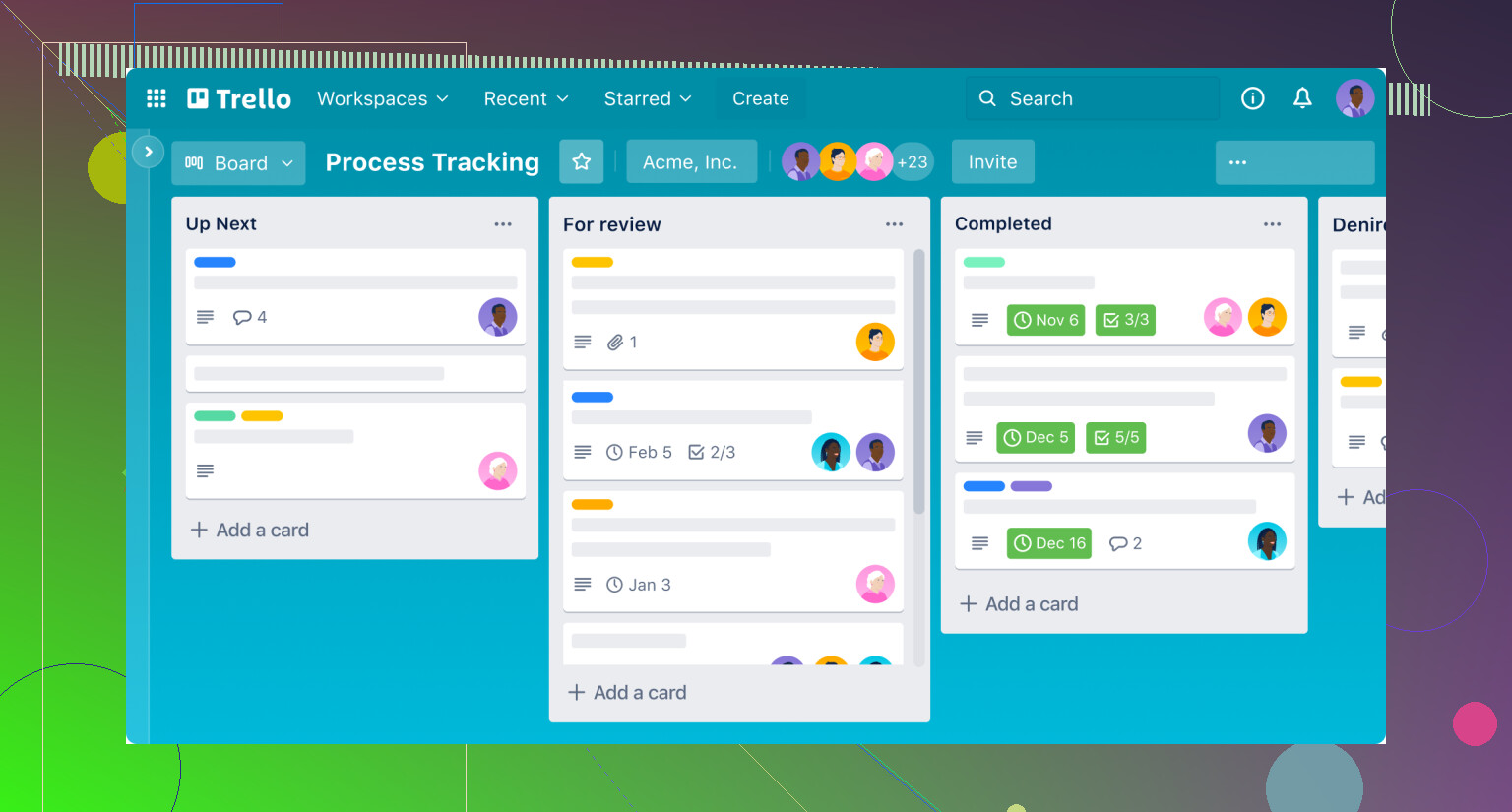
I’ve built Trello boards that genuinely looked like I cared about my life: color-coded labels, neat columns, little checklists, due dates all lined up. Two weeks later, half the cards were stale, the rest were irrelevant, and nobody was moving anything.
Trello works surprisingly well if:
- The project is not insanely complex.
- You have someone who actually tends the board like a garden.
- You mostly want a “what are we working on this week?” snapshot.
Where it collapses for me is the deeper stuff:
- Dependencies
- Versioning
- “Wait, which file goes with this task?”
It’s nice for the overview, but once you’re in the weeds of “how” instead of “what,” it gets flimsy.
Mural
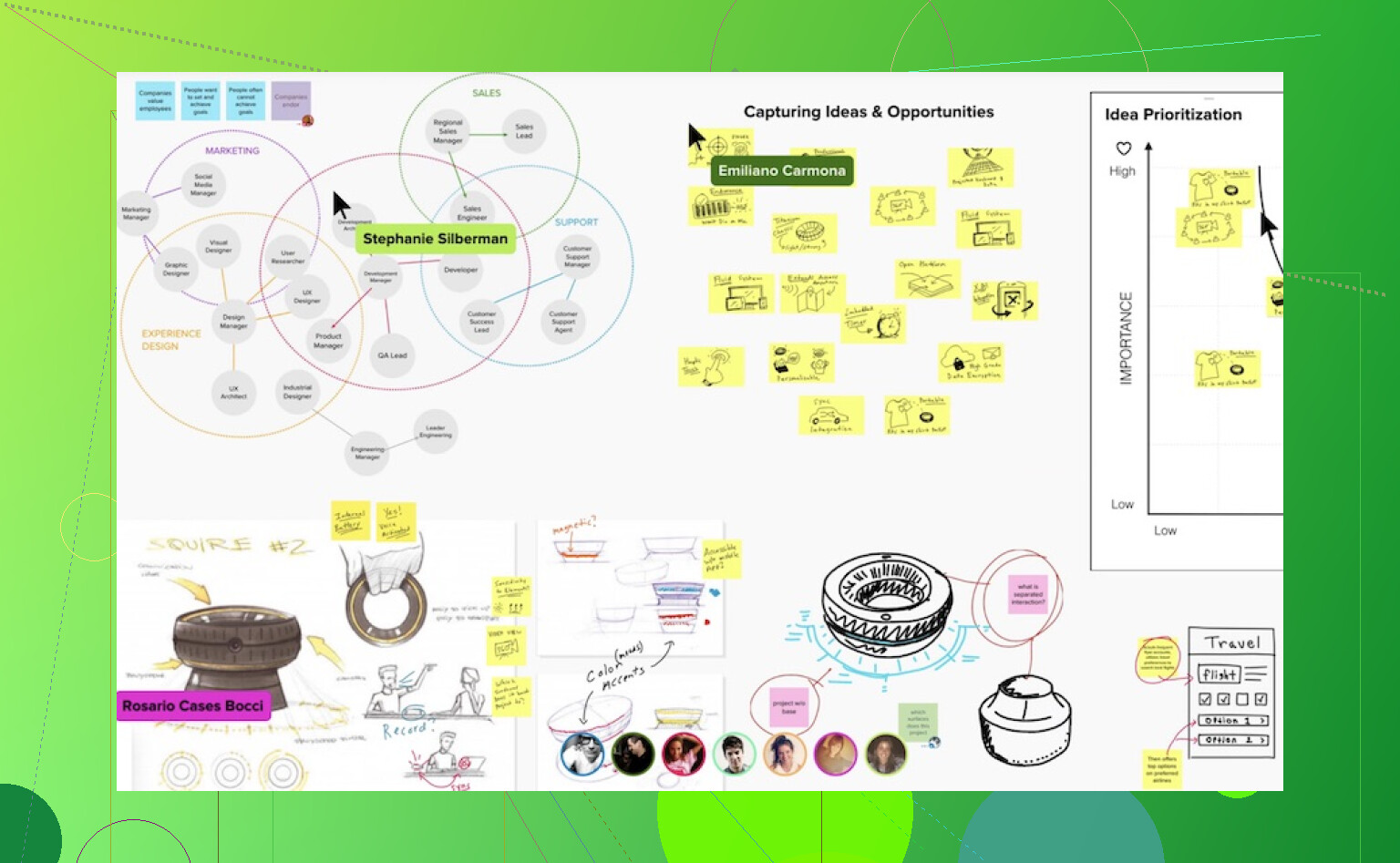
Used this for a remote brainstorming session not long ago. It absolutely shines for that:
- Big virtual canvas
- Sticky notes everywhere
- Everyone scribbling ideas at the same time
On a large monitor it feels genuinely good, like having a wall covered in Post-its without the risk of them falling behind a radiator.
The issue: converting brainstorm chaos into actual, trackable work. That handoff from “We had a brilliant workshop” to “Here are our assigned deliverables with deadlines and owners” often gets lost. Mural is perfect at the front of the process and a bit useless afterward unless someone is religious about exporting, organizing, and translating notes into a real system.
Managing the actual mess, not just the cards
Most people talk about project management like it’s all about priorities, standups, and Kanban columns. In practice, a huge part of it is extremely boring:
- Where is that file?
- Who has the latest version?
- Why is my drive full again?
When I finally admitted that “cards on a board” was not my real problem, I started looking at tools that handle files, storage, and transfers instead of just tasks.
CloudMounter
I installed CloudMounter out of sheer frustration with cloud storage syncing. Google Drive and Dropbox were eating my SSD alive with “offline” copies of things I only open twice a year.
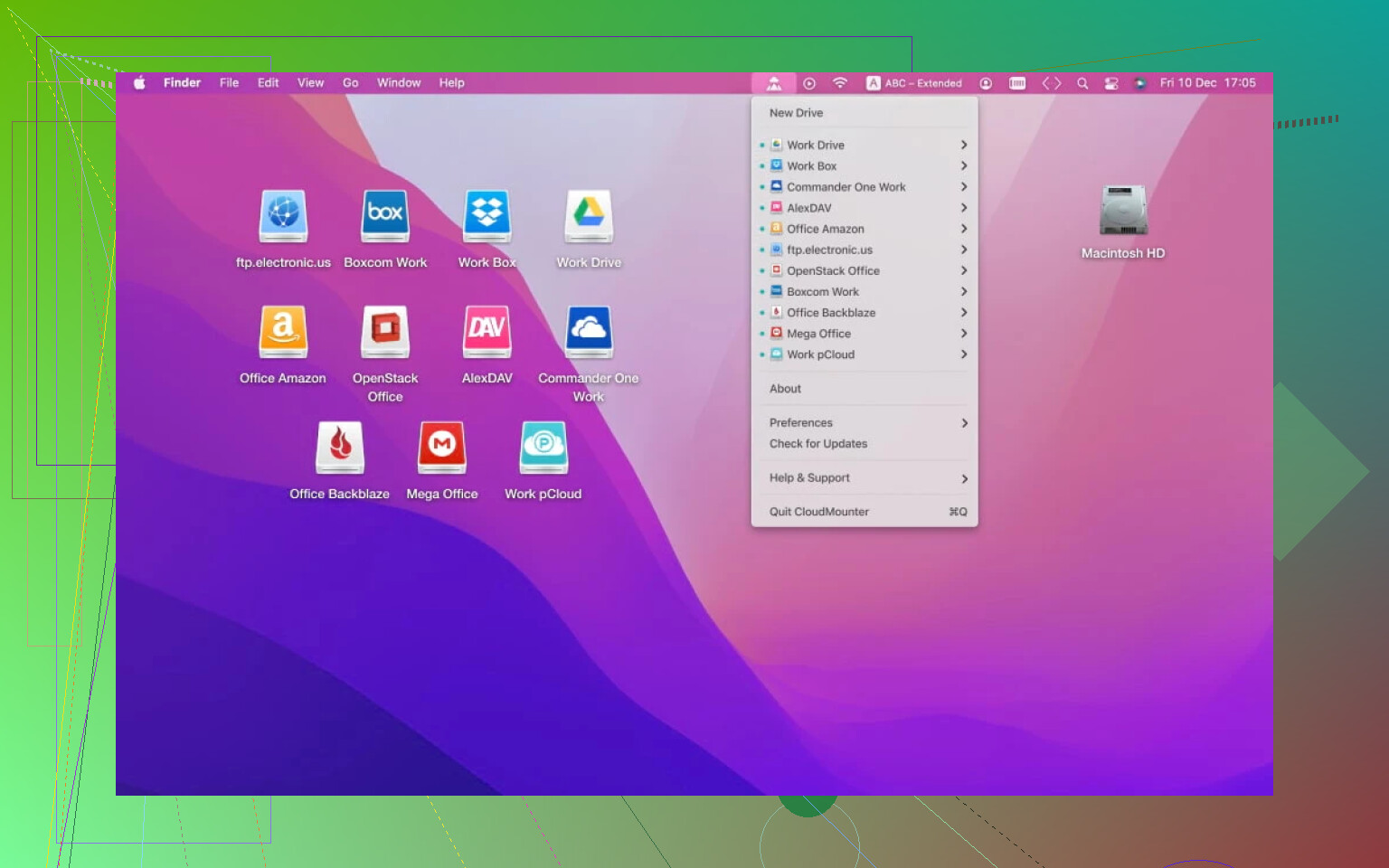
CloudMounter basically lets you mount your cloud accounts like external drives:
- Connect Google Drive, Dropbox, OneDrive, whatever.
- They show up in Finder like a disk.
- You open files directly from the cloud instead of syncing enormous folders locally.
For any project with a giant media library (video, high-res images, audio), this is a lifesaver. Typical scenario:
-
Old workflow:
- Wait for 40 GB to sync.
- Pray the sync client doesn’t get stuck.
- Wonder why your 512 GB SSD is suddenly at 495 GB.
-
With CloudMounter:
- Mount the cloud drive.
- Browse it like a network drive.
- Open the files you actually need.
I don’t have an exact metric, but it definitely cut out the “waiting for sync to finish” part of my week. Also reduced the number of times I had to randomly delete stuff off my Mac just to export another build.
Commander One
Finder is fine if you’re just opening a PDF someone emailed you. It falls apart in situations like:
- Migrating a whole directory tree to a server
- Cleaning up 20 nested folders full of assets
- Moving stuff between SFTP, local storage, and S3
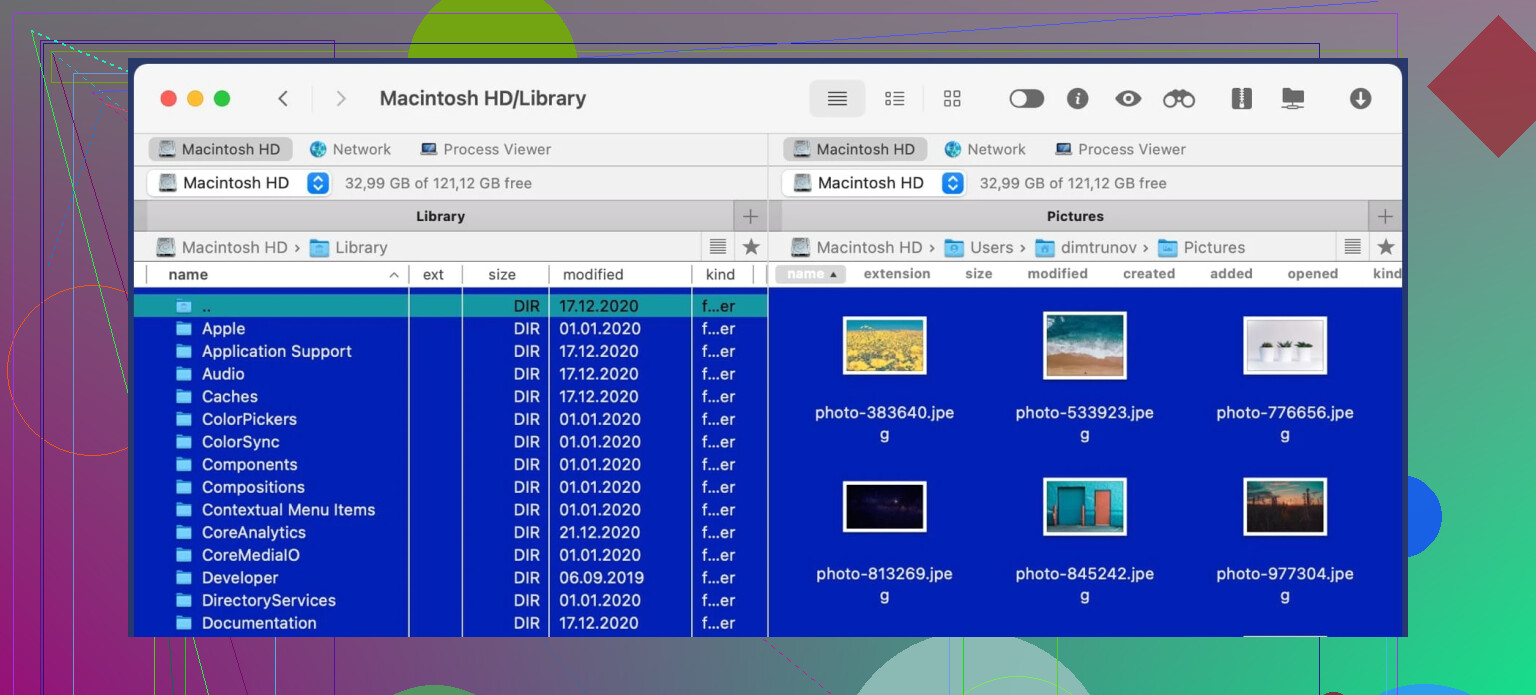
That is where I pulled in Commander One. It’s a dual-pane file manager in the old “commander” style:
- Two folders side by side
- Keyboard-focused if you like that workflow
- Handles SFTP, FTP, WebDAV, Amazon S3, etc.
Real example: I had a project where we needed to hand off structured assets to a client’s SFTP server, with a bunch of folders mirrored exactly between local and remote. Doing that in Finder is like trying to juggle chainsaws wearing oven mitts.
In Commander One, I could:
- Open local project folder in the left pane
- Open SFTP in the right pane
- Drag, compare, sync, spot differences
It is not glamorous. There are no colorful boards. But if your projects ever touch:
- Servers
- CDN buckets
- Technical handoffs
this kind of tool is worth more than another “productivity” web app.
Two more tools that actually earned a place on my Mac
Most apps I try get deleted after a week. These two stuck.
OmniPlan
Link:
https://www.omnigroup.com/omniplan/
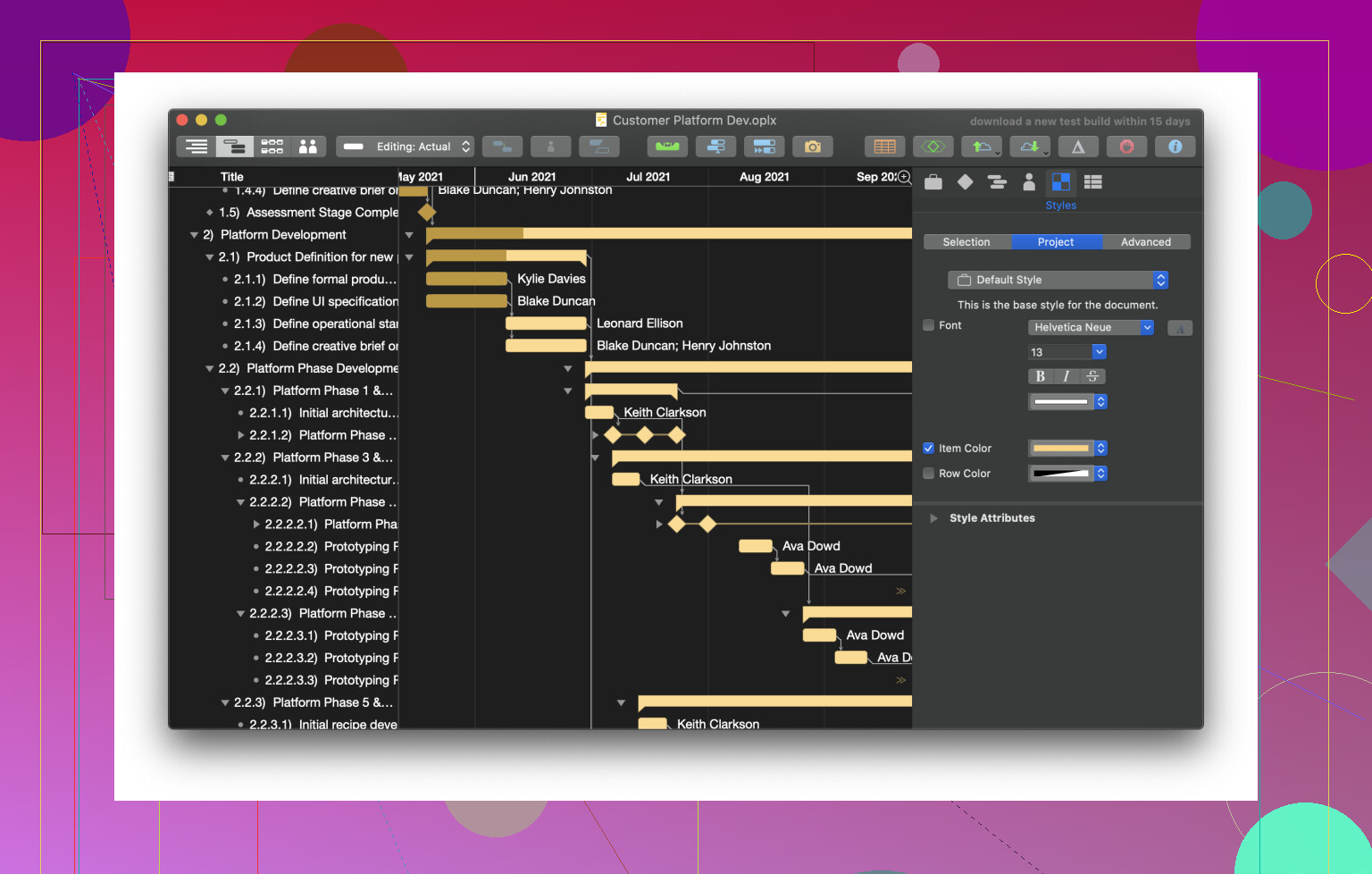
OmniPlan is what happens when someone says, “Yes, we actually do need a real Gantt chart.”
If you’re running small ad-hoc projects, it’s overkill. But when:
- You care about dependencies properly
- You need to account for holidays and time off
- You track resource allocation across multiple projects
then this starts to make sense.
A few things I like:
- Native Mac app, so none of the browser lag you get with some online tools.
- Proper scheduling logic. Move one task and watch the downstream timelines update based on constraints.
- Good for those “What happens if we slip by a week?” conversations.
It is not casual. I still occasionally feel like I’m missing half the features. But when you actually have to answer questions like “What if this person is out for 3 days?” in a non-hand-wavy way, it delivers.
Things 3
This one is not for teams. It is for my brain.
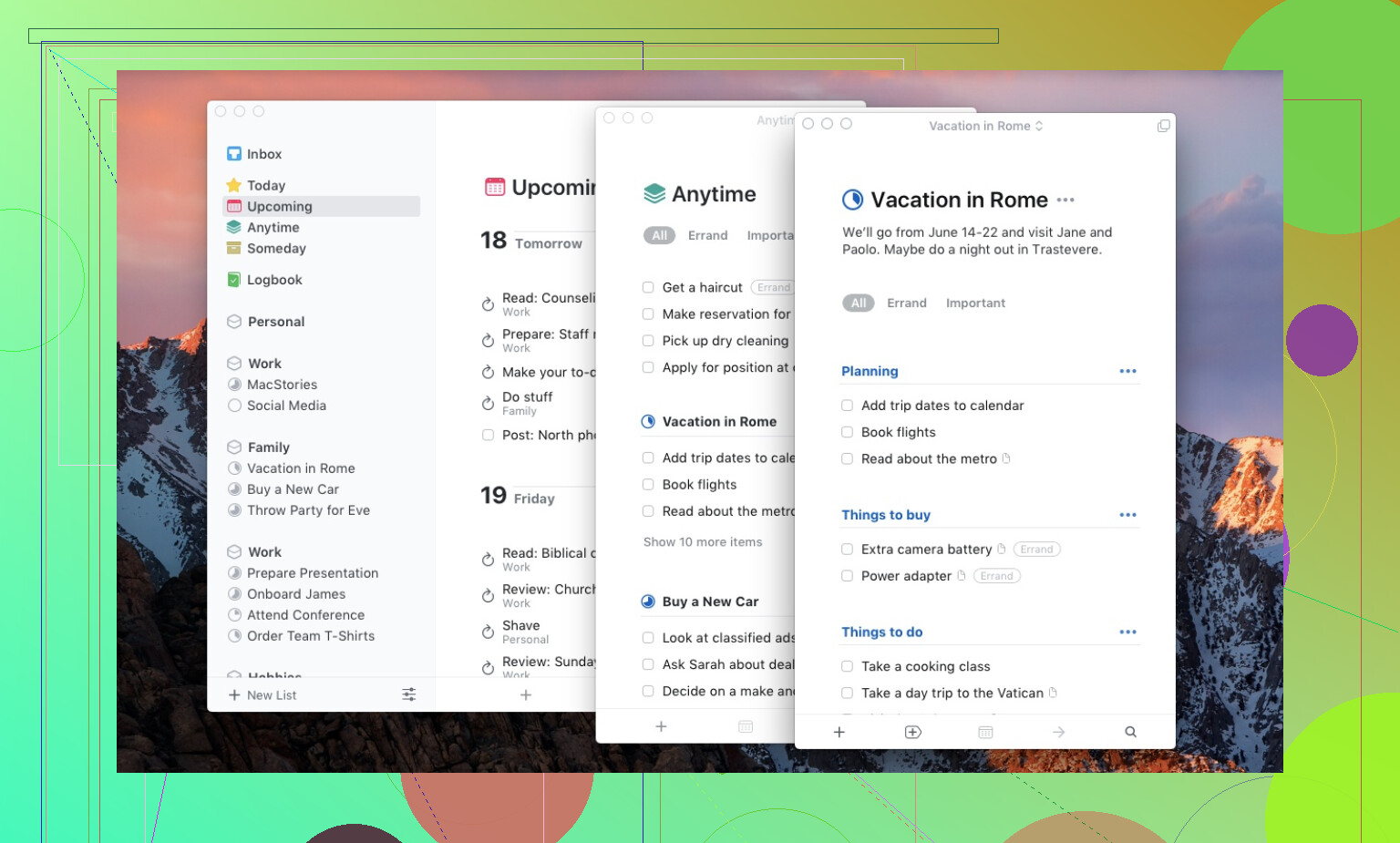
While everyone is shouting in email, Slack, Jira, comments, and random DMs, I need one calm place that only shows:
- What I need to do today
- What I should not forget next week
- What belongs to which area or project
Things 3 is the only personal task manager I’ve stuck with long term on Mac. A few reasons:
- It is fast and feels like part of macOS.
- It is visually clean. No clutter, no feed, no noise.
- It does projects, deadlines, tags, and recurring tasks without feeling like work to maintain.
It does not try to be a collaboration tool. No shared boards, no team features, no @mentions. That is a feature, not a bug, as far as I’m concerned. It is where I keep my personal obligations straight so I can deal with the team chaos elsewhere.
For me, the cost paid off quickly just in avoided “oh no I forgot that” moments.
If I had to boil all this down:
- Use the usual suspects (Google Workspace, Trello, Mural) because everyone else does and collaboration is easier that way.
- Add something like CloudMounter and Commander One if your projects involve big files, servers, or constant handoffs. Those two quietly fix a lot of headaches.
- Layer OmniPlan and/or Things 3 on top if you need serious planning on one side and personal sanity on the other.
The “project management stack” that actually works for me is less about one magical tool and more about a bunch of apps that each solve one specific, annoying problem. If you feel like exploring further, you’ll find plenty of other spots sharing similar recommendations.
19 Likes
If you’re coming from Windows, the biggest trap on macOS is trying to recreate the same stack instead of leaning into stuff that’s actually built for Mac. I agree with part of what @mikeappsreviewer said, but I’d flip the priority a bit: start with native project tools, then patch the file chaos with utilities like CloudMounter.
Here’s what’s actually worth looking at in 2026:
1. ClickUp (web + Mac app, good “all‑in‑one”)
If you want one tool that does 80% of everything:
- Tasks, docs, timelines, Gantt, kanban, goals
- Decent Mac app now (it used to be trash, it’s… ok-ish in 2026)
- Great if you have a mix of simple and complex projects
Where it can suck:
- Too many features, easy to turn your workspace into a junk drawer
- Notifications can get spammy if you don’t lock them down
Good middle ground if you don’t want to juggle 6 apps.
2. Linear (for software / tech teams)
If your projects are dev-heavy, Linear fits Mac really well:
- Fast keyboard-driven interface, feels “Mac‑native” even as a web app
- Issues, sprints, roadmaps, cycles
- Very low friction once your team learns the shortcuts
Weak points:
- Not great for non-tech stakeholders who want pretty Gantt charts
- Documentation / wikis are improving but still not Confluence-level
If Jira on Windows gave you trauma, this is the antidote.
3. OmniFocus 4 + shared tooling (personal + light project structure)
I slightly disagree with relying so heavily on Things 3 like @mikeappsreviewer does. Things is great, but if your work is structured in real projects, OmniFocus 4 is more powerful:
- Native Mac app, deep support for defer dates, review cycles, perspectives
- Great to slice your “work projects” vs “life projects”
- Syncs across Mac, iPhone, iPad very reliably
Caveat:
- Learning curve is steeper
- Not a team tool, so you still need something like Google Workspace, ClickUp, or Trello for collaboration
This is for making sure you don’t drop the ball, while the “team stuff” lives somewhere else.
4. Notion (if you care about docs + structure more than hardcore scheduling)
On Mac, Notion is kind of the digital binder:
- Project docs, databases, tasks, meeting notes, all in one place
- Templates for sprints, content calendars, product roadmaps
- Nice for cross functional teams where half the work is writing/explaining
Downsides:
- Offline support on macOS is still… meh
- Time-based planning (dependencies, resource allocation) is weaker than OmniPlan / MS Project style tools
If your problem is “we have stuff scattered across PDFs, random docs and chat,” Notion centralizes pretty nicely.
5. Asana (when management wants dashboards)
If you’ve got stakeholders who want to “see the plan” without touching the guts:
- Timeline view, portfolios, workload, status reporting
- Reasonably decent Mac experience via browser or app
- Easy for non-technical folks to understand
Annoyances:
- Can feel slow compared to more minimal tools
- Complex permission setups get annoying on big teams
Feels corporate, but if your org is already leaning that way, fighting it is usually worse.
6. CloudMounter for Mac (quietly fixes a lot of PM pain)
Here’s where I completely agree with @mikeappsreviewer, but I’d emphasize it more: if your projects involve big files, CloudMounter on macOS is almost mandatory.
CloudMounter lets you:
- Mount Google Drive, Dropbox, OneDrive, S3, etc as if they were local drives in Finder
- Work directly off the cloud without syncing entire folders
- Keep your internal SSD from screaming “disk full” every time you export builds or media
Why this matters for project management:
- Everyone can link to a canonical folder or file path instead of emailing zips
- You reduce the “where is the latest asset” question because the structure is stable
- You don’t waste half a day syncing 80 GB of archives you’ll open twice per year
If you were used to Windows Explorer + mapped network drives, CloudMounter is the closest thing to that feel on Mac, and that alone keeps your PM tools from turning into giant file-dump graveyards.
7. Spark + calendar combo (overlooked but important)
Not a PM app per se, but if half your “projects” live in email threads and calendar blocks:
- Spark on Mac does decent “assign email as task,” reminders, and better triage
- Pair with Fantastical or the native Calendar for blocking project time
This is more about execution hygiene than formal project planning, but it matters a lot when you’re drowning in “quick asks.”
How I’d stack it if I were you
If I had to build a Mac-focused setup today without going nuts:
- Team system:
- ClickUp or Asana (Linear if dev-heavy)
- Google Workspace for docs/sheets
- Personal system:
- OmniFocus 4 for your own commitments
- File sanity:
- CloudMounter so Drive/Dropbox don’t eat your SSD
- Knowledge / docs:
- Notion if you want a “project wiki” that’s not stuck in random docs
You won’t find a single “best” Mac project management app, but you can find a combo that doesn’t feel clunky on macOS and doesn’t make you babysit sync clients all day. The trick is to pick one real “source of truth” for tasks, then let tools like CloudMounter and a solid personal task manager keep the rest from turning into chaos.
Short version: macOS doesn’t really have a single “Jira but nice” silver bullet. The stuff that actually works is a combo of 1 team tool, 1 brain tool, and 1 file/storage fix.
I mostly agree with @mikeappsreviewer and @nachtschatten on the stack, but I’d order priorities a bit differently if you’re coming from Windows.
1. Pick 1 team-facing project tool that feels OK on Mac
If your old Windows tools feel clunky now, forcing them on macOS usually just means you hate your setup within a week.
My own ranking for 2026:
1) Linear
Best if you’re doing software or anything issue-based.
- Super fast, shortcut-heavy, actually pleasant on a Mac screen
- Roadmaps and cycles feel more natural than Jira-style “projects”
- Plays nicely with GitHub / GitLab
Not great if you’ve got marketing, ops, legal, etc all in the same tool. Non-tech folks often just stare at it.
2) Asana
If you’ve got mixed teams and managers who like timelines, this is the safest bet.
- Timeline / Portfolio / Workload actually make sense to humans
- Decent enough Mac experience, nothing native-fancy, but not painful
- Easier “status update” story than Trello
I’d actually drop Trello entirely unless your projects are truly tiny. Once you’ve fought with dependencies and “where’s the real file” more than twice, its limits are obvious.
3) ClickUp
Only if you really want “one app to rule them all.”
- It can handle almost anything
- It can also turn into a hoarder’s basement of lists and views
You’ll spend as much time configuring as actually managing projects if you’re not ruthless.
2. Use a personal tool that keeps you sane
Here is where I slightly disagree with both of them.
- Things 3: Beautiful, frictionless, but tops out once you track dozens of concurrent work projects with lots of “sometime after X” logic.
- OmniFocus 4: More power than most people actually need, but on Mac it’s hard to beat if your day is a firehose.
If you tend to get 20 side-requests a day and you’re the unofficial PM + IC:
- Toss everything from Slack, email, meetings into OmniFocus
- Use perspectives to slice “Today,” “Waiting,” “Deep work,” etc
- Let the team tool handle “what the project is,” and OmniFocus handle “what you touch next”
If you prefer not to think about system design and want something that “just works,” then yeah, Things 3 like @mikeappsreviewer said is less brain damage.
3. Fix the file chaos or the PM tool will rot
This is where I absolutely back both of them and actually put it higher priority than picking between Asana vs ClickUp.
On Mac, random sync clients will chew your disk and your patience. If your projects involve large media, builds, or design assets, using CloudMounter is arguably more impactful than switching task apps again.
CloudMounter on macOS is stupidly useful because you can:
- Mount Google Drive / Dropbox / OneDrive / S3 as if they’re real drives in Finder
- Stop syncing 80 GB of “Archive” just so you can open a single PSD
- Keep a predictable folder structure for the entire team and link to it from your PM tool
Practical example:
In Asana/Linear/ClickUp, instead of uploading files everywhere, we just:
- Put canonical assets in a cloud folder
- Access them via CloudMounter on Mac like a network drive
- Paste links in the task so there’s one “source of truth”
This massively reduces the “where’s the latest version” dance and also stops the “Disk Almost Full” popups @nachtschatten mentioned. Honestly, I’d install CloudMounter before I even finish migrating your first project.
4. Docs & knowledge so you’re not digging through chats
I don’t love living in Google Docs for structure the way @mikeappsreviewer does.
For Mac-heavy teams, Notion tends to feel nicer:
- One workspace for specs, decisions, checklists, runbooks
- Simple databases for “project overview” and “meeting notes”
- Templates for sprints / releases / content calendars
Use it as the place for “why we’re doing this and what we decided,” then let your PM app track “what we’re doing this week.”
If your company is already deep in Google Workspace, don’t fight that too hard. Just standardize: every project gets a top-level folder, link that folder into the PM tool, and open it all through CloudMounter so it behaves like a real drive on macOS.
5. If I were you, coming from Windows, I’d do this:
Minimal but not miserable Mac setup:
- Team PM tool
- Dev-heavy: Linear
- Mixed / non-tech: Asana
- Personal
- Need power & review: OmniFocus 4
- Want simple & pretty: Things 3
- Files & storage
- CloudMounter so your SSD doesn’t die and everyone has a stable “project files” location
- Docs
- Notion or Google Workspace, but pick one as your brain, not both
And I’d skip:
- Trello for anything serious
- Relying on Mural for more than ideation
- Trying to recreate your entire Windows stack one app at a time
The “best” project management setup on Mac in 2026 is less about the slickest Gantt view and more about: 1 clear task system, 1 clear docs home, and CloudMounter quietly stopping your storage from sabotaging all of it.
Skipping the usual suspects everyone already covered, here’s a slightly different angle: if you want a Mac setup that feels native and keeps projects under control without turning into a hobby, think in three layers: planning, coordination, and storage.
1. Planning layer: native Mac apps that are not Trello clones
I actually lean a bit away from Asana / ClickUp here if you’re mostly Mac based and your team is under ~30 people.
OmniPlan vs the web tools
- Great if you do real project scheduling: dependencies, baselines, “what if” scenarios.
- Native performance is a real advantage over browser tools when your Gantt chart is huge.
- Weak spot: collaboration. Executives and non‑PMs usually hate opening it. You end up exporting PDFs.
If that annoys you, a decent alternative is to keep OmniPlan as your internal “truth” and mirror only milestones and status into whatever lighter tool your team already tolerates. That is where I slightly disagree with the “pick one team PM” take: in practice, it is often one serious planner for you and one friendlier status surface for everyone else.
2. Coordination layer: avoid overloading the PM app
Instead of stuffing everything into a single mega tool like ClickUp, you can separate:
- Tasks/issues: Linear, Asana, or similar, as others said.
- Decisions and specs: A doc system like Notion or Apple Notes + shared folders. Keeping decisions out of tickets makes old projects much easier to understand.
Where I diverge from @nachtschatten a bit: I do not think the doc system has to be “one brain” if your team is small. On Mac, using a combo of Notes for quick capture and a more structured wiki later works fine, as long as you always link from your PM tool to the canonical doc.
3. Storage & file sanity: where CloudMounter really matters
This is the part that quietly decides whether your Mac feels fast or constantly suffocating.
CloudMounter pros
- Mounts cloud storage as drives in Finder, so your project folders behave like network volumes instead of bloated sync folders.
- Perfect if you deal with:
- Large design files (Figma exports, Sketch, Affinity, PSD)
- Build artifacts
- Video / audio assets
- Plays nicely with whatever PM tool you use:
- Create a clean “Project_A” folder in cloud storage
- Access it via CloudMounter
- Drop that same folder path or link into tasks so everyone knows “this is the source of truth”
CloudMounter cons
- Online dependent. If you are frequently offline on a laptop, you must remember to make critical stuff available locally or you are stuck.
- Slight mental overhead: team members need to understand that mounted drives are not the same as synced local folders.
- If your org has strict security policies, IT might want to review how it handles credentials and encryption.
Where I disagree a bit with @jeff and @mikeappsreviewer: I would not treat CloudMounter as an optional “nice to have” if you are on a 512 GB Mac and touching big assets. It is foundational. Without it, every other PM decision gets slowly poisoned by “disk almost full” and random duplicate archives.
4. Competitors / alternatives to CloudMounter
Very briefly, because this came up around storage tools:
- Some folks prefer first‑party sync clients (Drive, OneDrive, Dropbox) with “online only” files. That can work but is far more opaque and less unified than a single mounted interface.
- Others bolt on third‑party sync utilities. In my experience those are more fragile on macOS updates than a mount‑based approach.
Given that @nachtschatten and @mikeappsreviewer already went deep on task tools, the main thing I would add is: treat CloudMounter or a similar mounting solution as part of your project management stack, not just a file utility. Once your team has a reliable convention like:
Every project lives in a cloud folder, mounted on Mac, and tasks always reference that folder
your choice of task app matters less and switching tools in 2027 will hurt a lot less.
So if you are coming from Windows and everything feels clunky on Mac right now, I would spend your first hour on:
- Decide your project folder structure in the cloud.
- Set that up and mount it with CloudMounter on your Mac.
- Only then worry about whether you want OmniPlan, Asana, Linear, or anything else on top.