If you’re looking to enable screen mirroring on your iPhone to cast your screen to your TV, follow these steps closely, and you’ll have it sorted out in no time.
-
Ensure Compatibility: First off, make sure that your TV supports AirPlay 2. If not, you might need a casting device like an Apple TV or a similar smart TV accessory.
-
Check Wi-Fi Connection: Both your iPhone and your TV should be on the same Wi-Fi network. This is crucial for the devices to communicate with each other.
-
Access Control Center: Swipe down from the upper-right corner of your iPhone (for iPhone X and above; if you have an older model, swipe up from the bottom).
-
Select ‘Screen Mirroring’: Look for the “Screen Mirroring” option. This should be represented by an icon of two overlapping rectangles. If you can’t find it, you might need to add it to Control Center by going to Settings > Control Center > Customize Controls, and then add Screen Mirroring.
-
Choose Your TV: Click on ‘Screen Mirroring’ and your iPhone will now search for AirPlay-compatible devices. Select your TV from the list when it appears.
-
Enter the Code: Your TV might display a code that you have to enter on your iPhone to start mirroring.
-
Mirroring Now Active: You should now see your iPhone’s screen on your TV.
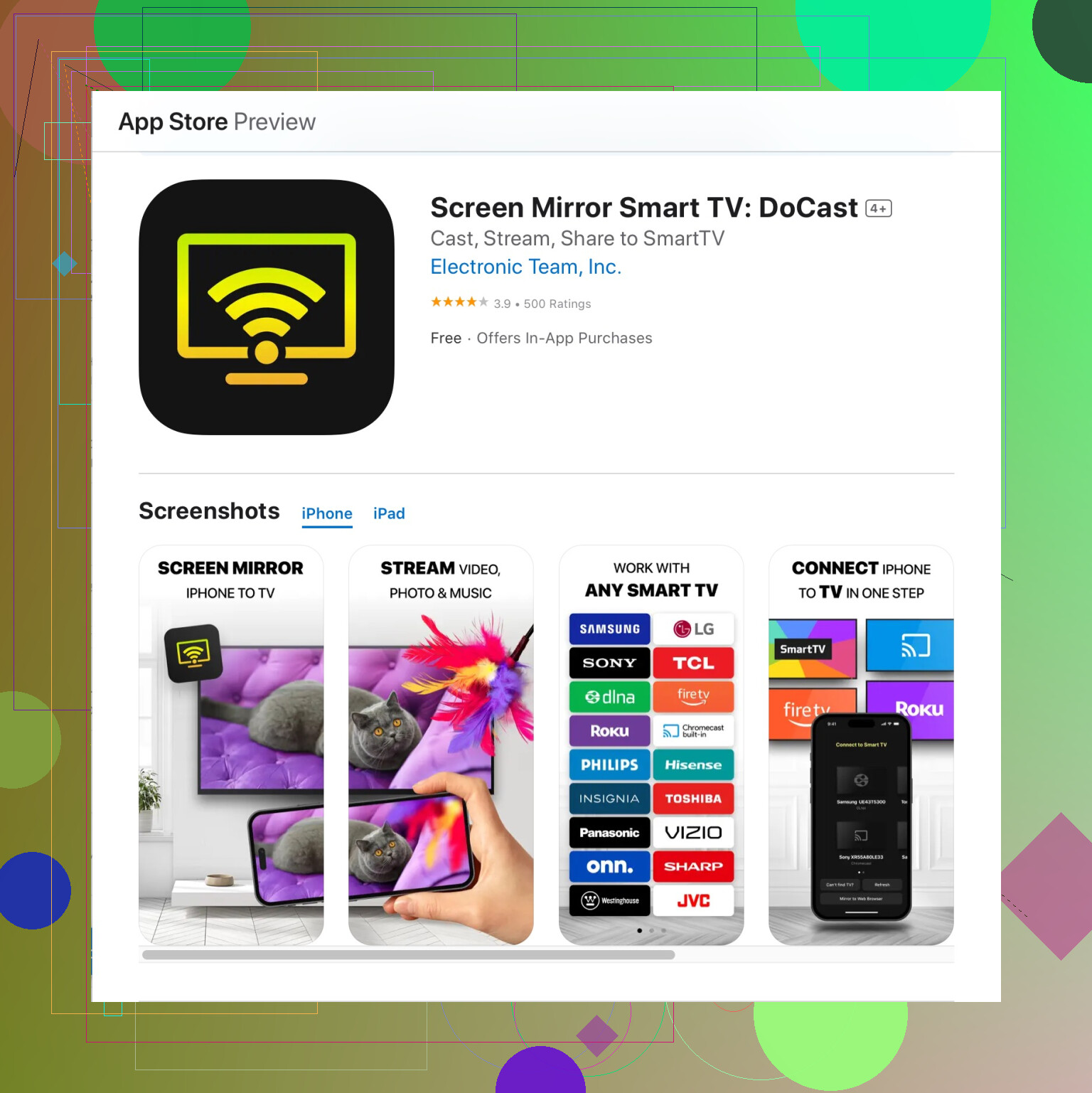
However, if you still face issues or prefer a more streamlined method, you might want to consider using the DoCast Screen Mirroring App. This app can simplify the process and provide more control over the mirroring function.
For more info and a seamless experience check out the enhanced official DoCast Application.
Remember to ensure your software is up-to-date as certain features may depend on the iOS version you're running. Happy mirroring!